Getting Started
MyMedicine - Admin Panel
- Uploaded Date: 5-July-2026
- Project: MyMedicine
- Author: Acnoo
- Support Email: acnooteam@gmail.com
Thank you for purchasing our product. If you have any questions that are beyond the scope of this documentation file, please feel free to email us via our user page contact form or directly to email at acnooteam@gmail.com
Requirements
- PHP >= 8.2
- Ctype PHP Extension
- cURL PHP Extension
- DOM PHP Extension
- Fileinfo PHP Extension
- Filter PHP Extension
- Hash PHP Extension
- Mbstring PHP Extension
- OpenSSL PHP Extension
- PCRE PHP Extension
- PDO PHP Extension
- Session PHP Extension
- Tokenizer PHP Extension
- XML PHP Extension
For more information about deployment see the Laravel documentation here https://laravel.com/docs/12.x/deployment
Download Project from Envato
After successfully purchase MyMedicine, download the project from Envato download page
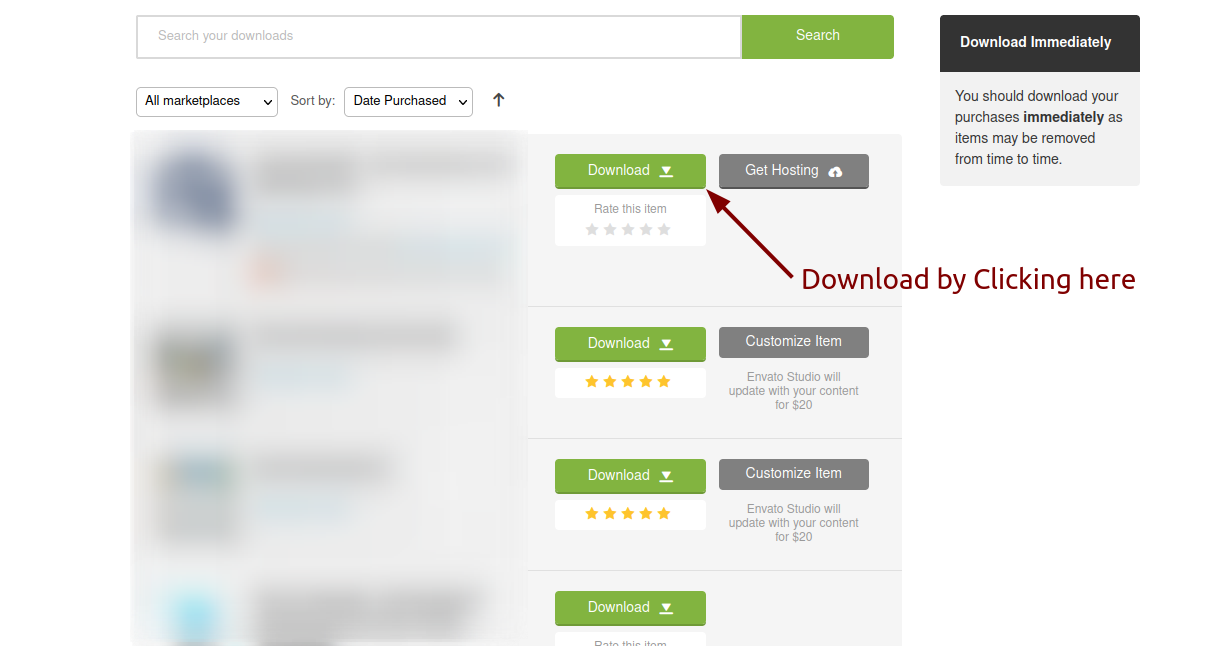
Extract the downloaded file. You will have another zip file named MyMedicine-Admin-Panel.zip containing the main project's files and a documentation folder. You are reading this documentation, that means you already have theme both.
Creating Database
Before installing, you will need to create a new database. If you already know how to do this or have already created one, skip to the next step.
Note: Please use empty database. In most cases you should be able to create a database from your cpanel.
Login to your cPanel by entering this in your browser url
yourdomian.com/cpanel
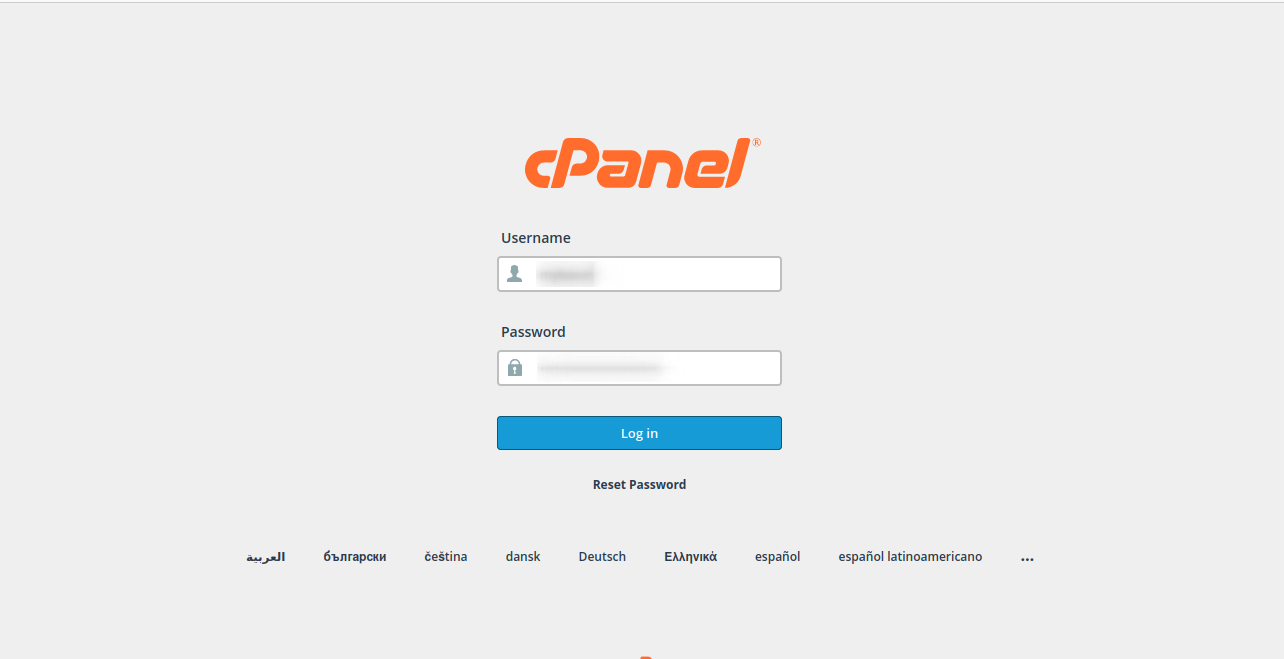
Step: 1
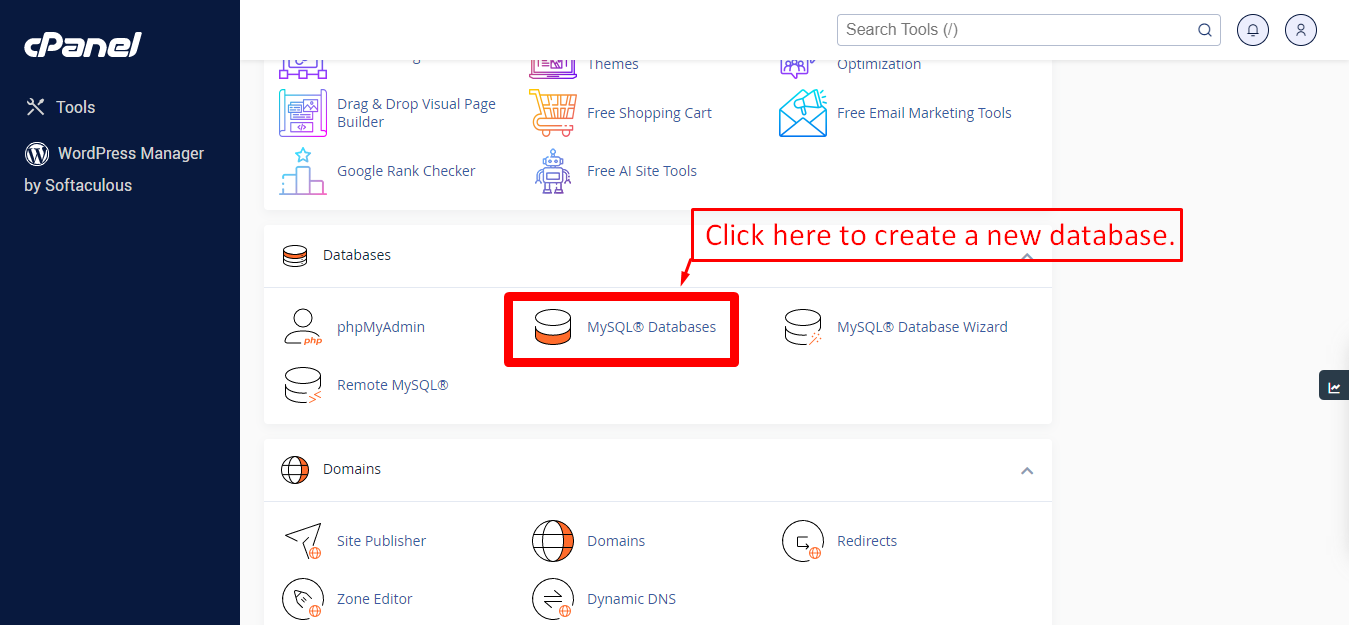
Step: 2
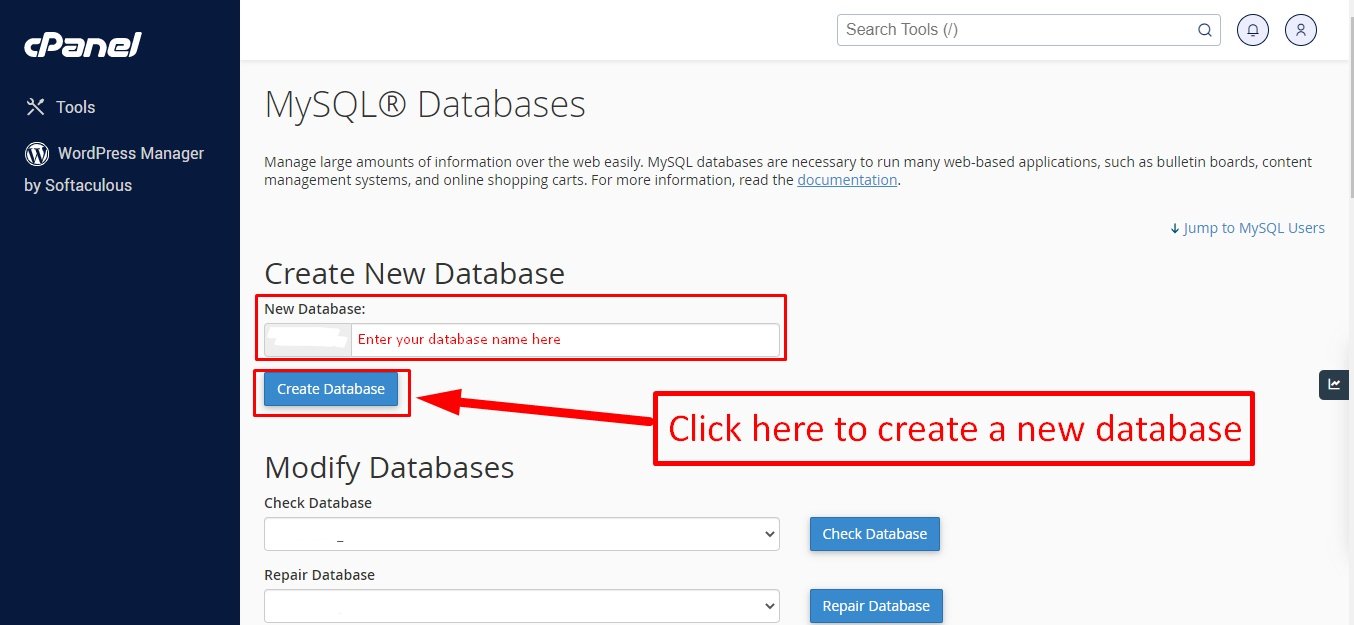
Step: 3
Now you need to create a new user. On the same page go to create a new database user
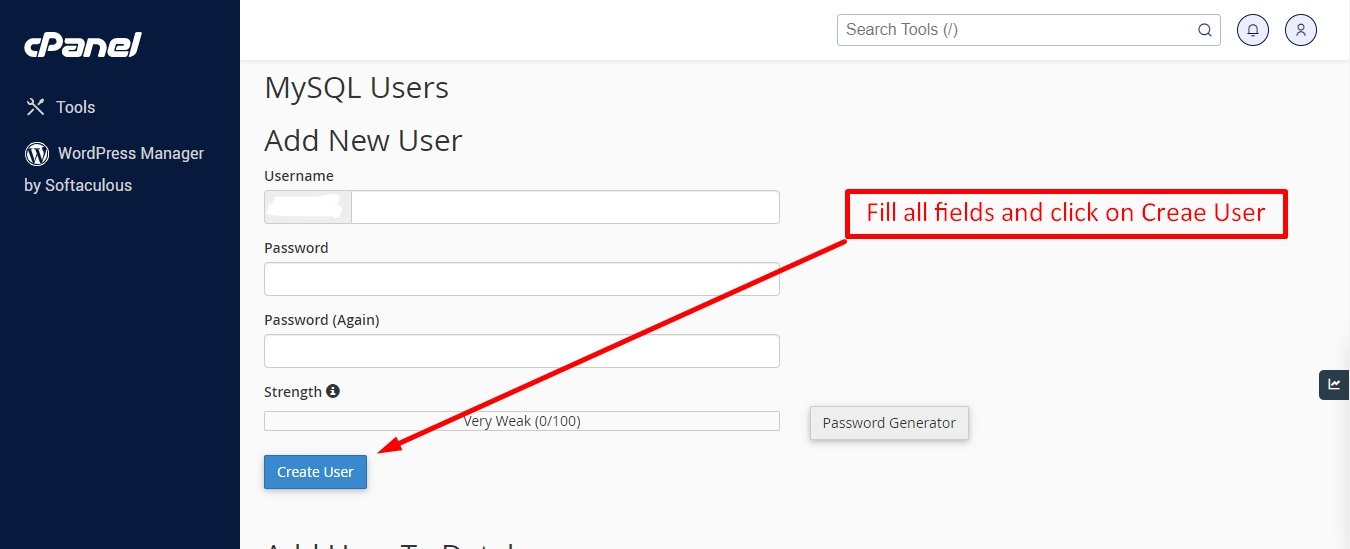
Step: 4
Now add the user to the database
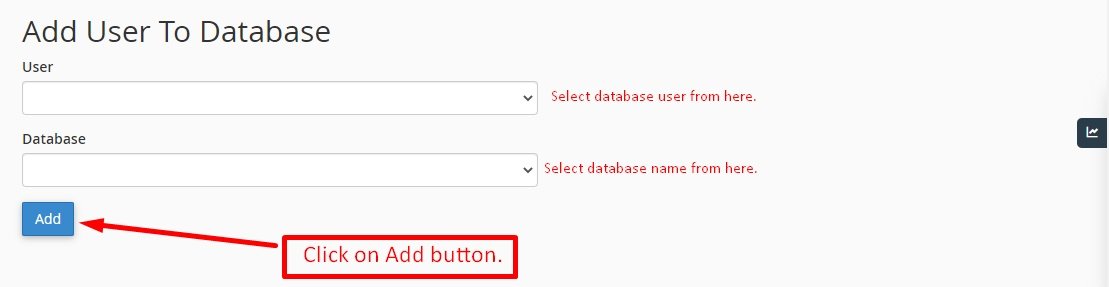
Step: 5
And select full permissions on the database to that user
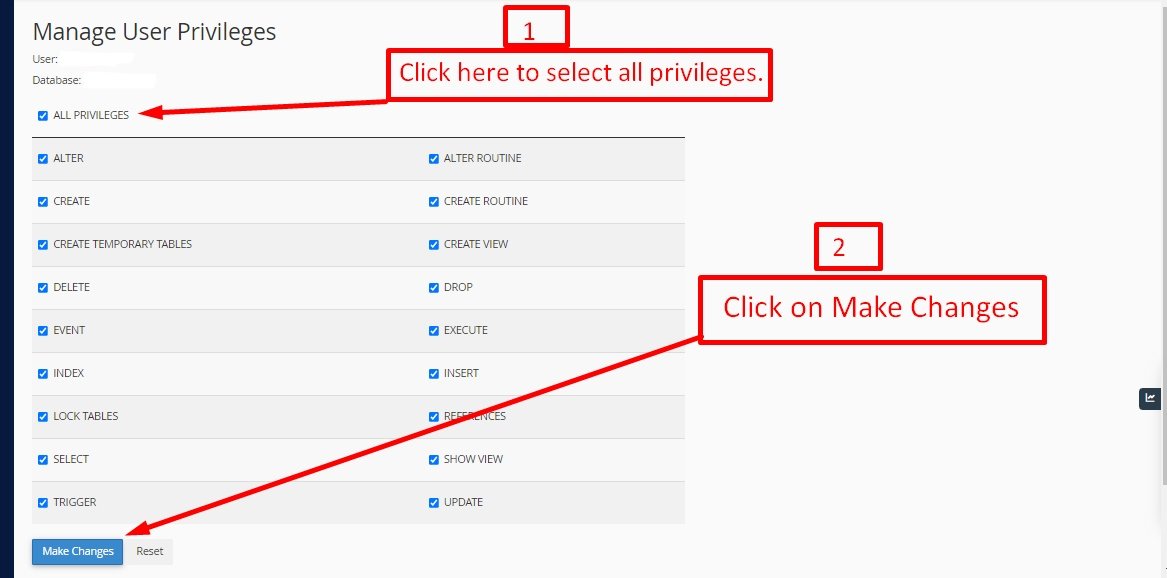
Uploading Files
On some operating systems, the dotfiles are hidden by default. Before starting to upload the files, please make sure your file explorer has the option to view hidden files turned on.
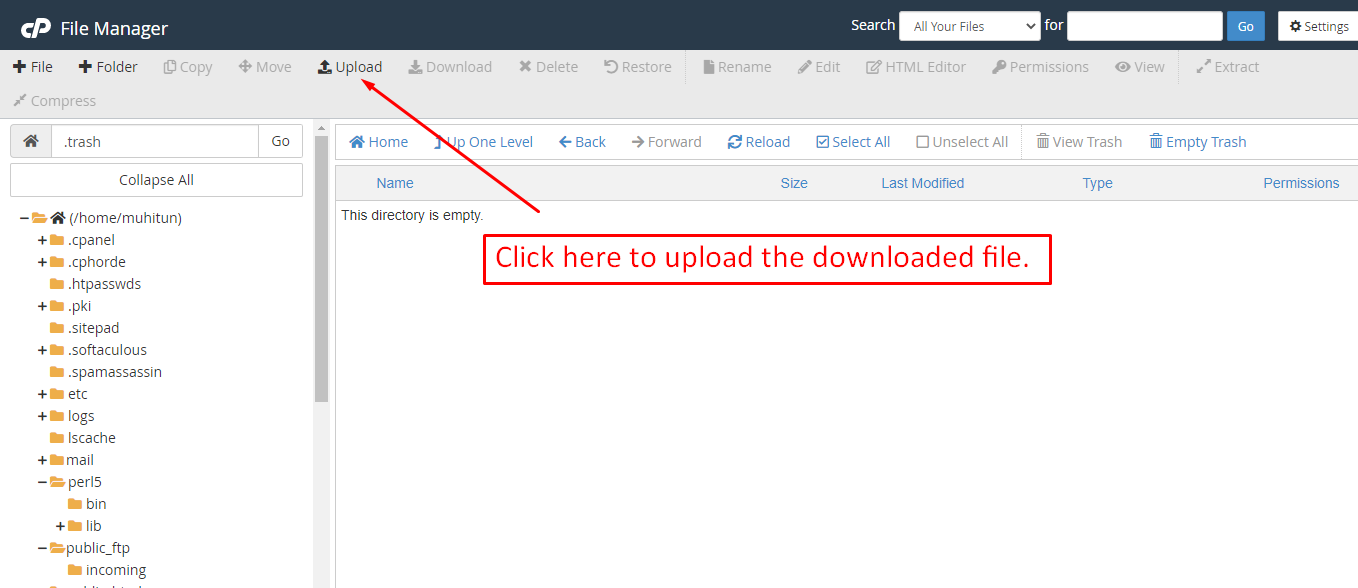
After creating a database, Upload the MyMedicine-Admin-Panel.zip file on the web root folder of your domain. This folder is generally called public_html, html, or example.com, but depending on your server's configuration, it might be named differently.
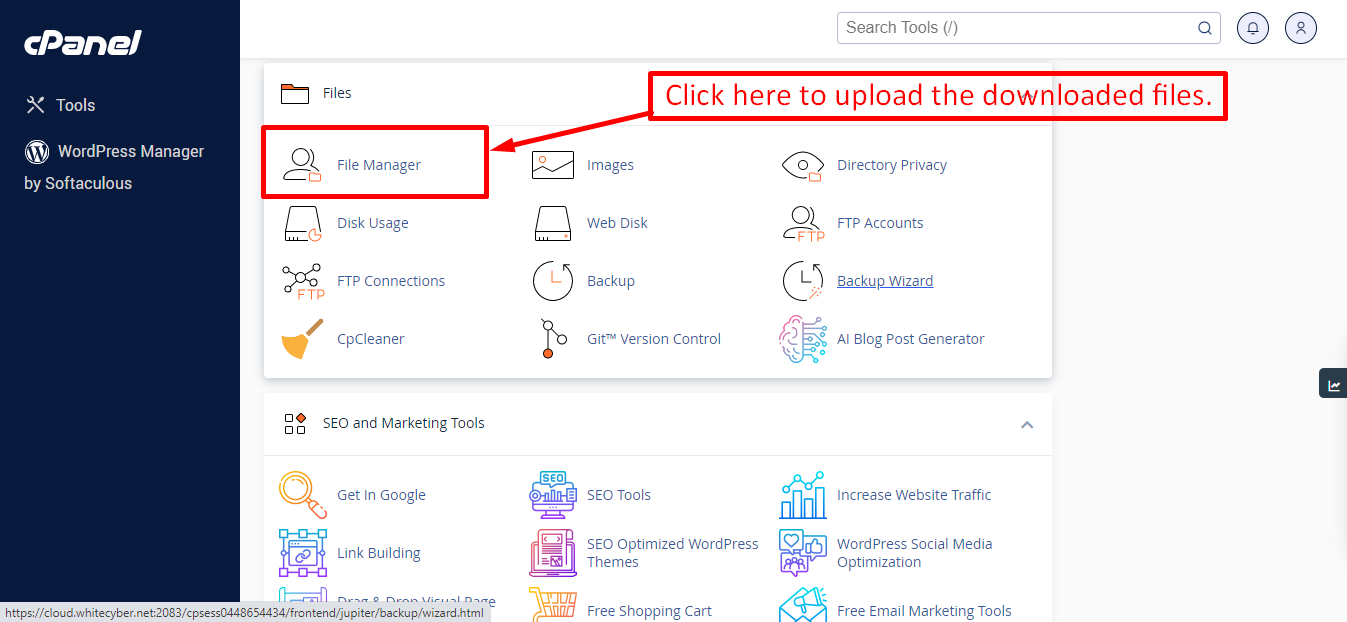
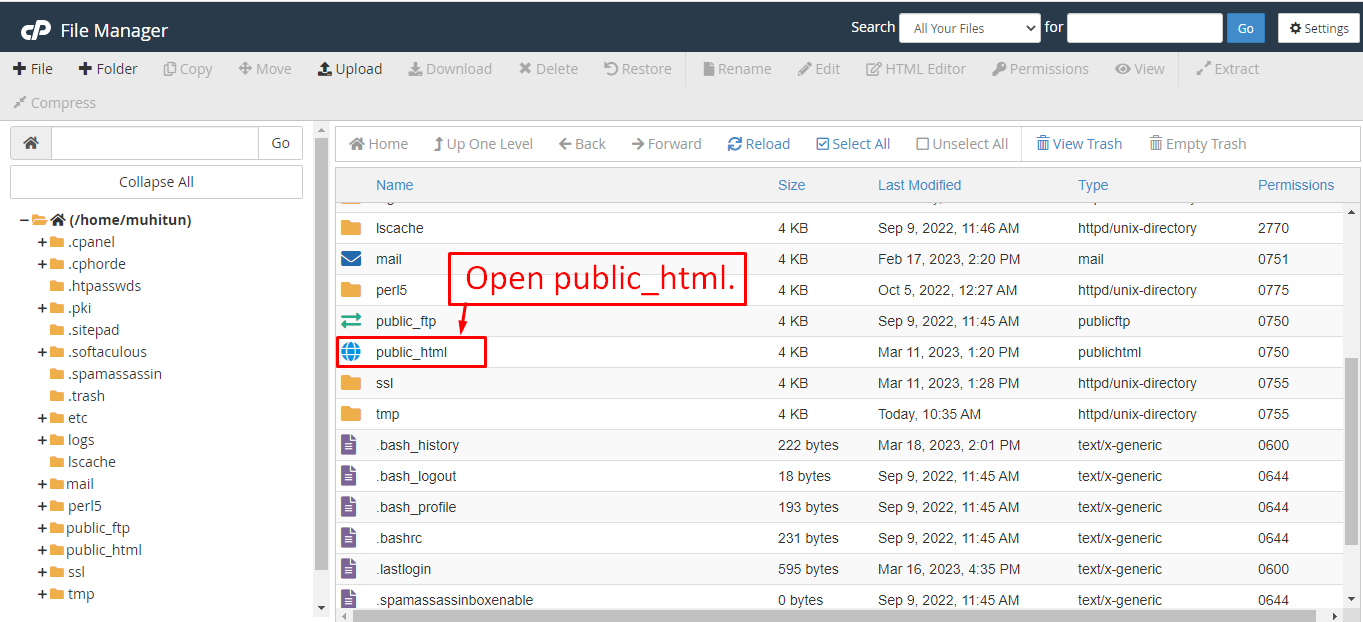
After that in the public_html directory upload the downloaded file.
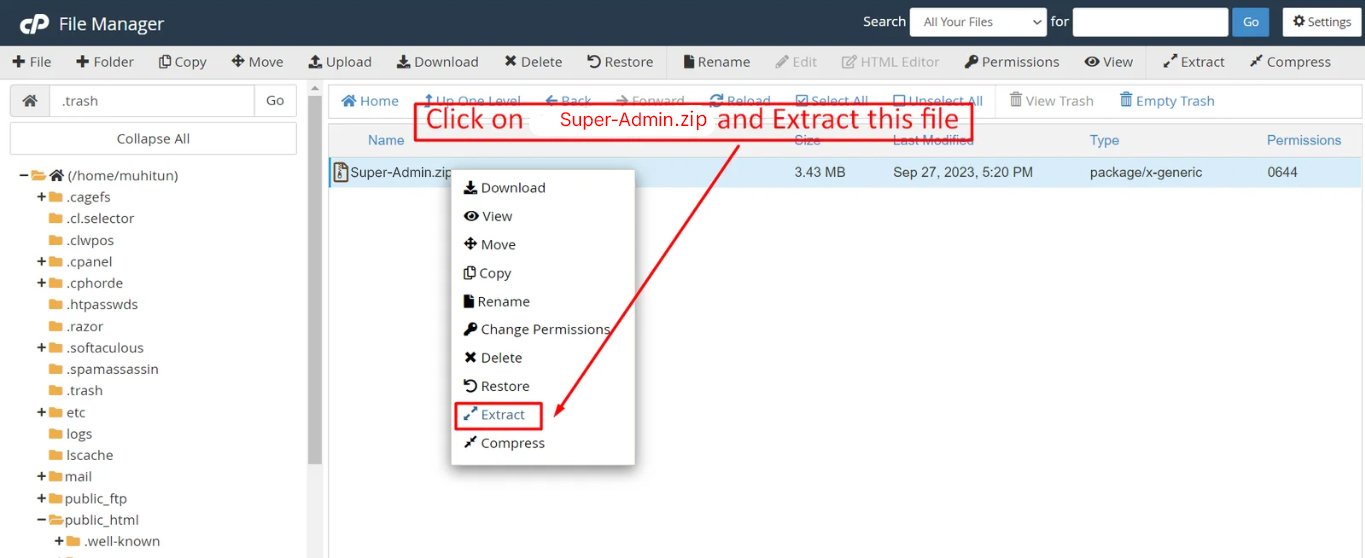
Note: Important Make sure that you have .env file in your folder.
Note: Make sure that .htaccess file got copied properly from the download to your server.
Installation Wizard
Go to your website address, then you'll see an installation wizard. To open the installer. Visit
yourdomain.com/install
Now the installer will show up.The First screen will be Welcome Screen
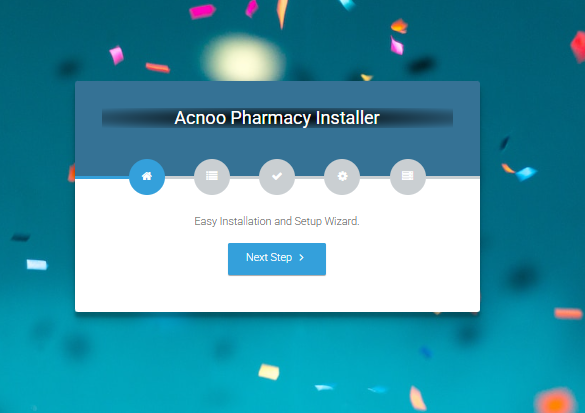
Note : If you are not able to access the website by accessing yourdomain.com/install, but you are able to access it via yourdomain.com/index.php/install, this means that you probably don't have Apache mod_rewrite installed and enabled.
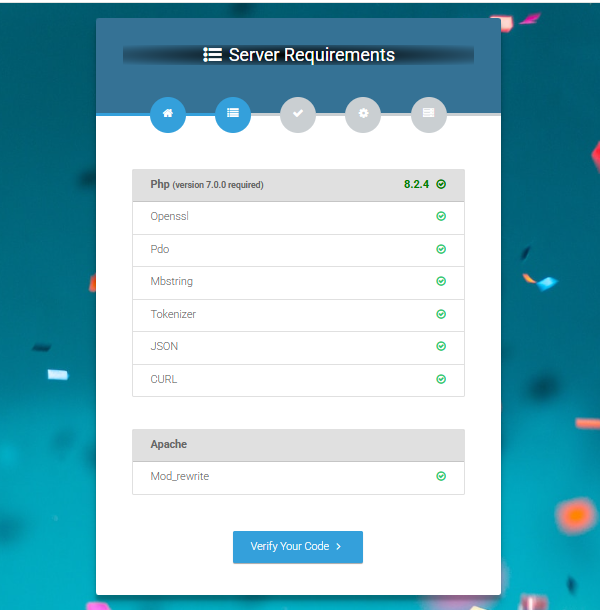
Server Requirements
After clicking on "Check requirement" button, you will be redirected to System Requirements step during the installation wizard, System Requirements.
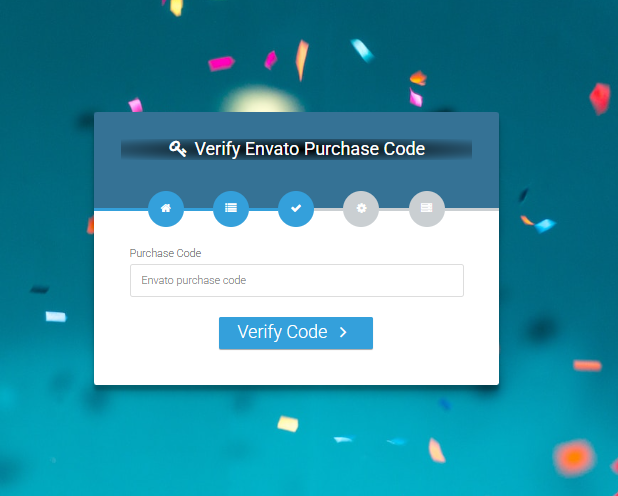
Verify Code
Here enter your Envato Purchase Code to proceed.
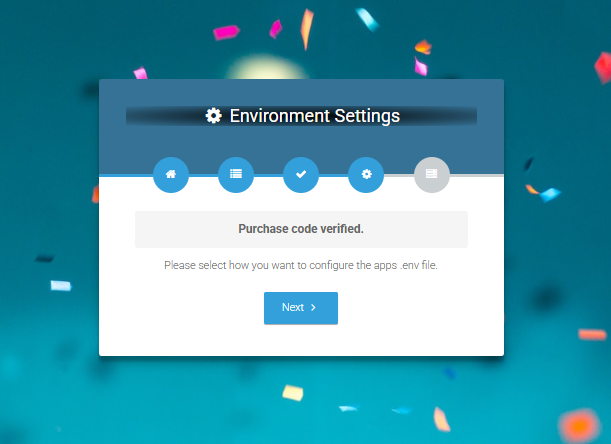
Database/Environment Setting
If your code is verified, simply click 'Next' to proceed to the next step.
Please enter your database credentials and click 'Install' to continue.

Exit
The last step is exit step.
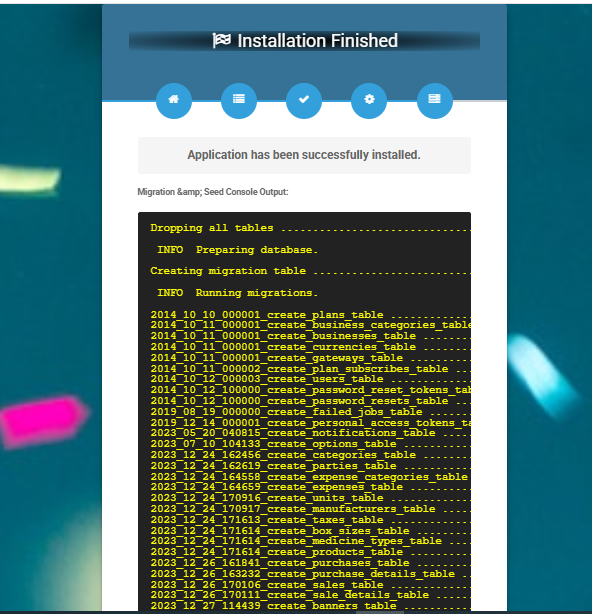
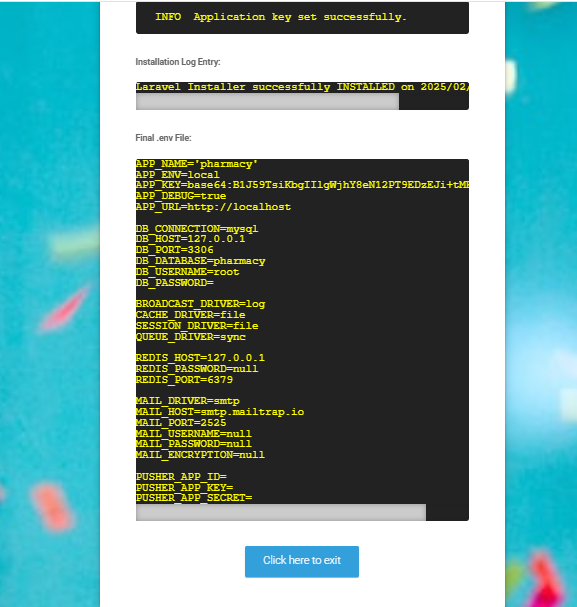
Congratulations you have successfully installed this project on your server. 😀
Default Password
You can login using several methods depending on your role.
Super Admin
superadmin@acnoo.com
superadmin
Manager
manager@acnoo.com
manager
Staff
staff@acnoo.com
staff
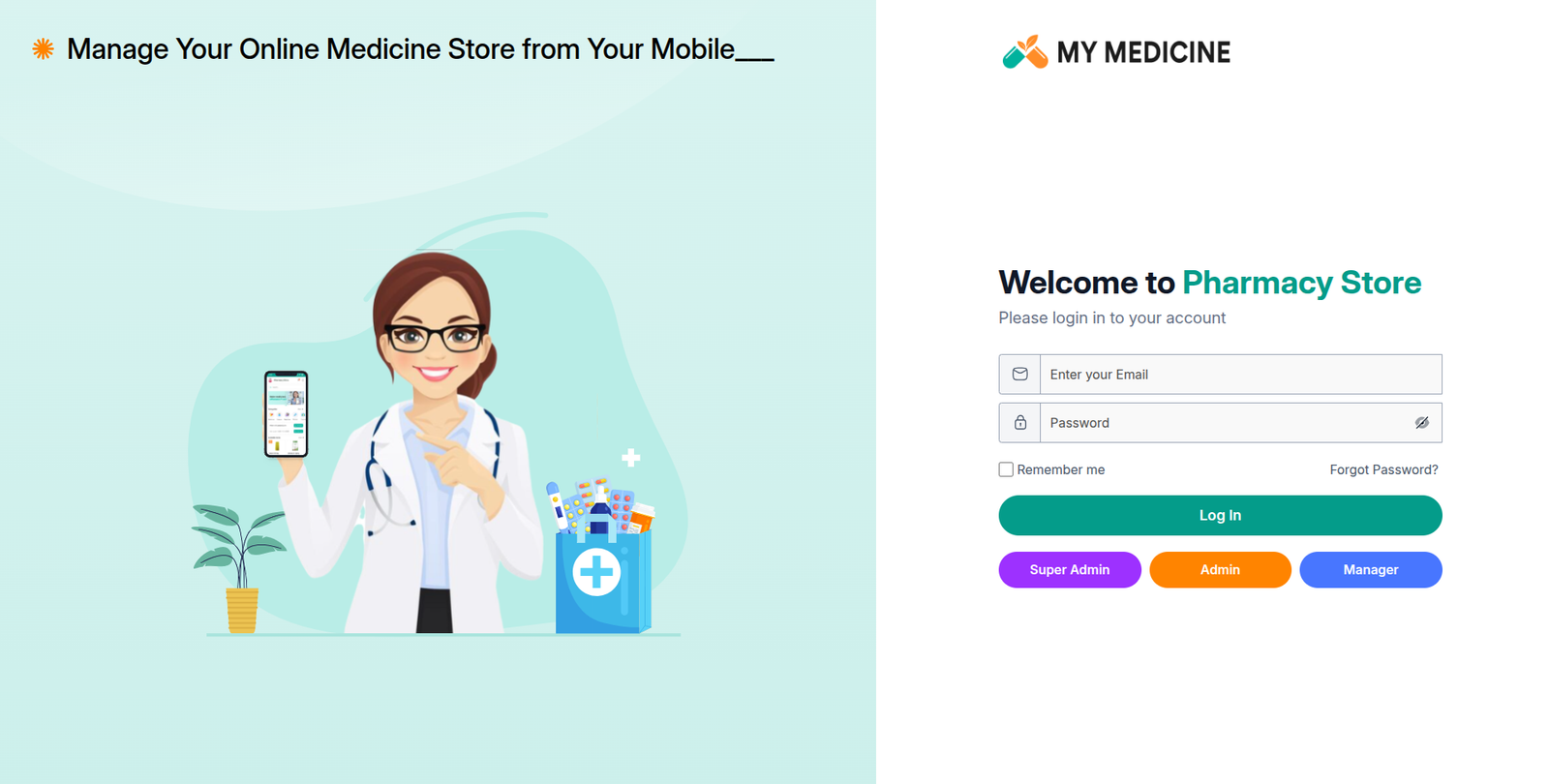
In this project, different modules are assigned based on user roles: Super Admin, Admin, Manager. Each role has distinct responsibilities tailored to their specific tasks and permissions. Below, we will discuss how each user role operates within the system.
Dashboard
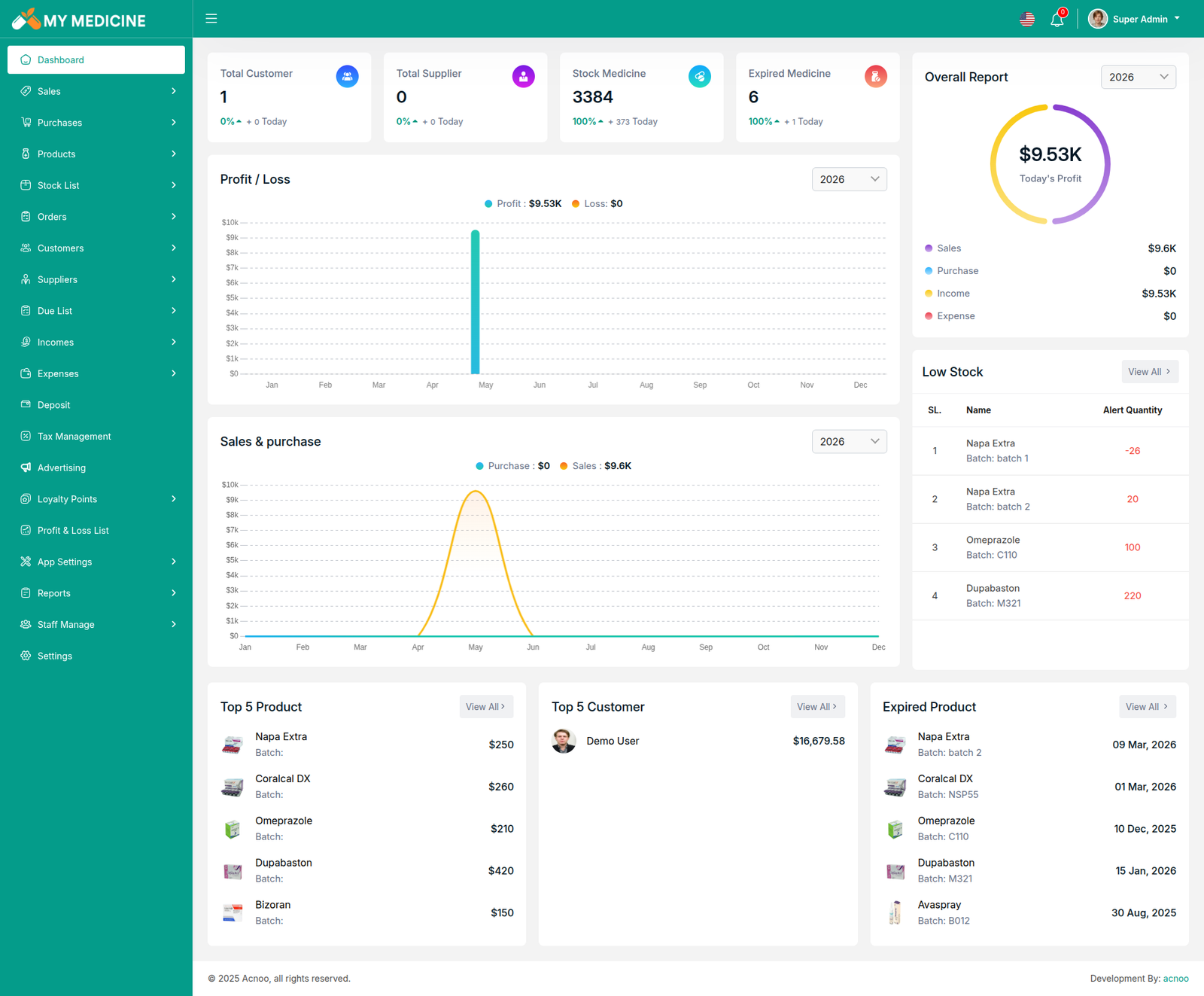
The MyMedicine Dashboard provides a complete real-time overview of your pharmacy business. It displays key metrics including total customers, suppliers, stock medicines, and expired medicines at the top. The dashboard also includes a Profit/Loss chart and a Sales & Purchase chart to visualize monthly financial trends throughout the year. On the right side, the Overall Report panel shows today's sales, purchase, income, and expense summary with a donut chart. Below that, a Low Stock alert table highlights medicine batches that need restocking. At the bottom, you can quickly view the Top 5 Products, Top 5 Customers, and Expired Products with their respective batch numbers and expiry dates.
Create Sale
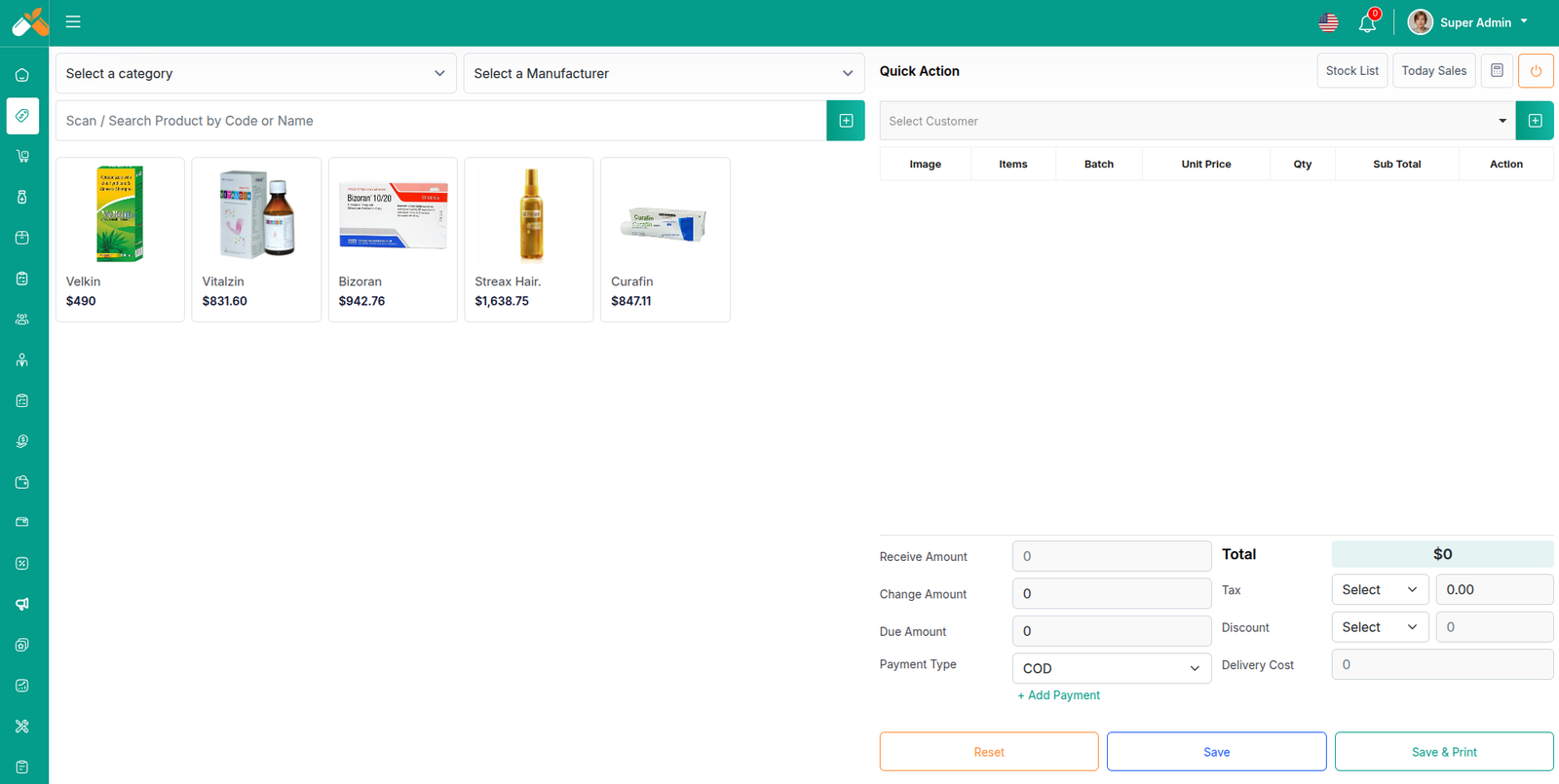
By clicking on "Sale New," you can create a new sale. First, select a customer.By selecting register customer the product prices displayed on the right will automatically update based on the selected customer's type (Retailer, Wholesaler, or Dealer).
Select Product
Next, you need to select a product for the sale. You have the option to search by product name or code. Additionally, you can filter products by Category or Manufacturer. For example, if you click on the category, you will see a list of categories. From there, you can select a category, and the products will be filtered accordingly. A screenshot is provided for the Category Filter. The same process applies for filtering by Manufacturer.
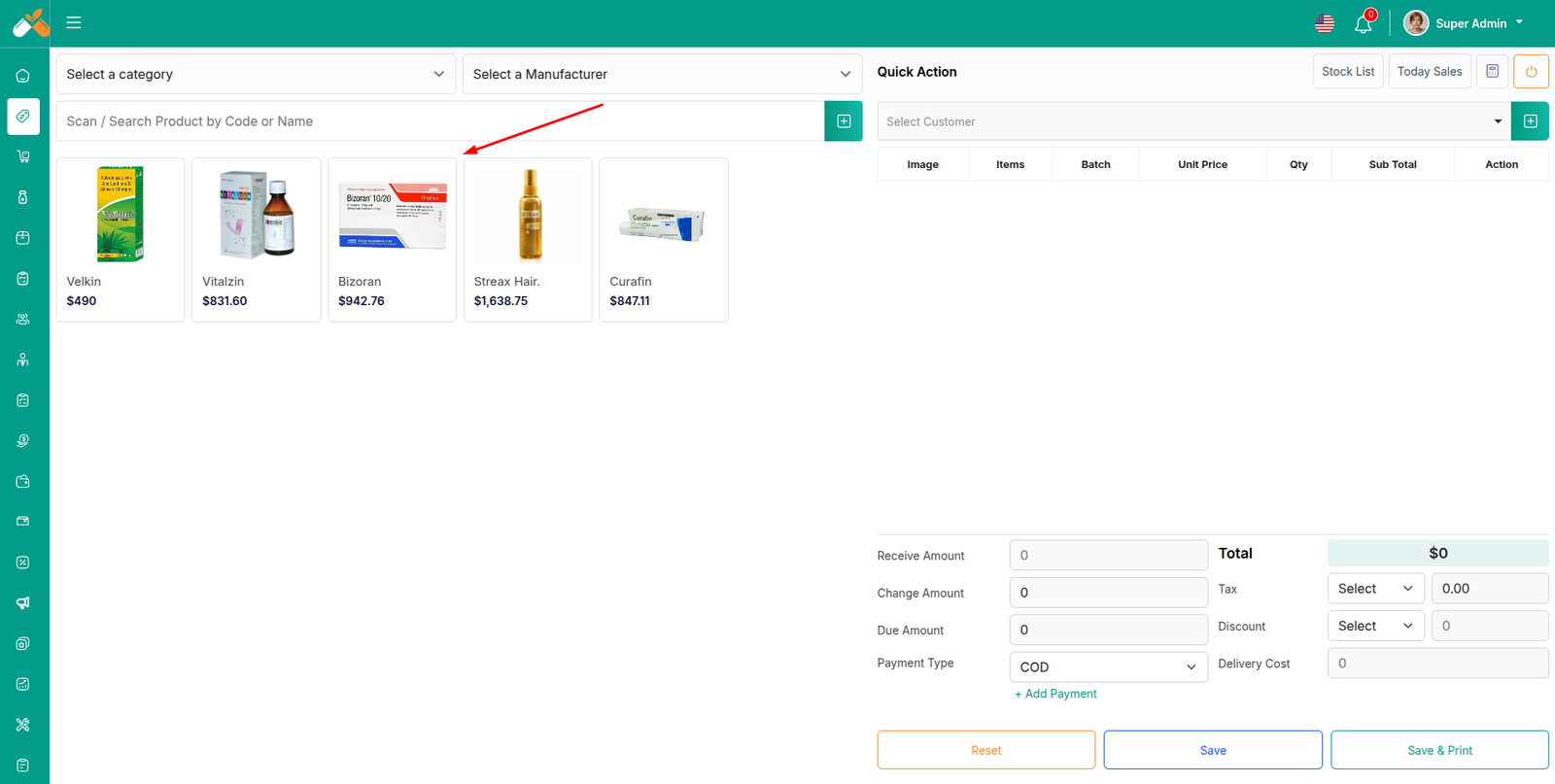
Add to Cart & store product
When you click on a product, it will be automatically added to the cart if this product available in stock. You can adjust the quantity by using the plus or minus buttons, or directly update the quantity by entering a value. To remove a product from the cart, simply click the red cross button.
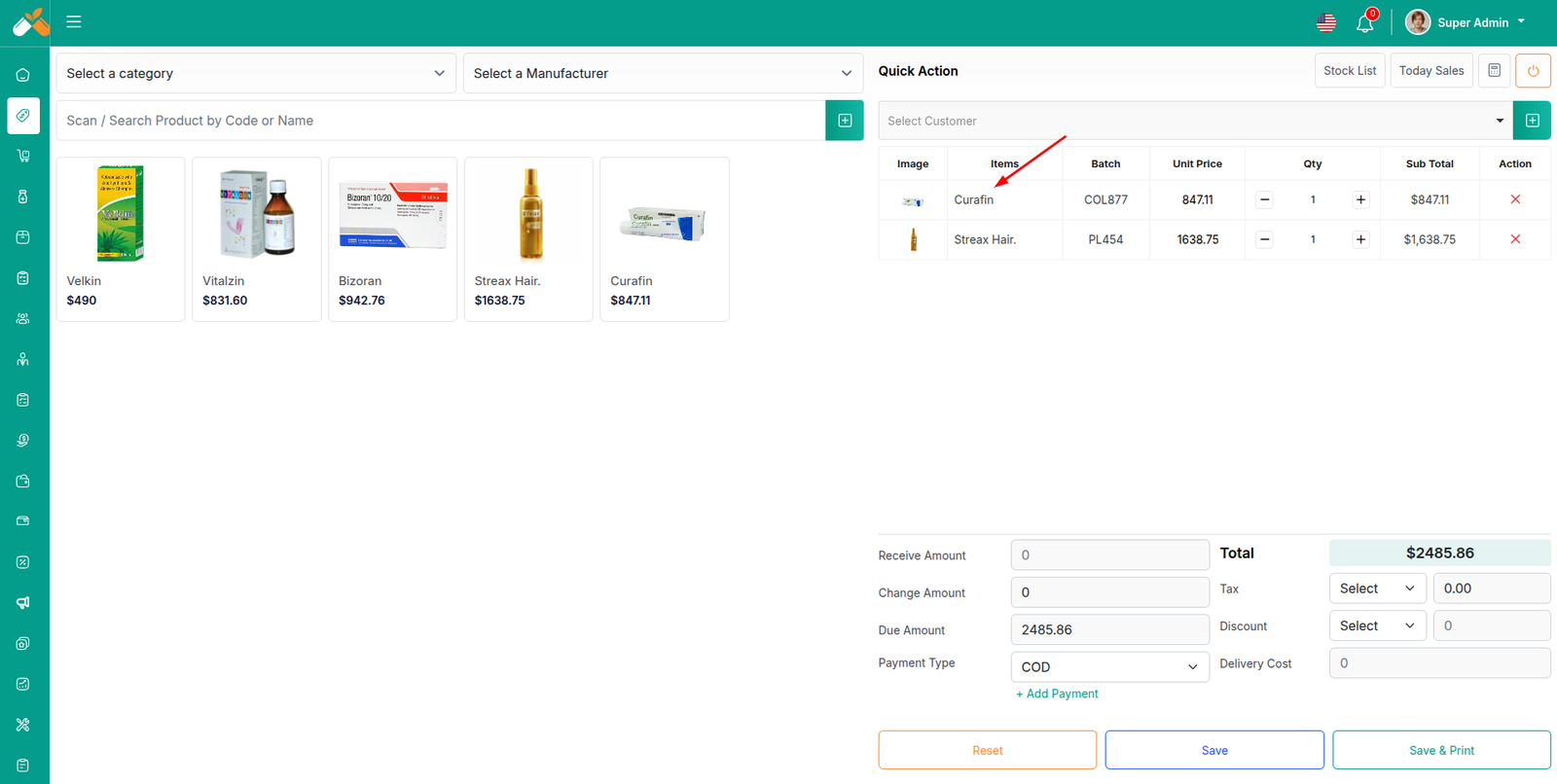
Below, you will see the total of all products. You can also add VAT or a discount to the total. After the calculations, the total amount will be displayed. Next, you can enter the received amount. If the received amount is greater than the total amount, the remaining balance will be shown in the "Change Amount" field. If the received amount is less, the "Due Amount" field will display the difference. If you want to remove all products from the list, click the reset button. Once everything is correct, click the save button to complete the sale.If you click on save & print button it will save and also give you print option.
Sale List
This appears to be a screenshot of the Sale list page, where you can filter data using the search function. Additionally, you can view invoices, as well as edit, delete, or use the multi-delete option. Furthermore, you will have the option to initiate a Sale Return from this list. Please note, once a sale return is processed, you will no longer be able to update or delete the sale.
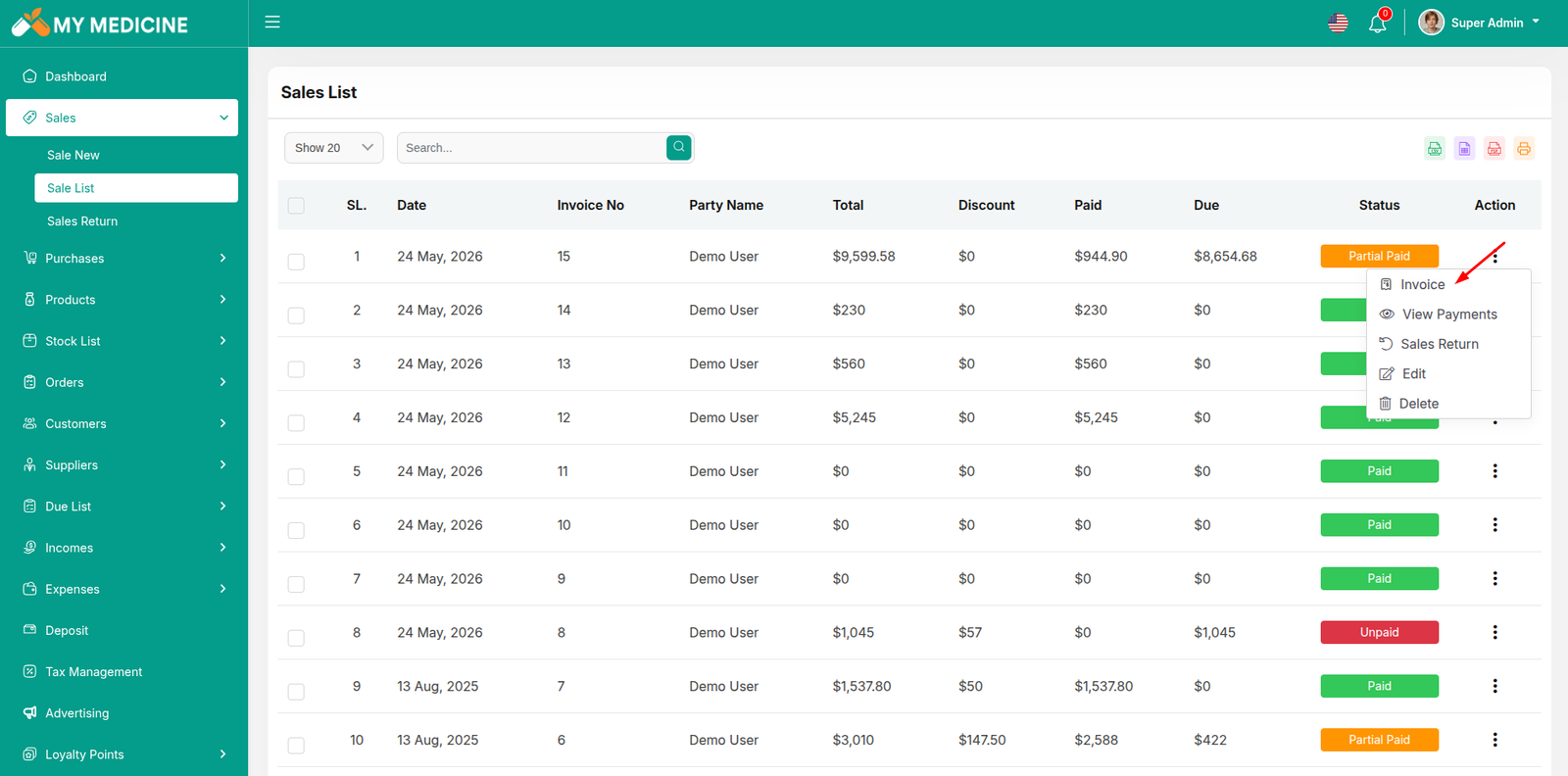
Create Sale Return
From the Sale list, when you click on Sales Return, this page will appear. By adjusting the quantity, you can return the desired amount. However, you cannot return more than the quantity sold.
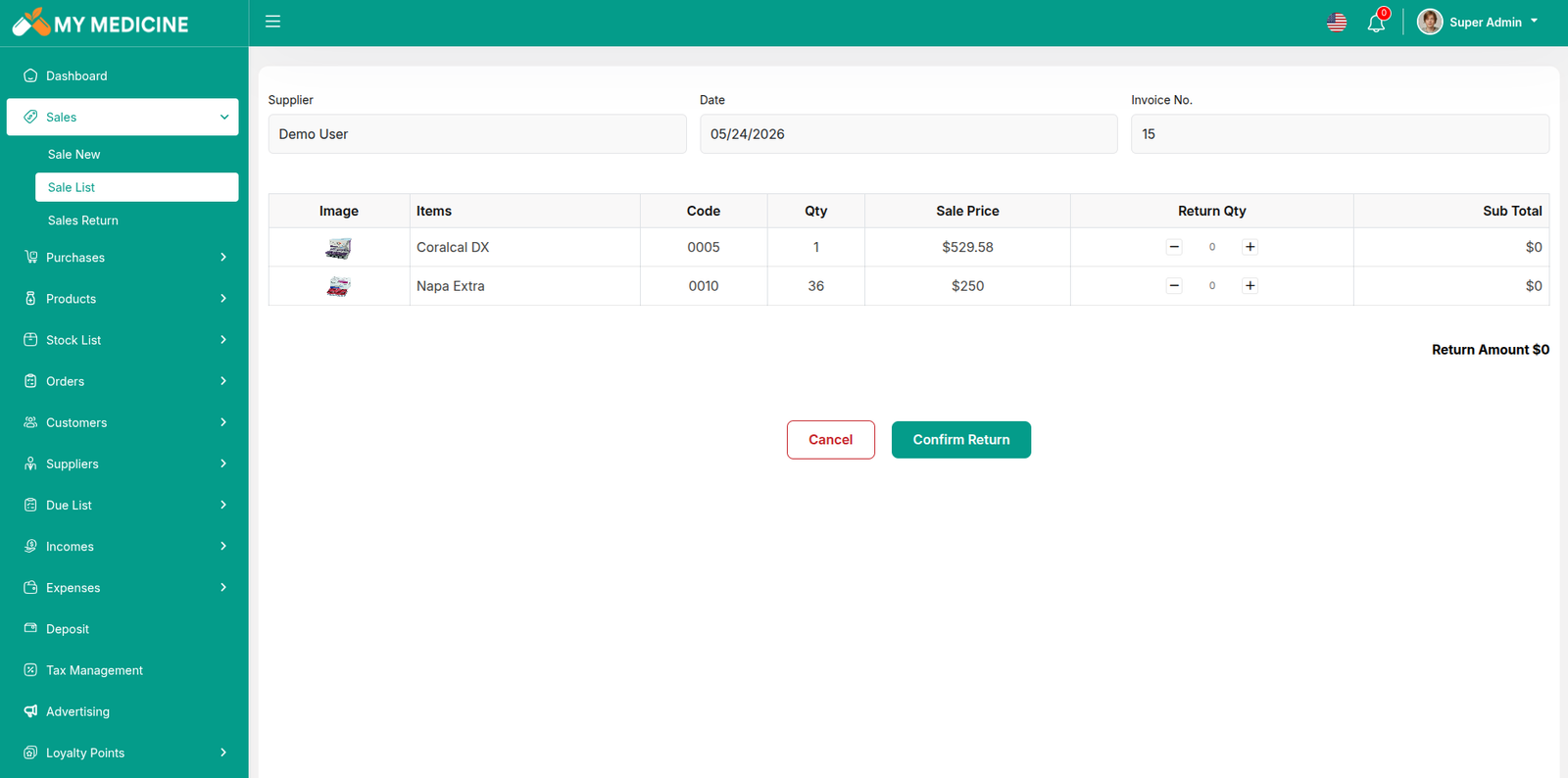
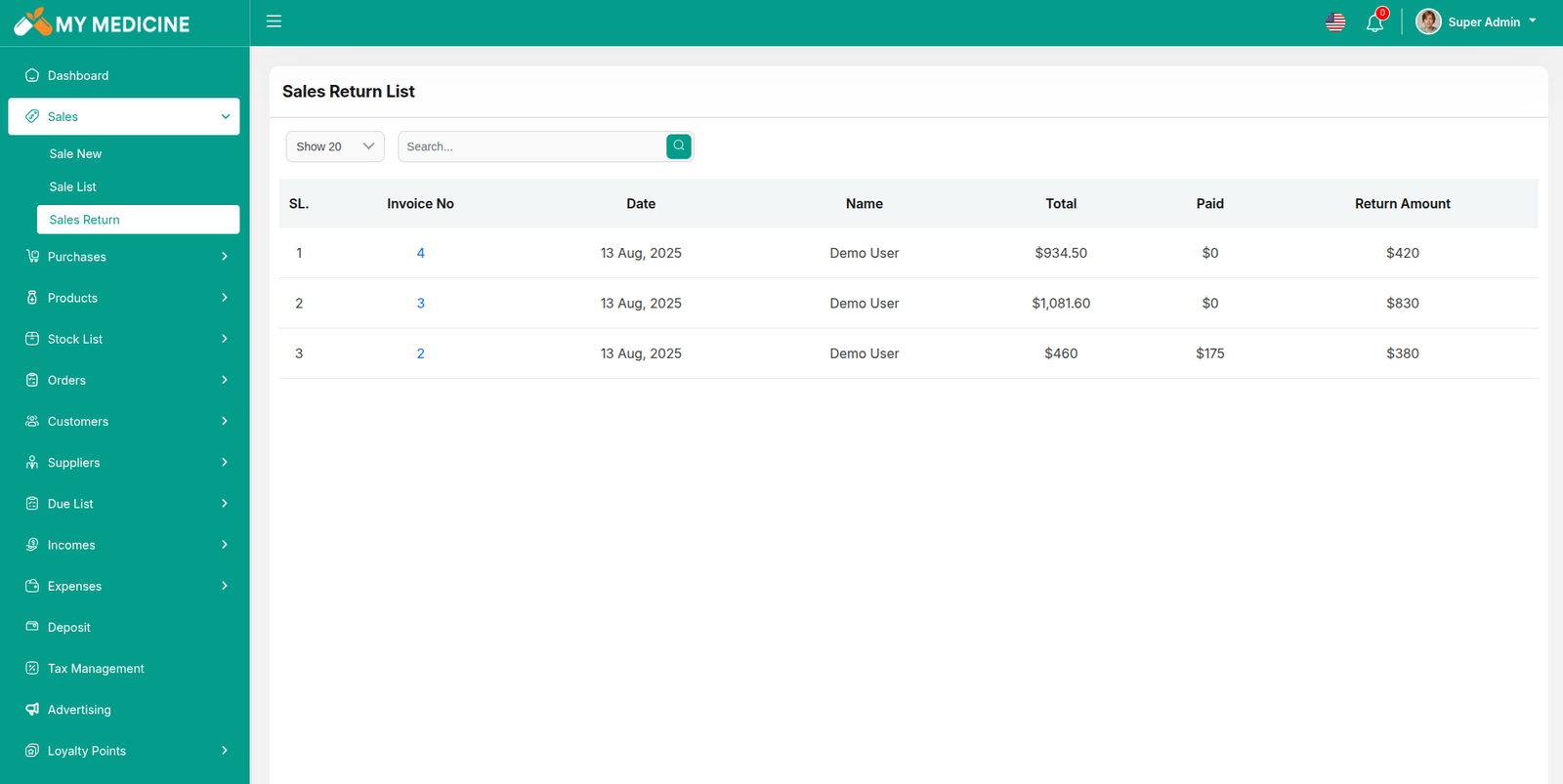
Sale Return List
Here, you can view the complete list of sale returns with a filtering option. To view an invoice, simply click on the invoice No.
Create Purchase
By clicking on "Purchase New," you can create a new purchase. First, select a supplier. Next, choose a product for the purchase. Additionally, you can filter products by Category, using the same filters as in the Sale process.
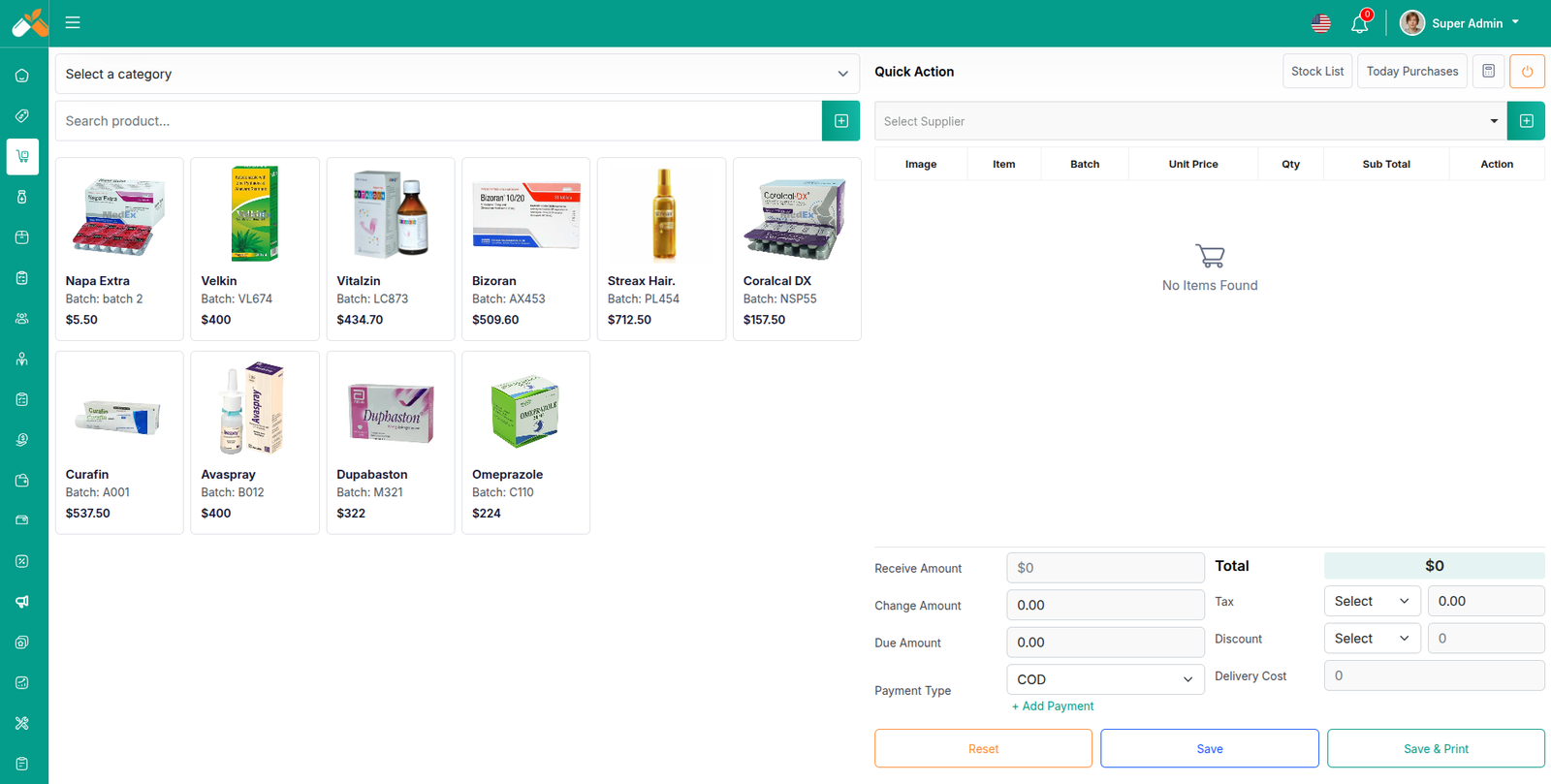
Select Product
Next, select a product for the purchase. When you choose a product, a pop-up will appear. Enter the quantity you wish to purchase and update the prices as needed. Once done, click save.
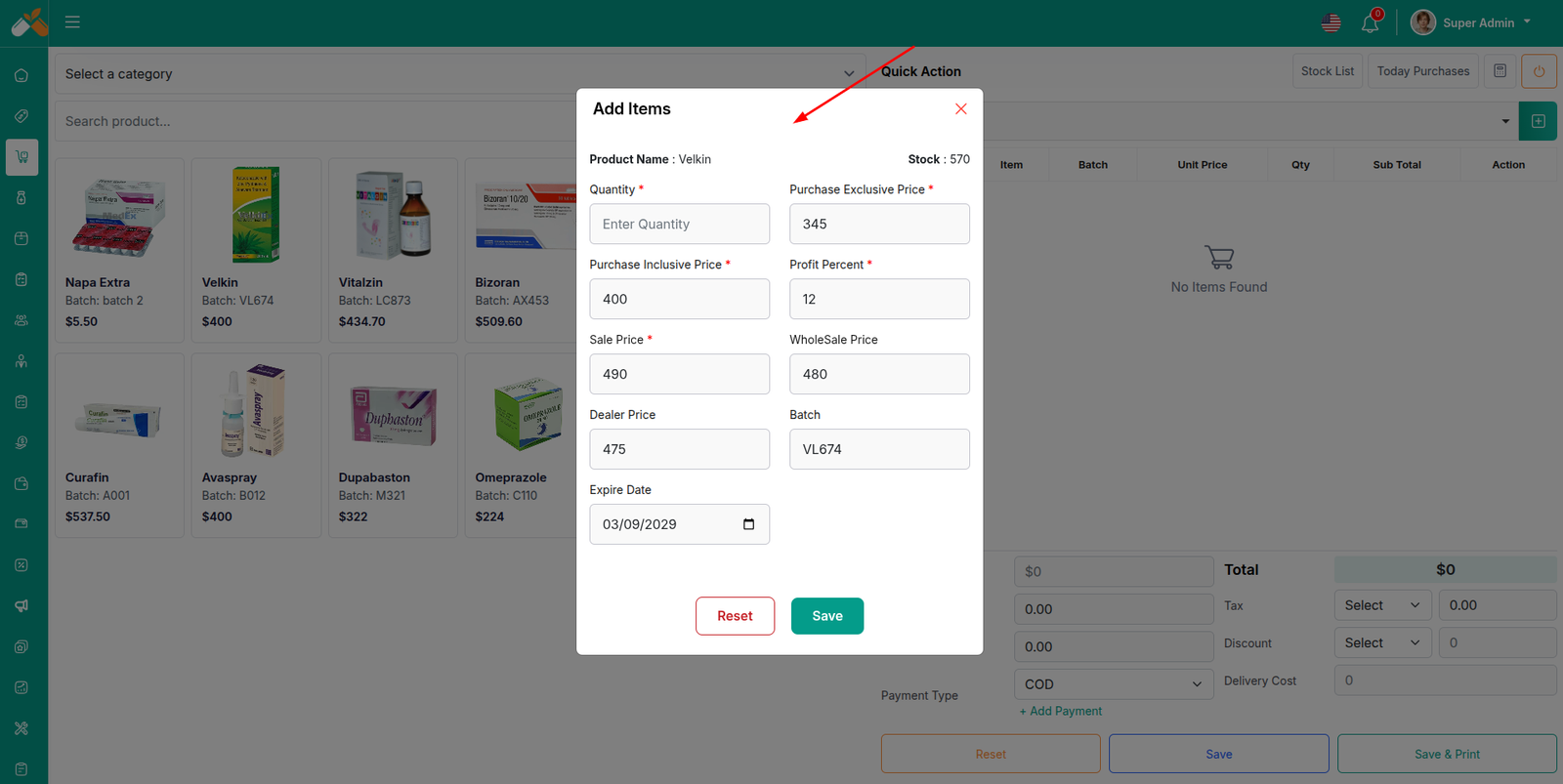
Add to Cart & store product
After clicking the save button in the pop-up window, the product will automatically appear in the cart list. You can adjust the quantity using the plus or minus buttons or update it directly by entering a value. To remove a product from the cart, click the red cross button.
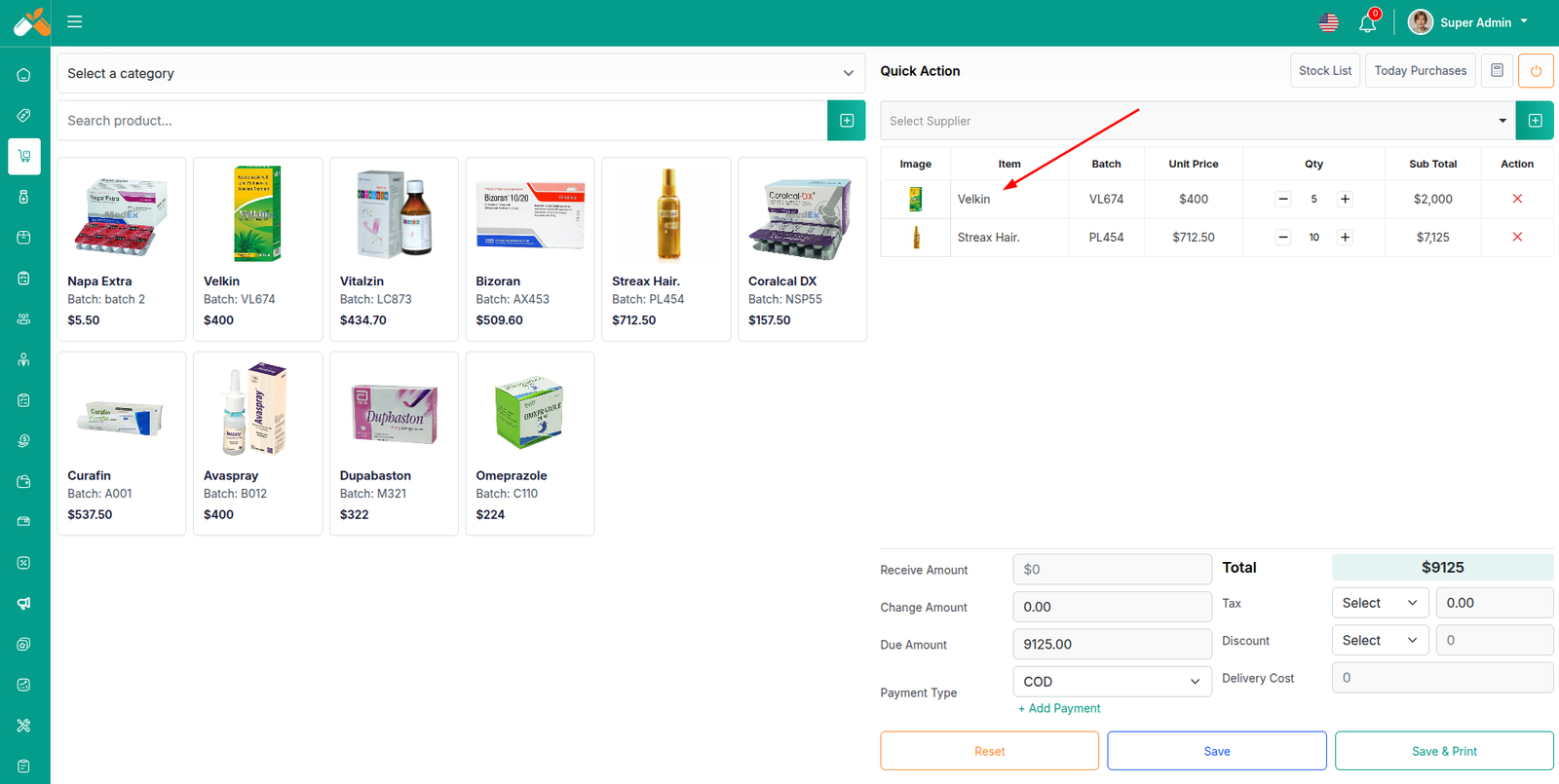
Below, you will see the total of all products. You can also add discount to the total. After the calculations, the total amount will be displayed. Next, you can enter the received amount. If the received amount is greater than the total amount, the remaining balance will be shown in the "Change Amount" field. If the received amount is less, the "Due Amount" field will display the difference. If you want to remove all products from the list, click the reset button. Once everything is correct, click the save button to complete the purchase.If you click on save & print button it will save and also give you print option.
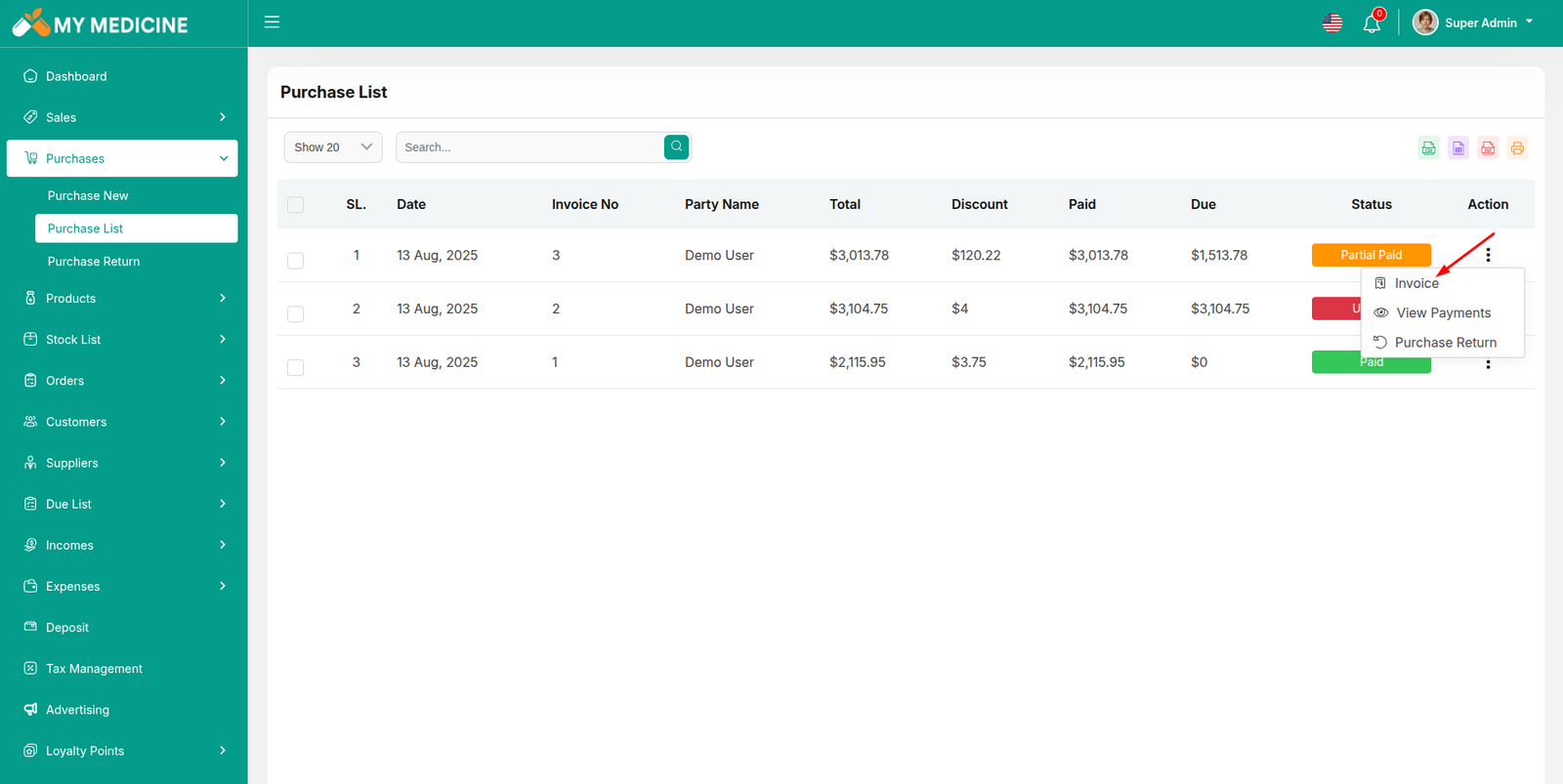
Purchase List
This appears to be a screenshot of the Purchase list page, where you can filter data using the search function. Additionally, you can view invoices, as well as edit, delete, or use the multi-delete option. Furthermore, you will have the option to initiate a Purchase Return from this list. Please note, once a Purchase return is processed, you will no longer be able to update or delete the Purchase.
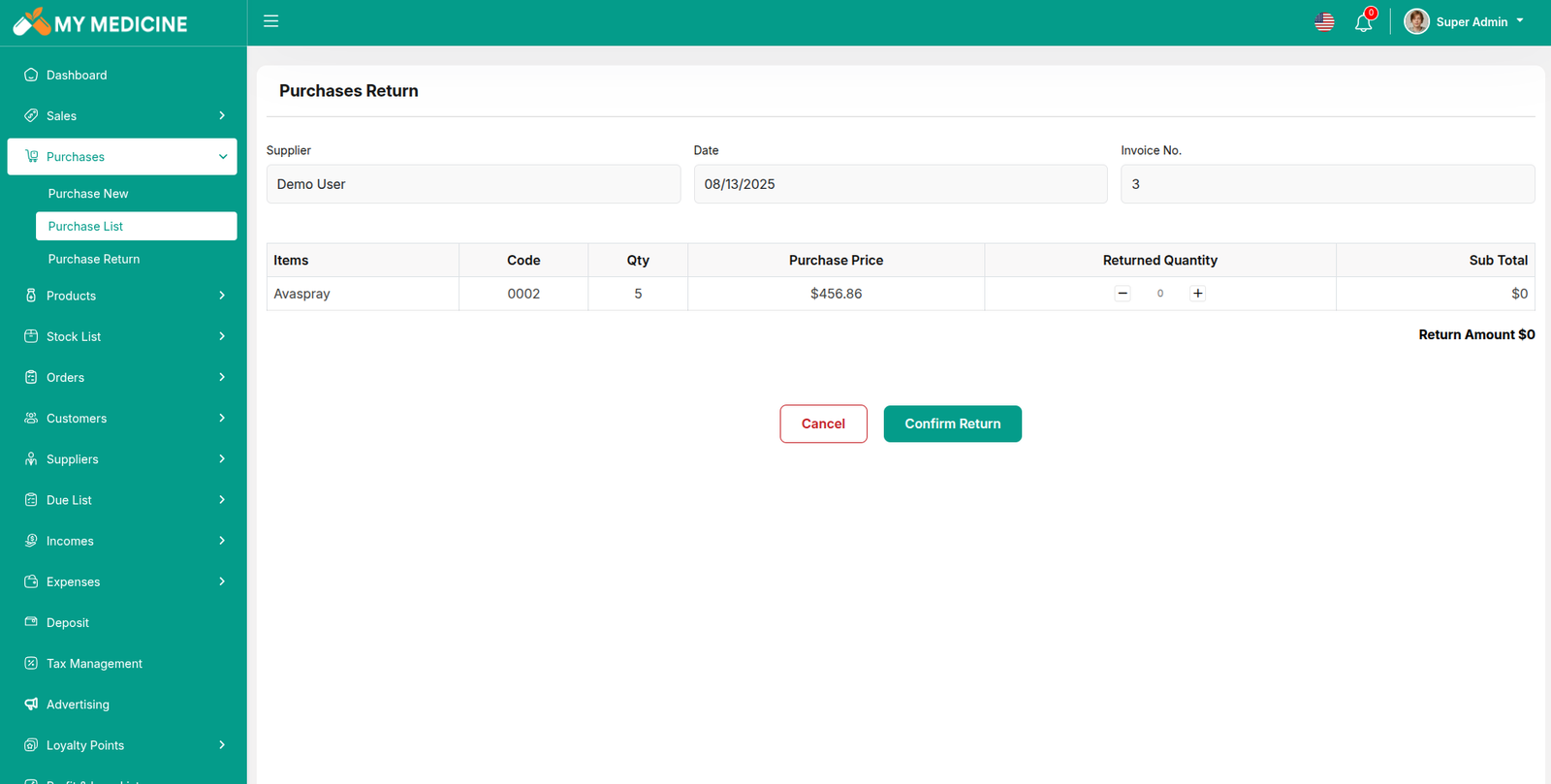
Create Purchase Return
From the Purchase list, clicking on Purchases Return will open this page. You can adjust the quantity to return the desired amount, but you cannot return more than the purchased quantity.
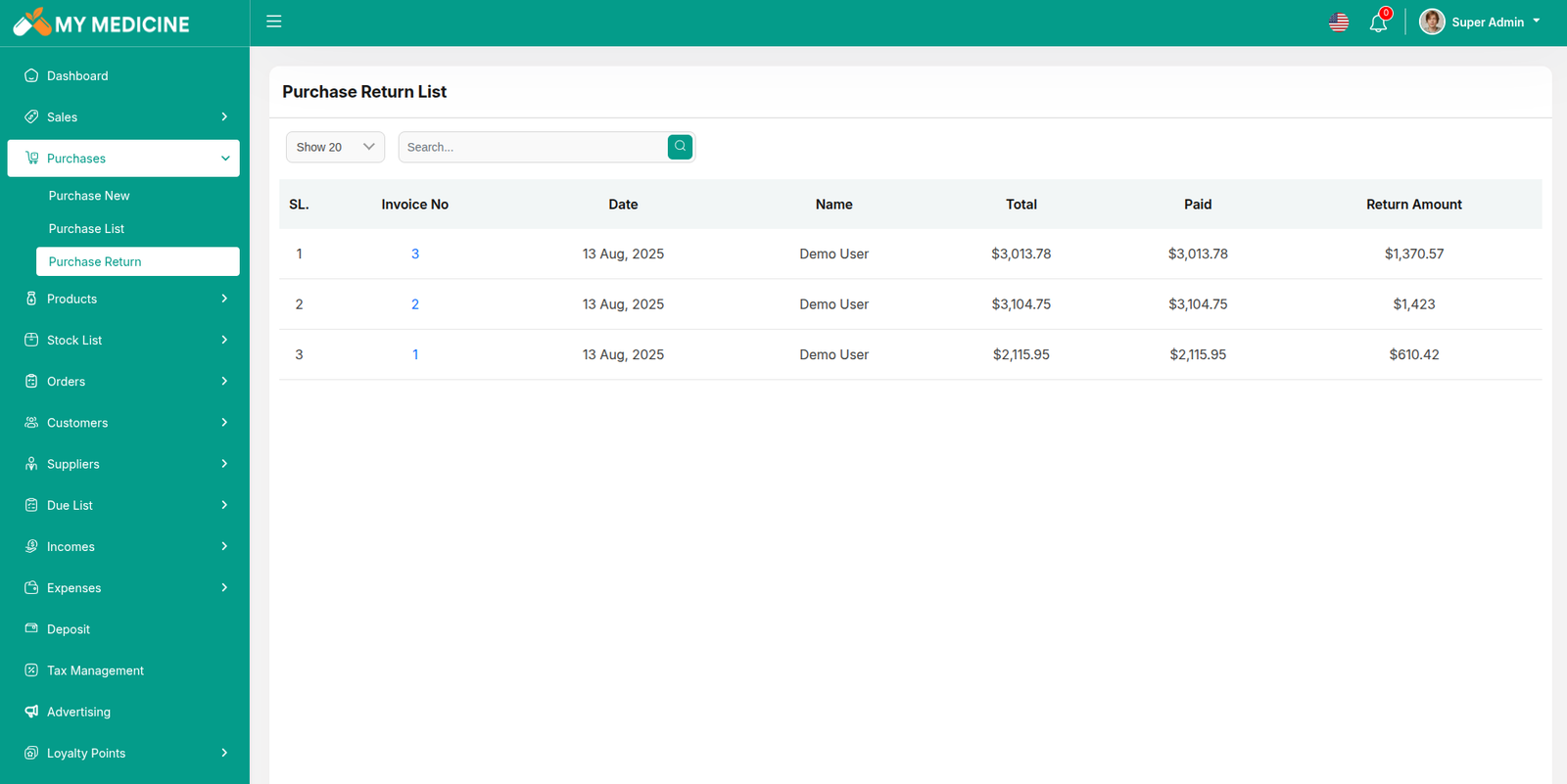
Return List
Here, you can view the complete list of Purchase returns with a filtering option. To view an invoice, simply click on the invoice No.
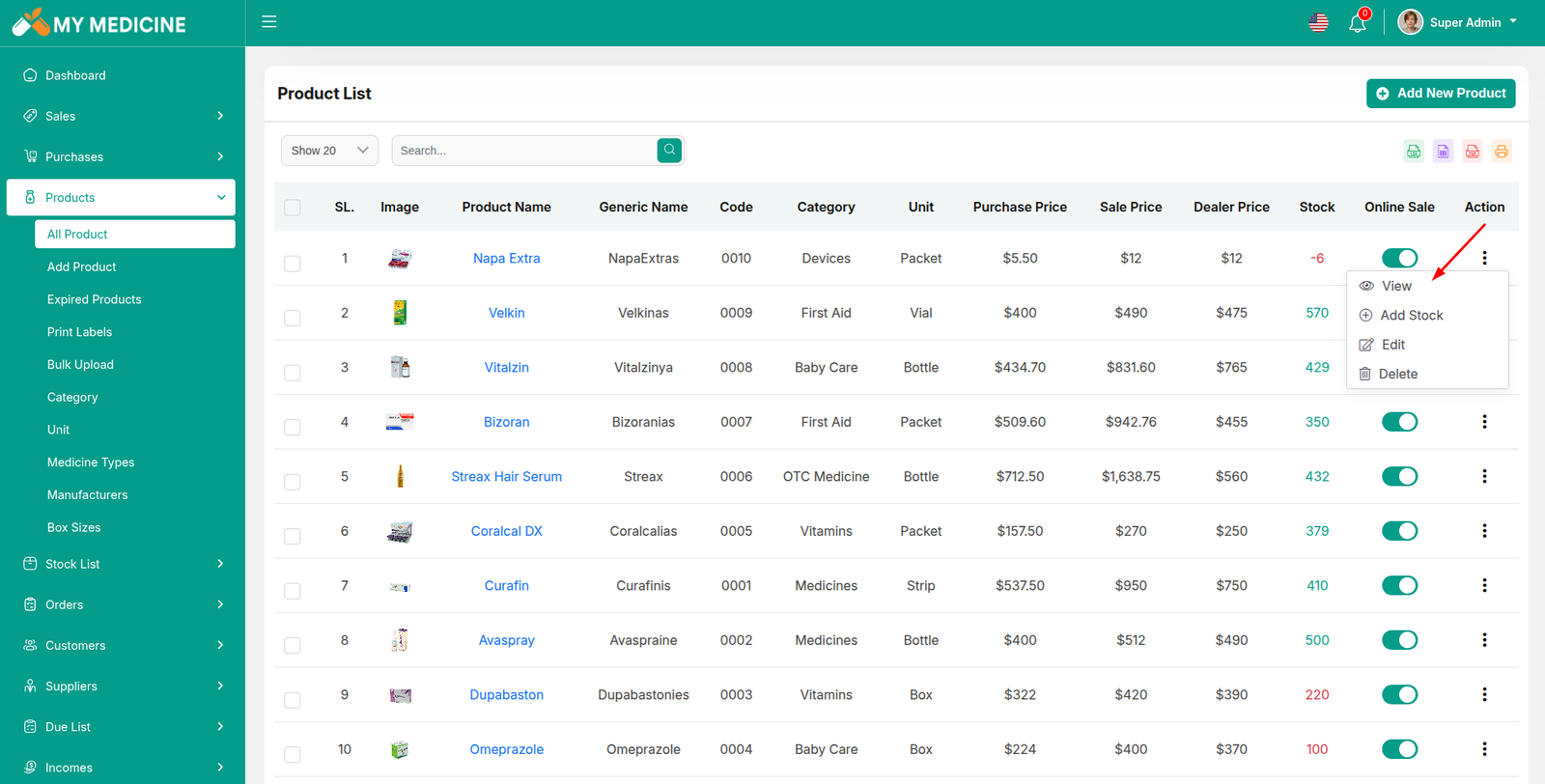
Product List
Here, you can view the Product list with filtering options available. The list can be exported as Excel, CSV, and there is also a print option. By clicking the "View" button, you can see details in a pop-up window. Additionally, you can edit, delete, or perform multi-delete actions.
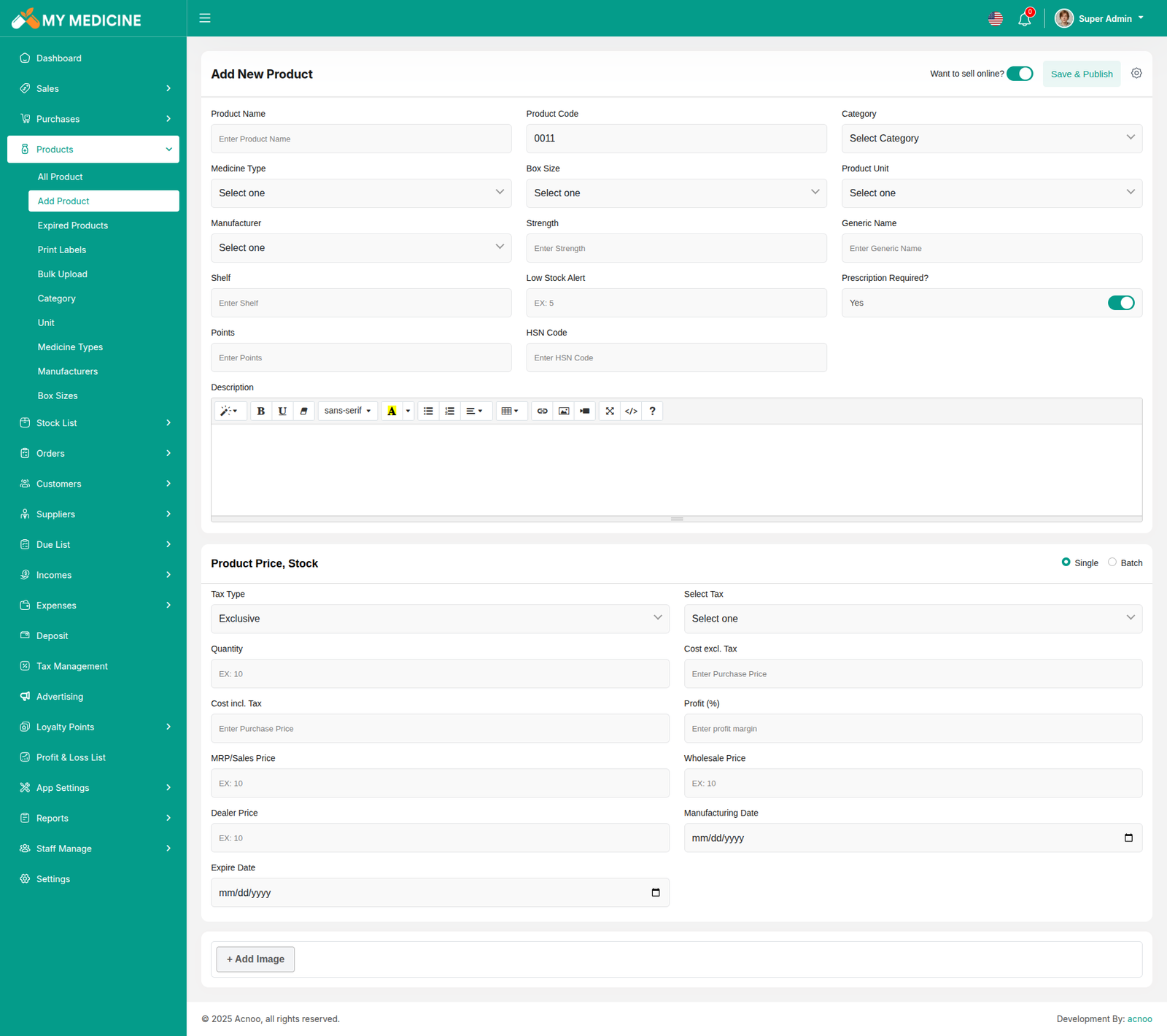
Create Product
You can create a product by filling in the required fields. When you select a Product Category, the associated variation fields (such as capacity, color, size, type, or weight) linked to that category will appear. You can then provide the necessary variations. The Product Code field will suggest a code by default, but you can update it if needed. Ensure you carefully input the product price. If everything is correct, click the save button to store the product.
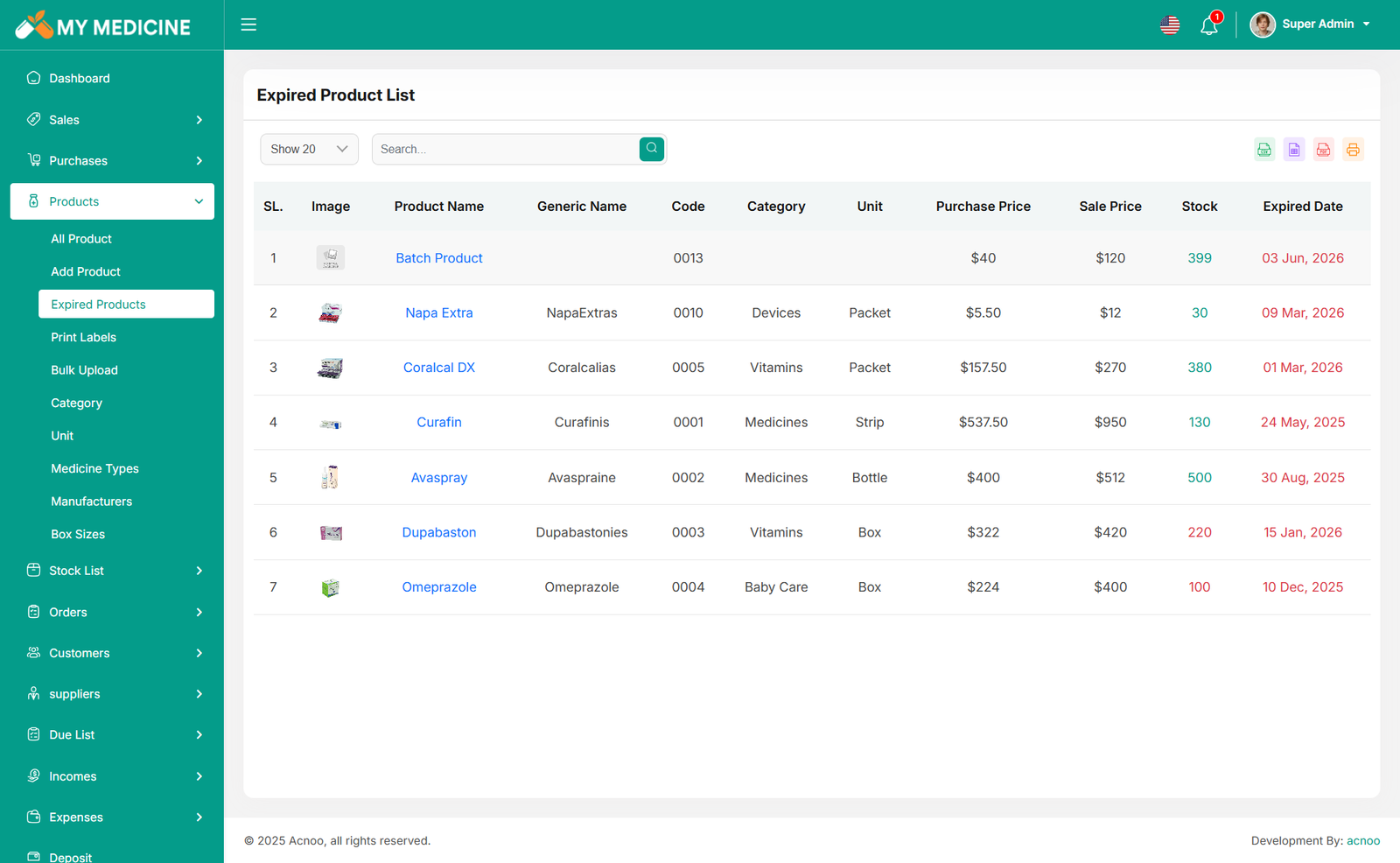
Expired Product List
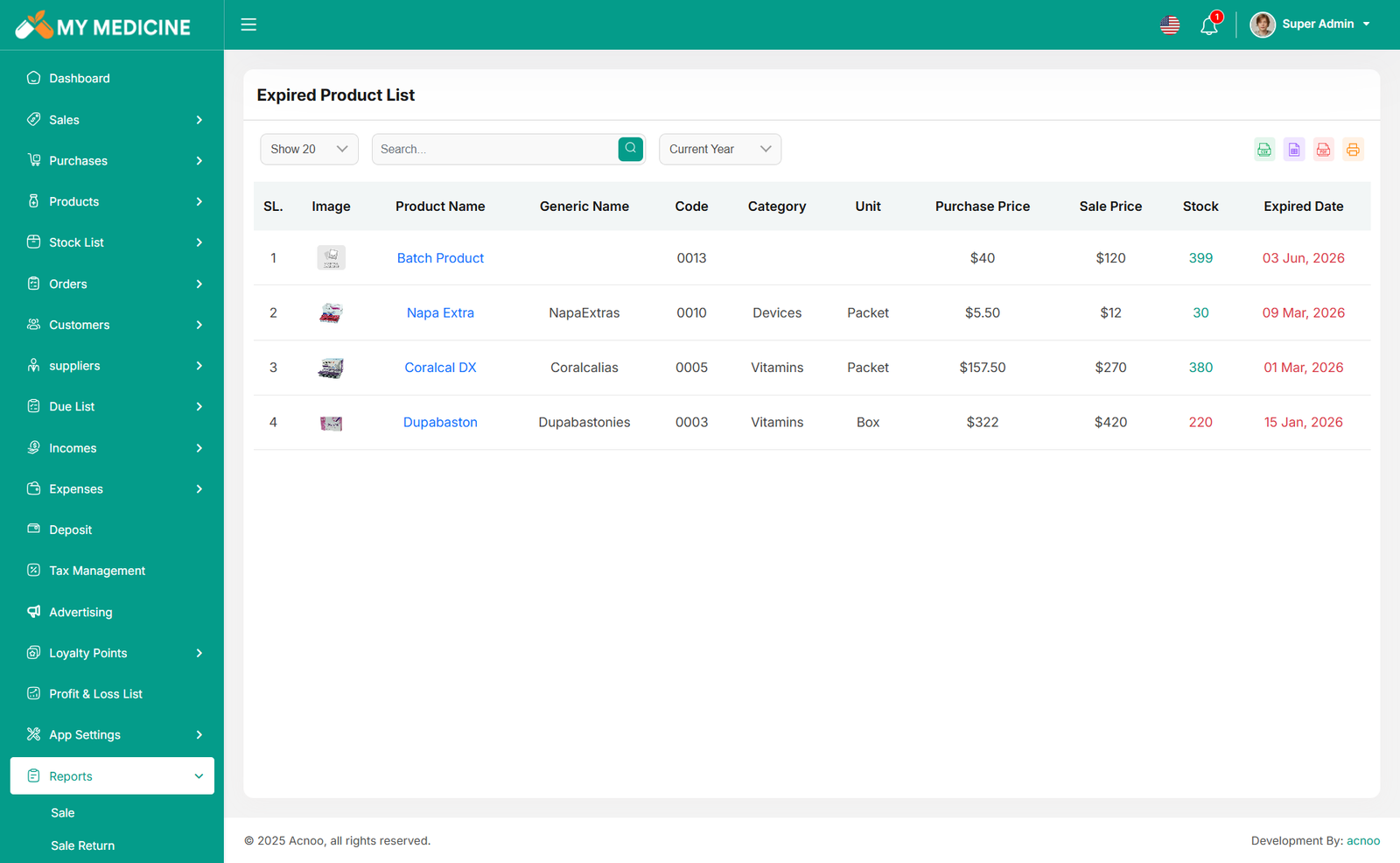
Here, you can view the expired Product list with filtering options available. The list can be exported as Excel, CSV, and there is also a print option. By clicking the "Product Name" you can see details in a pop-up window.
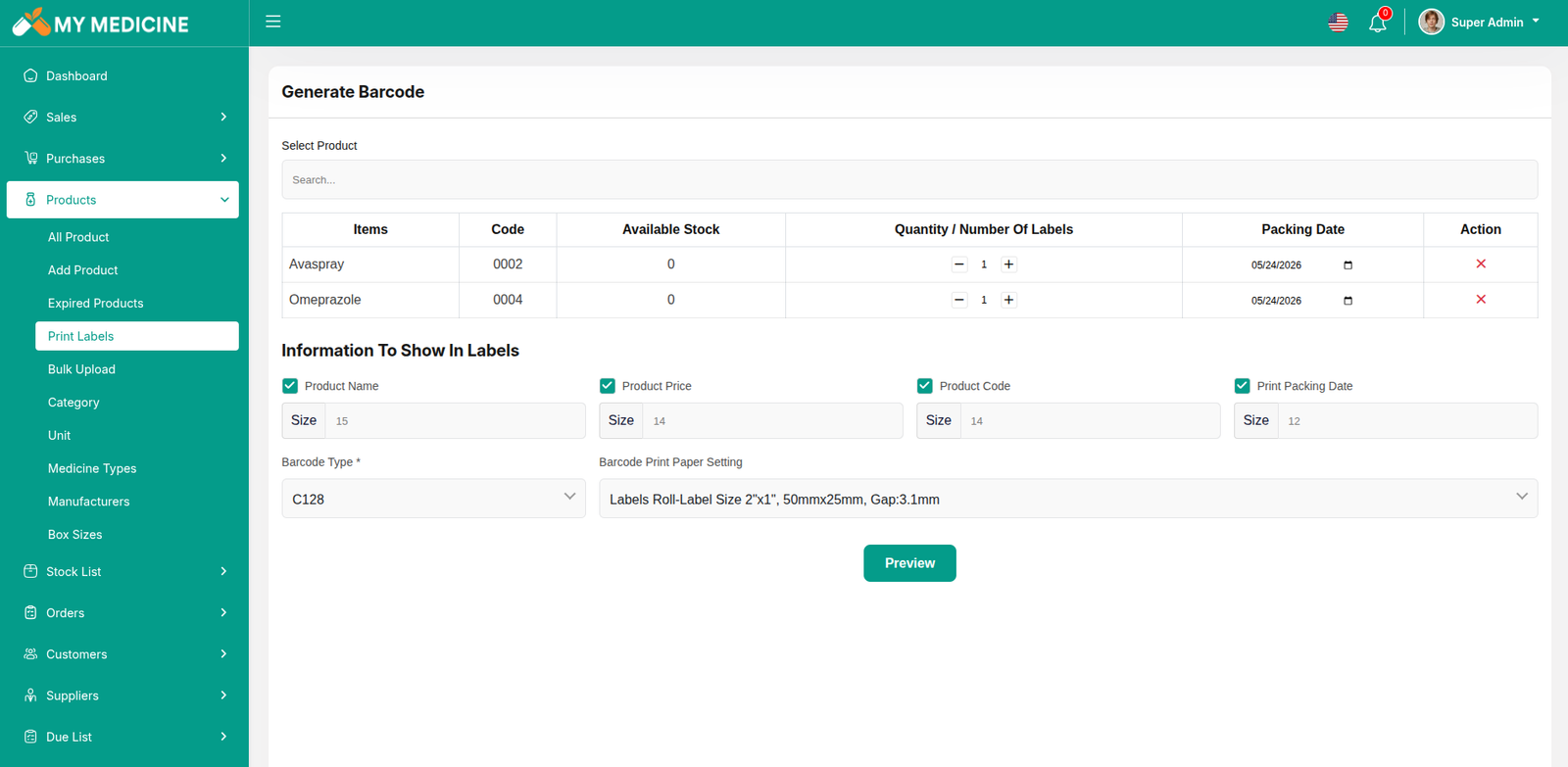
Print Labels
The Print Labels feature in the pharmacy system allows users to generate barcode labels for selected medicines. Users can choose products, set label quantity, packing date, and customize label details like product name, price, code, and packing date. It supports various barcode types and paper formats for printing.
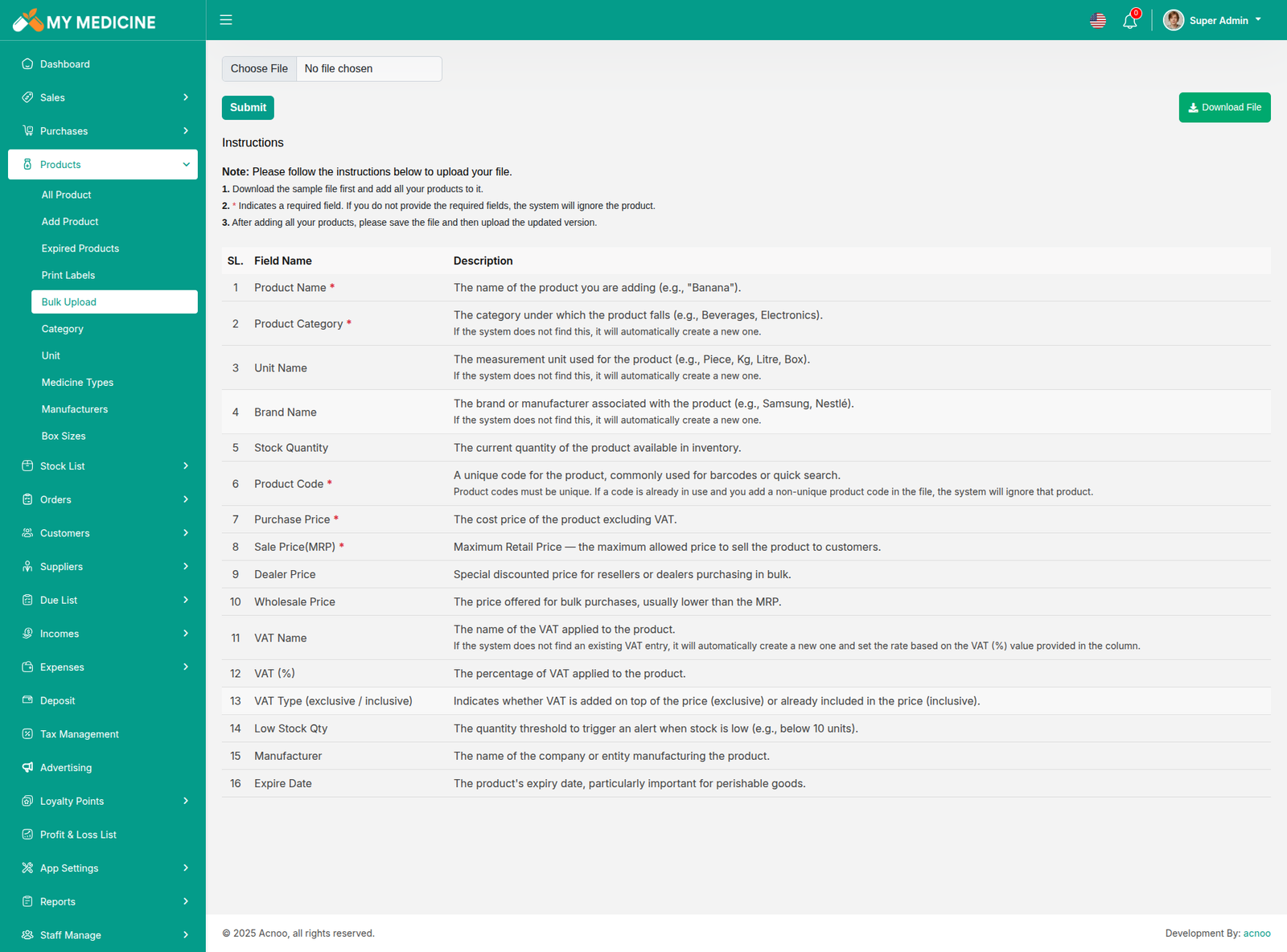
Bulk Upload
The Bulk Upload feature allows users to import multiple products into the system simultaneously using an Excel file. This is particularly useful for pharmacies with a large number of products, enabling quick and efficient data entry.
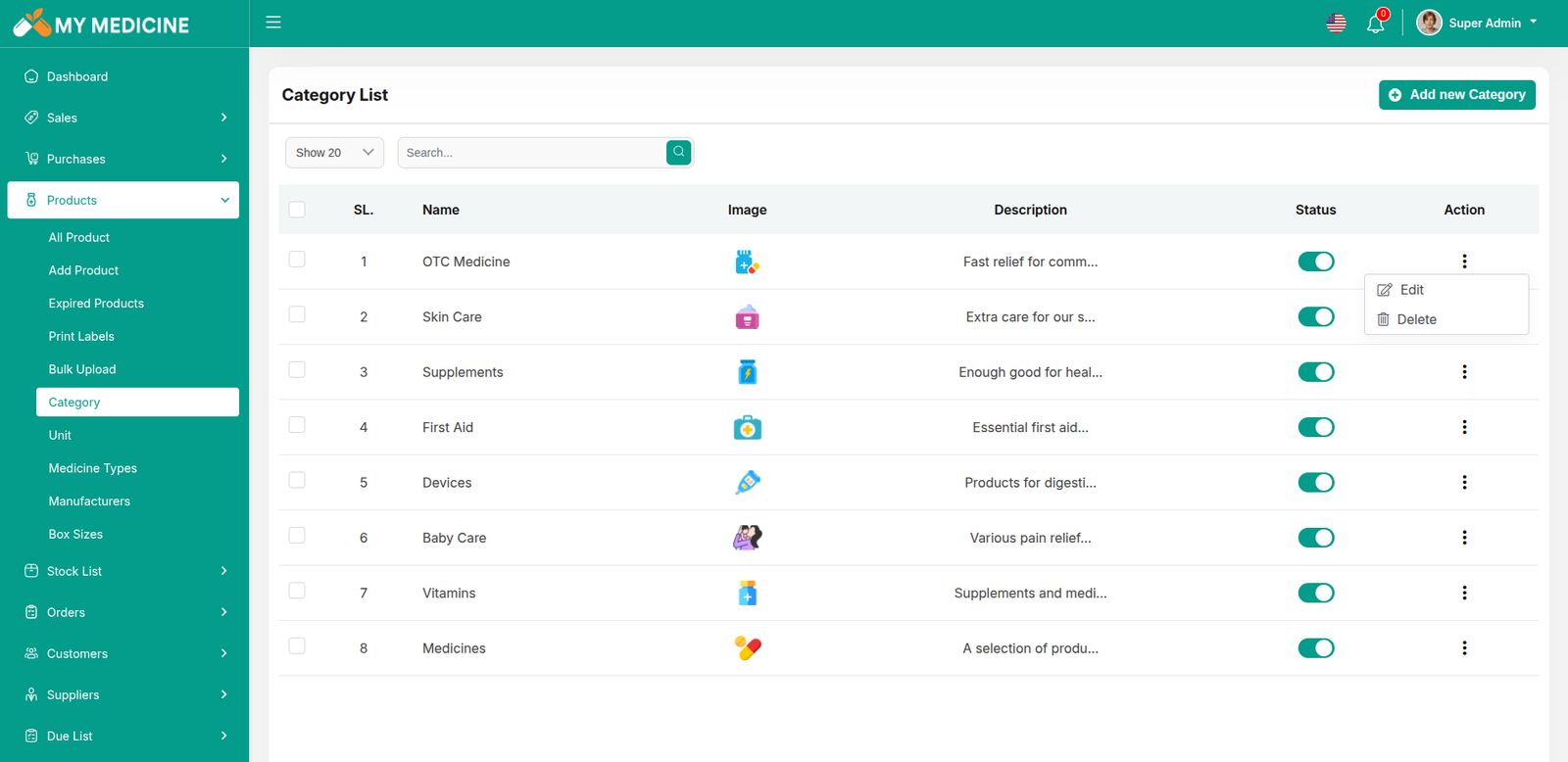
Category List
You can view the Category list with available filtering options. Furthermore, you have the ability to edit, delete, or use the multi-delete function.
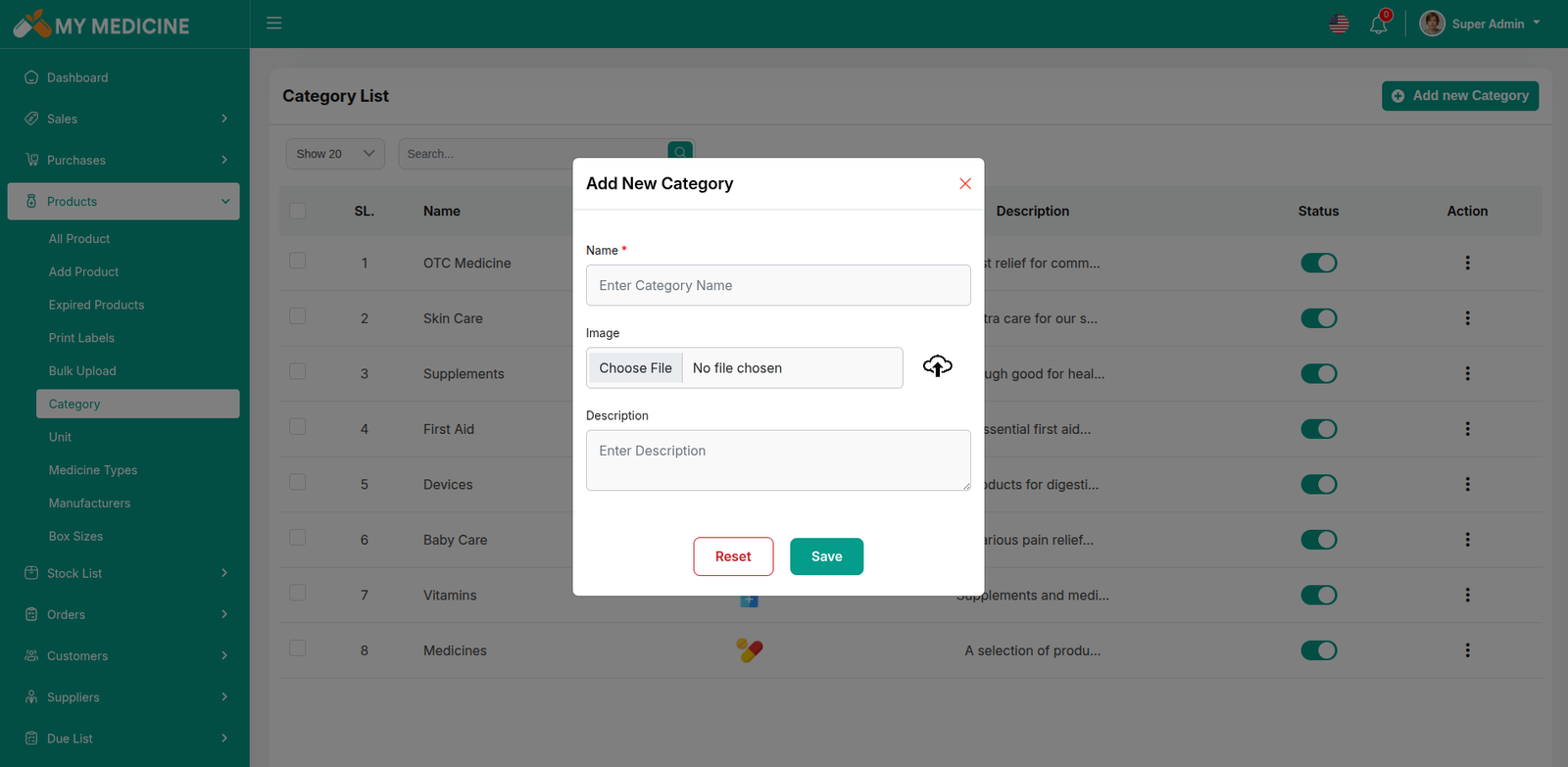
Create Category
You can create a Category by filling in the required fields and selecting the desired variation.
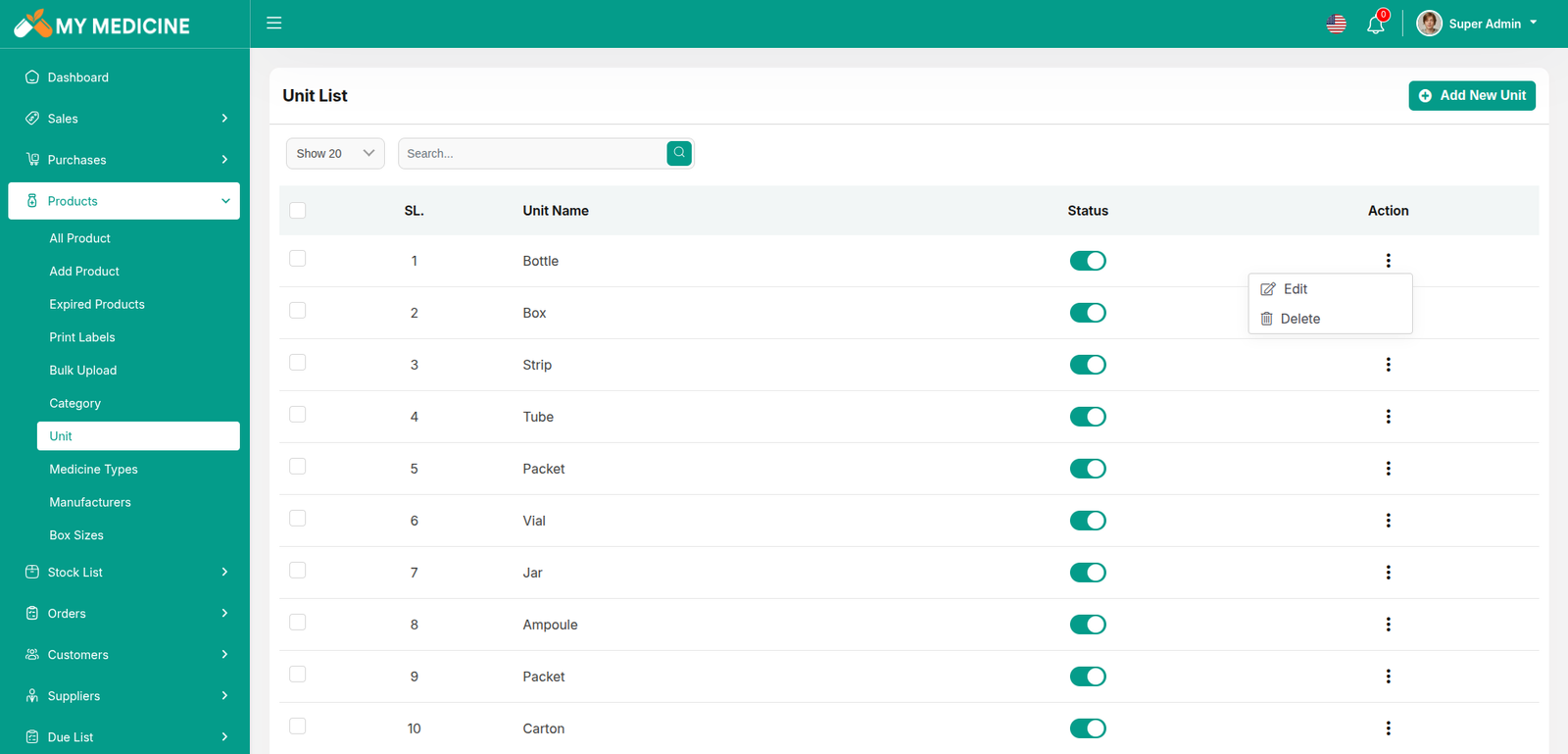
Unit List
You can view the Unit list with available filtering options. Furthermore, you have the ability to edit, delete, or use the multi-delete function.
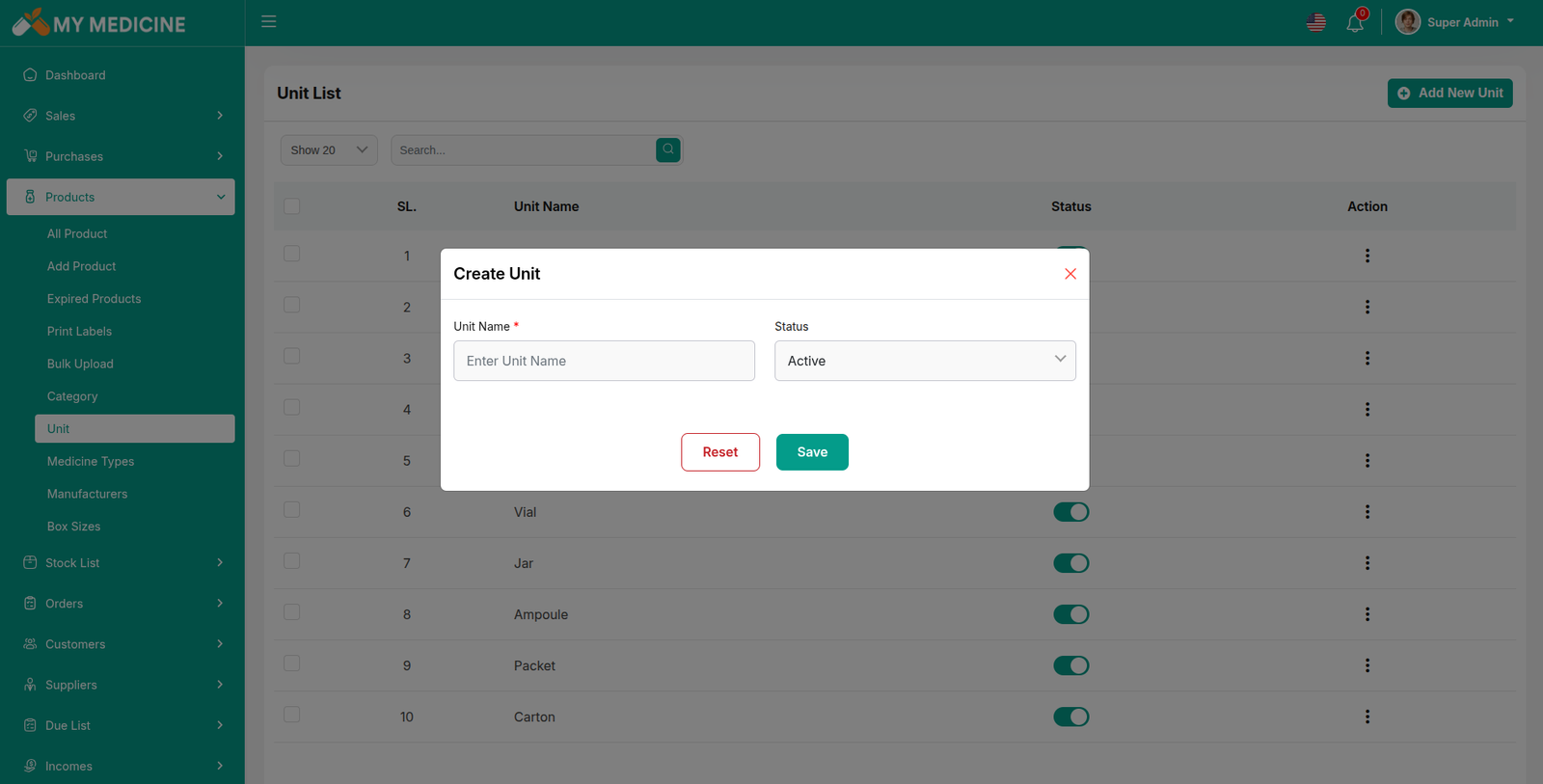
Create Unit
You can create a Category by filling in the required fields.
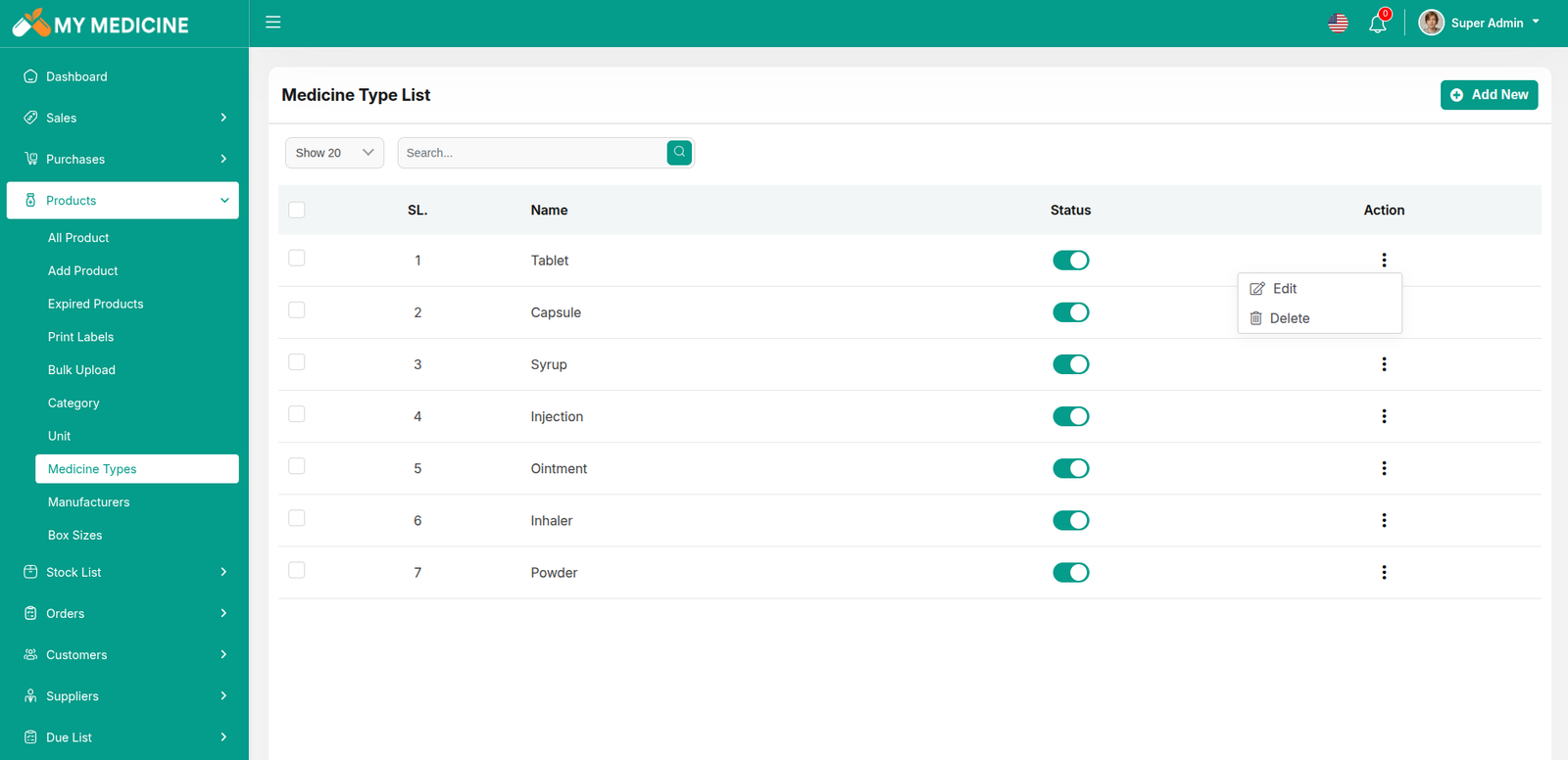
Medicine Type List
You can view the Medicine Type list with available filtering options. Furthermore, you have the ability to edit, delete, or use the multi-delete function.
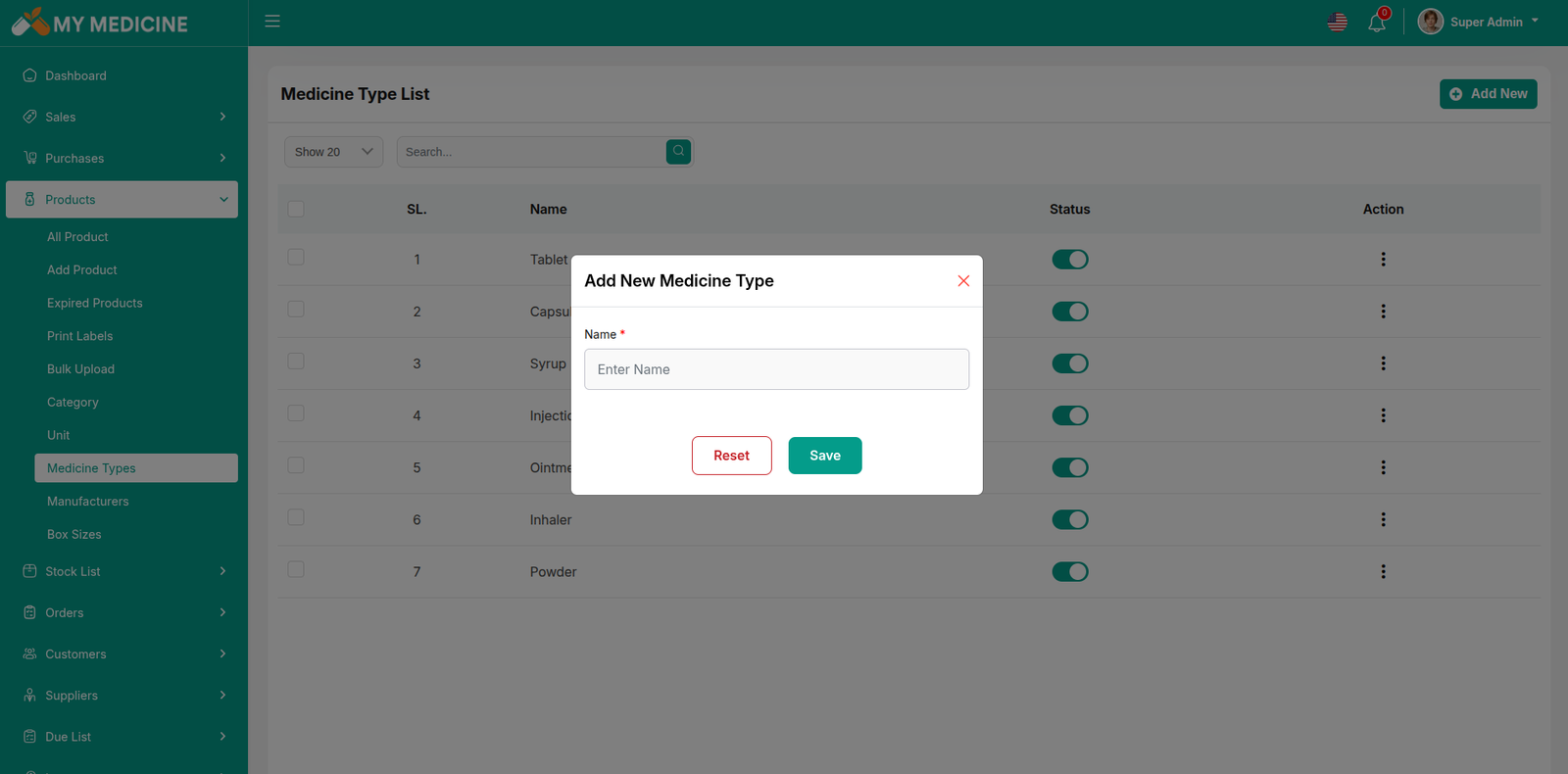
Create Medicine Type
You can create a Medicine Type by filling in the required fields.
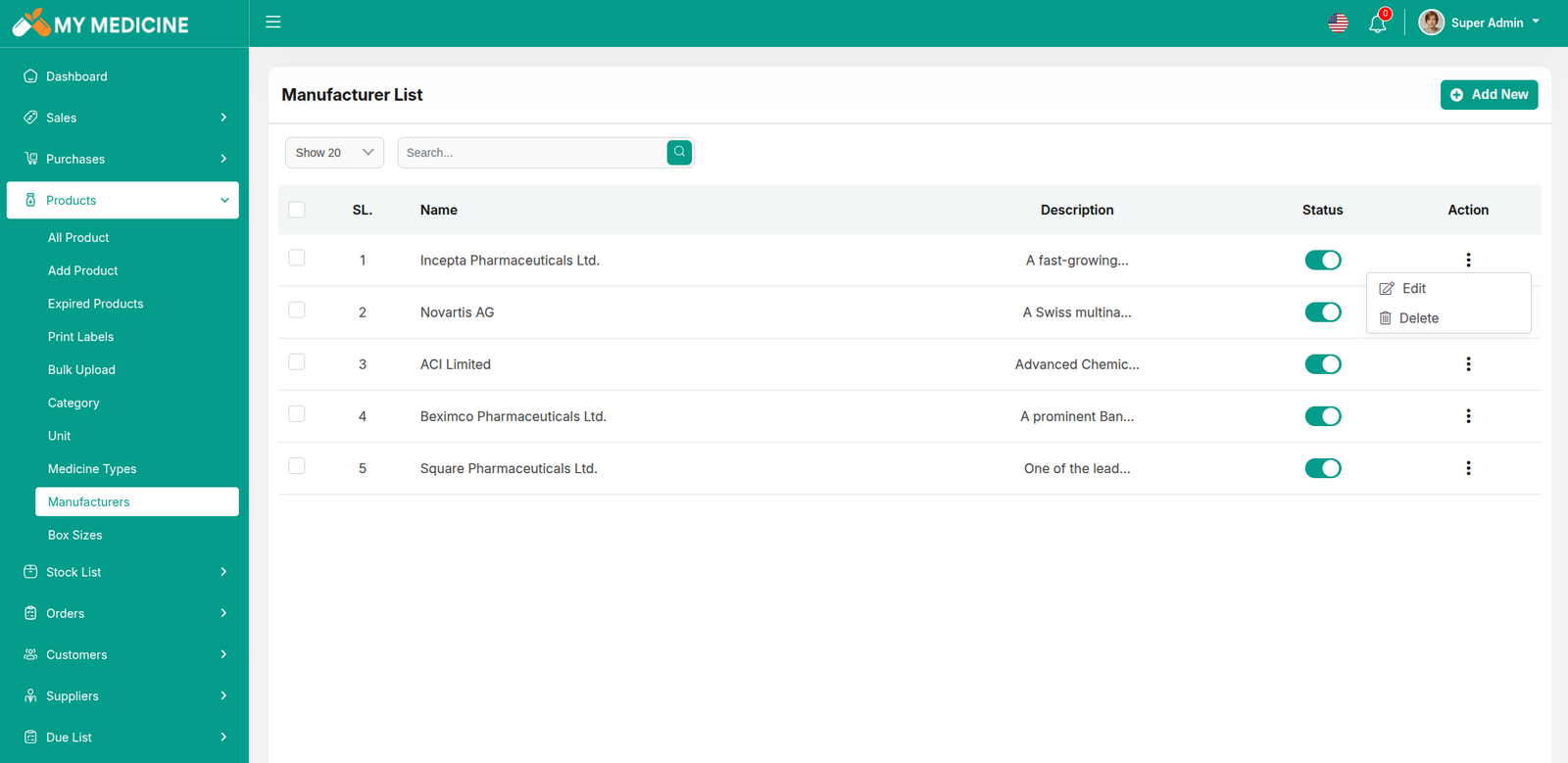
Manufacturer List
You can view the Manufacturer list with available filtering options. Furthermore, you have the ability to edit, delete, or use the multi-delete function.
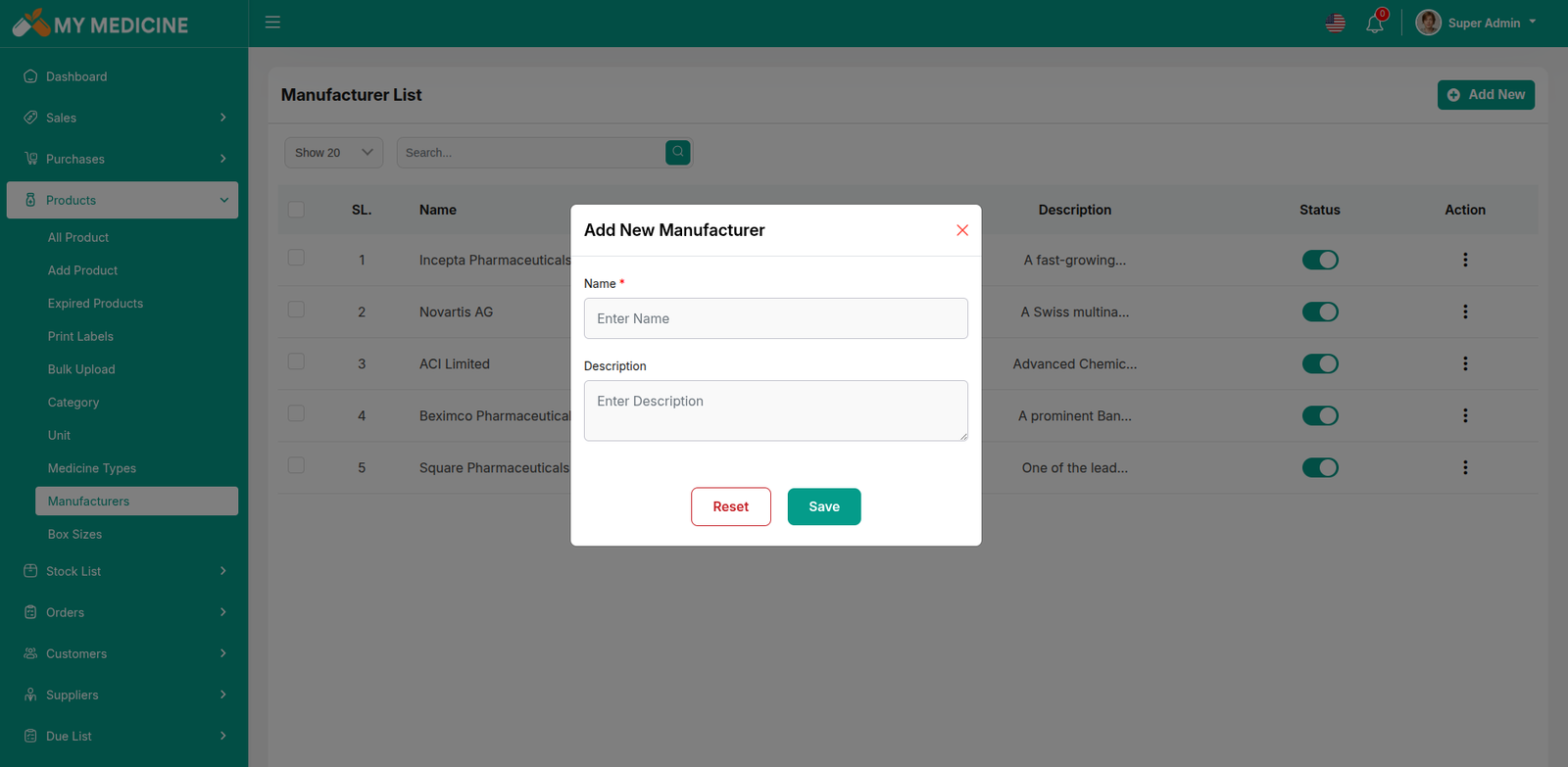
Create Manufacturer
You can create a Manufacturer by filling in the required fields.
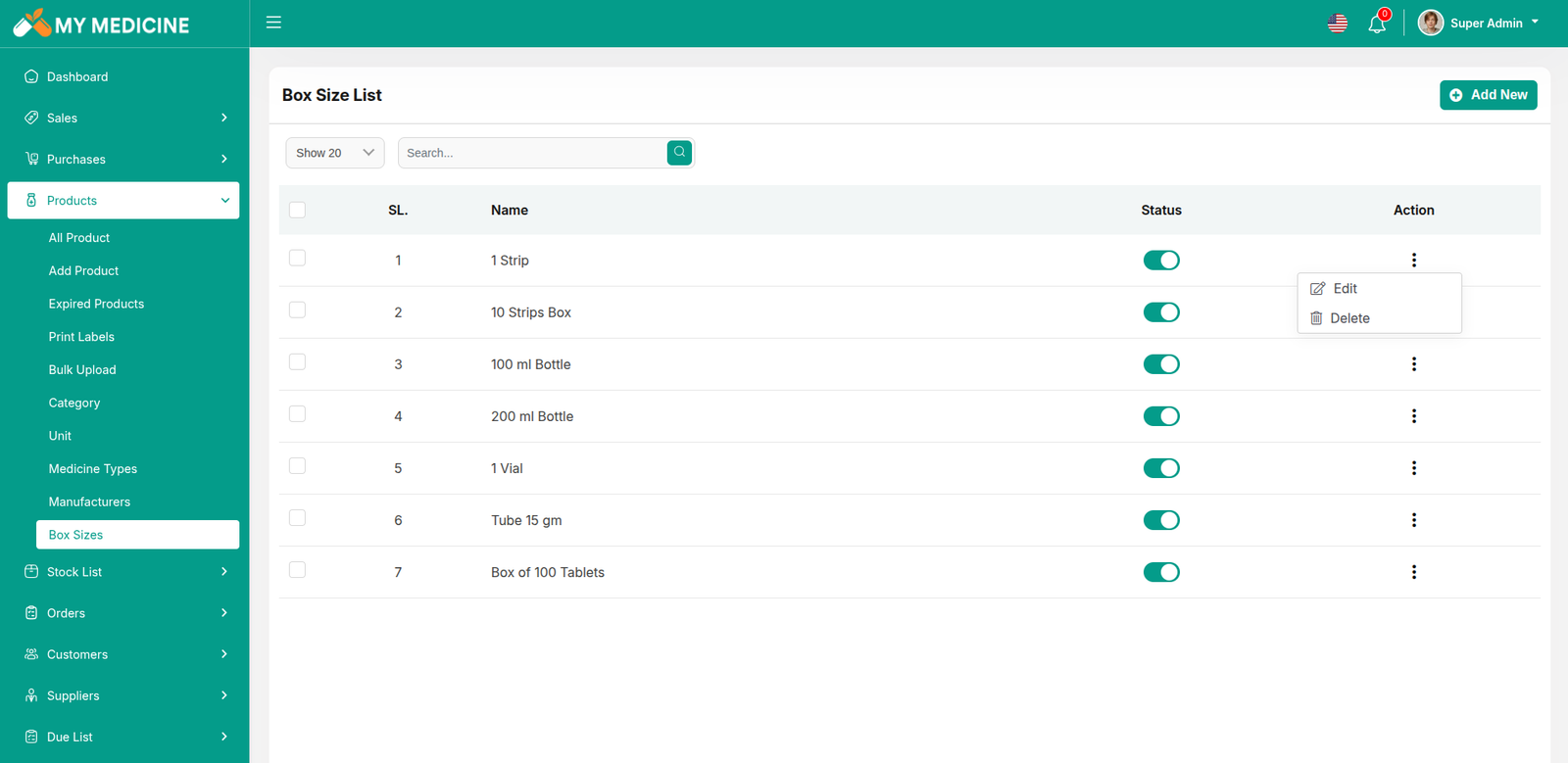
Box sizes List
You can view the Box sizes list with available filtering options. Furthermore, you have the ability to edit, delete, or use the multi-delete function.
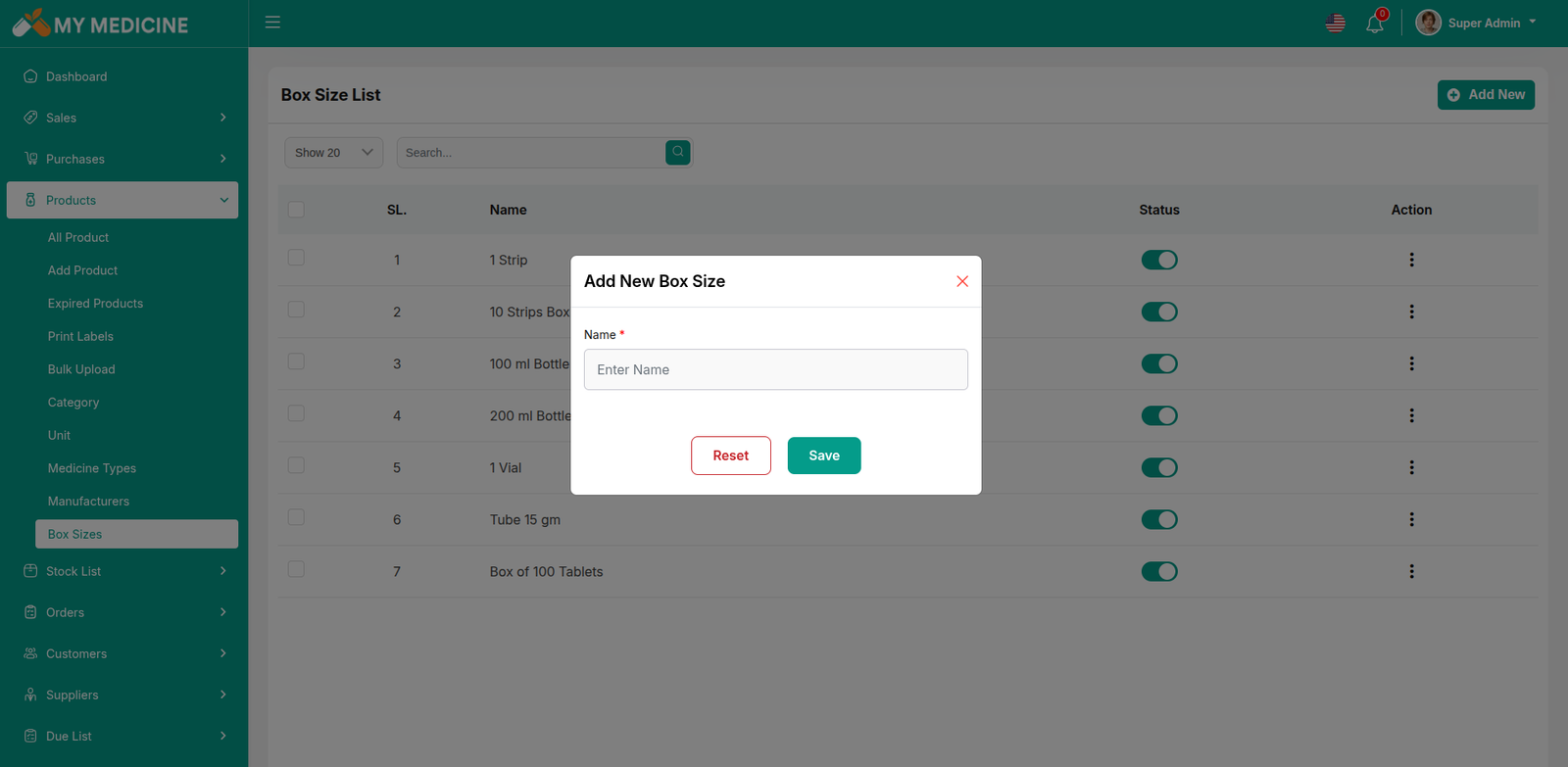
Create Box Sizes
You can create a Manufacturer by filling in the required fields.
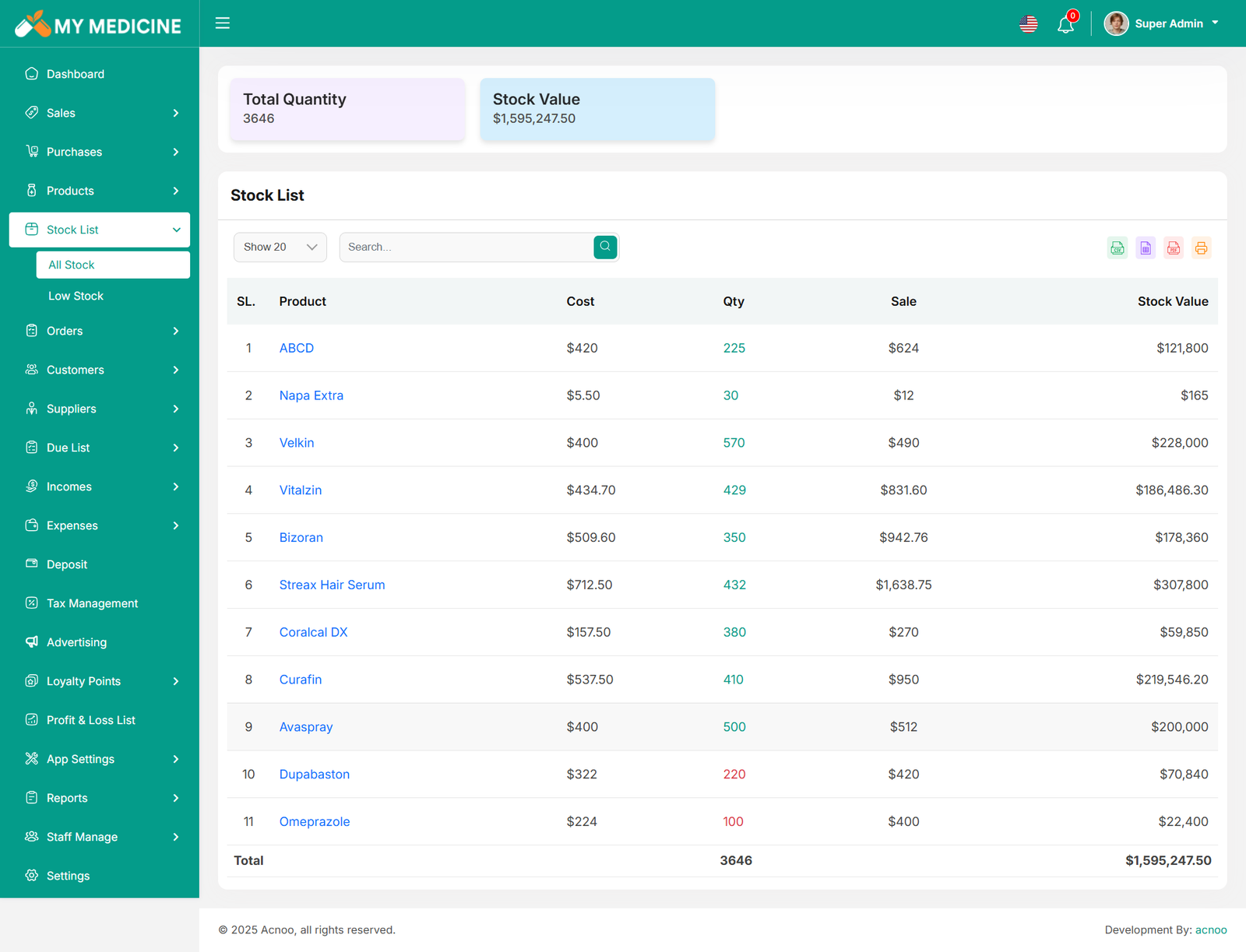
Stock List
Here, you can view the Product list with filtering options available. The list can be exported as Excel, CSV, and there is also a print option. Also in top cart you will see Total quantity and Stock value. Also by clicking the "Product Name" you can see details in a pop-up window.
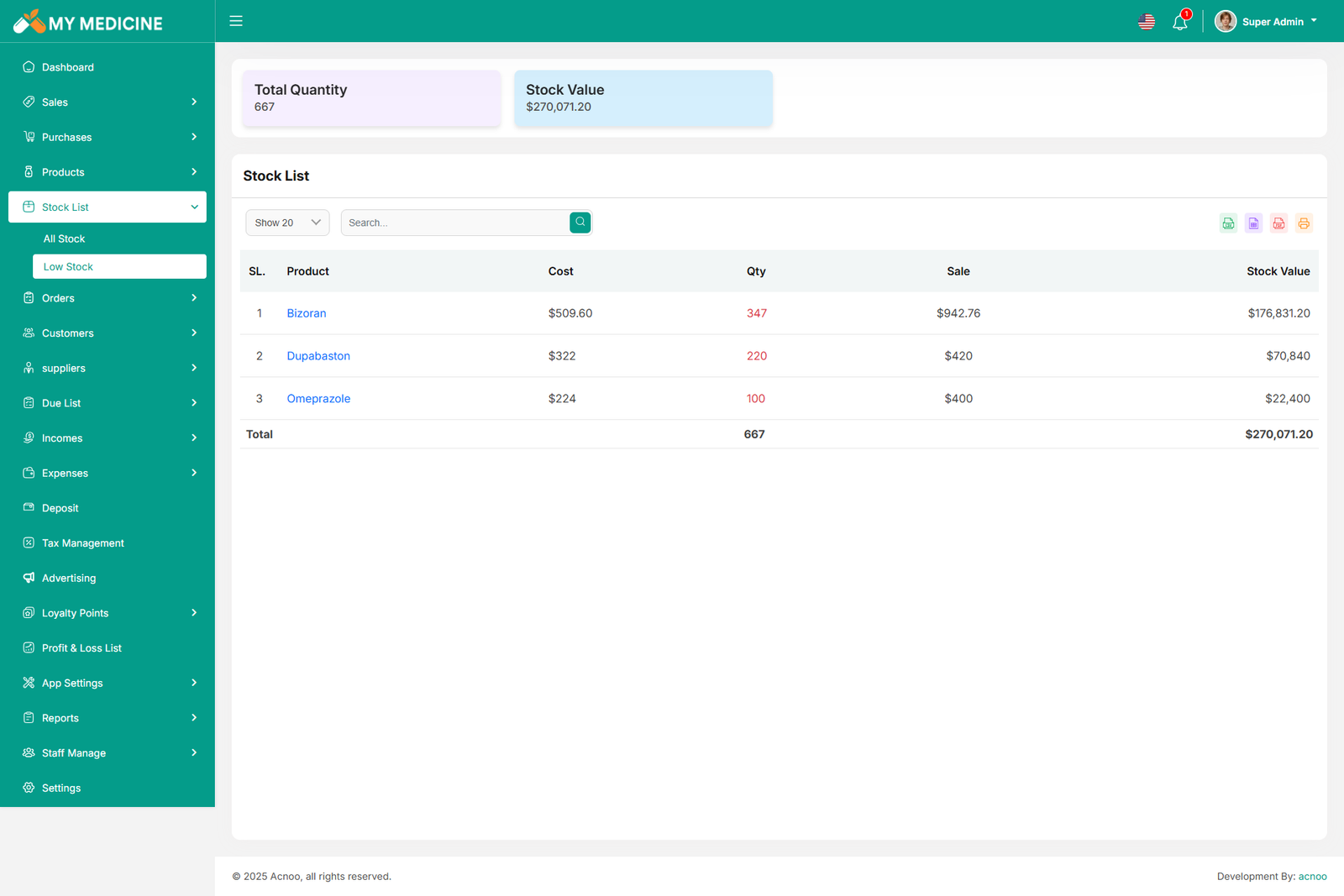
Low Stock List
Here, you can view the low stock Product list with filtering options available. The list can be exported as Excel, CSV, and there is also a print option. Also in top cart you will see Total quantity and Stock value. Also by clicking the "Product Name" you can see details in a pop-up window.
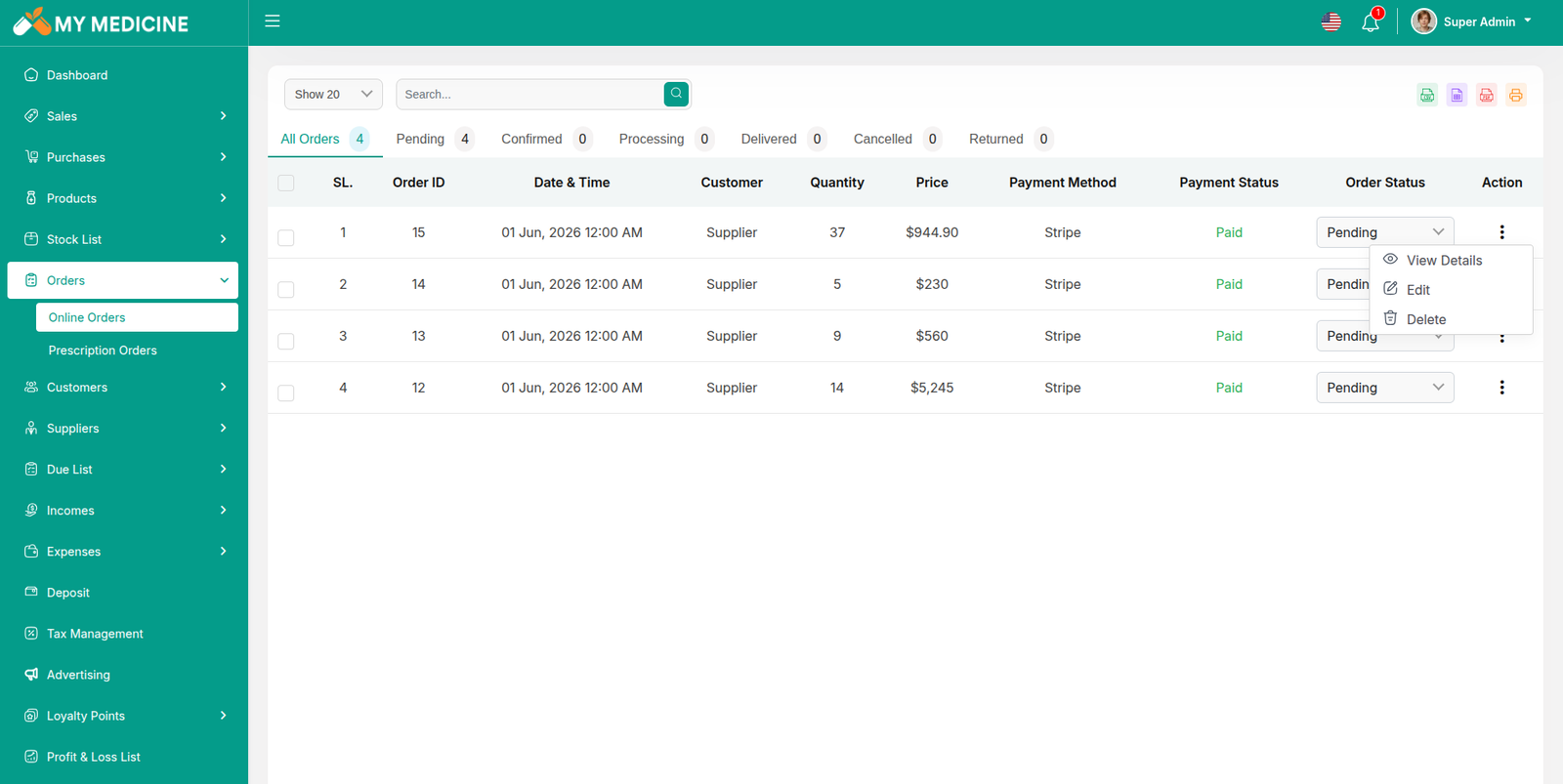
Order List
This section allows you to view and manage all orders with advanced filtering options. You can export the order list in Excel and CSV formats, and also print reports when needed. Orders are organized into tabs based on their status, including Pending, Confirmed, Processing, Delivered, Cancelled, and Returned.
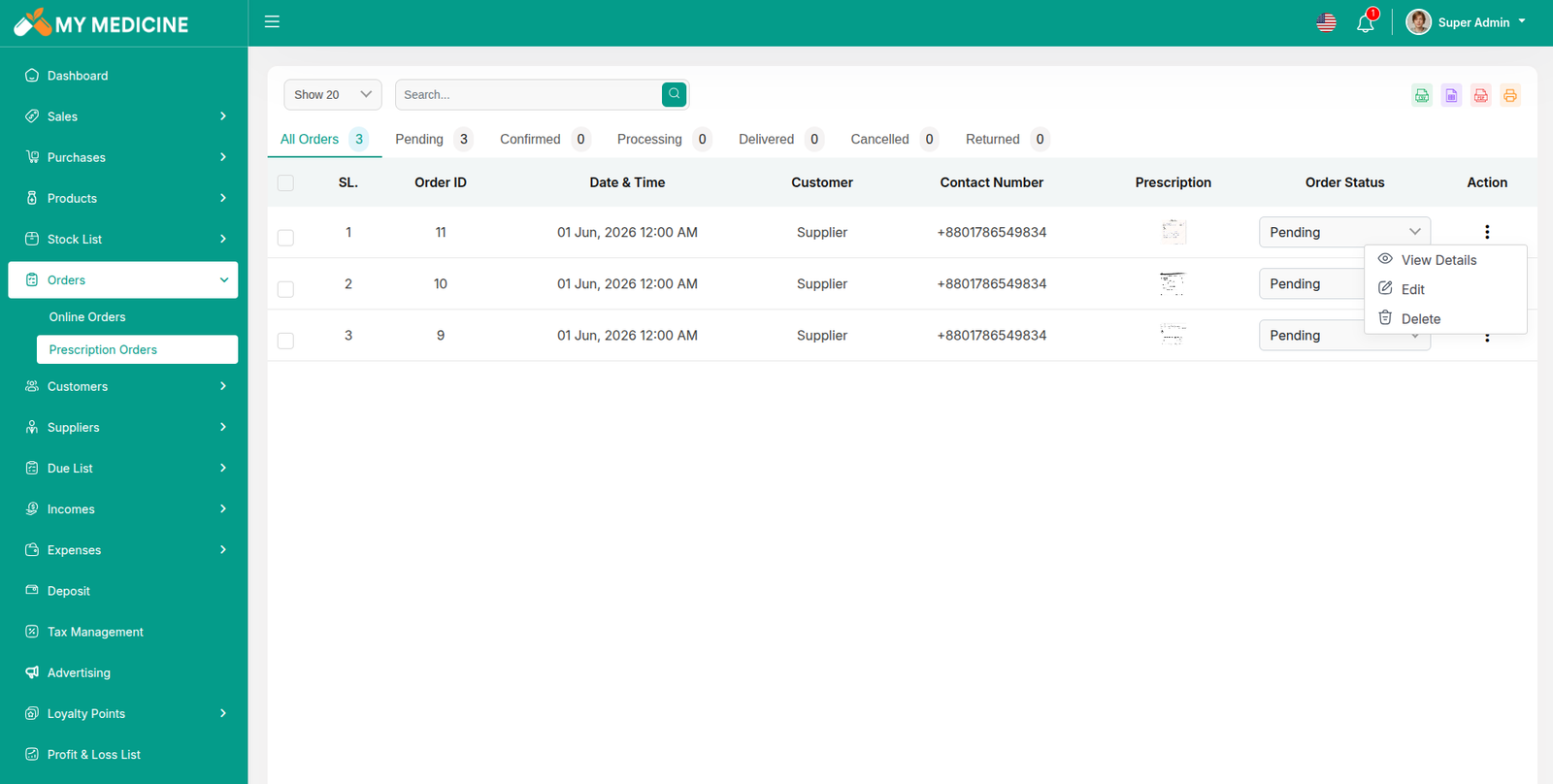
Prescription Order List
This section allows you to view and manage all prescription orders with advanced filtering options. You can export the prescription order list in Excel and CSV formats, and also print reports when needed. Prescription orders are organized into tabs based on their status, including Pending, Confirmed, Processing, Delivered, Cancelled, and Returned.
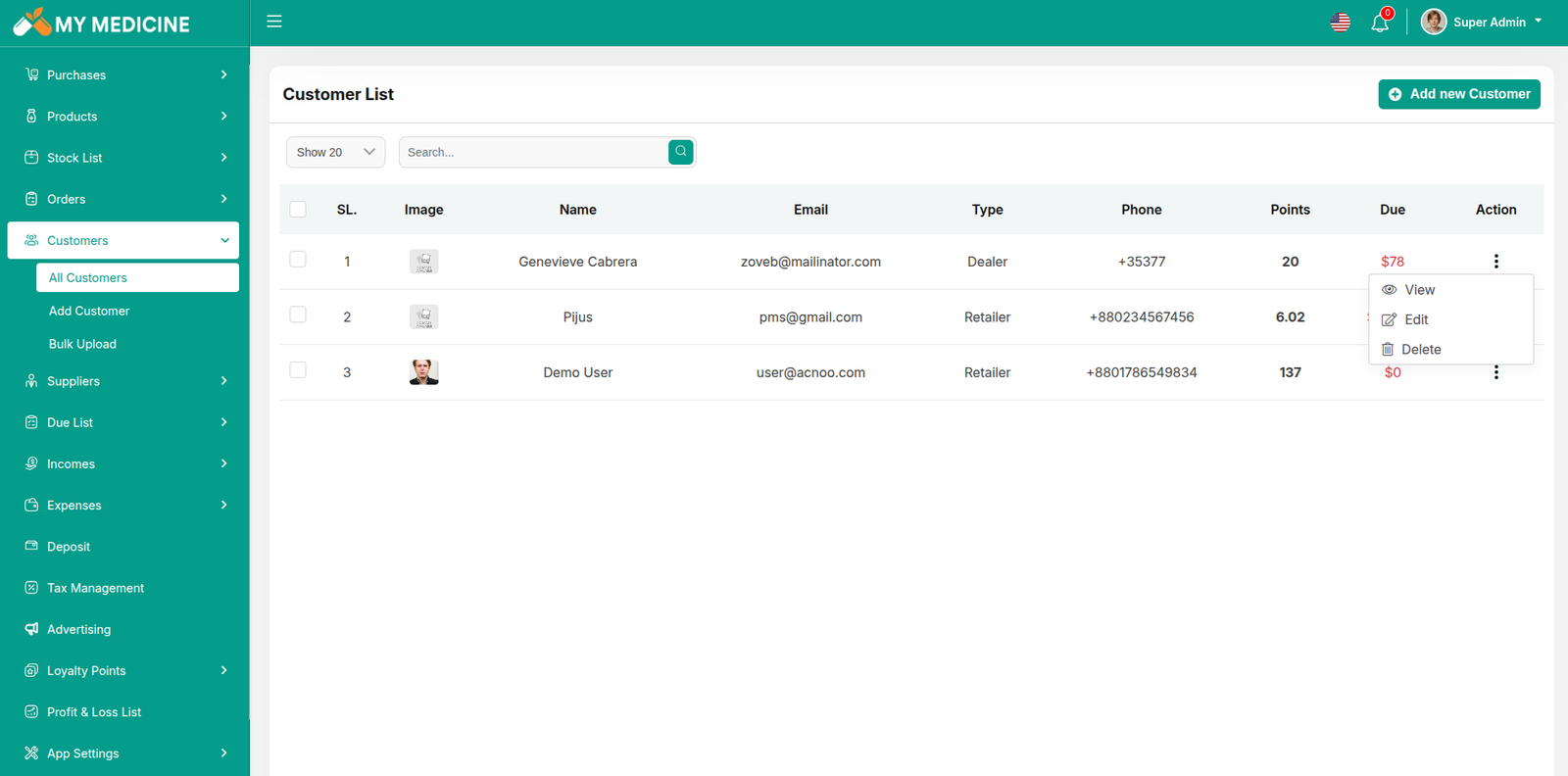
Customer List
Here, you can view the customer list with a search filter. Additionally, you have the option to view, edit, delete, or use the multi-delete function.
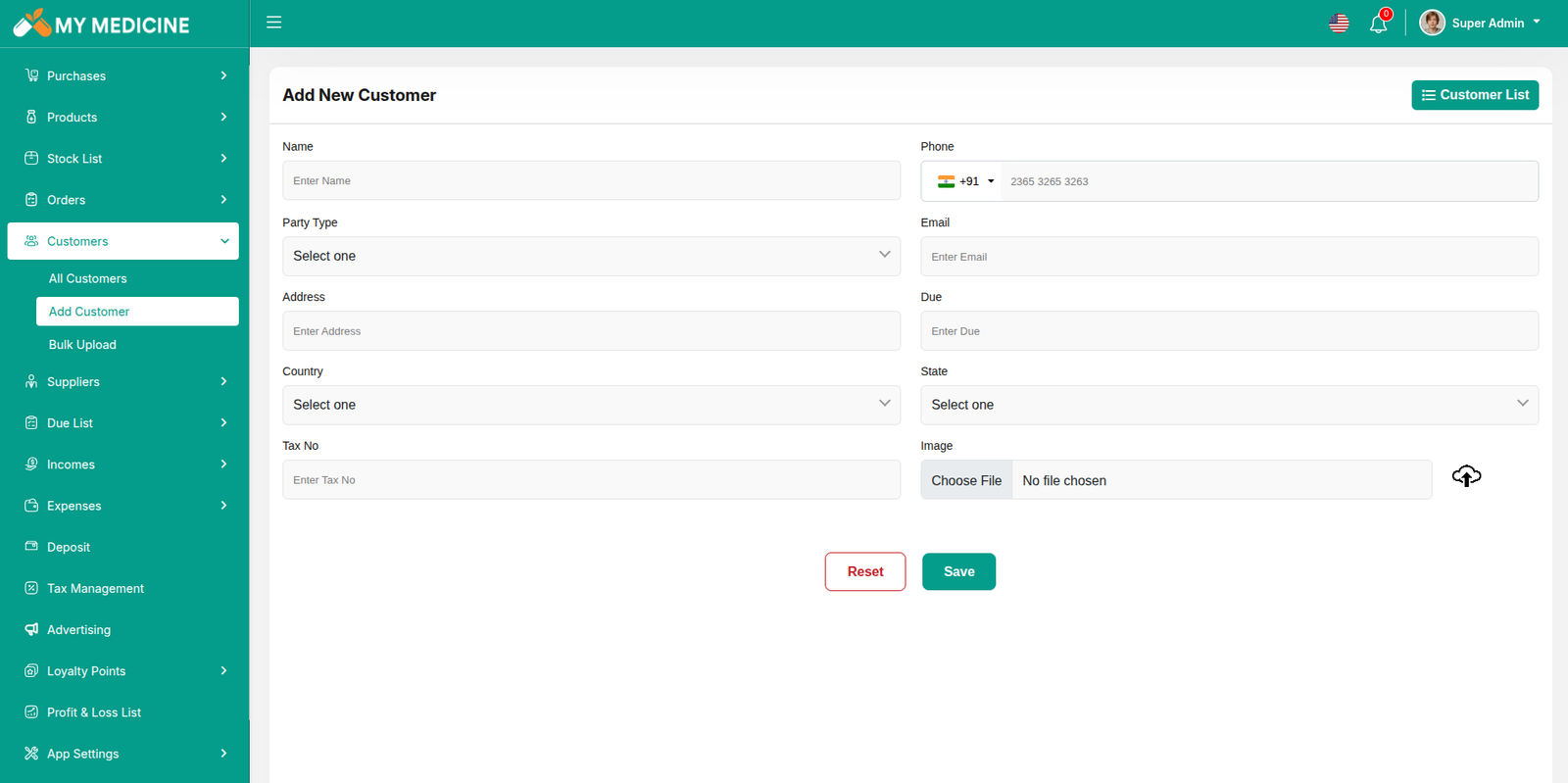
Create Customer
You can create a customer by filling out the required fields. Additionally, you can add an initial due amount to be stored.
Bulk Upload
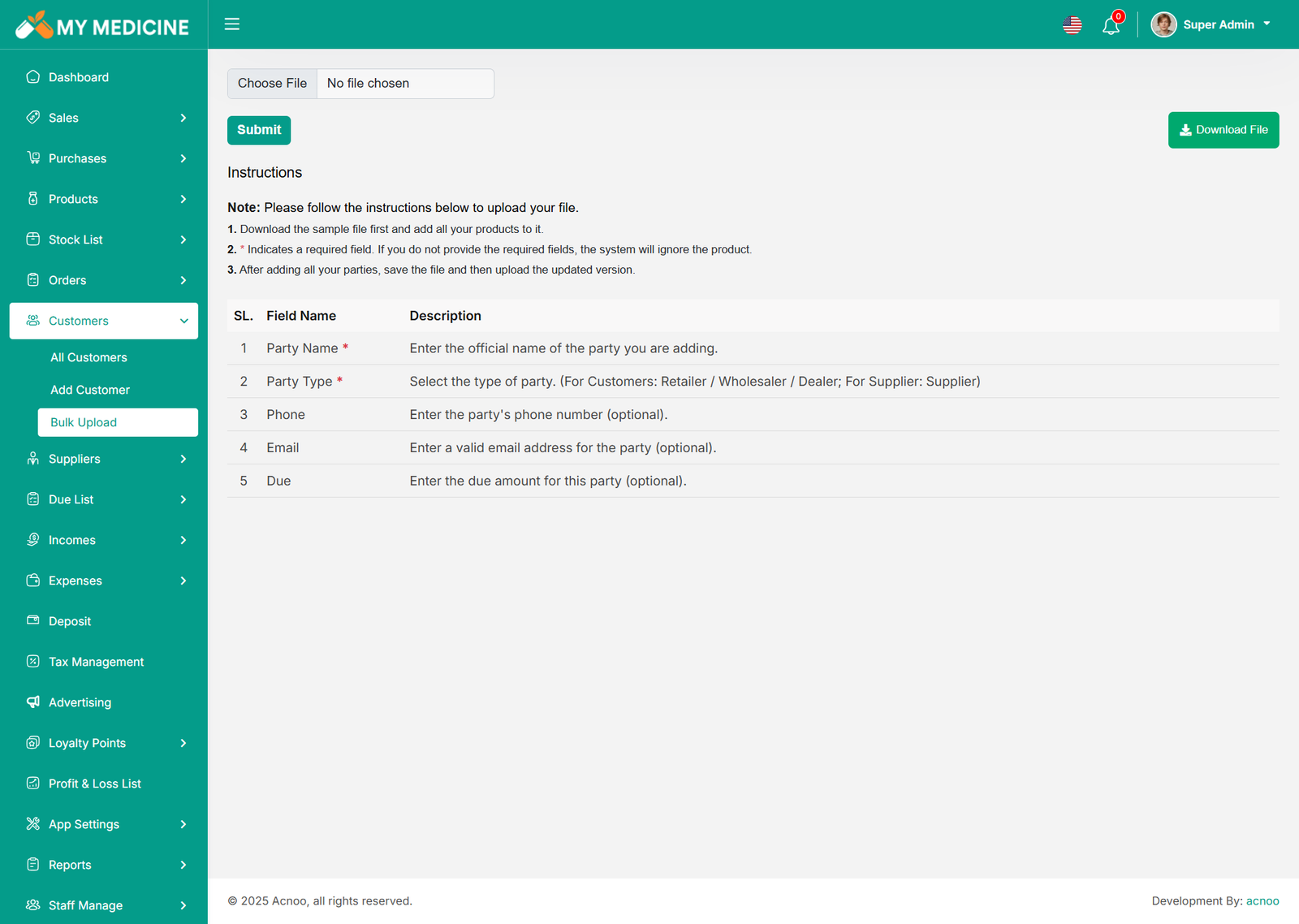
To upload parties in bulk, download the sample file, fill in the required details, and upload it. You can import different party types, including Wholesaler, Dealer, Retailer, and Supplier, in a single upload.
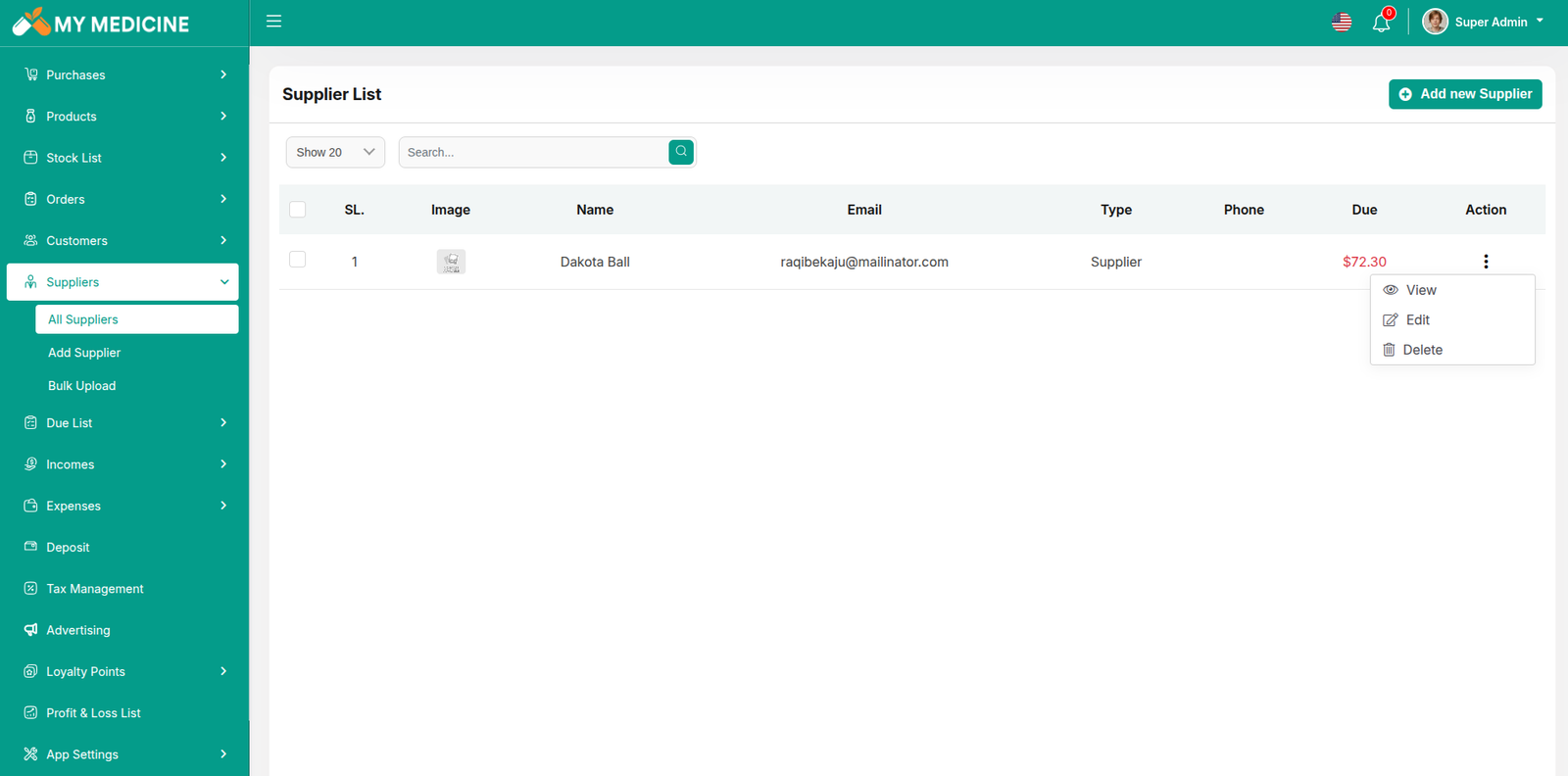
Supplier List
Here, you can view the Supplier list with a search filter. Additionally, you have the option to view, edit, delete, or use the multi-delete function.
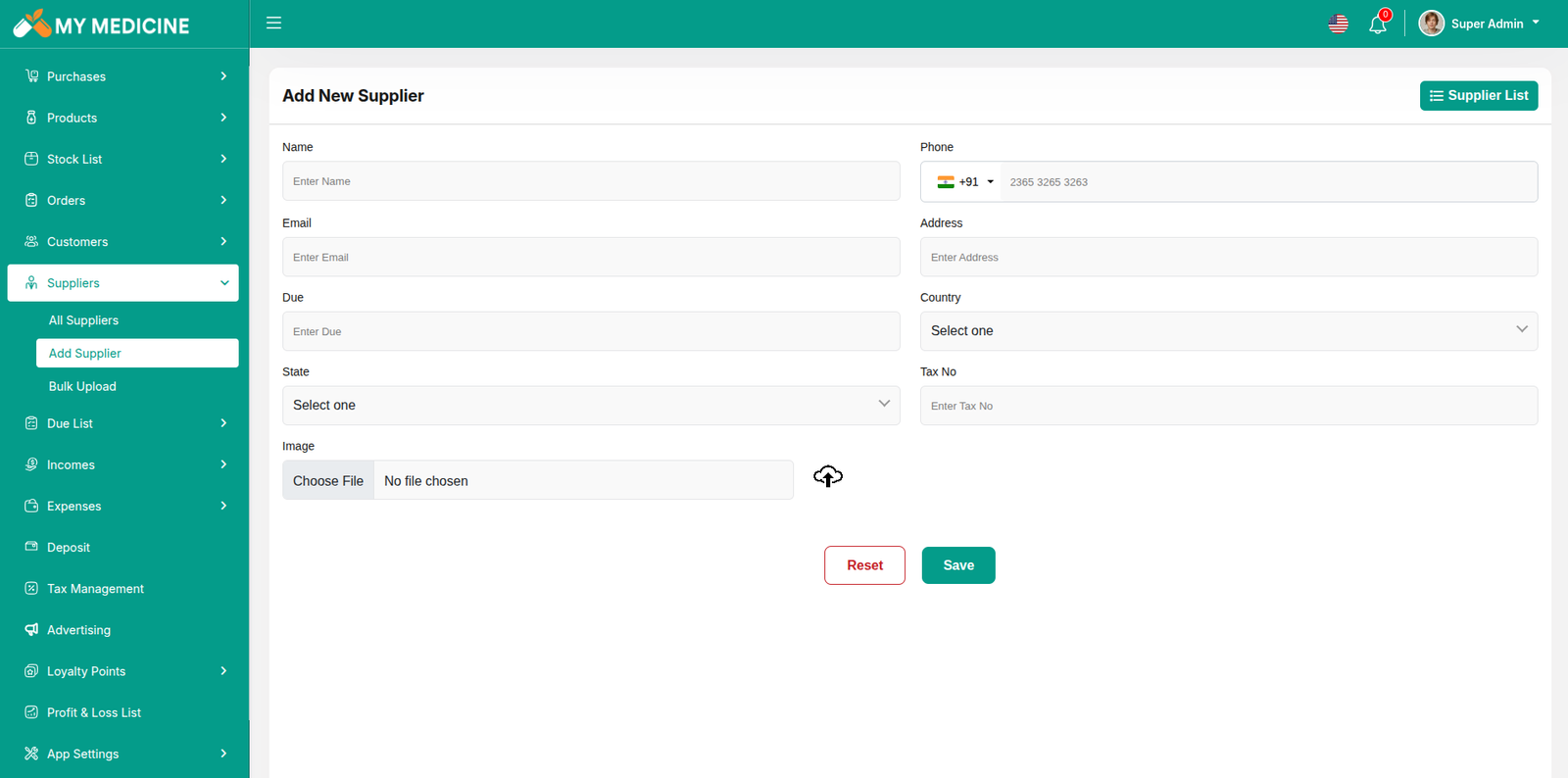
Create Supplier
You can create a Supplier by filling out the required fields. Additionally, you can add an initial due amount to be stored.
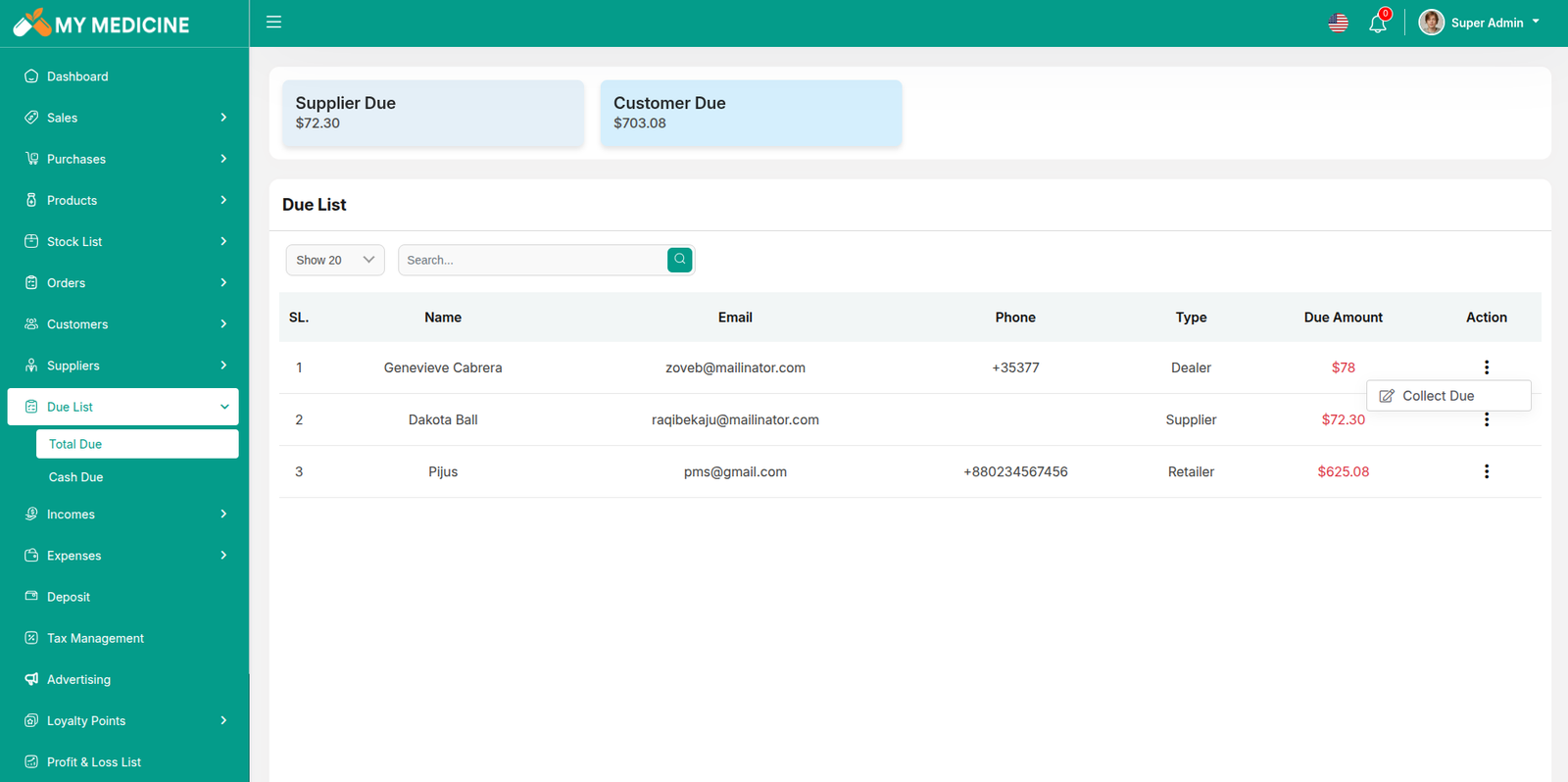
Due List
Here, you can view the Due list with a search filter. Additionally, you can view invoices and collect the due amounts from this page.
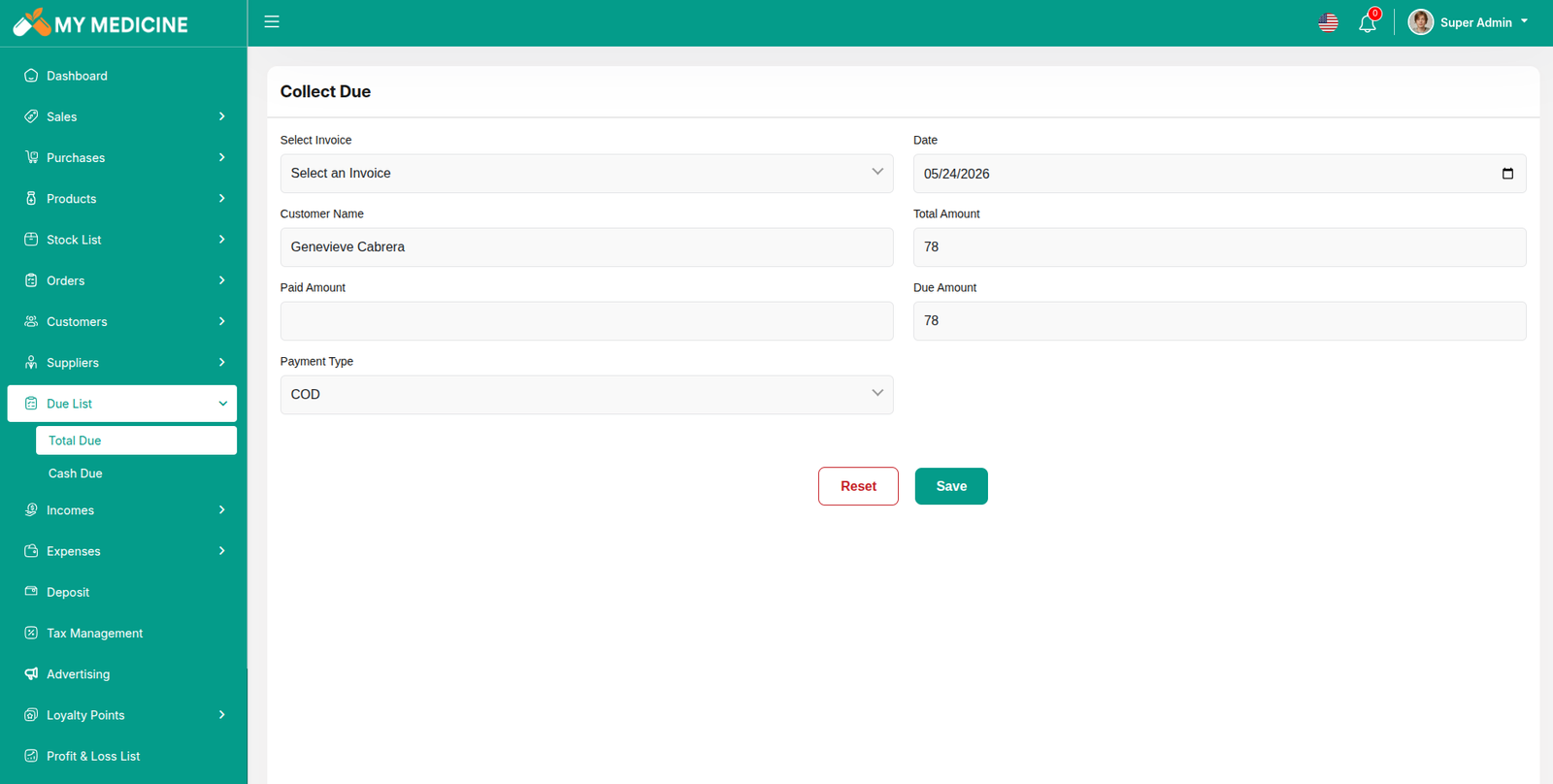
Collect Due
When you click "Collect Due," this page will appear. Here, you can collect the due amount either by invoice or without an invoice if there is any initial due.
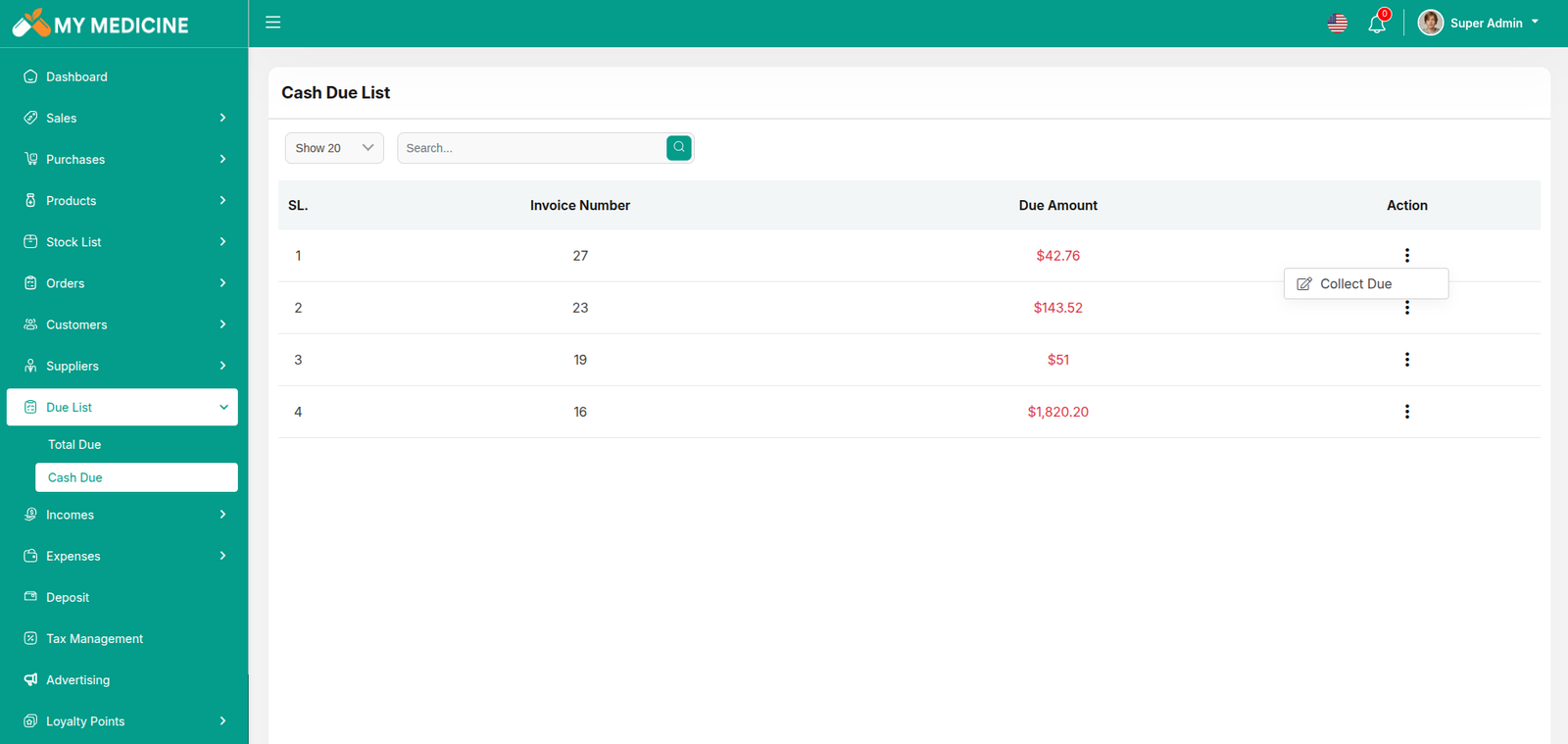
Cash Due List
If no customer is selected during a sale, the resulting dues are listed here. You can view the cash due list with a search filter. Additionally, you can view invoices and collect due amounts from this page.
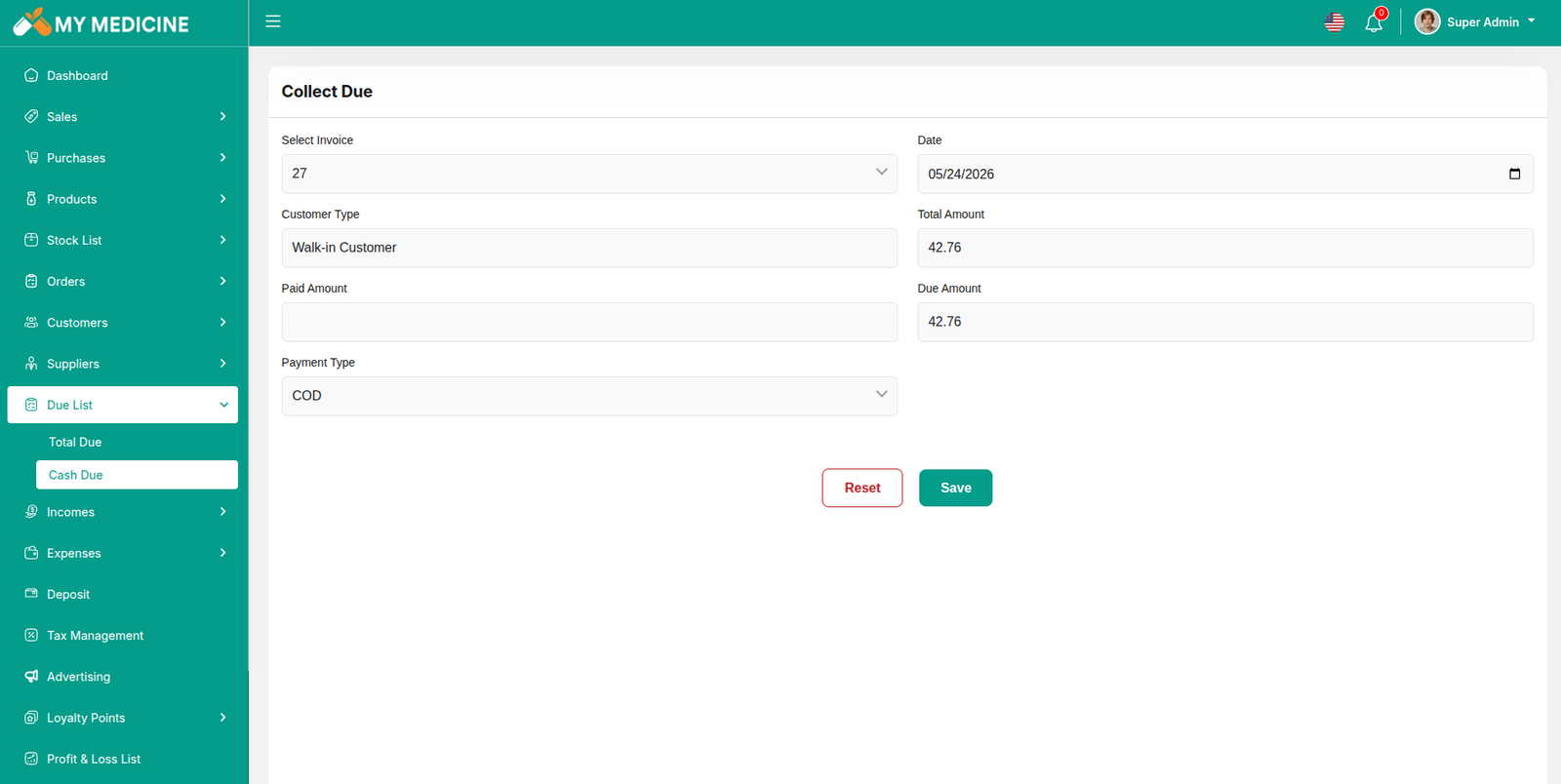
Cash Collect Due
When you click "Collect Due," this page will appear. Here, you can collect the due amount for the selected invoice.
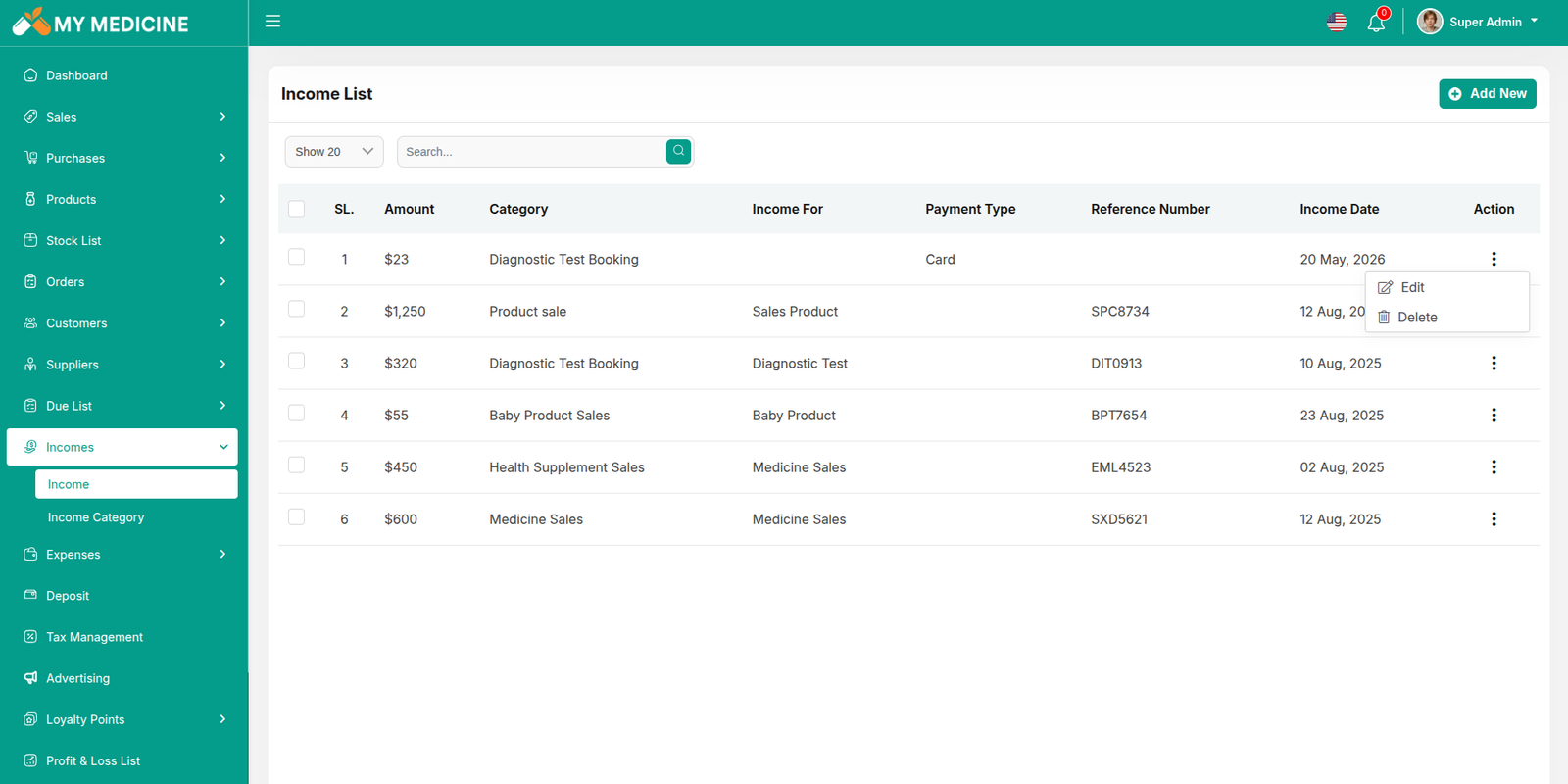
Income List
Here, you can view the Income list with a search filter. Additionally, you have the option to edit, delete, or use the multi-delete function.
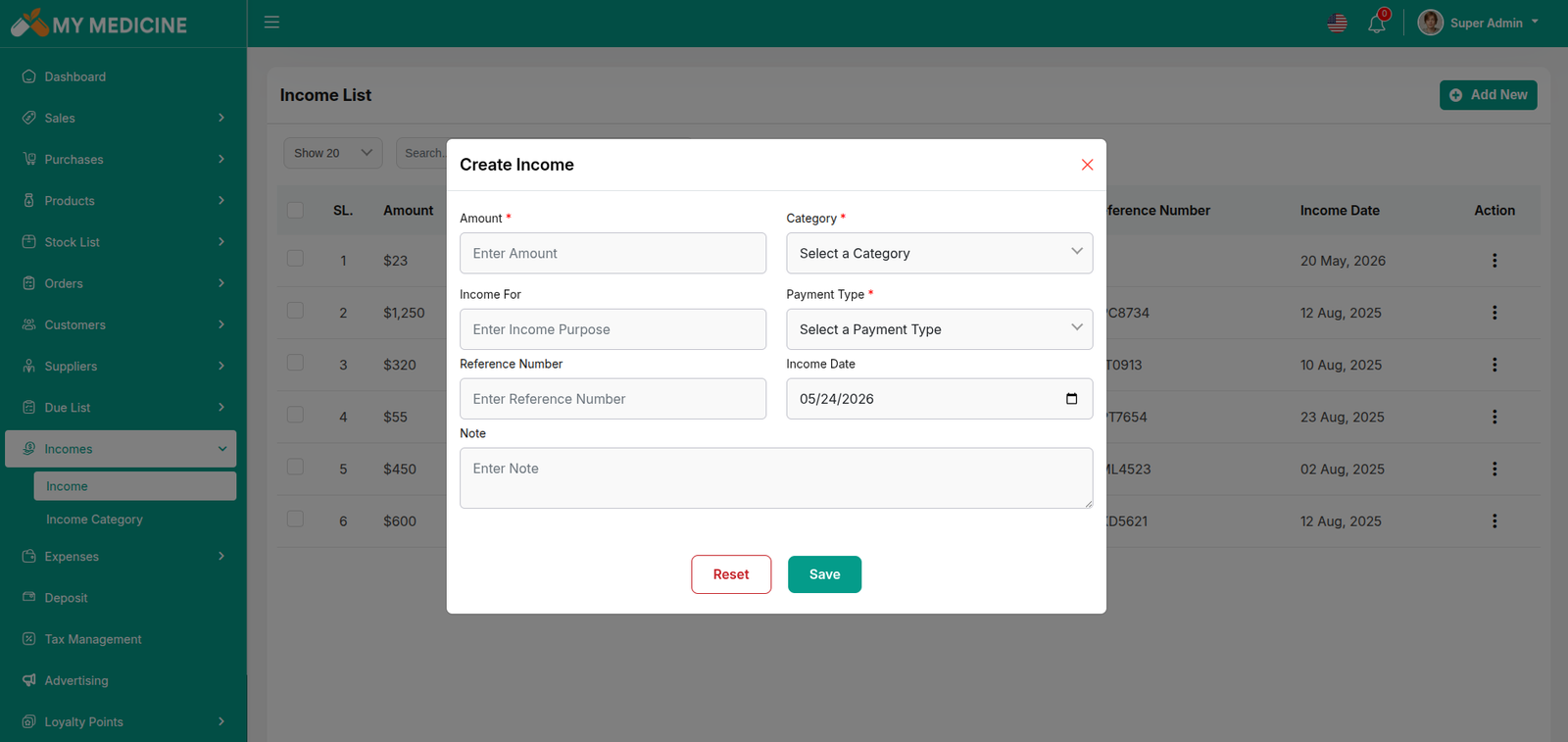
Create Income
You can create an income by filling out the required fields.Here You can also select category and payment type.
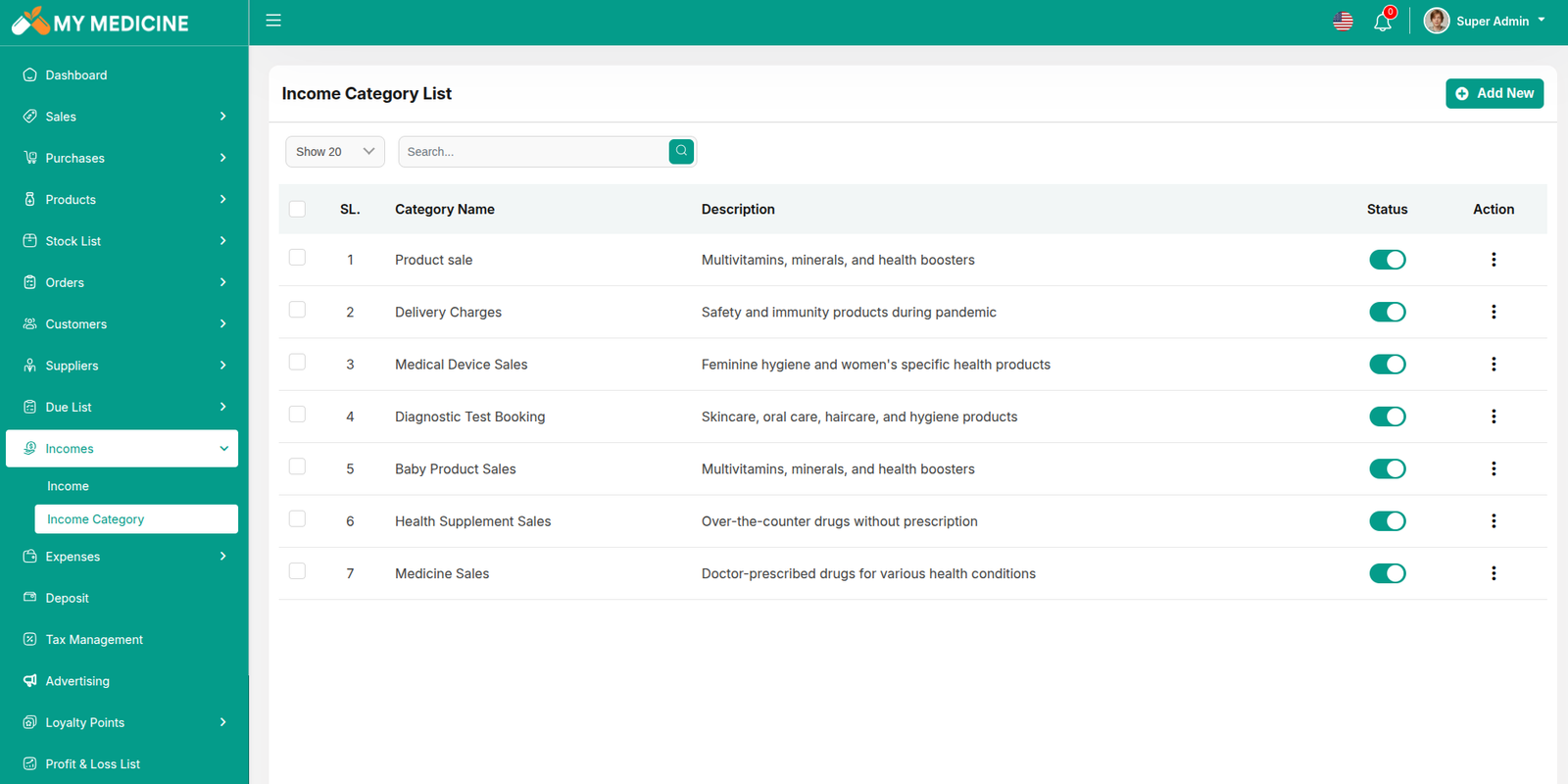
Income Category
Here, you can view the Income Category with a search filter. Additionally, you have the option to edit, delete, or use the multi-delete function. Just put category name and description for create Income Category
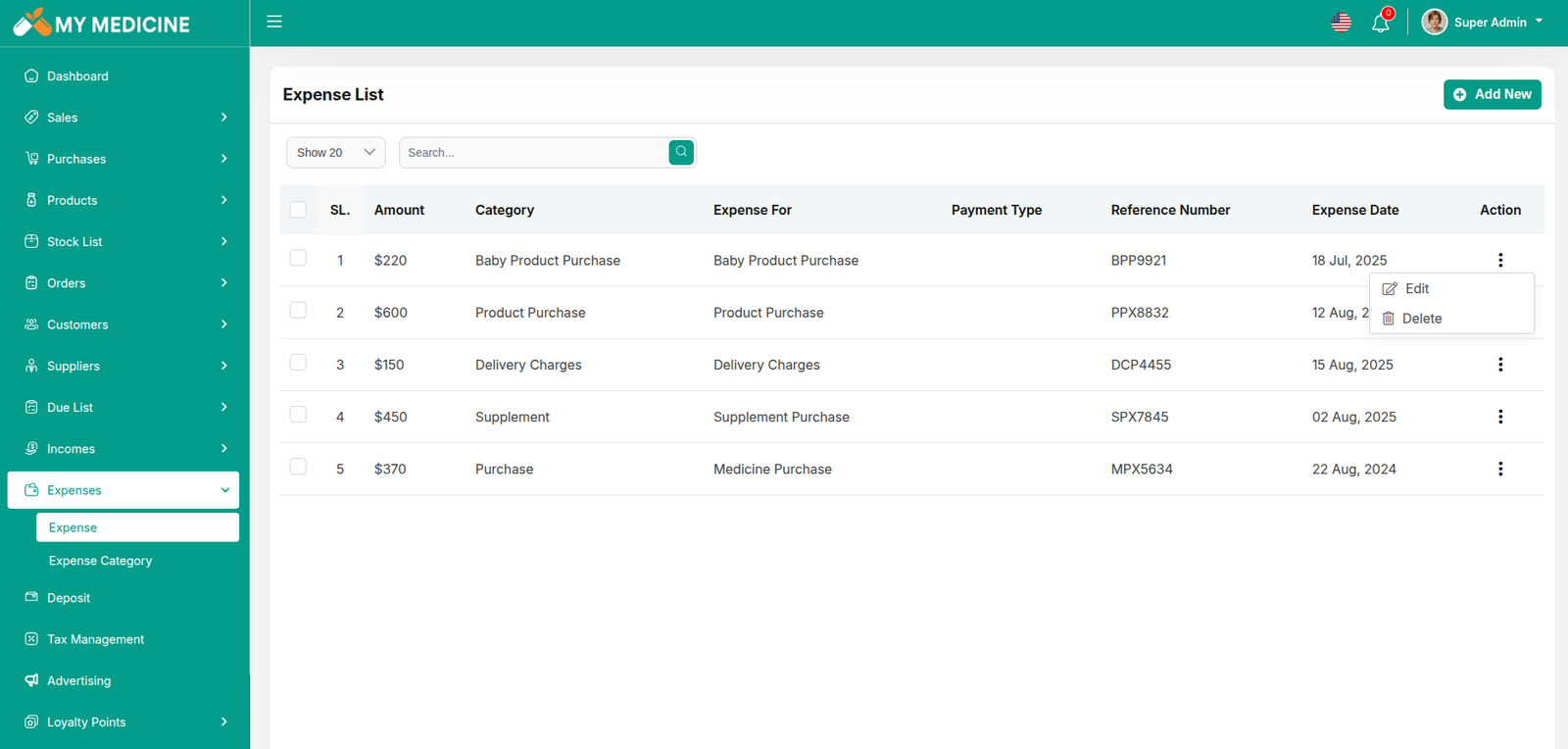
Expense List
Here, you can view the Expense list with a search filter. Additionally, you have the option to edit, delete, or use the multi-delete function.
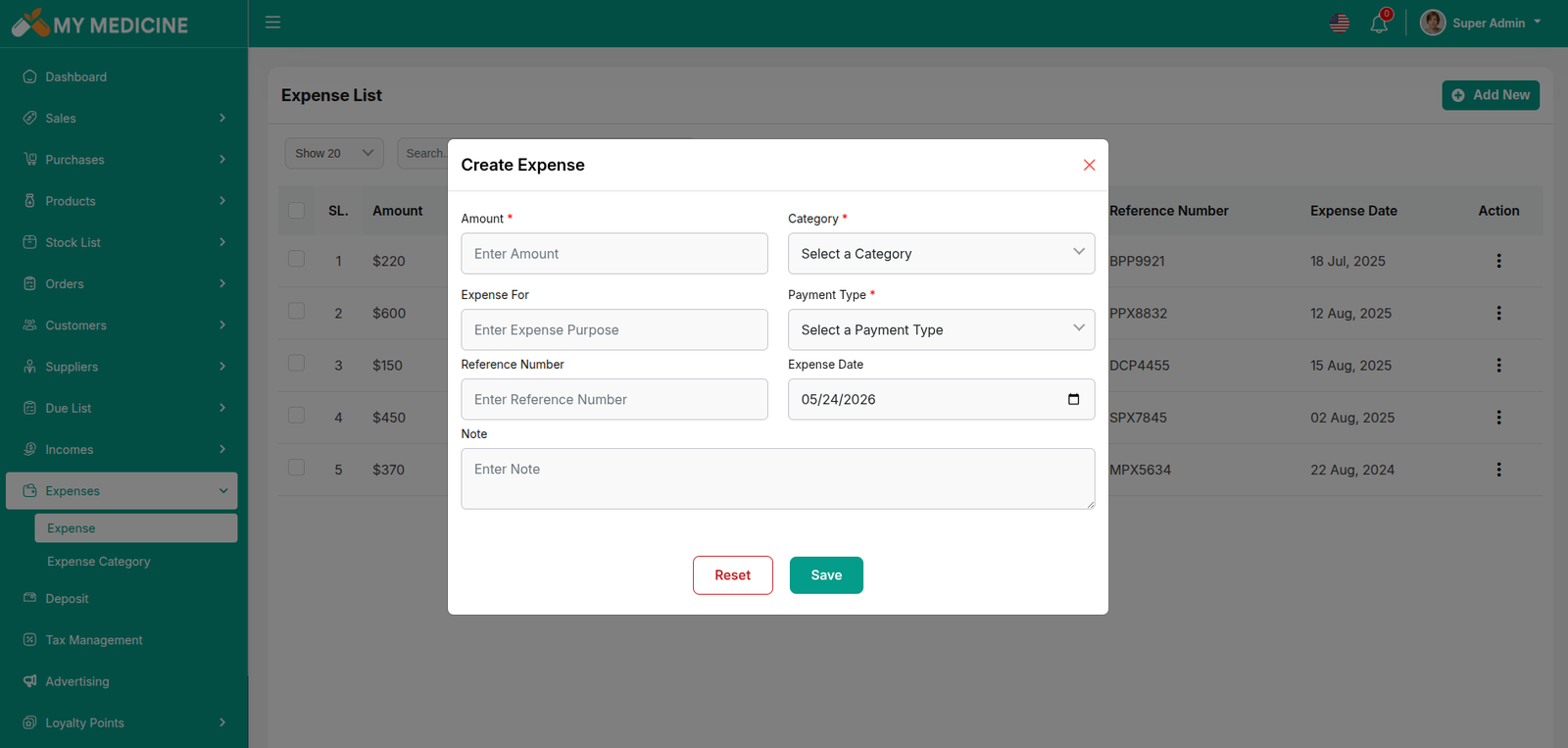
Create Expense
You can create an expense by filling out the required fields.Here You can also select category and payment type.
Expense Category
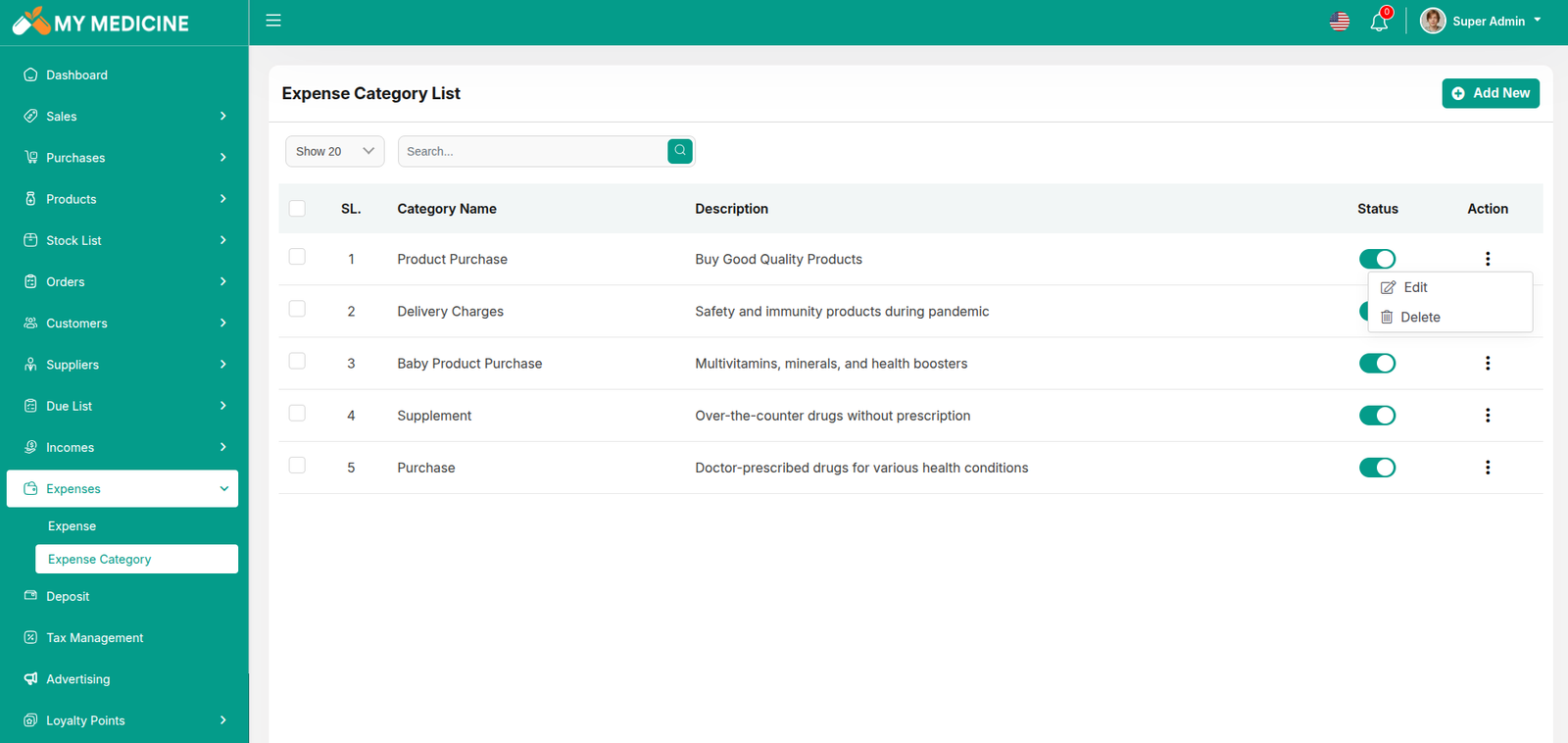
Here, you can view the Expense Category with a search filter. Additionally, you have the option to edit, delete, or use the multi-delete function. Just put category name and description for create Expense Category
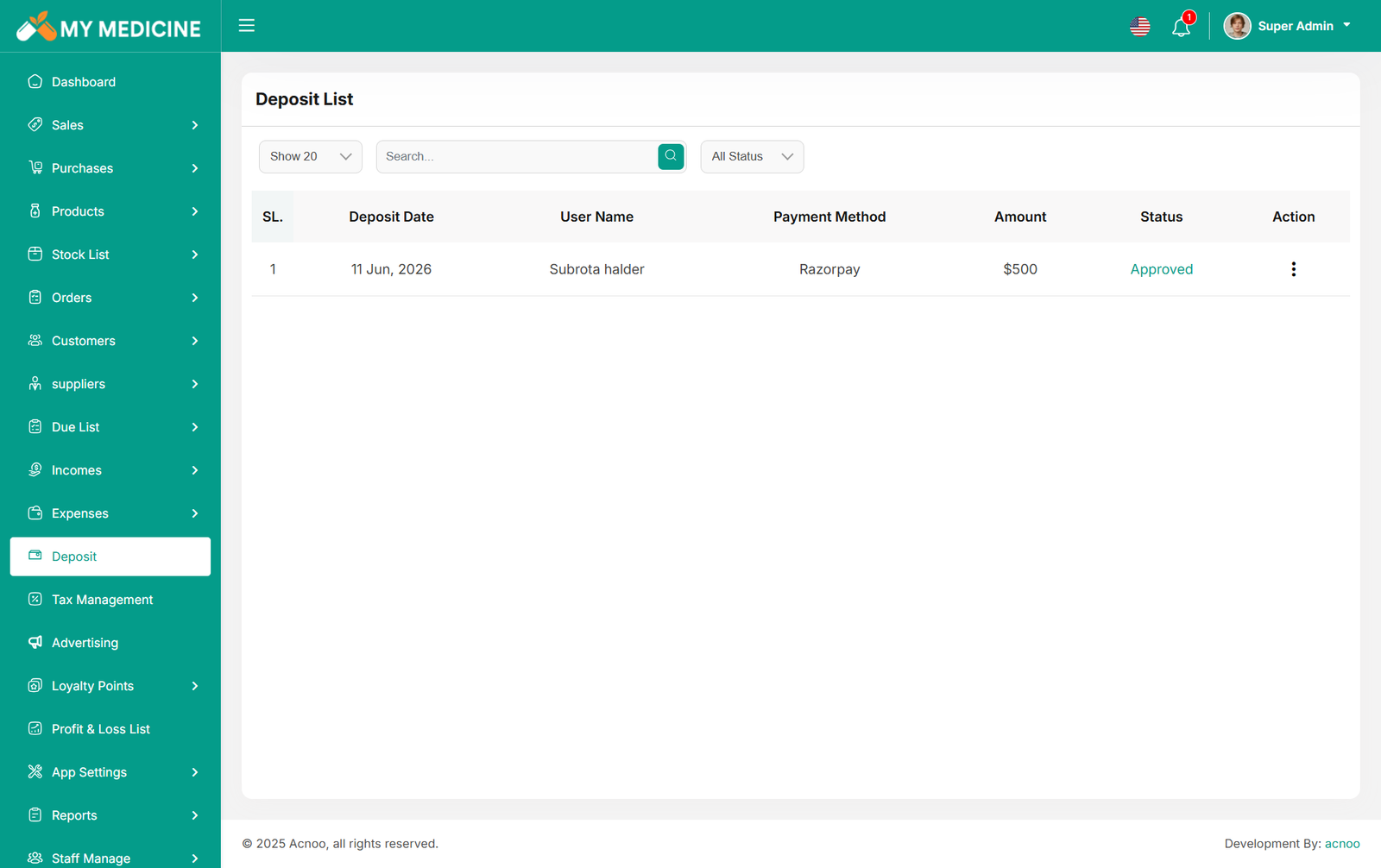
Deposit List
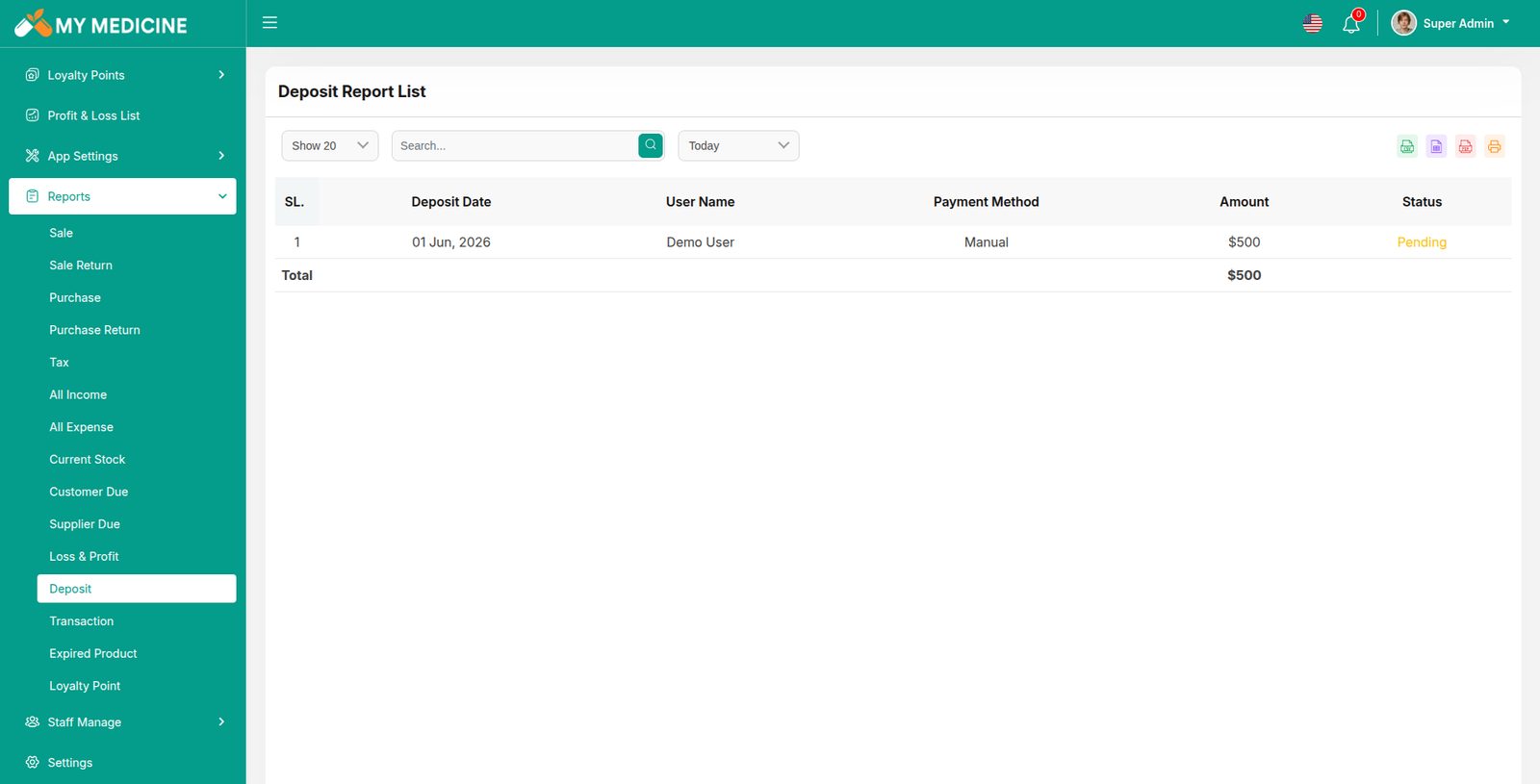
The Deposit List displays all wallet deposit requests submitted by users. When a user initiates a deposit, the request will appear in this list for review. For manual deposits, you can verify the details and either approve or reject the request. Additionally, all wallet balance additions made through loyalty point conversions are also recorded here, allowing you to track every wallet transaction from a single place.
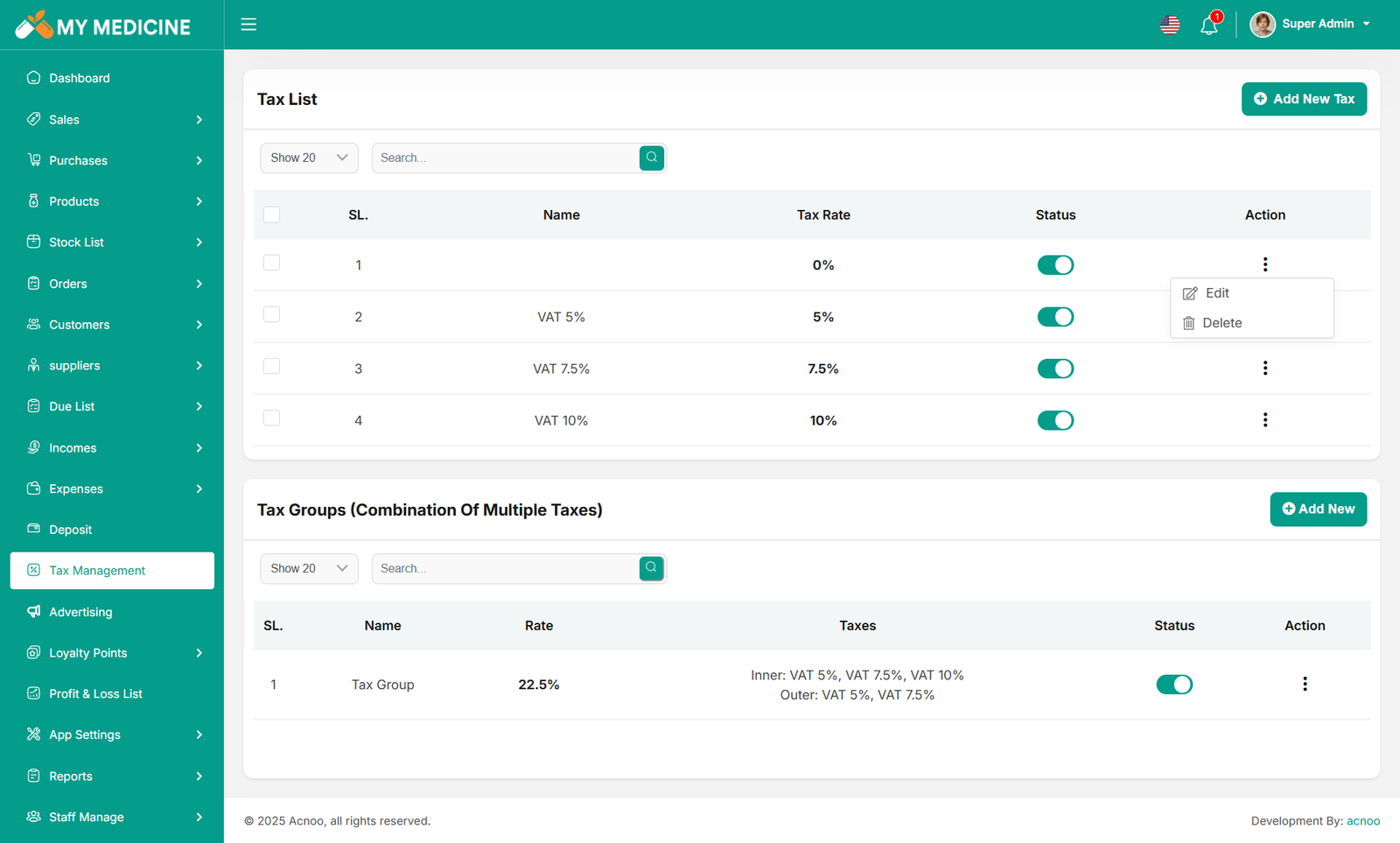
Tax List
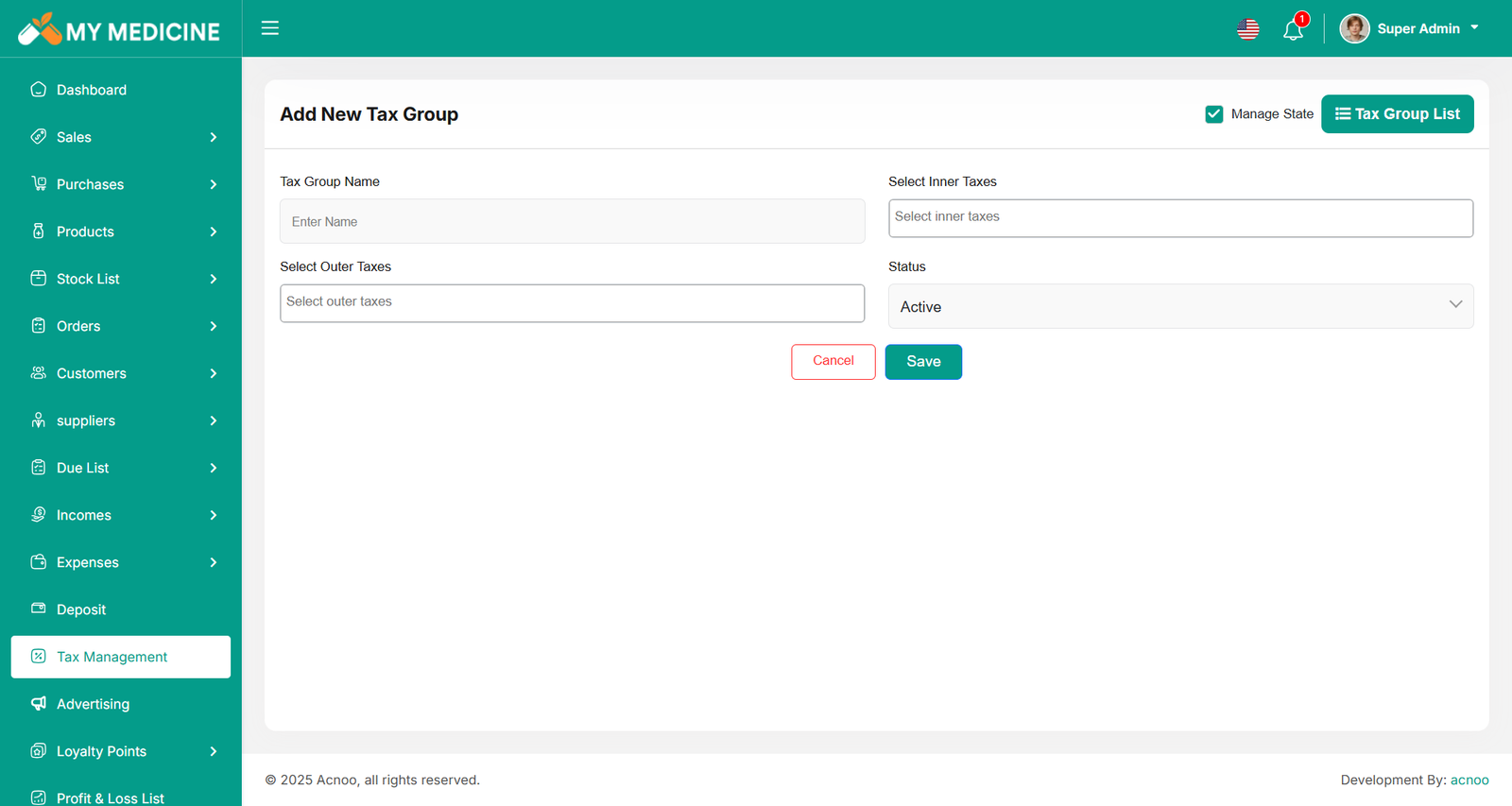
From this section, you can view all taxes and group taxes, create new entries, edit existing ones, and update their status whenever needed. This allows you to manage your taxes efficiently from a single place.
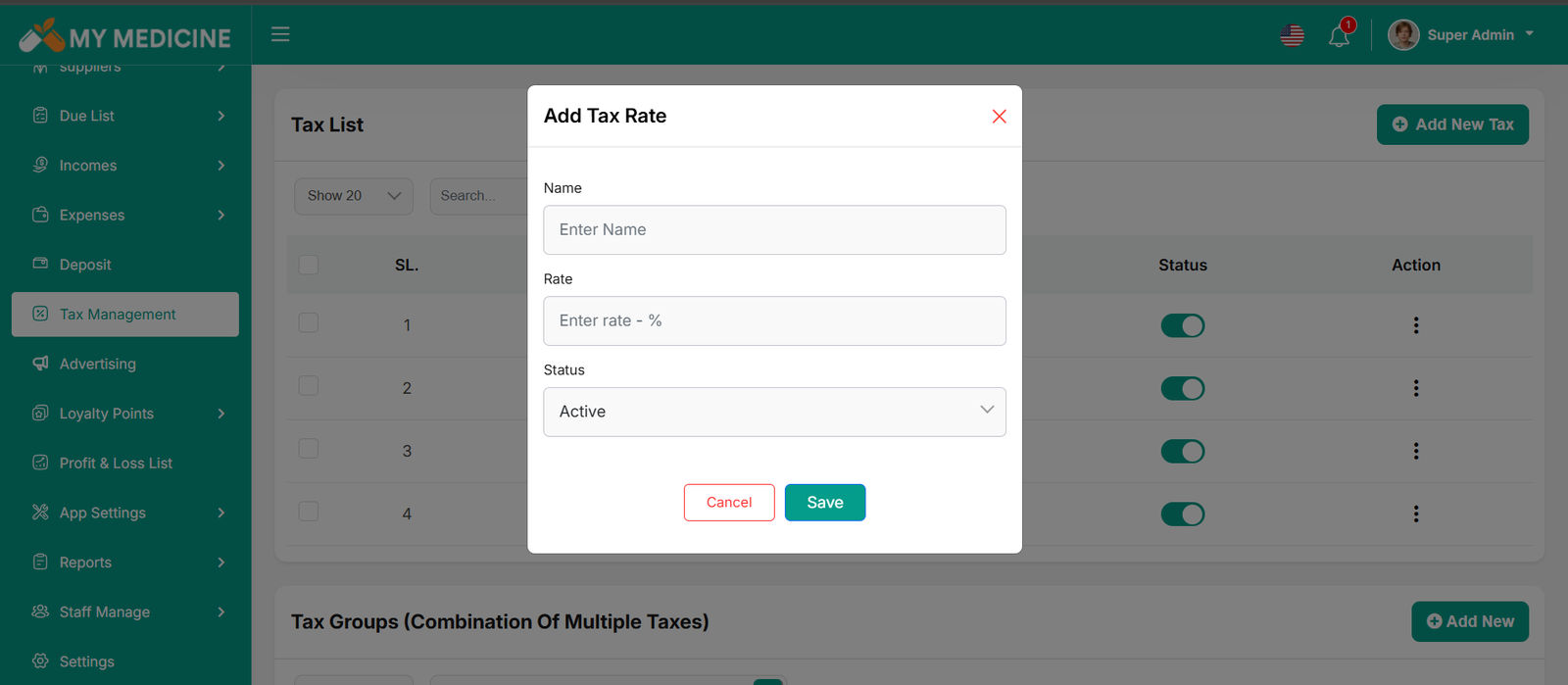
Create Tax
By clicking the Add Tax button, you can create both Single Tax and Group Tax. When creating a Group Tax, you can enable State Tax, allowing you to add and manage both Inner State Tax and Outer State Tax. This helps you organize and apply different tax rates based on state-specific requirements. You can also edit these tax by clicking edit button.
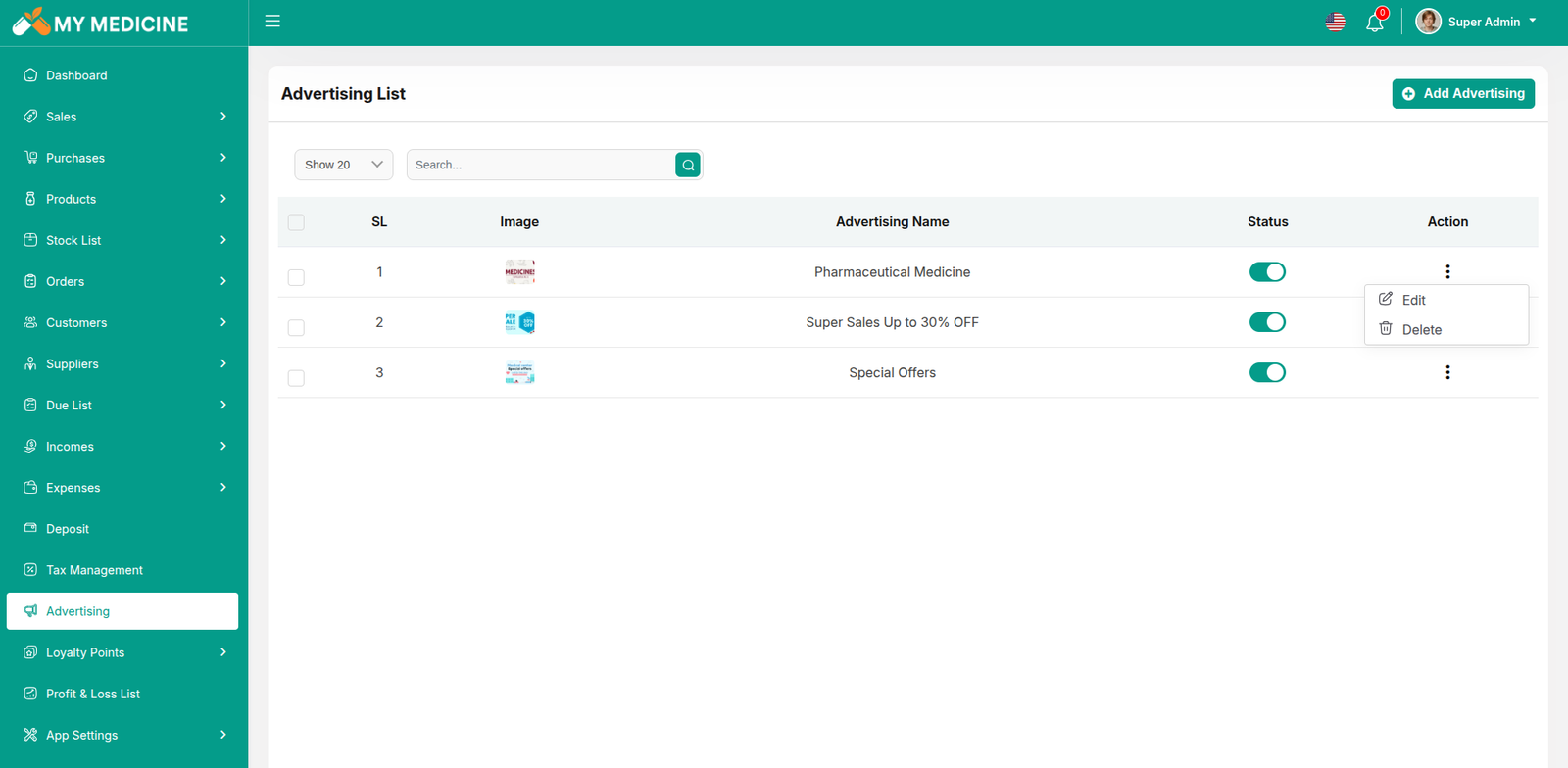
Advertising Section
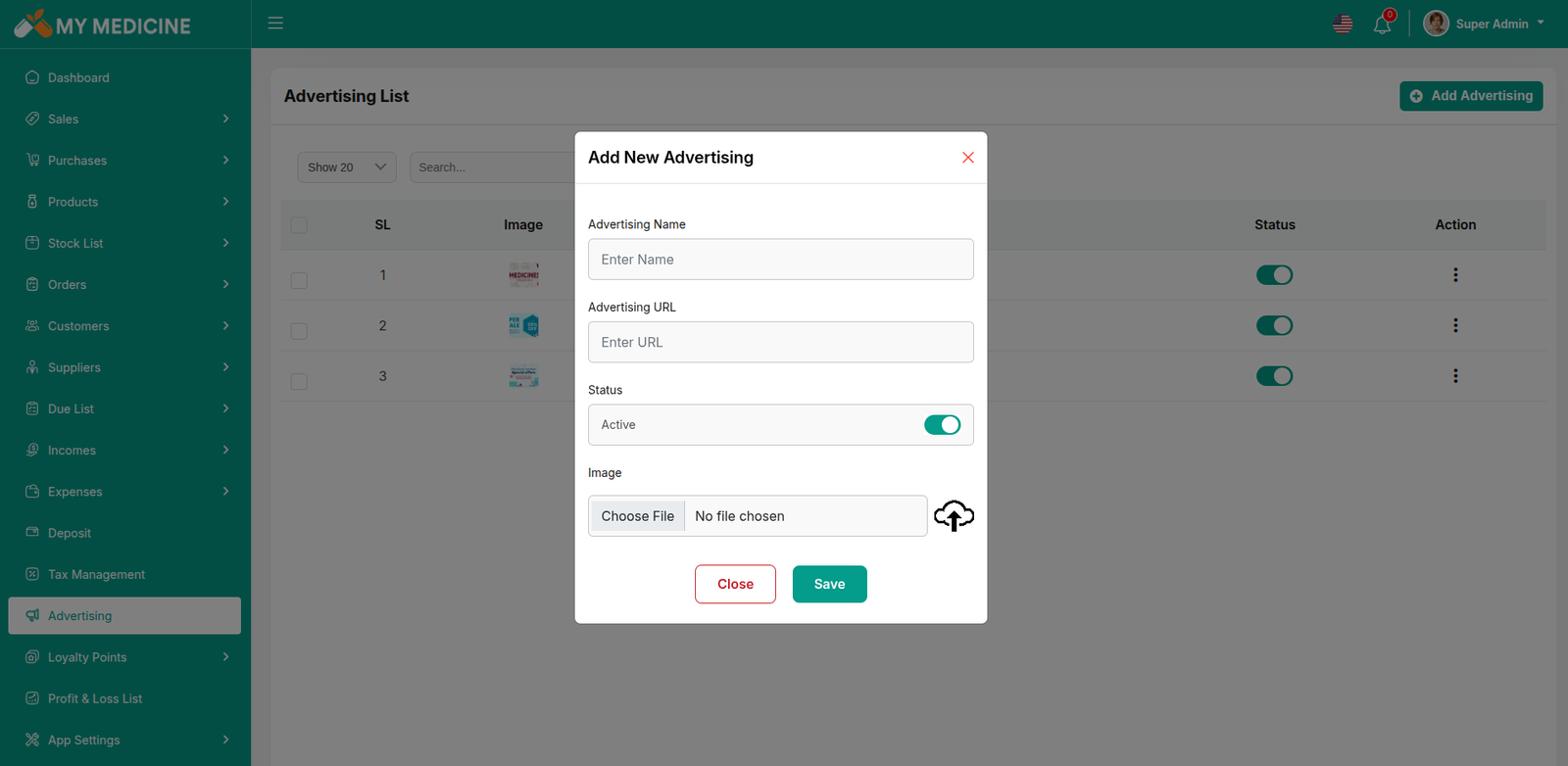
This list allows you to see the current advertising campaigns with status. To create a new advertise, you can click on the "Create Banner" button at the top right of the screenshot. A pop-up window will open, where you can add an image and change the status.Click the three dot menu where you can edit and delete
Add Advertising
This section describes the process of adding new advertisements to the MyMedicine store's system. Advertisements are used to promote products, services, or special offers to customers.
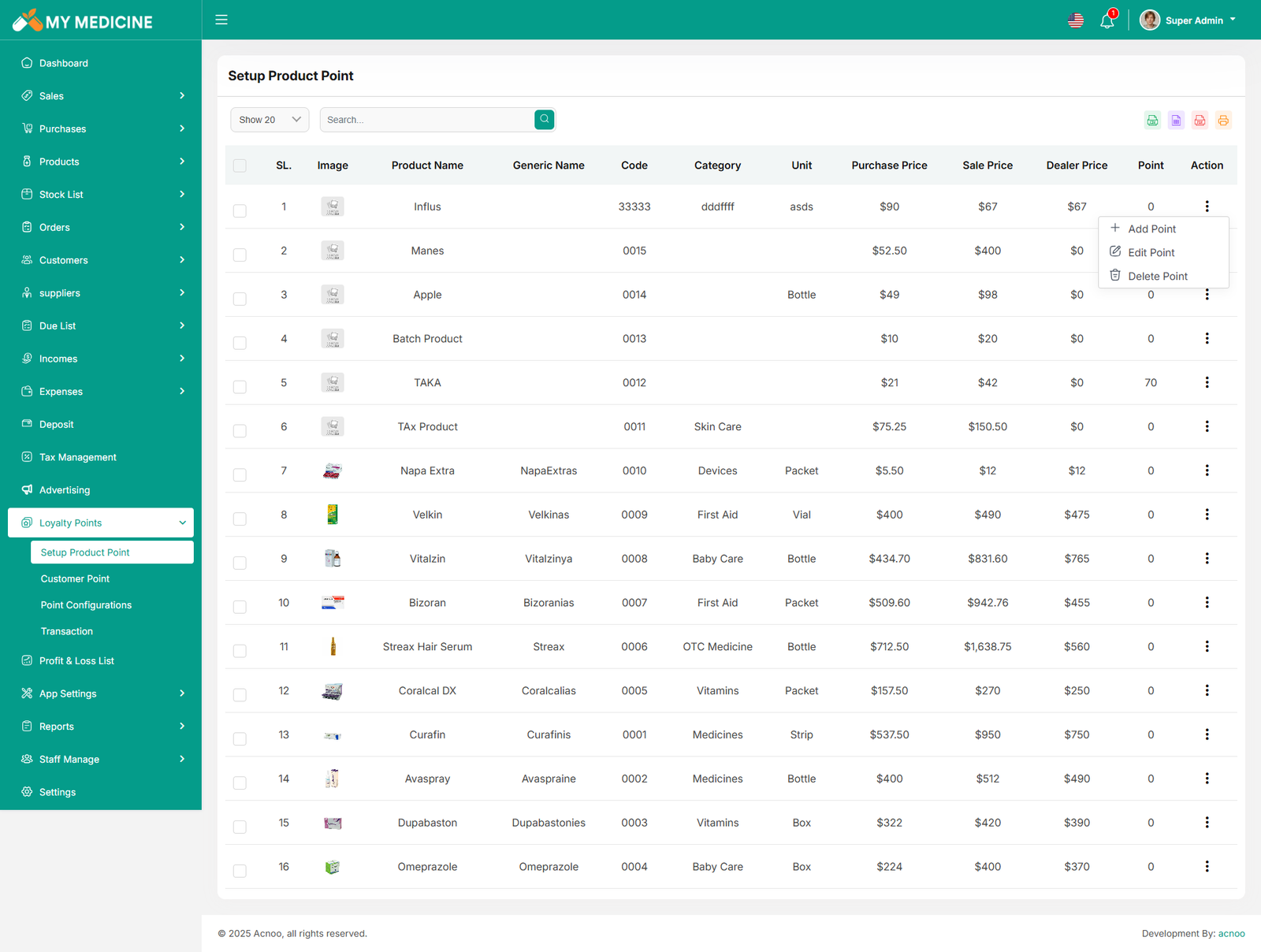
Setup Product Point
From this section, you can assign loyalty points to any product, as well as update or remove them whenever needed. When a customer purchases a product, they will automatically receive the number of loyalty points assigned to that product, helping you reward customers and encourage repeat purchases.
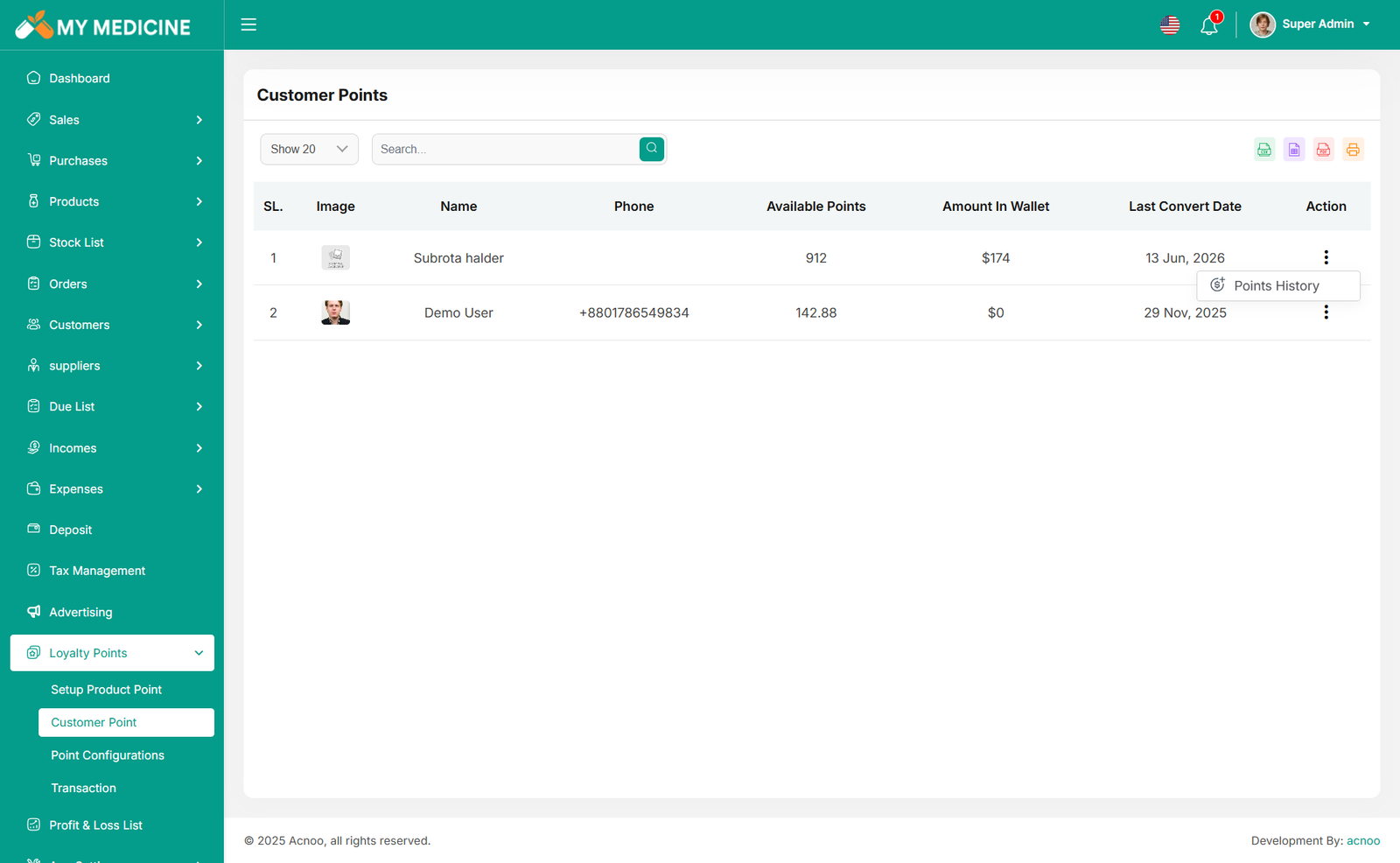
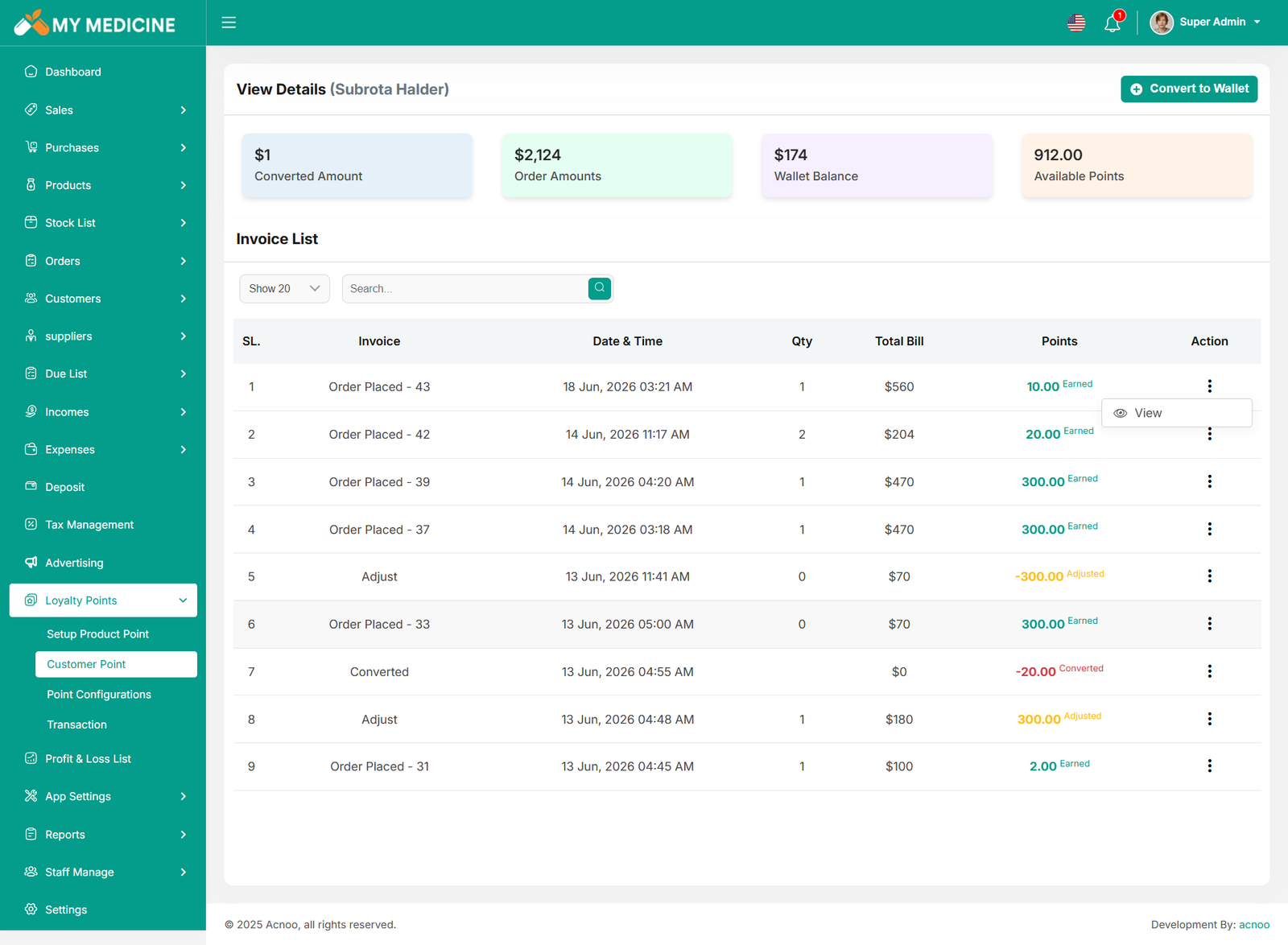
Customer Points
From this section, you can view the loyalty points earned by each customer. By clicking the Point History button, you can see a detailed history of all points earned and used by a specific customer. You can also convert a customer's loyalty points into wallet balance when needed. Additionally, all loyalty point data can be exported and downloaded in CSV, Excel, and PDF formats for reporting and record-keeping purposes.
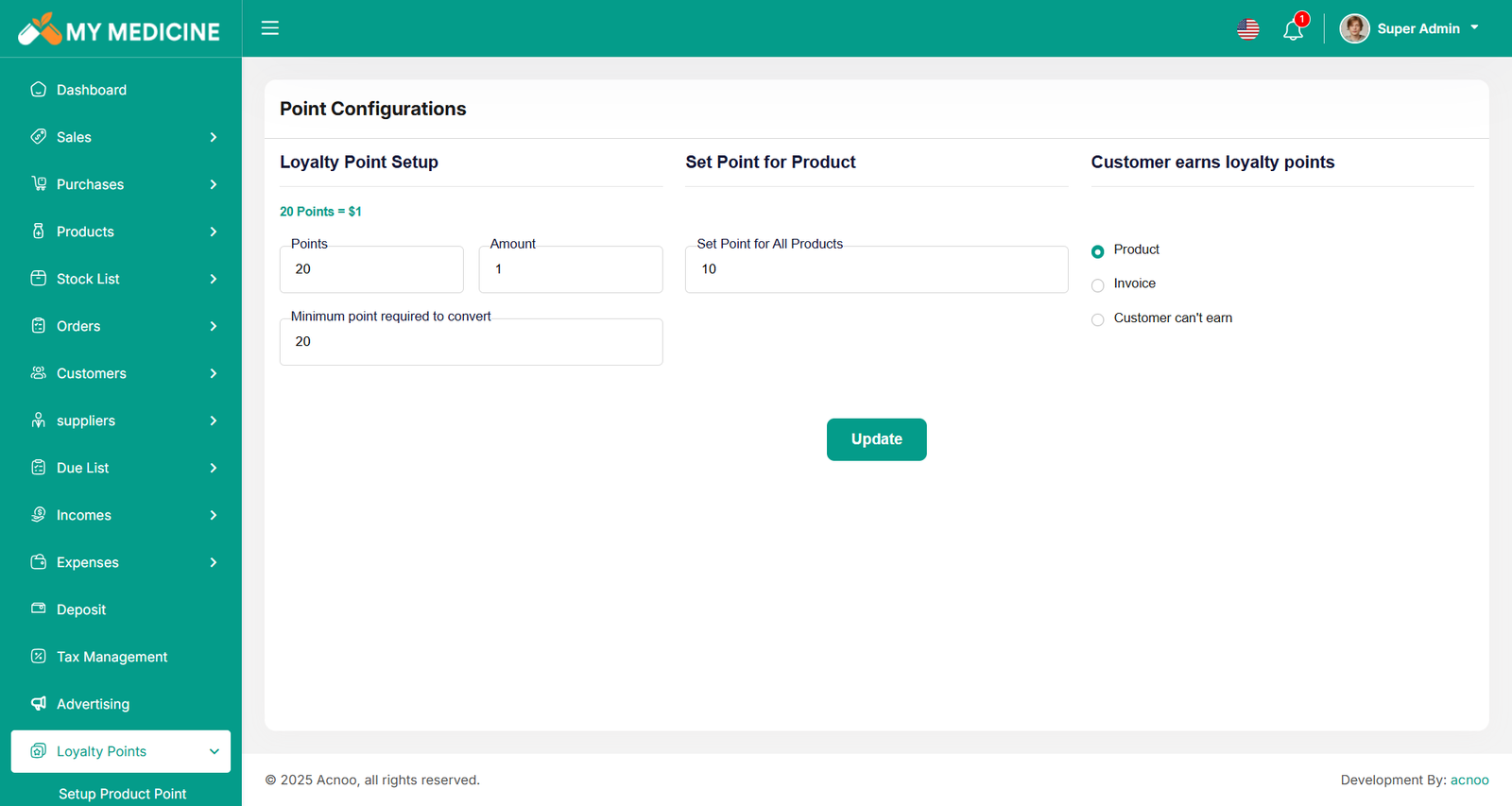
Point Configurations
From this section, you can configure the loyalty point system according to your business needs. You can choose where customers will earn loyalty points and where points will not be awarded. You can also set the minimum number of points required for conversion, as well as define the conversion rate, such as how many points are equal to a specific wallet balance amount. This gives you full control over how loyalty points are earned and redeemed.
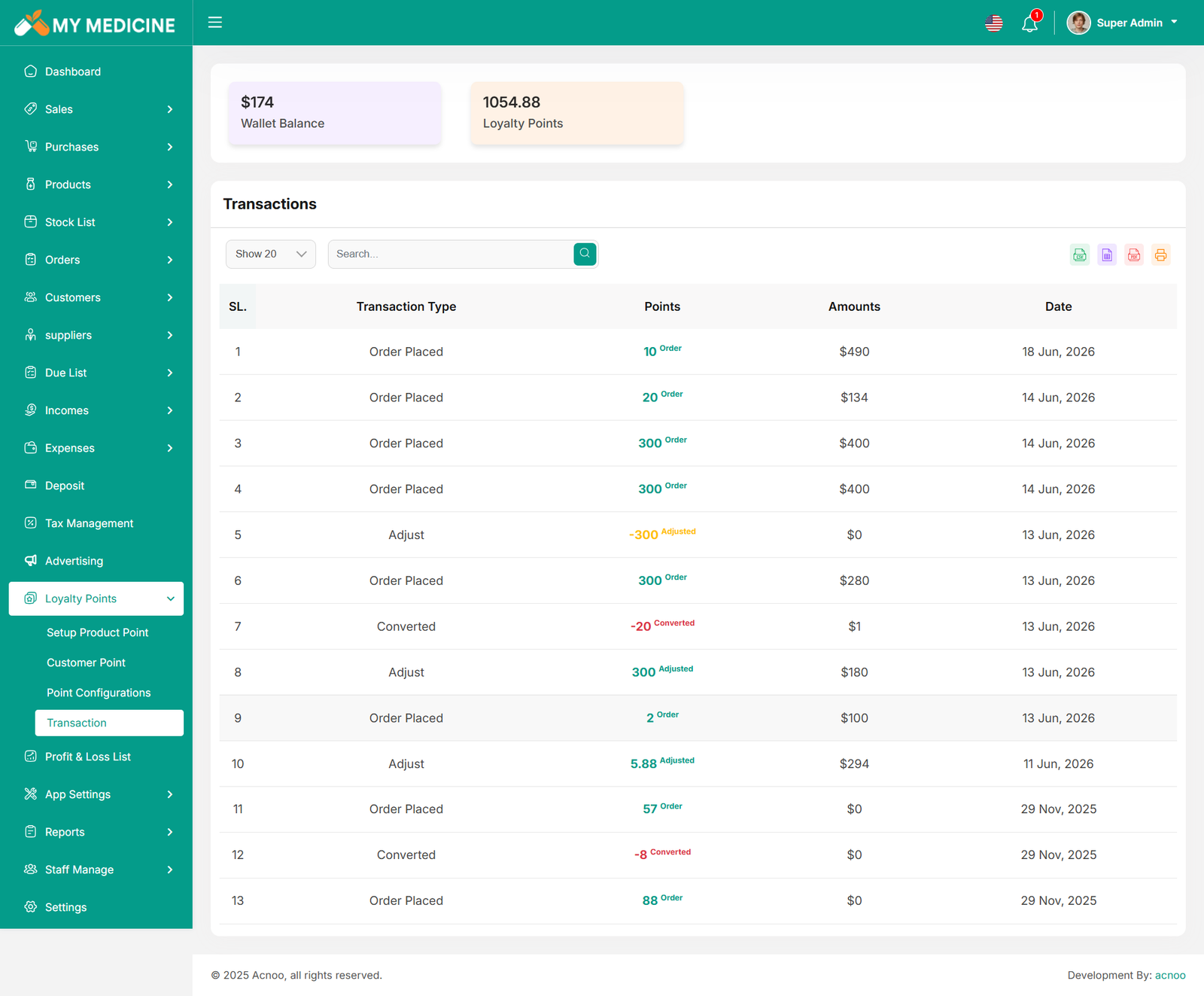
Transactions
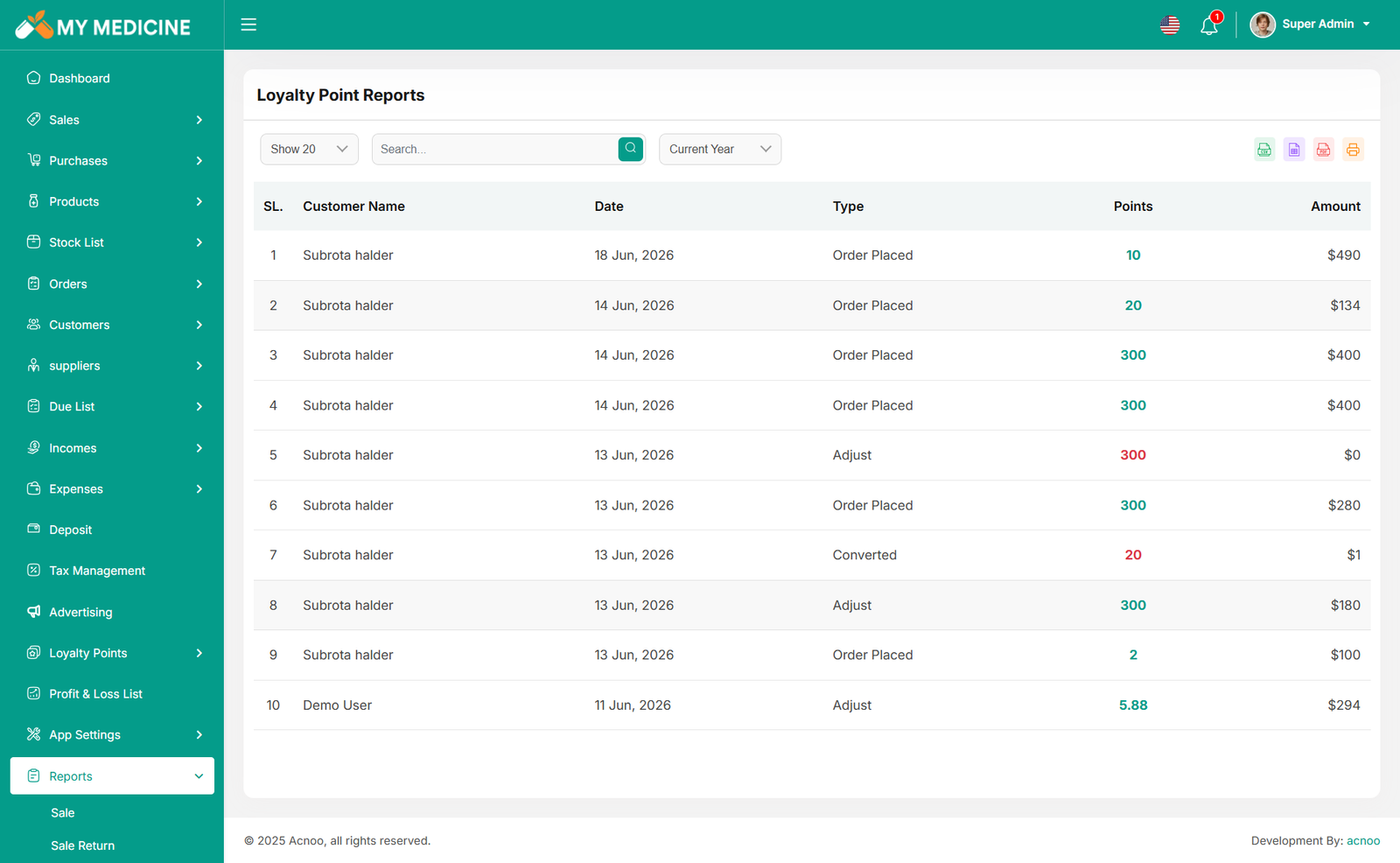
From the Transaction List, you can track all loyalty point activities, including points earned, points converted to wallet balance, and points adjusted manually. Each transaction is displayed with its corresponding date and details for easy monitoring. You can also export and download the transaction records in CSV, Excel, and PDF formats for reporting and analysis.
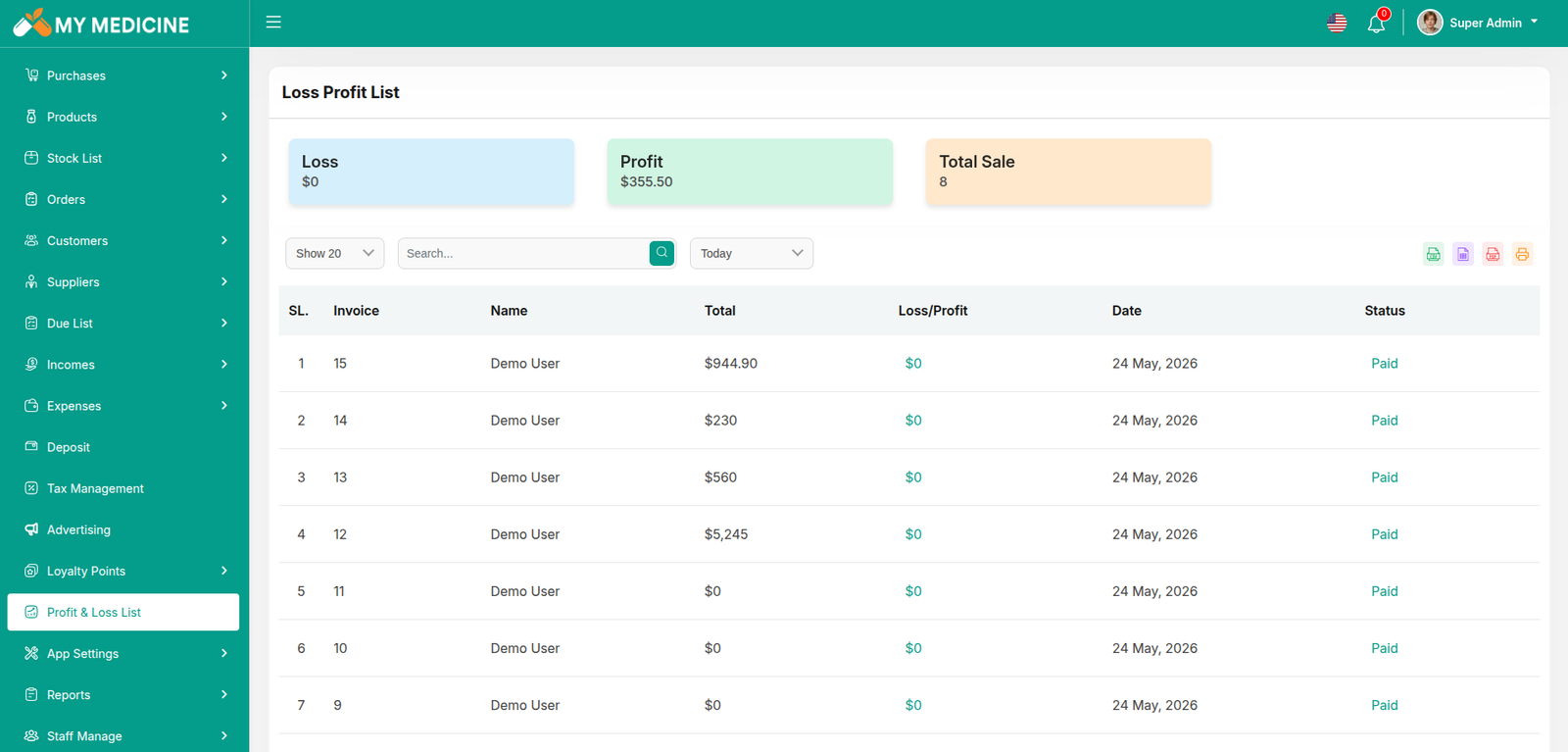
Loss Profit List
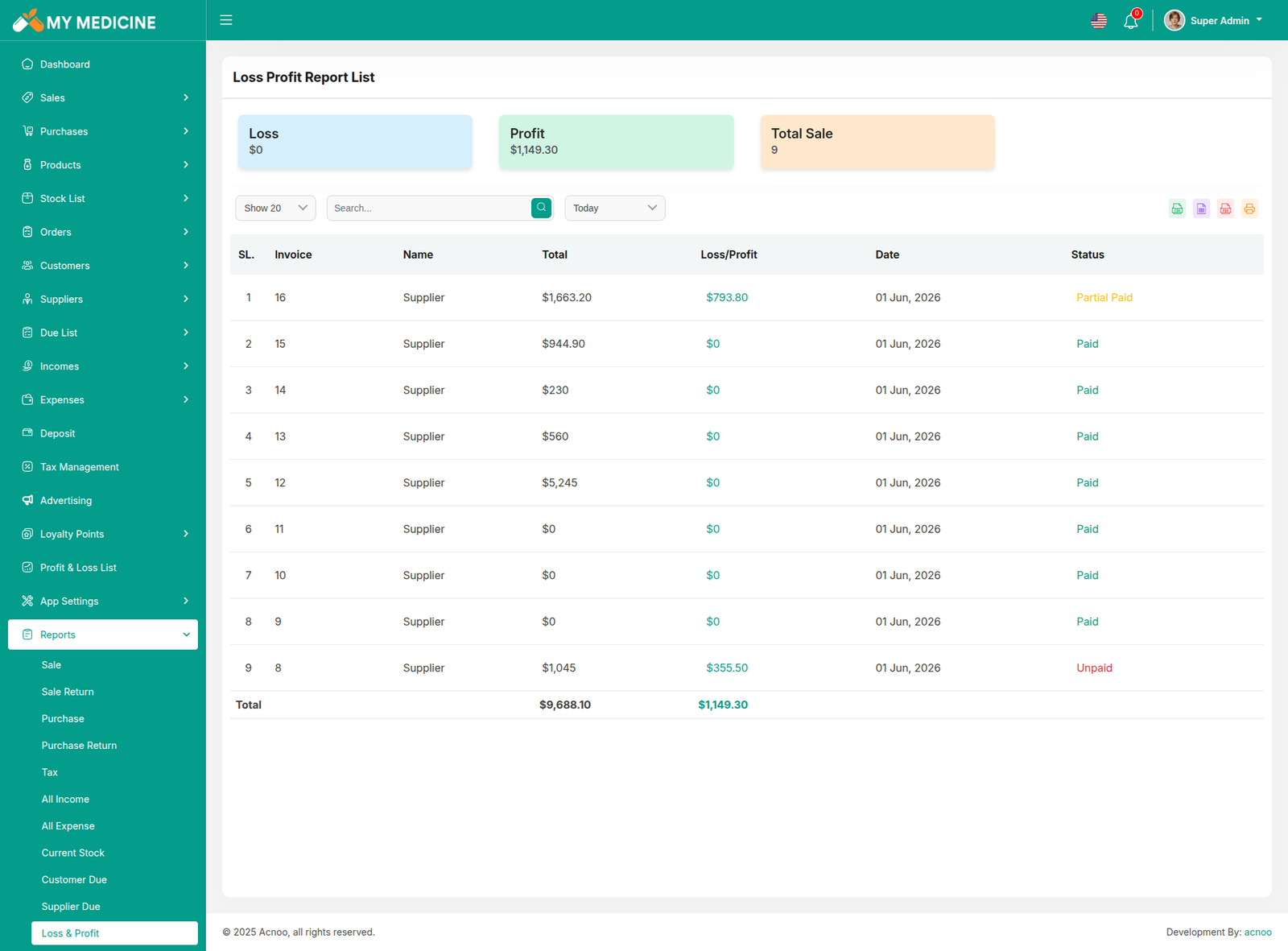
Here, you can view the profit and loss data from sales with search and date filters. You can also export the list as CSV, Excel, and print it. Additionally, the total loss and profit are displayed in the top cart.
App Settings
This section allows you to configure the app settings for your application. Like Terms & Conditions, Privacy Policy, About us.
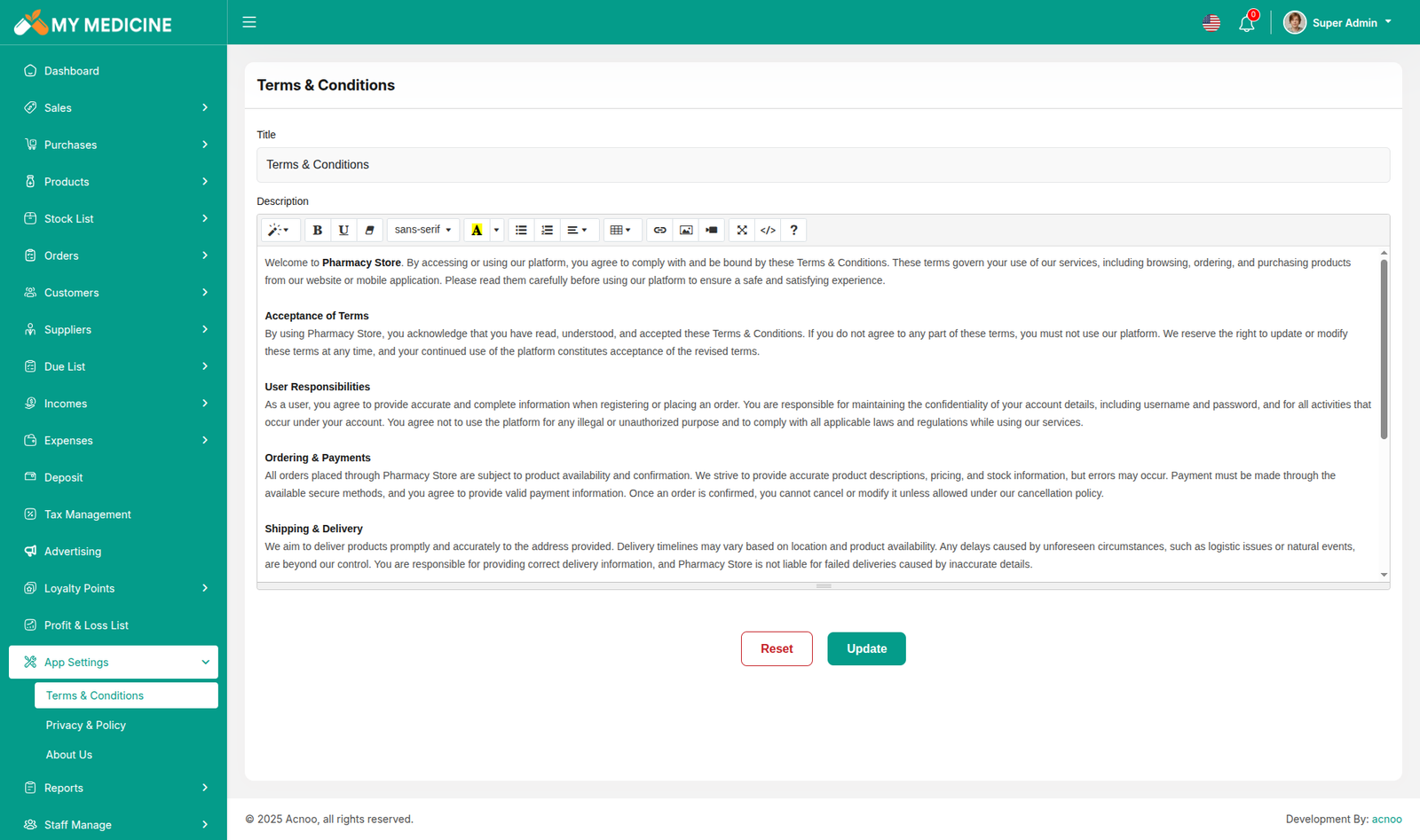
Terms & Conditions Settings
This section allows you to configure the Terms & Conditions for your application. You can define and manage the content that will be displayed to users within the app.
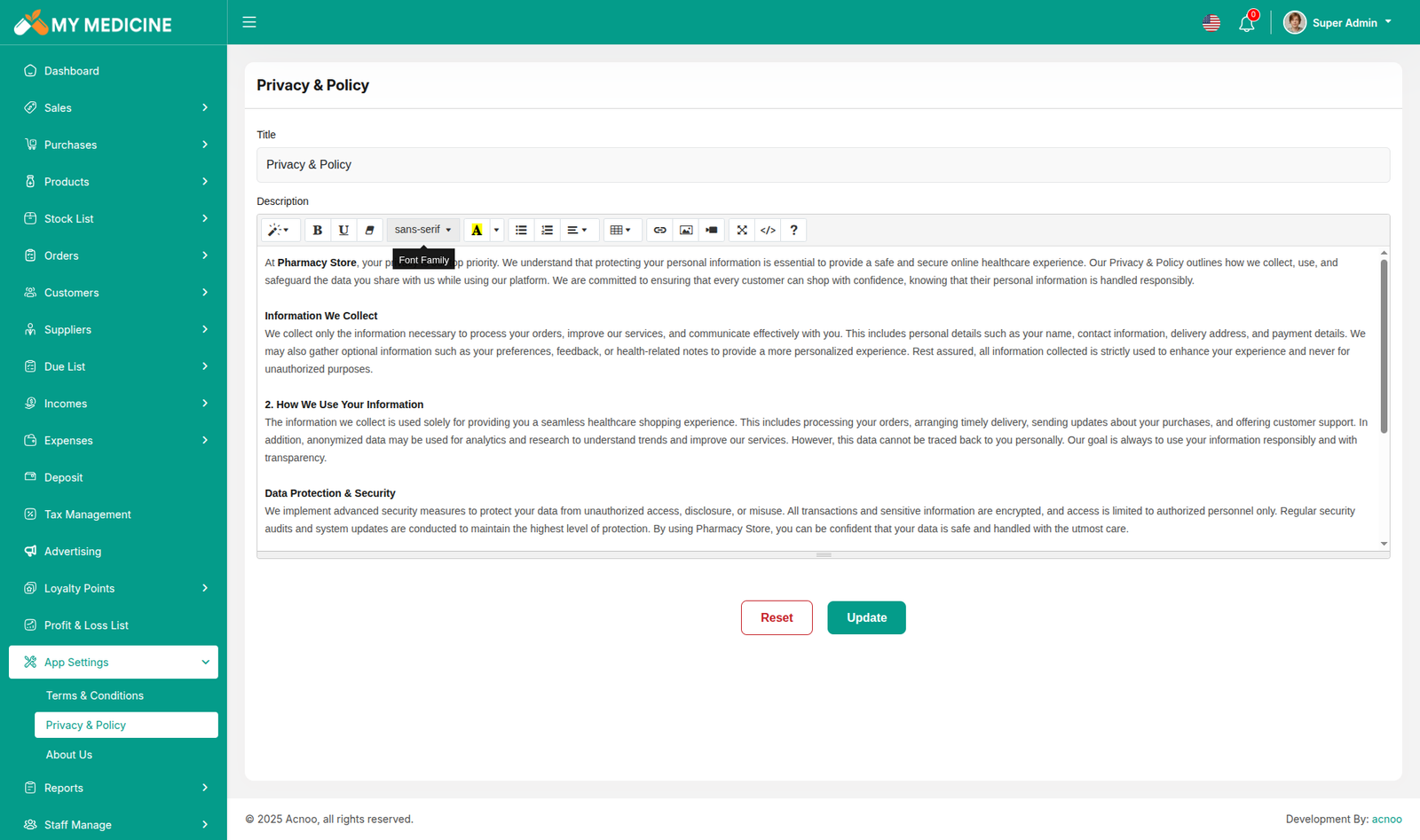
Privacy Policy Settings
This section allows you to configure the Privacy Policy for your application. You can define and manage the content that will be displayed to users within the app.
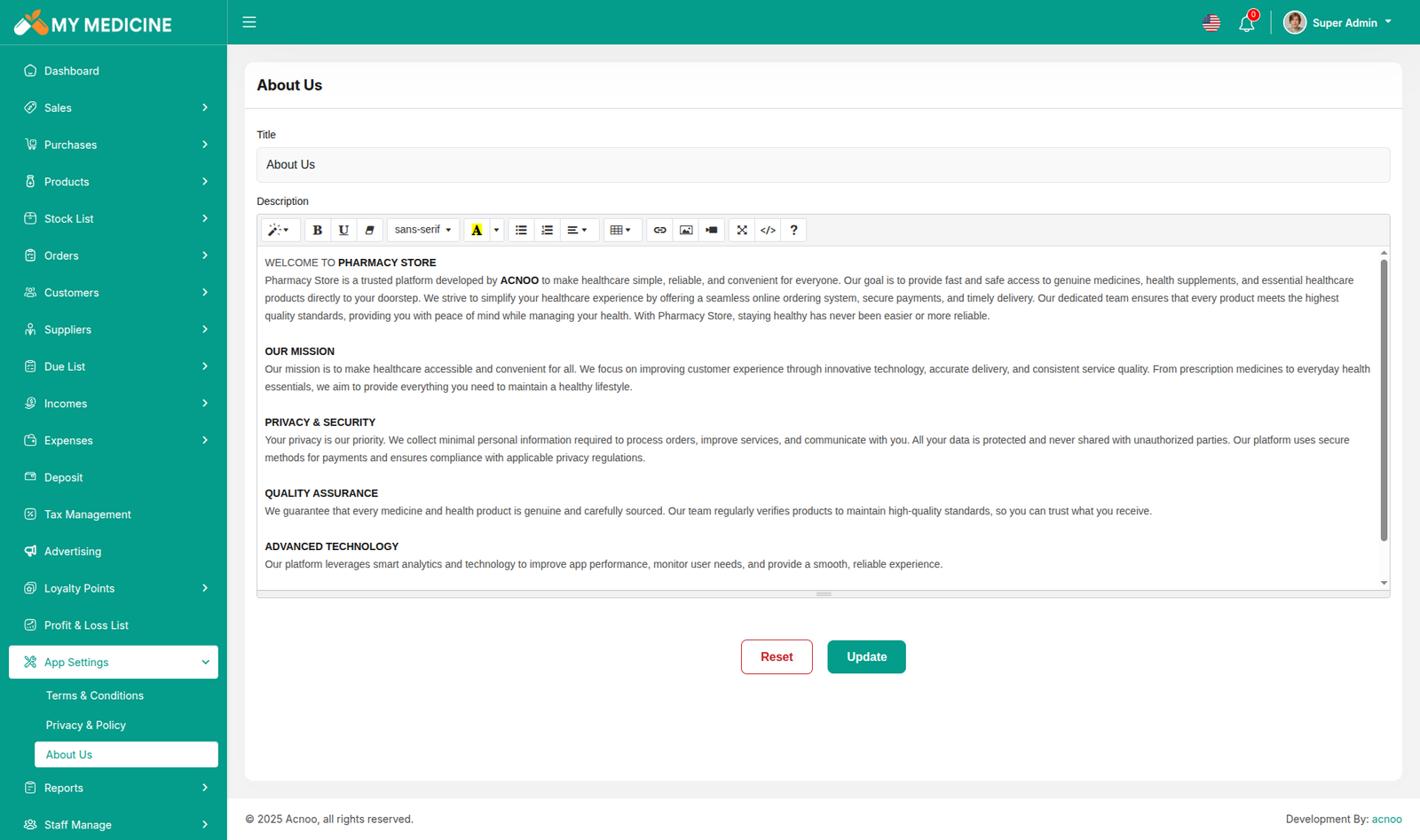
About us Settings
This section allows you to configure the About us for your application. You can define and manage the content that will be displayed to users within the app.
Reports
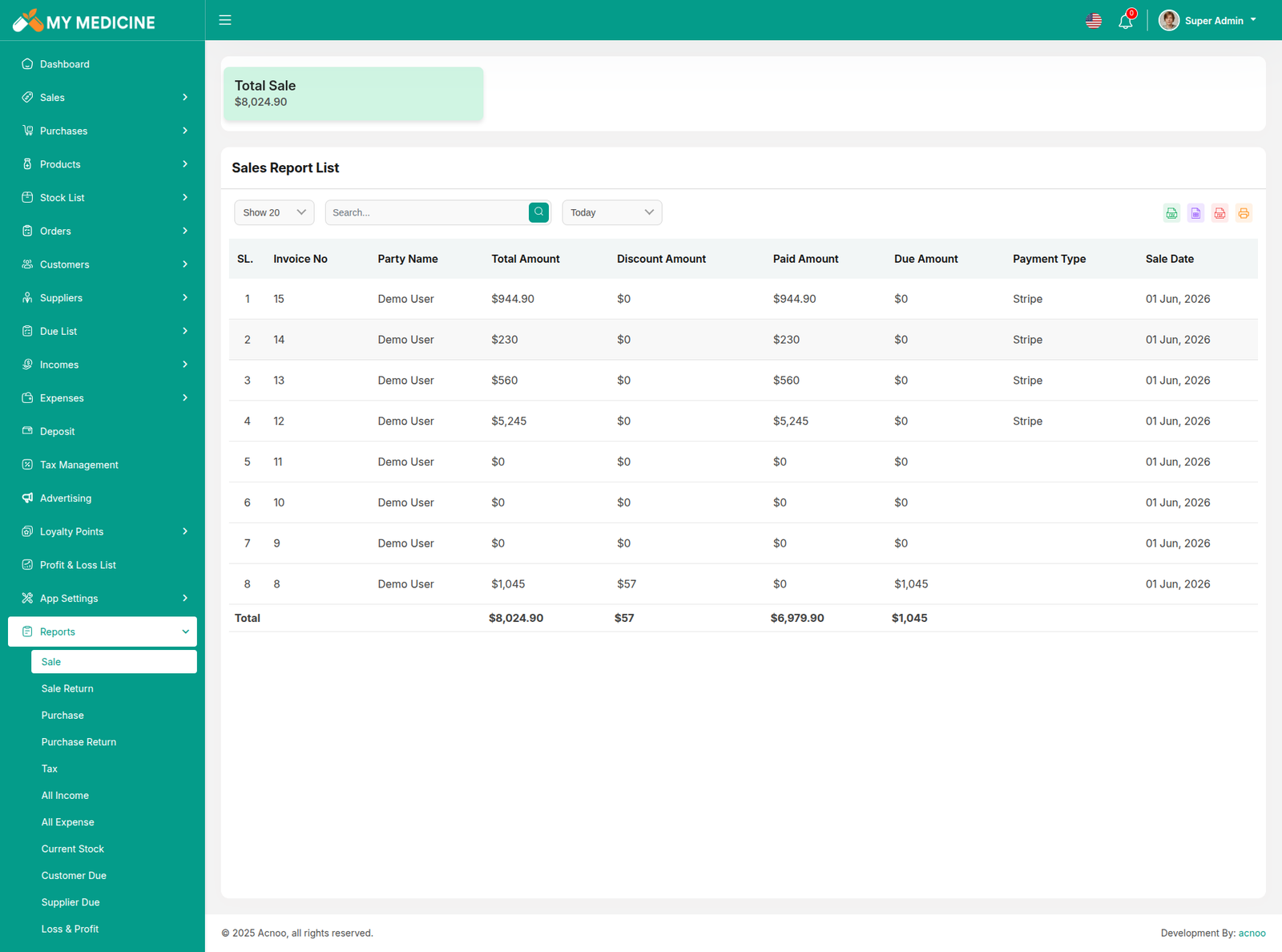
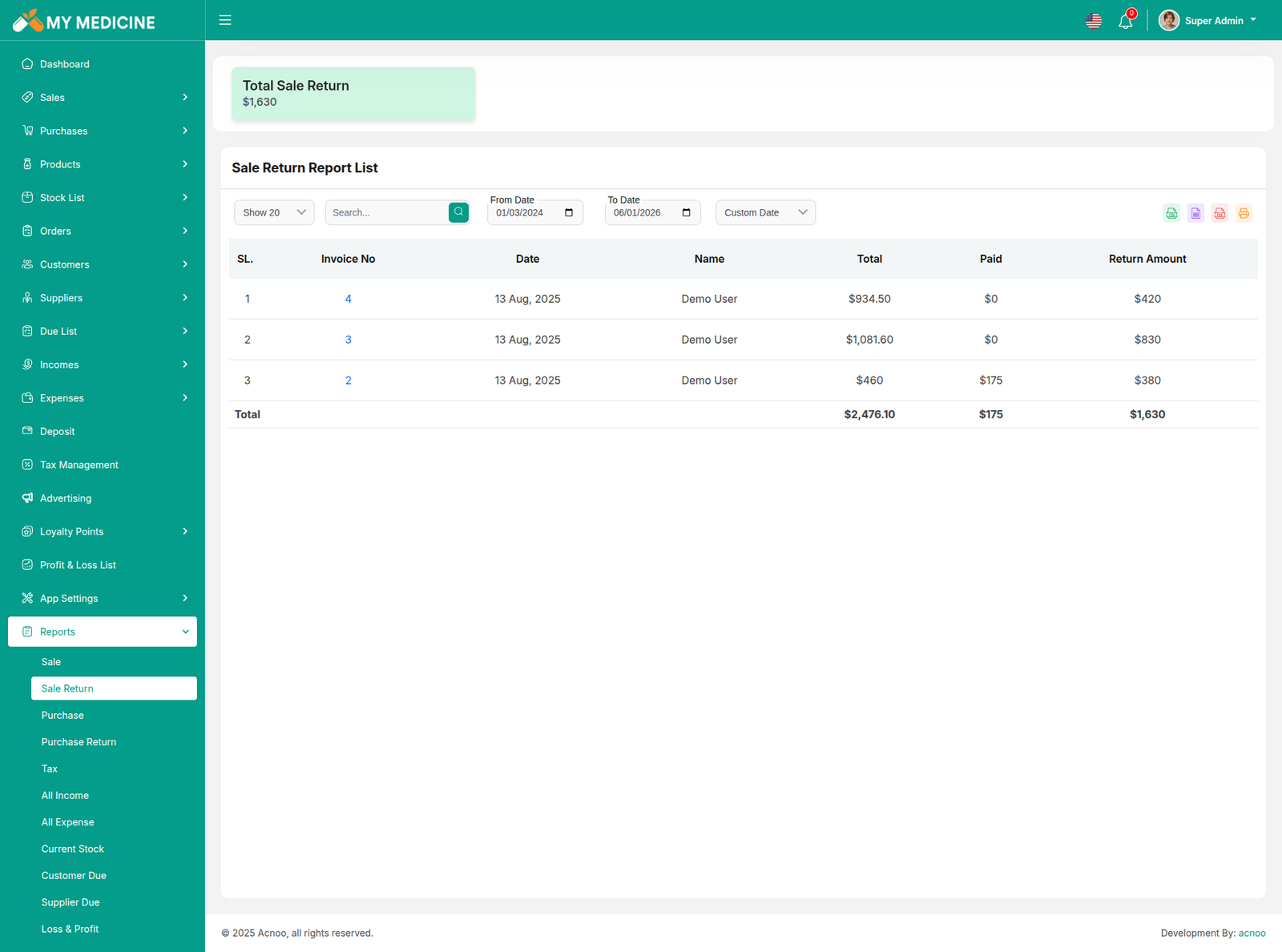
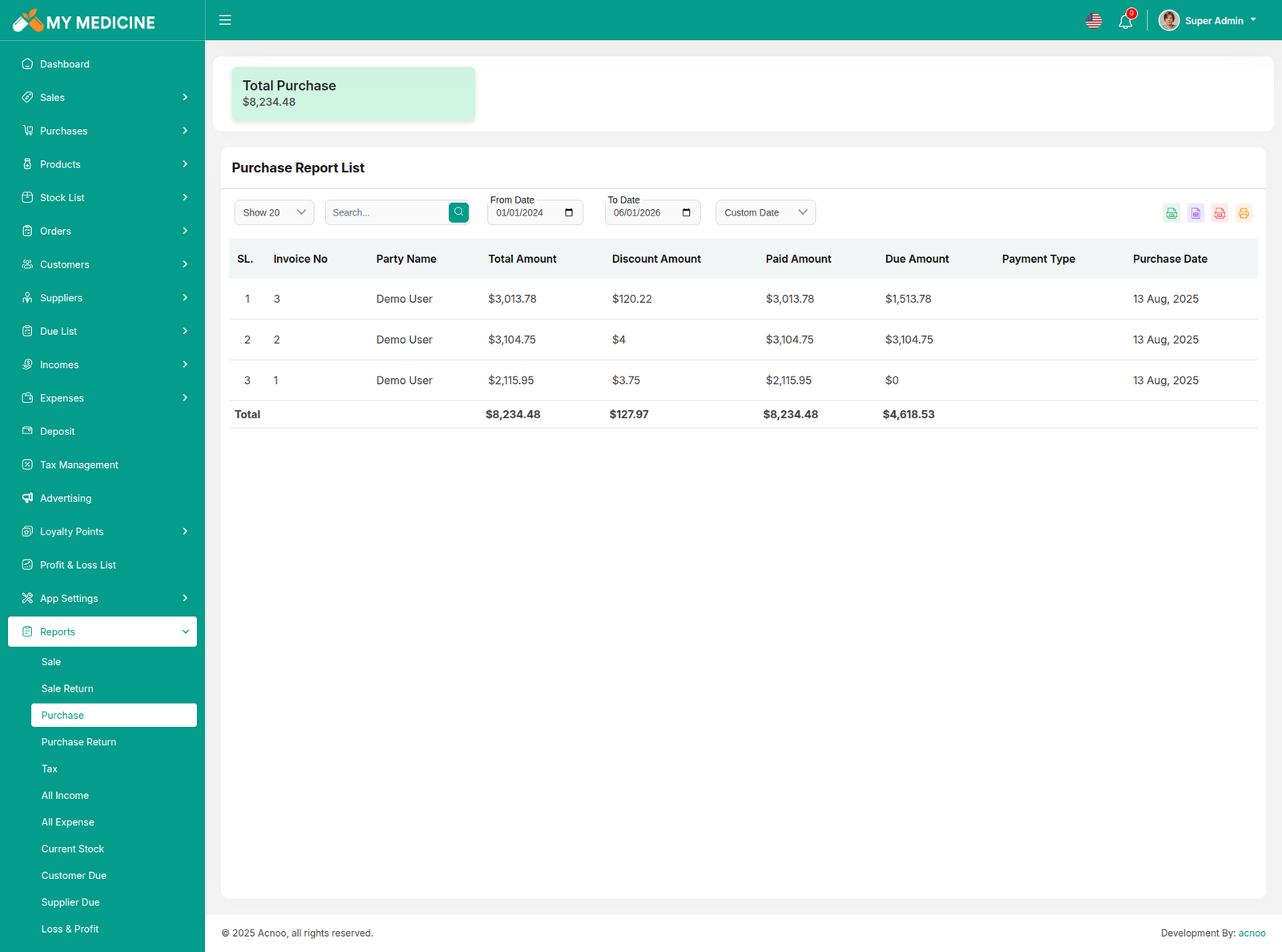
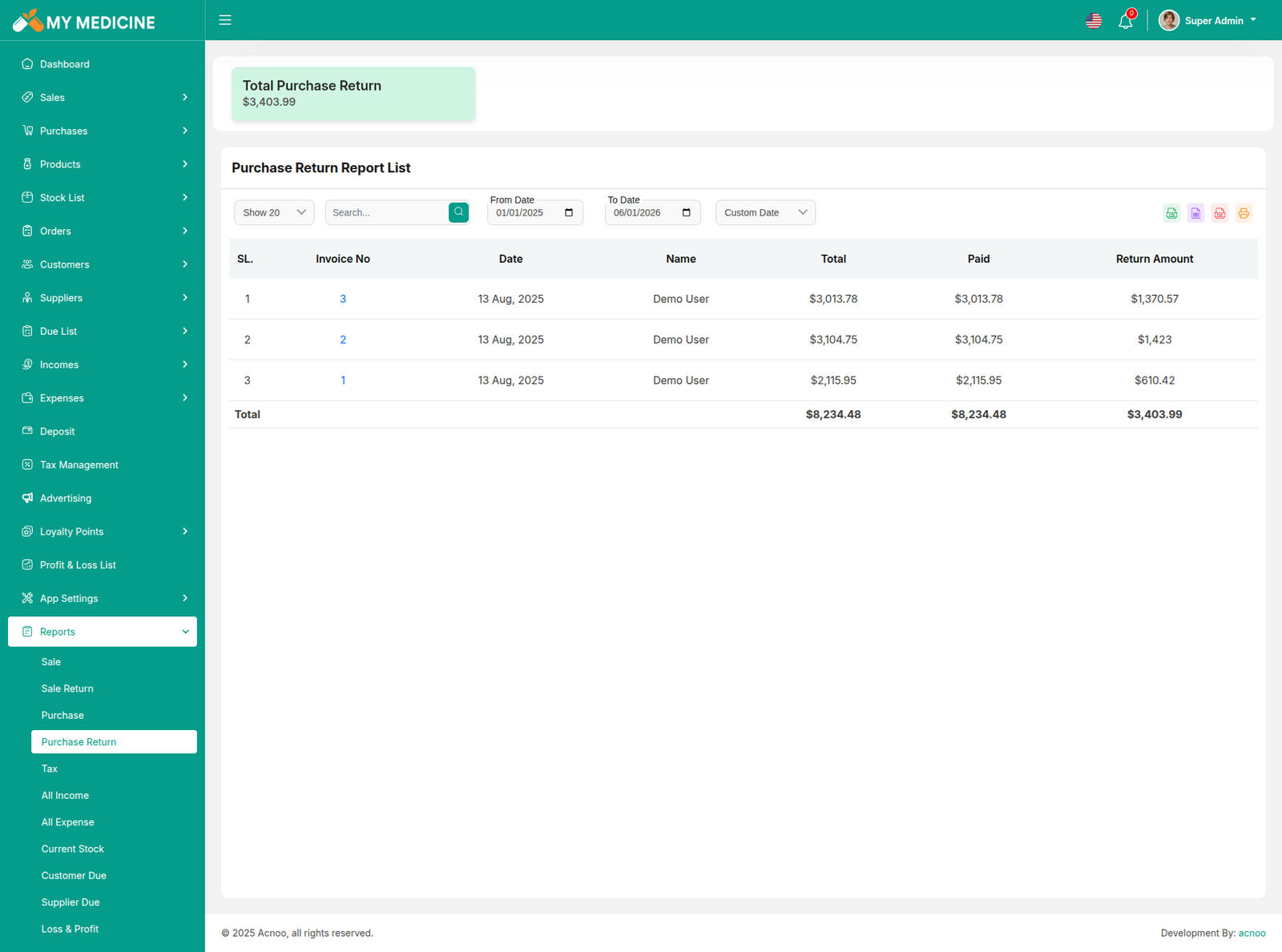
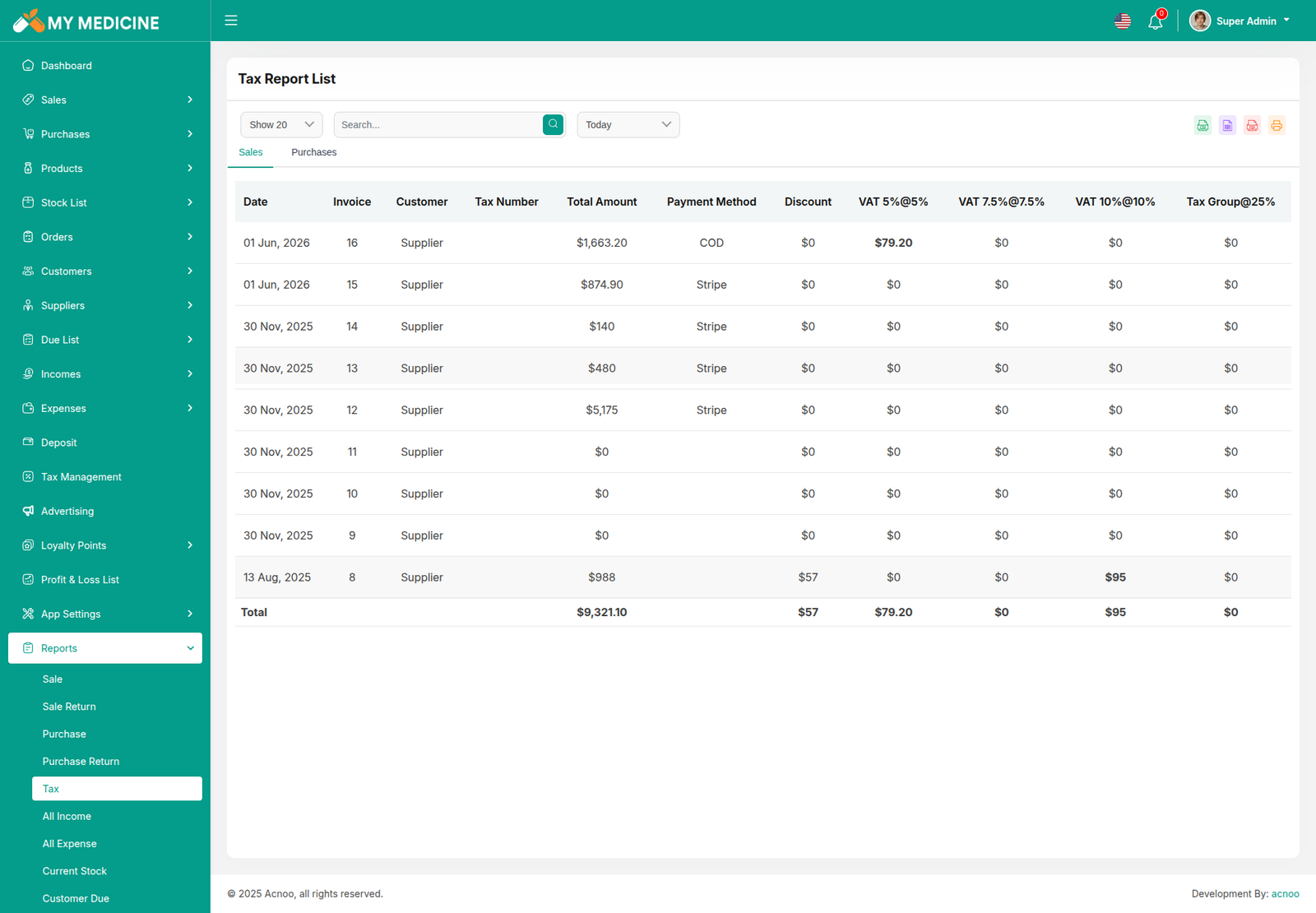
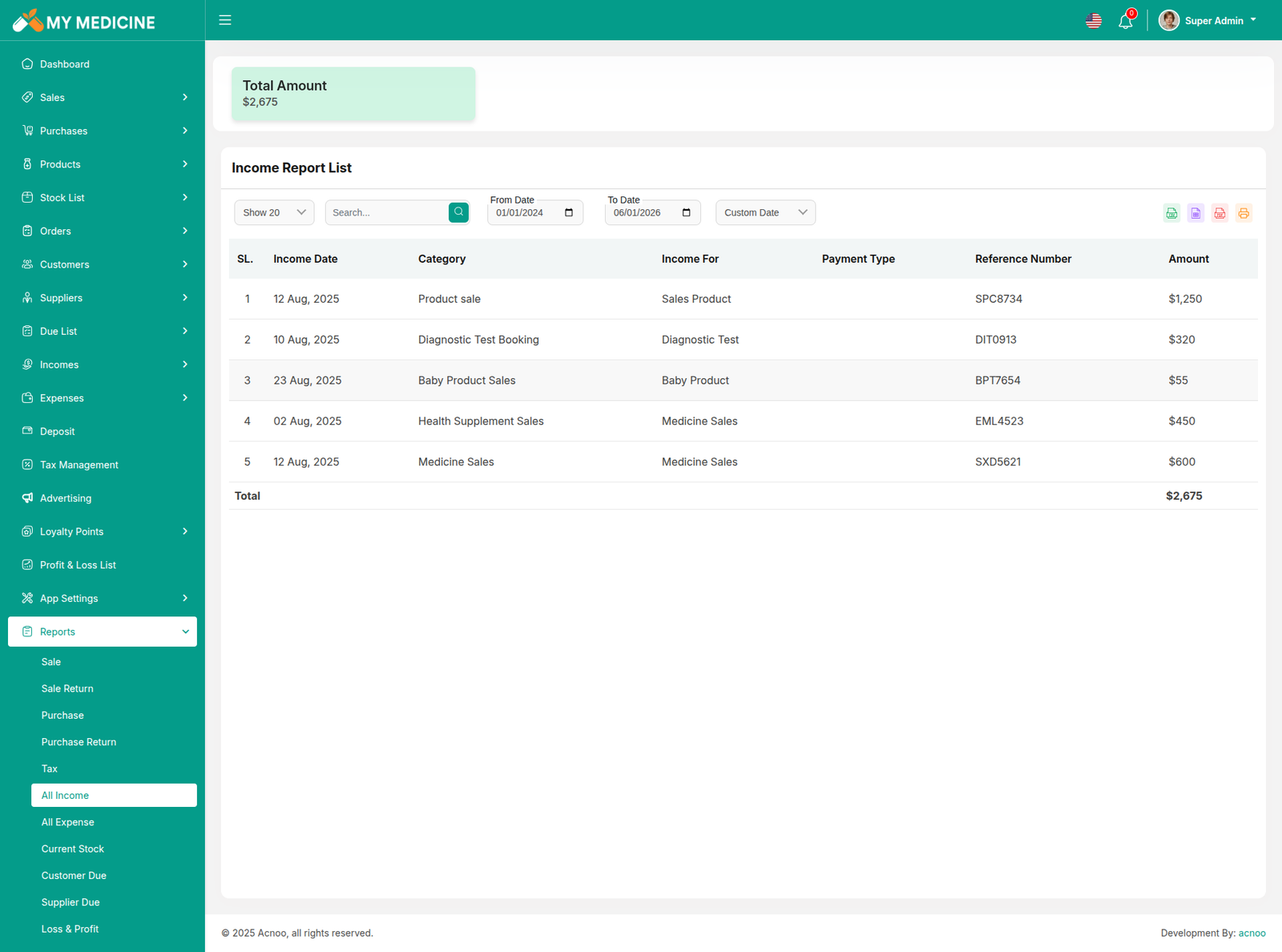
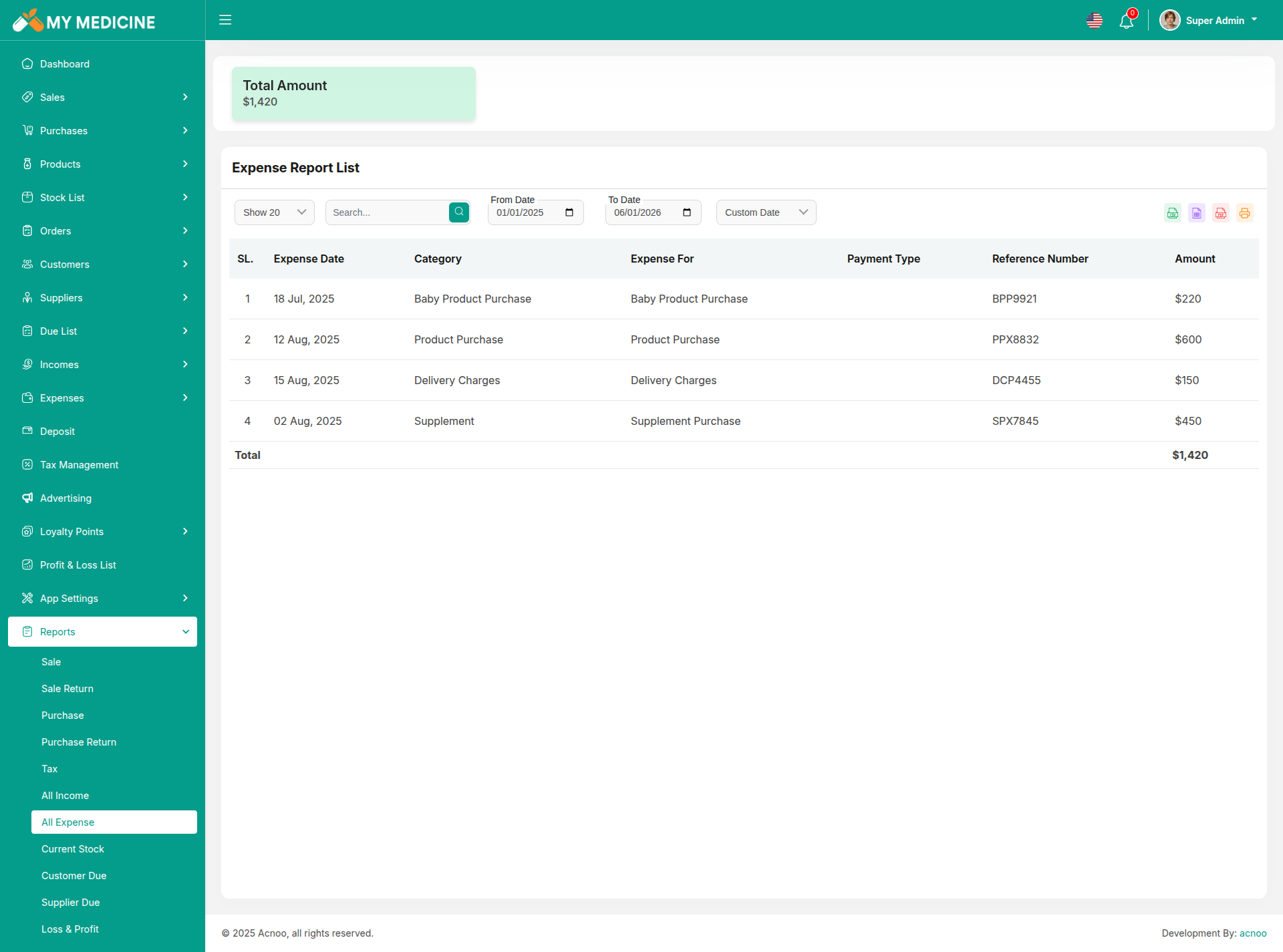
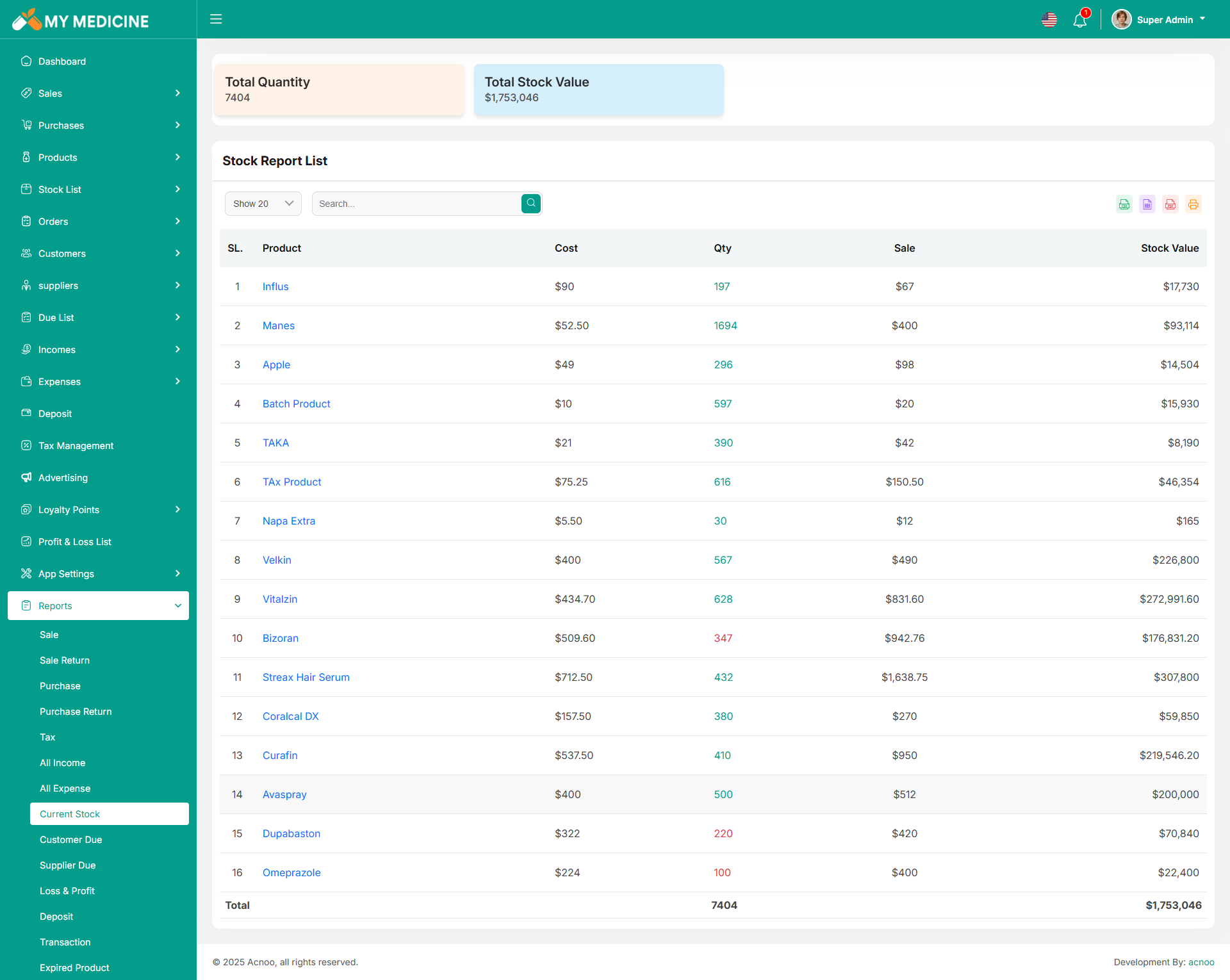
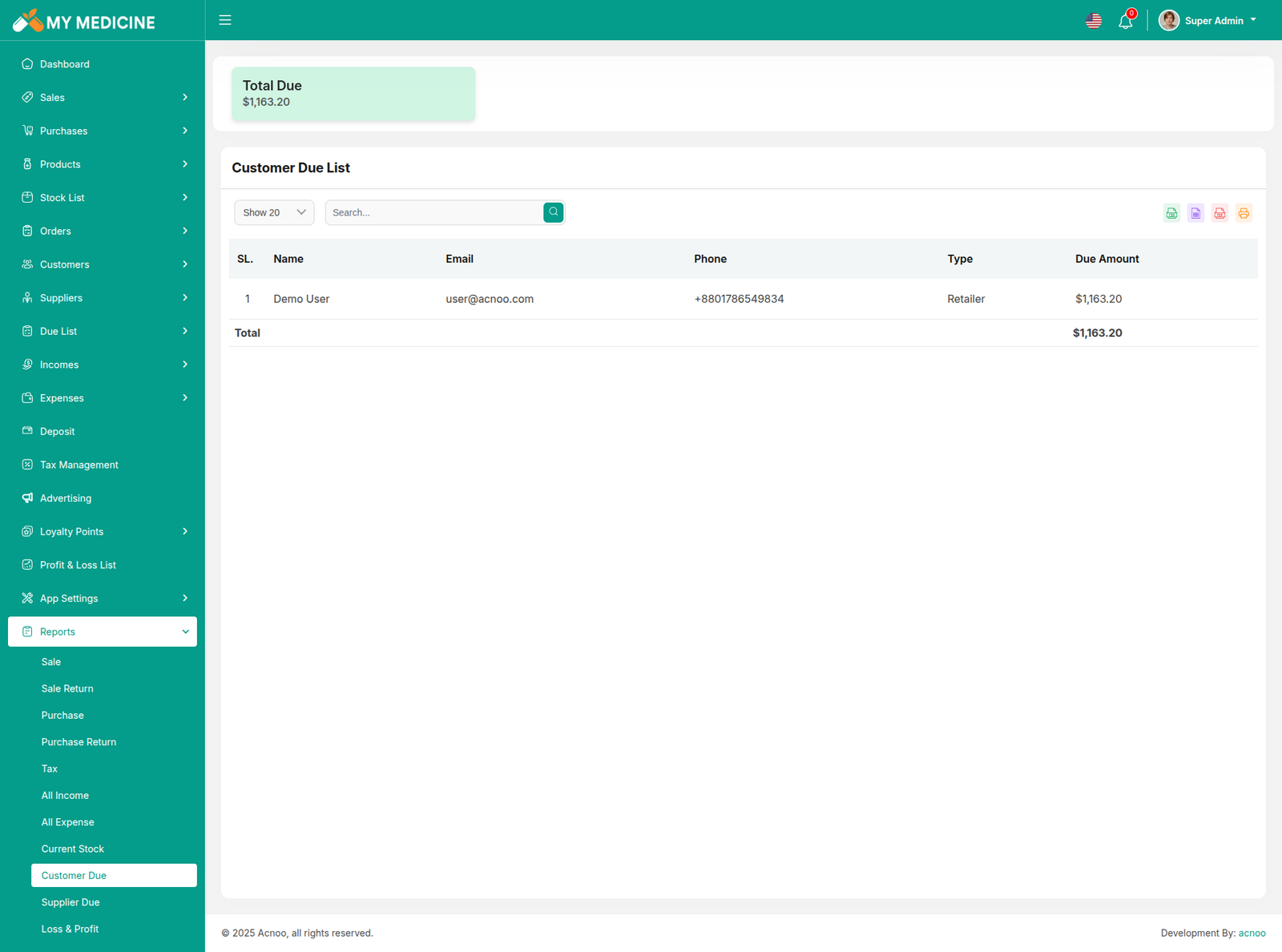
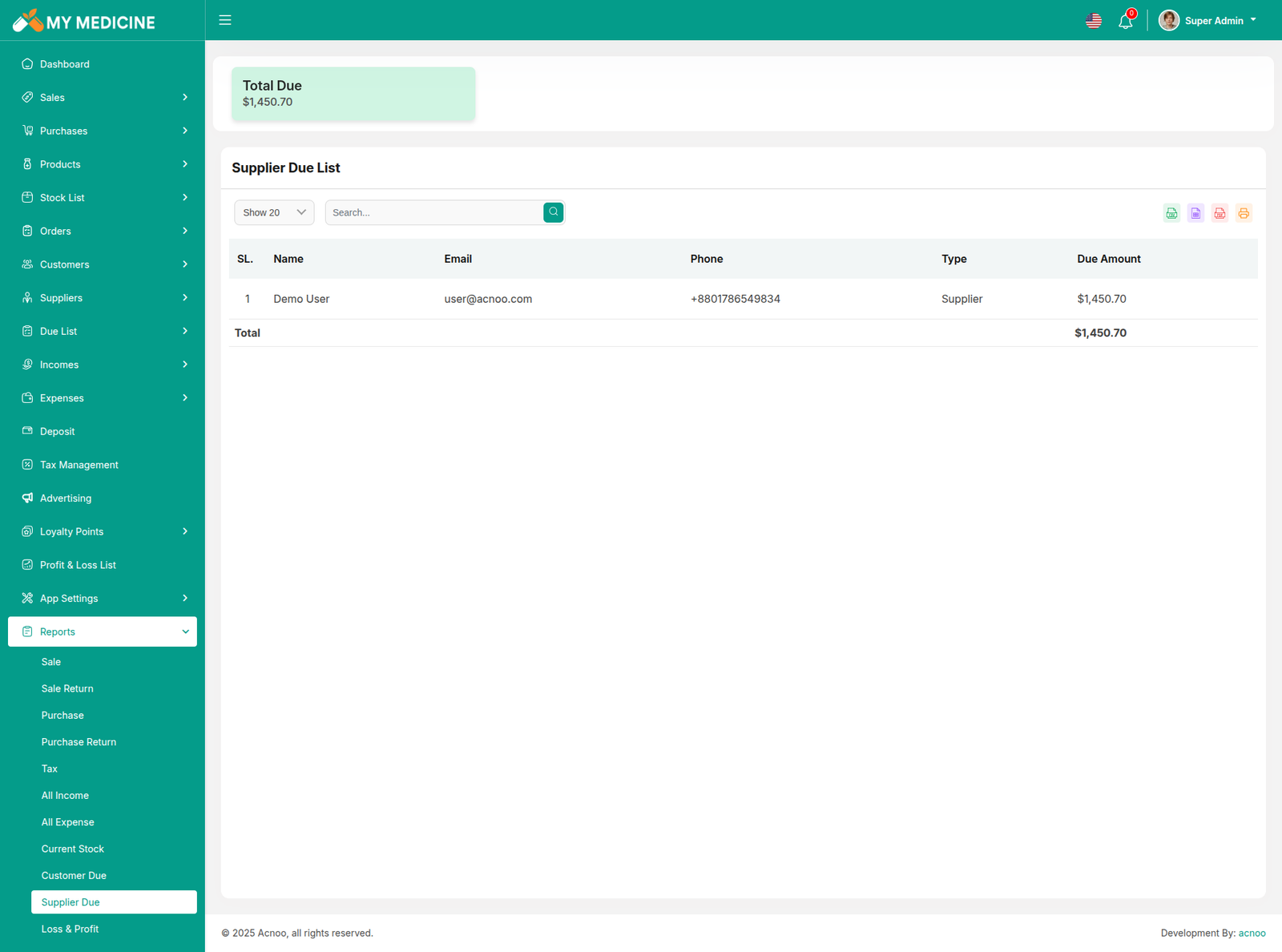
Here, various reports are available, including Sale, Sale Return, Purchase, Purchase Return, Income, Expense, Current Stock, Customer Due, Supplier Due, Profit and Loss, Transaction, Subscription and Expired Product. Each report includes filtering options for data. Additionally, you can export data as CSV, Excel, and a Print option is also provided.
Sale Report
Sale Return Report
Purchase Report
Purchase Return Report
Tax Report
Income Report
Expense Report
Stock Report
Customer Due Report
Supplier Due Report
Loss & Profit Report
Deposit Report
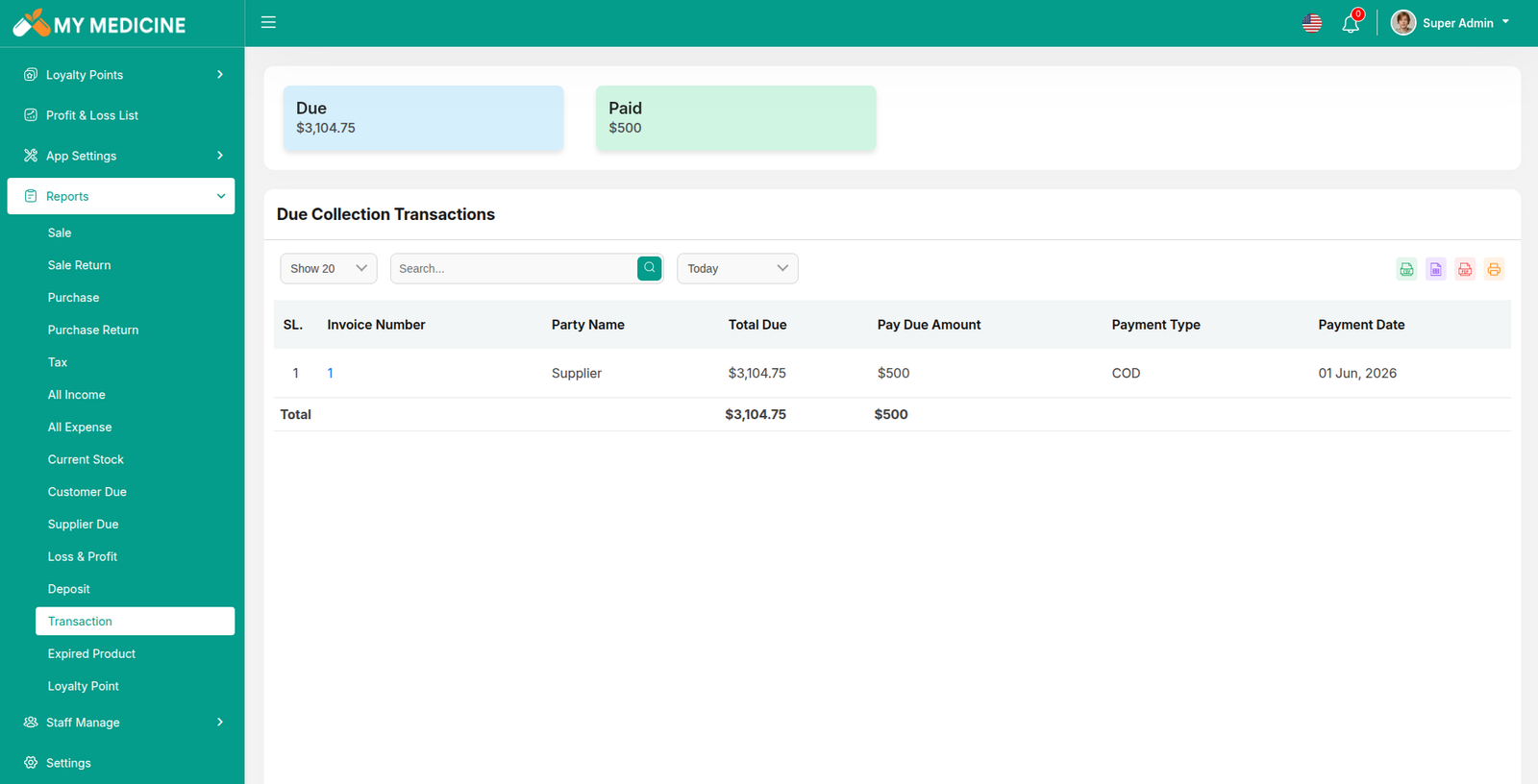
Due Collection Transactions
Expired Product Report
Loyalty Point Report
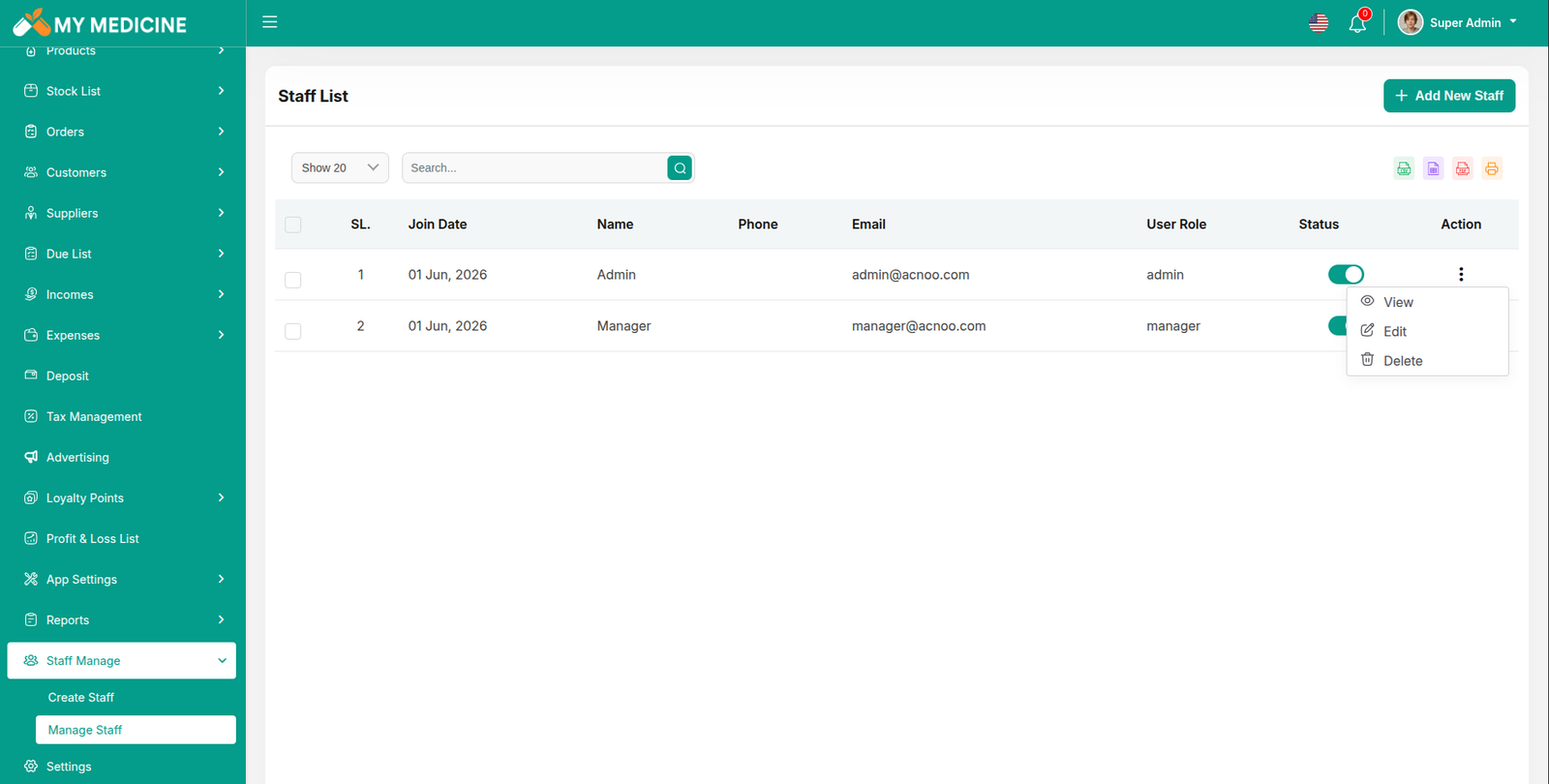
Staff List
Here, you can view the list of staff members along with a search filter. Additionally, you have the option to edit, delete individual entries, and perform multi-delete operations.
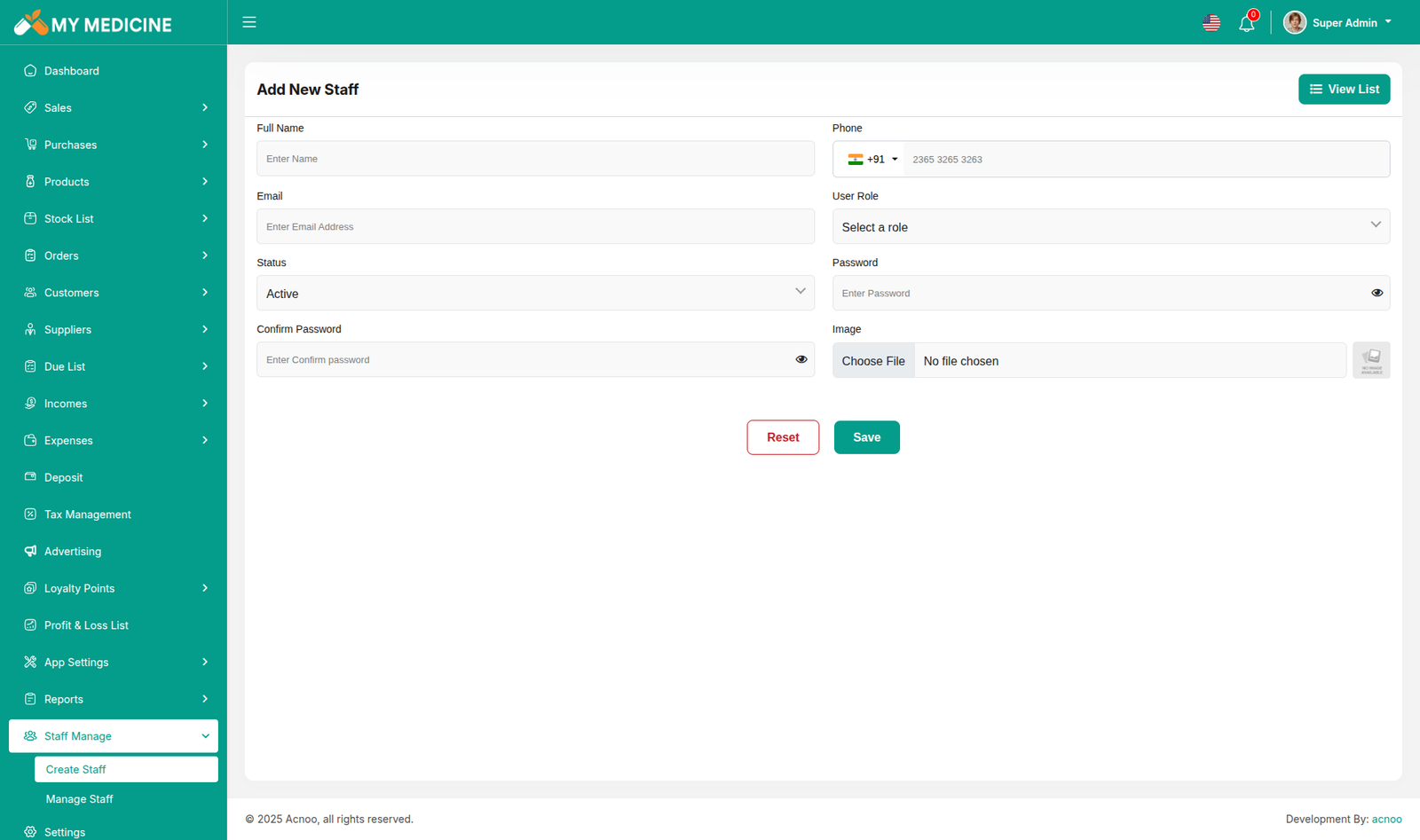
Add New Staff
You can create a staff member here by completing the necessary fields.
Roles & Permissions
In this section, you have the ability to define roles and allocate specific permissions to different users as needed.
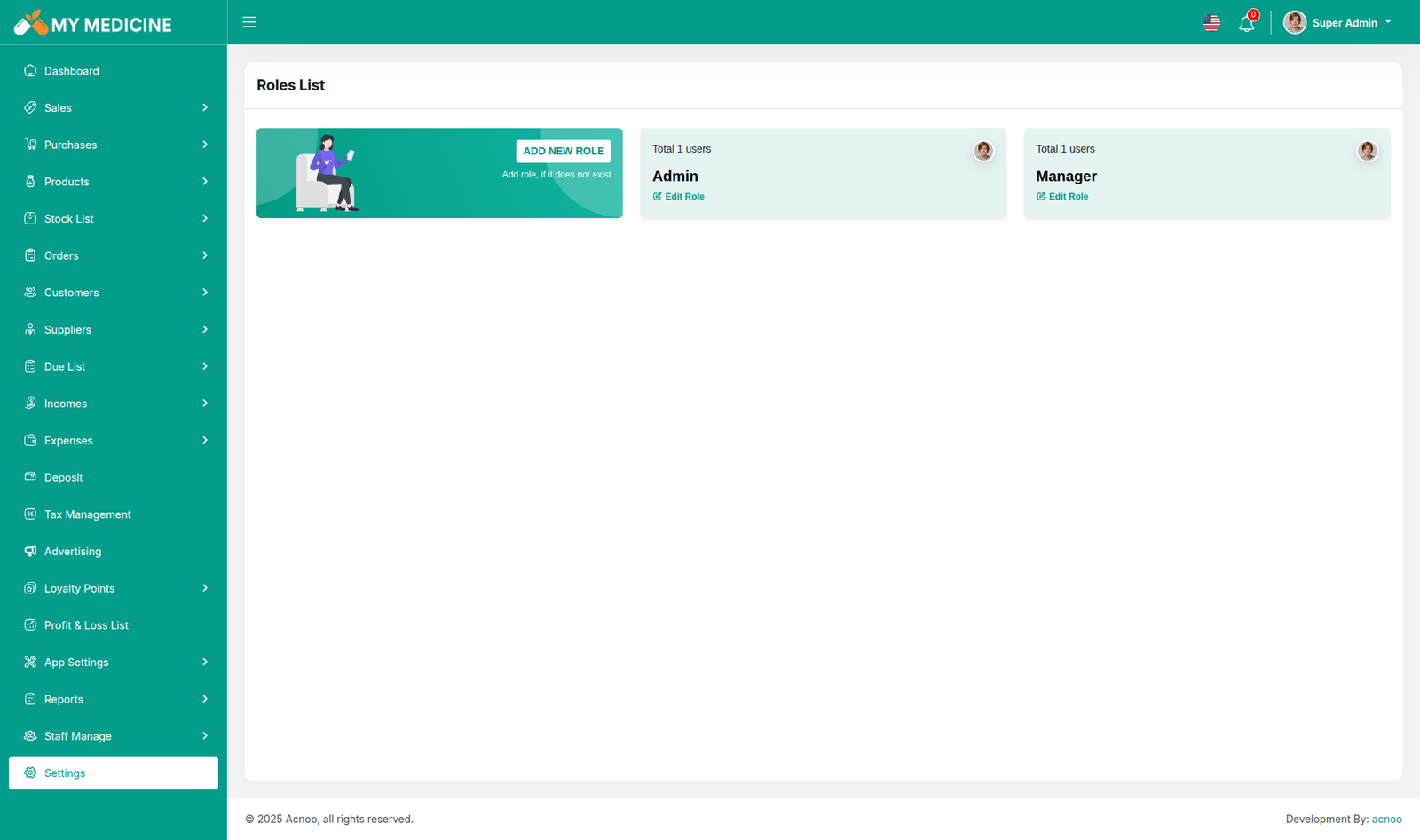
Roles
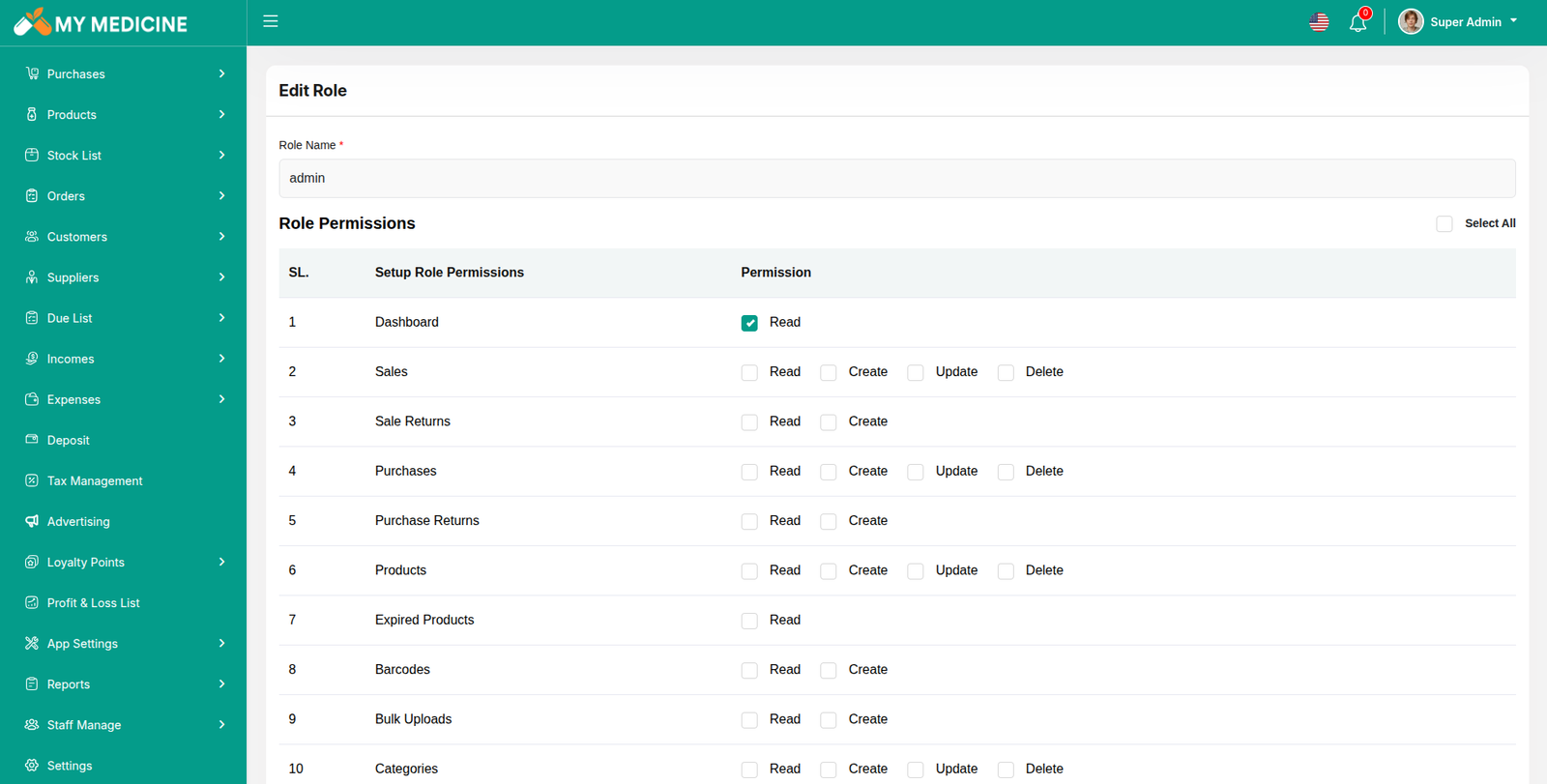
In this section, you have the capability to create new roles and update existing ones. When updating roles, you can configure their specific role permissions, granting or restricting access to various features and functionalities as required. This allows you to tailor user roles to your organizational needs and security requirements.
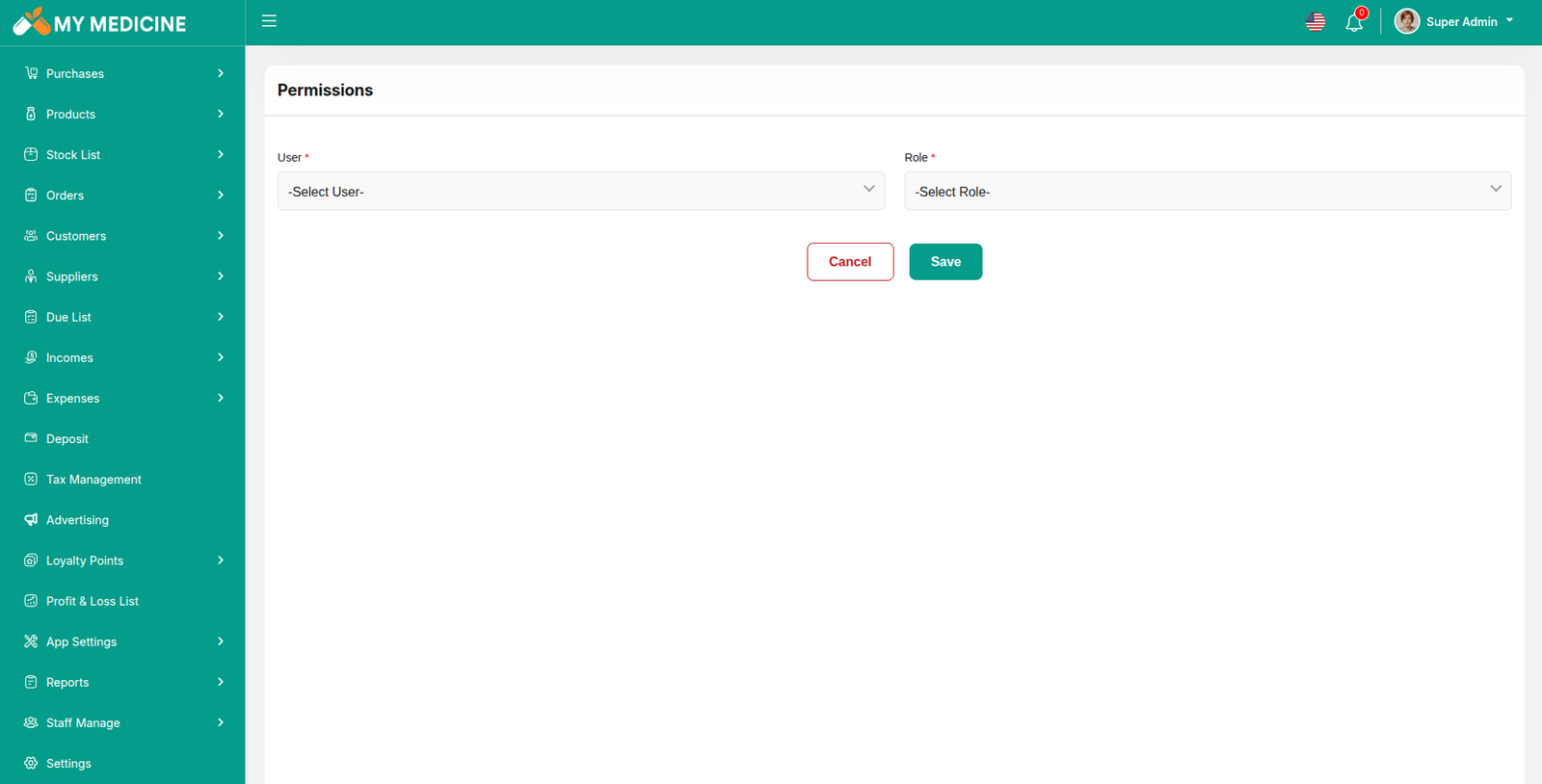
Permissions
In this section, you have the capability to set role-specific permissions, allowing you to fine-tune and control access rights for each role according to your organization's needs and security requirements.
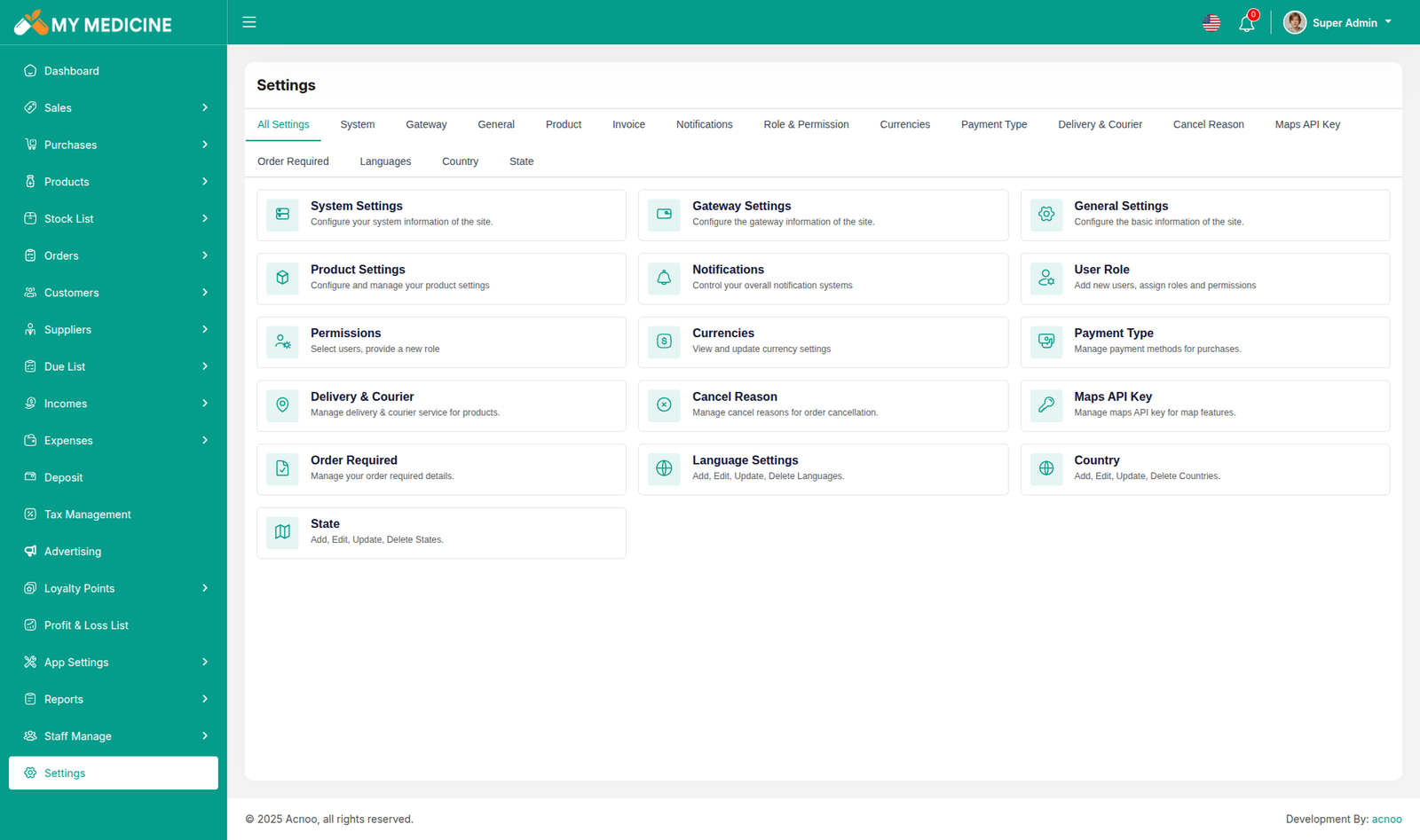
Setting
In the Setting section, you have the capability to configure the fundamental aspects or core elements of this project. And in bellow you can see the screenshots of each settings.
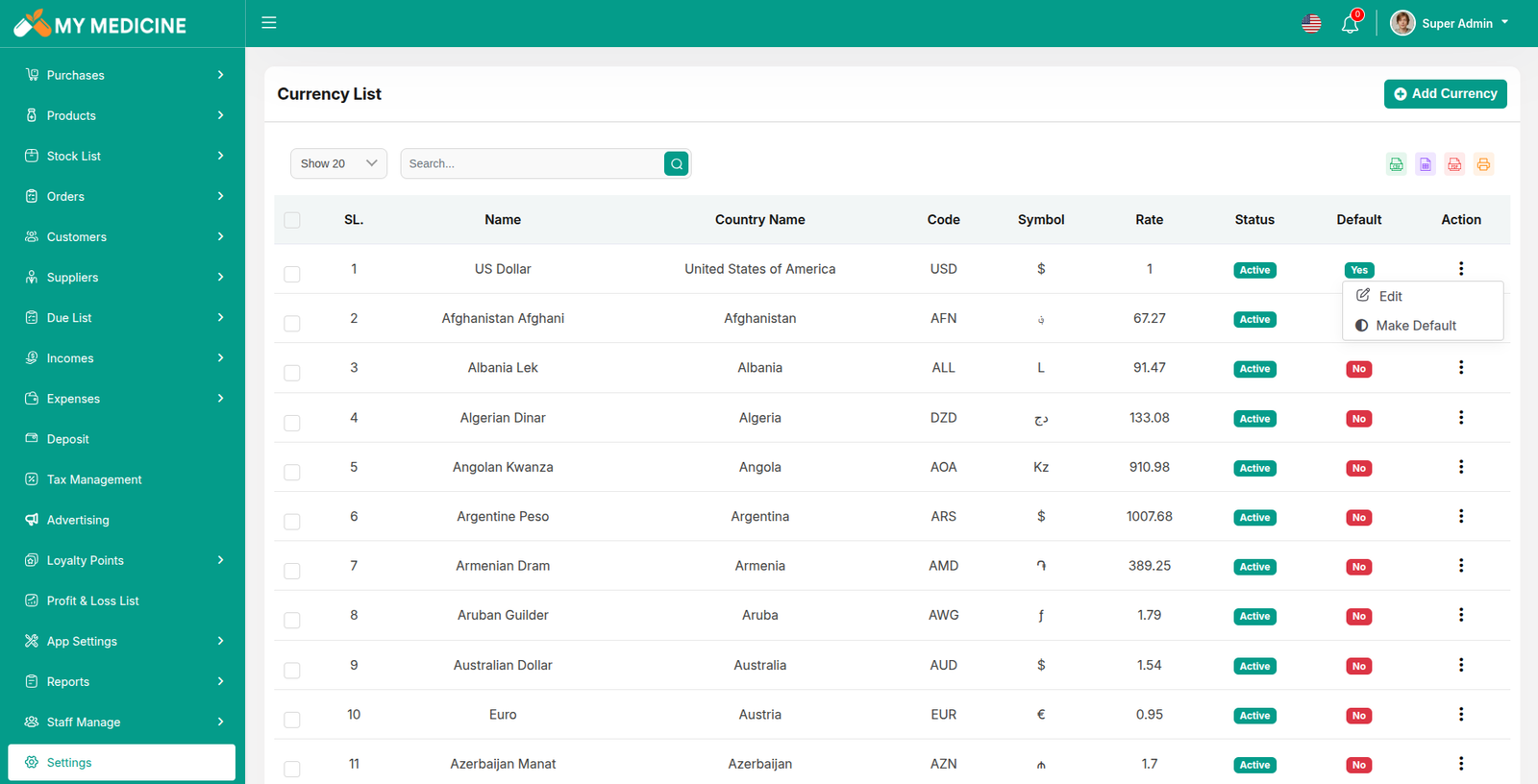
Currency list
Here, you can view a list of currencies with filtering options. Additionally, there is an option to edit currencies, and you can also set a default currency.
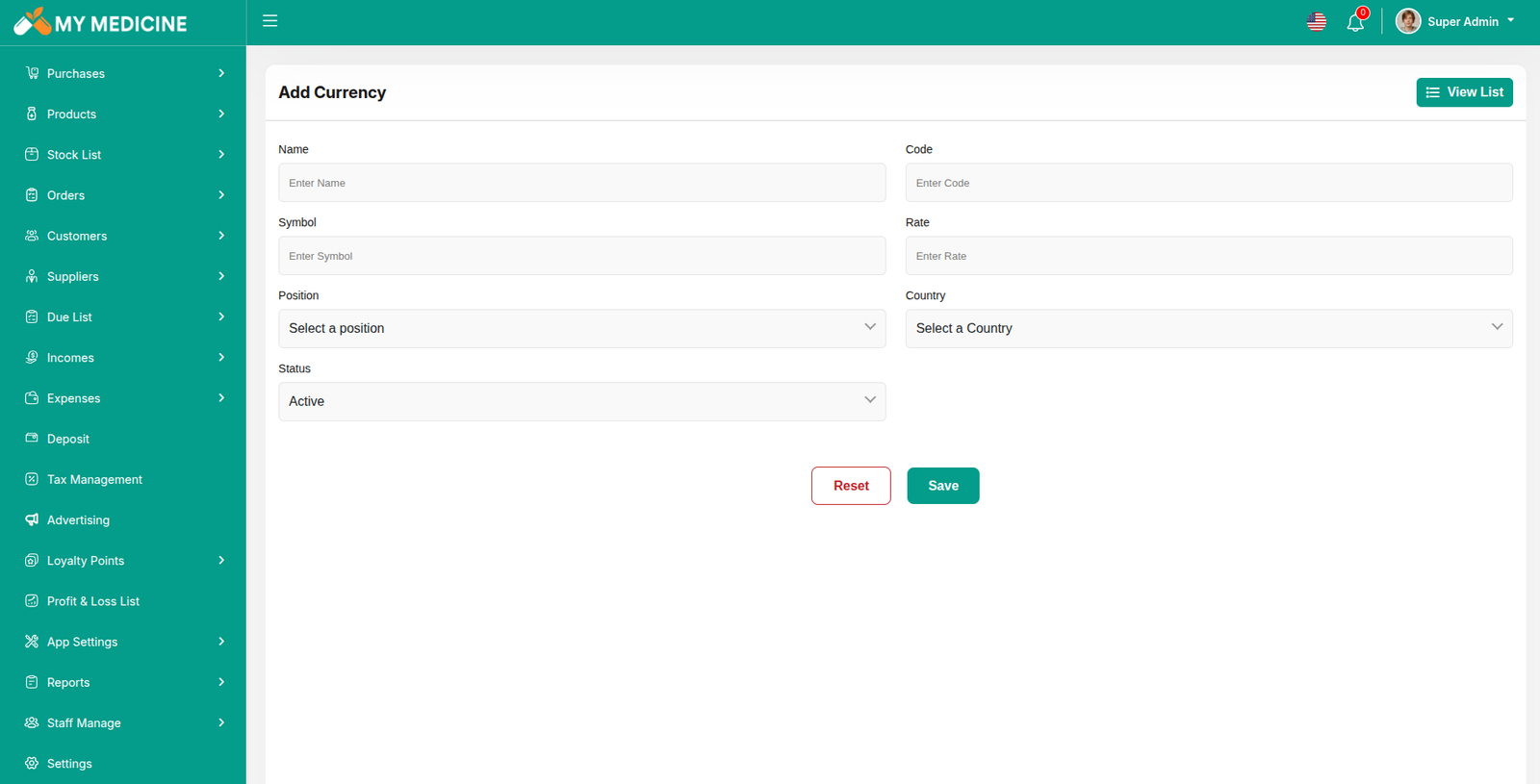
Create Currency
You have the option to include currency from this location.
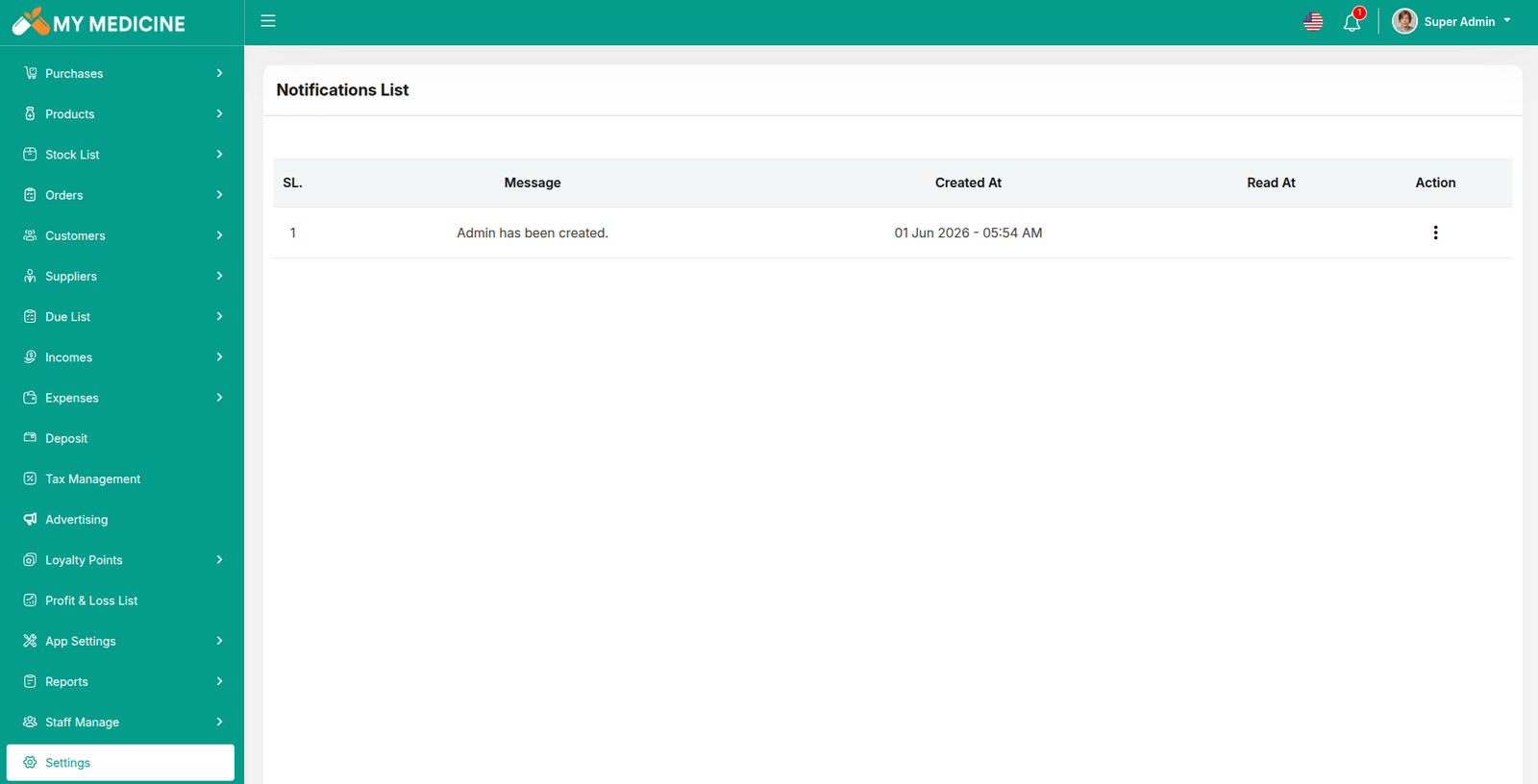
Notification
Here, you can view a list of various notifications. You also have the option to filter these notifications based on available criteria.In each list, clicking the "View" button allows you to see detailed information.
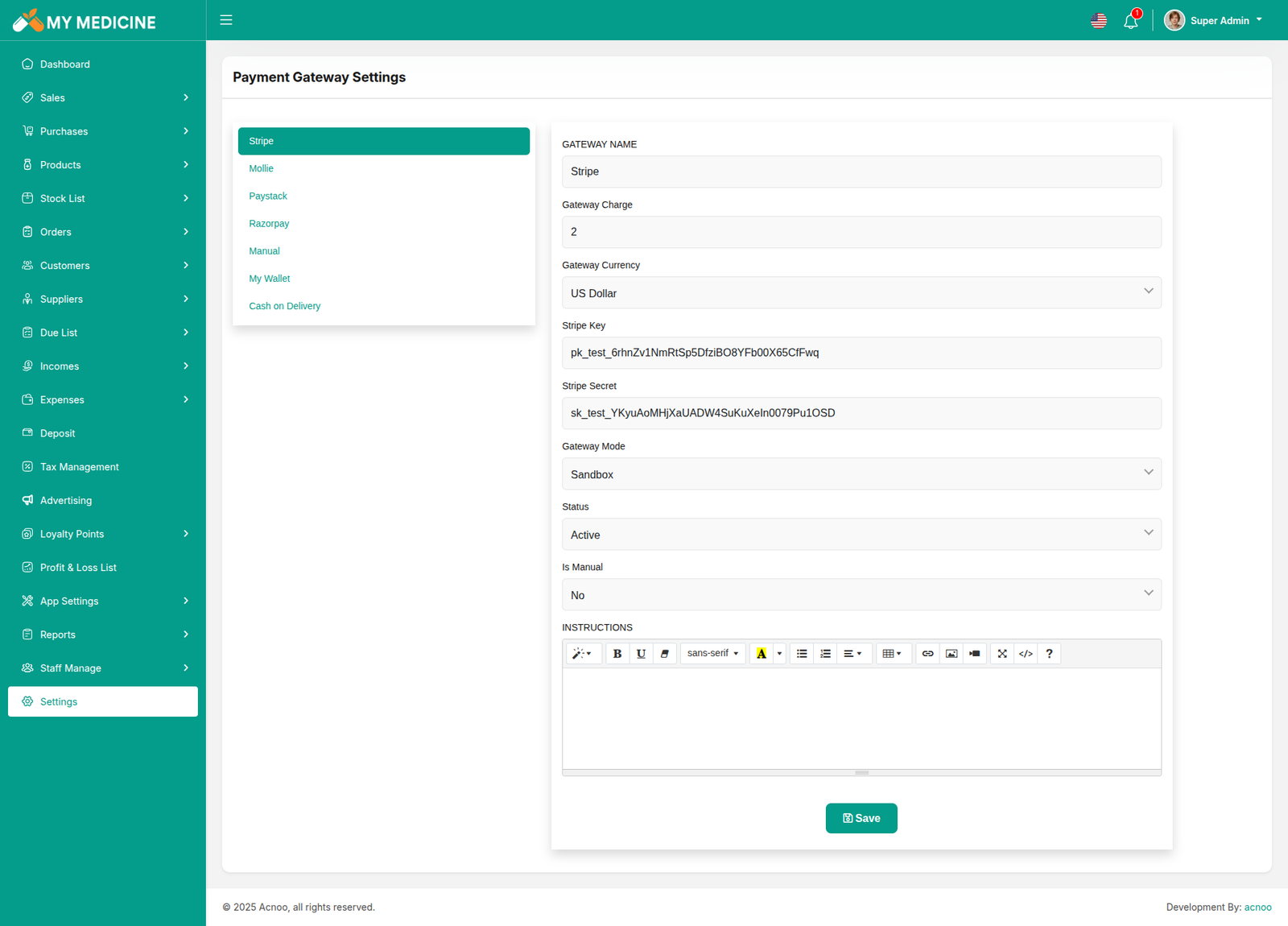
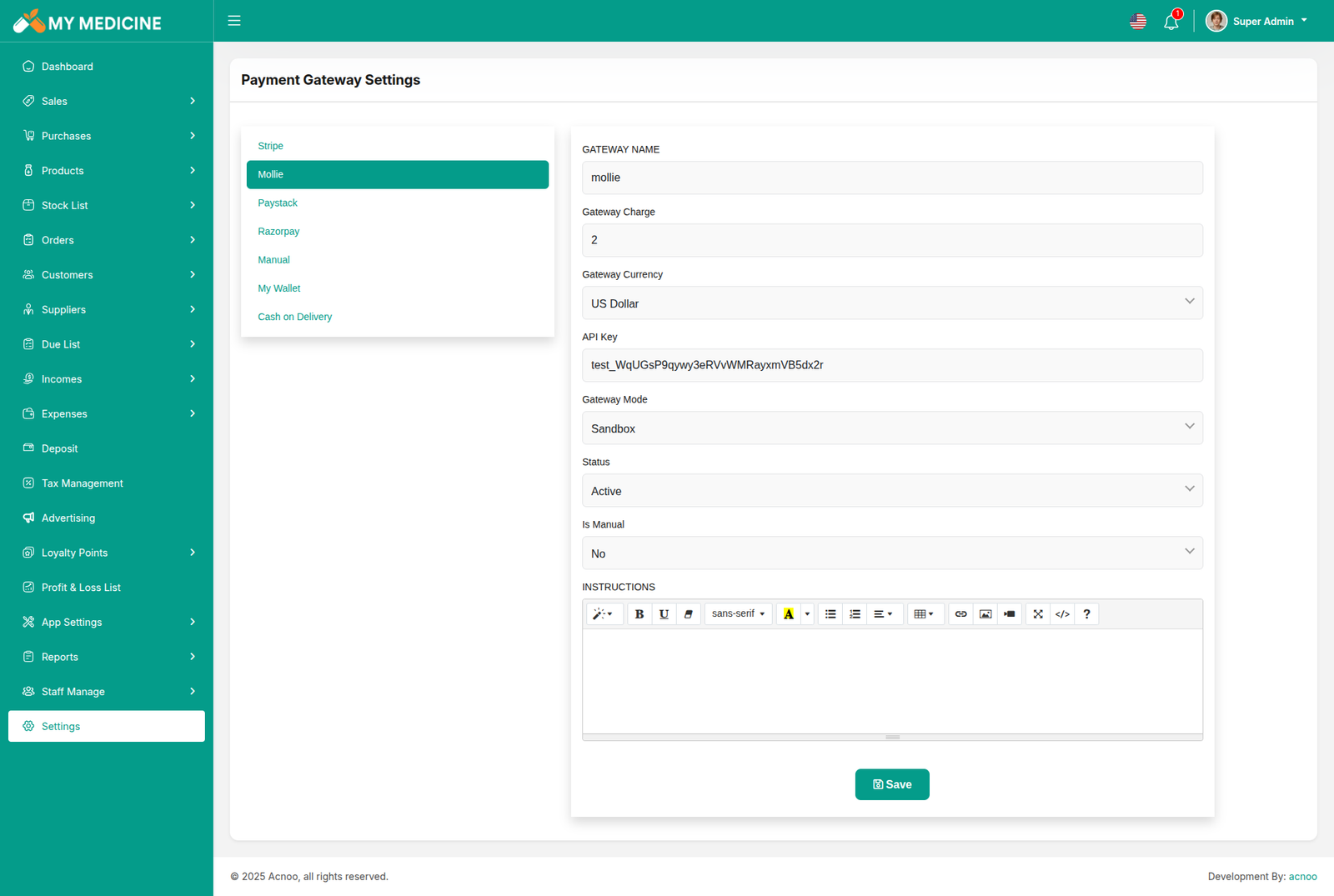
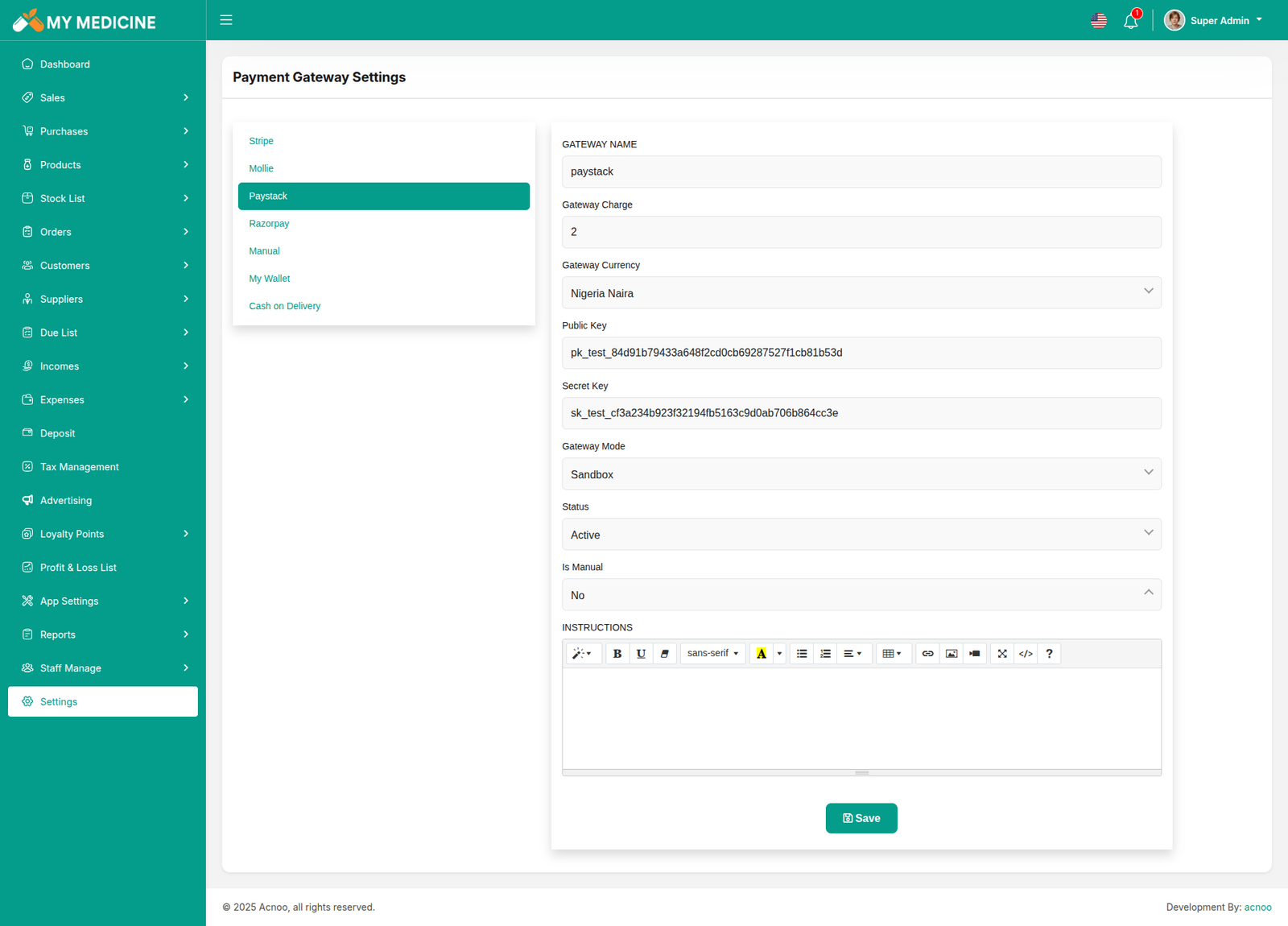
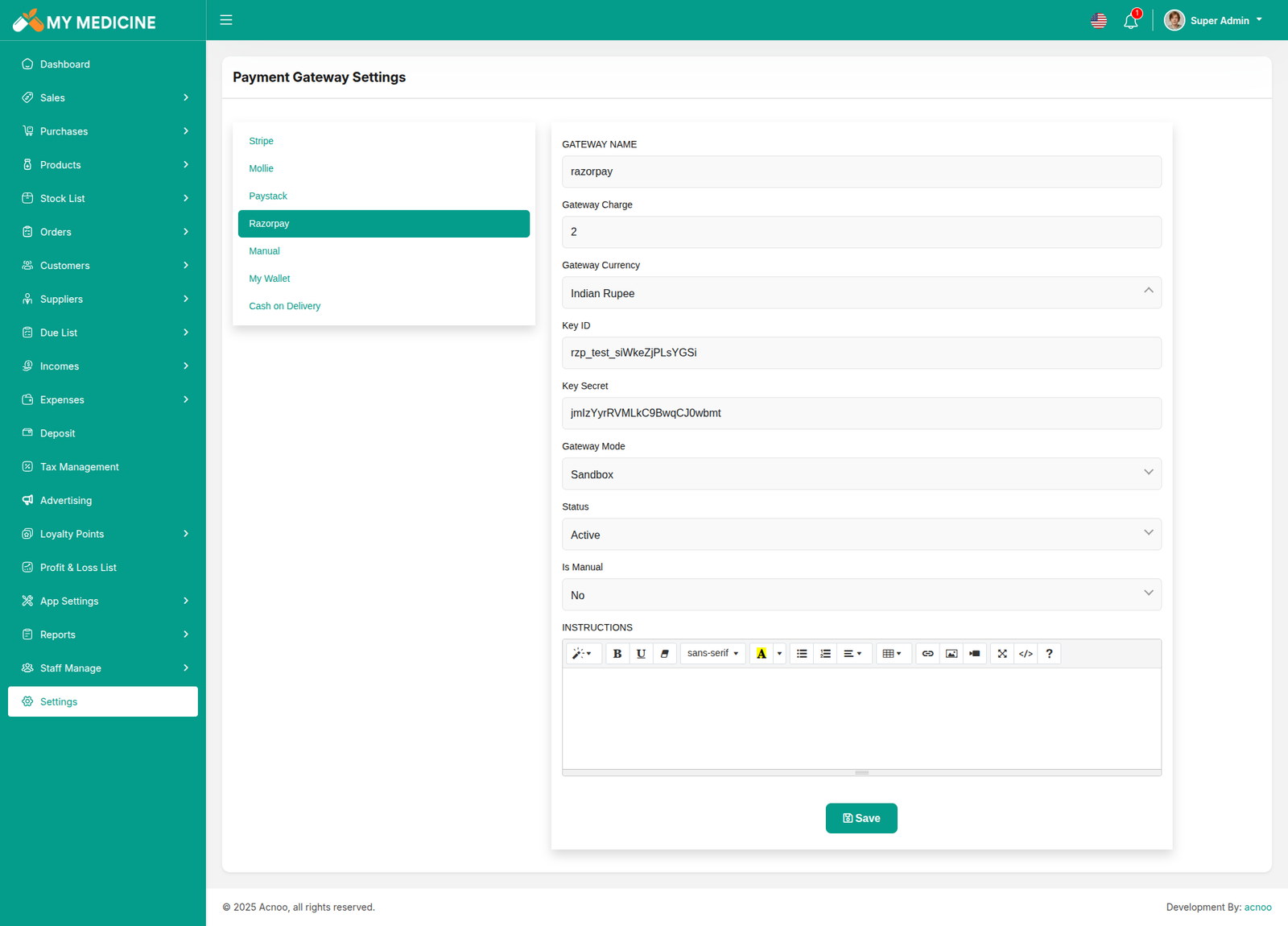
Payment Gateway Settings
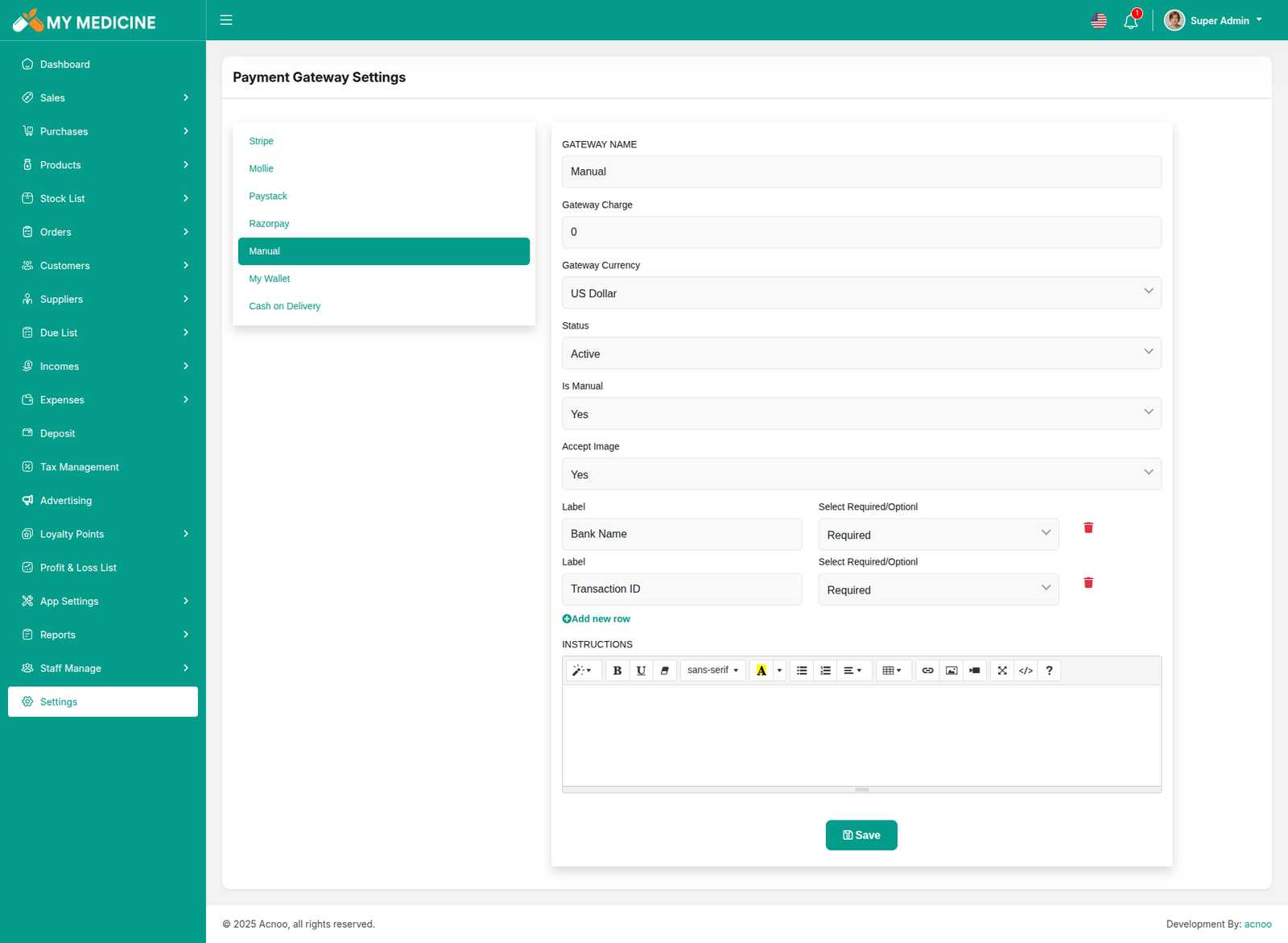
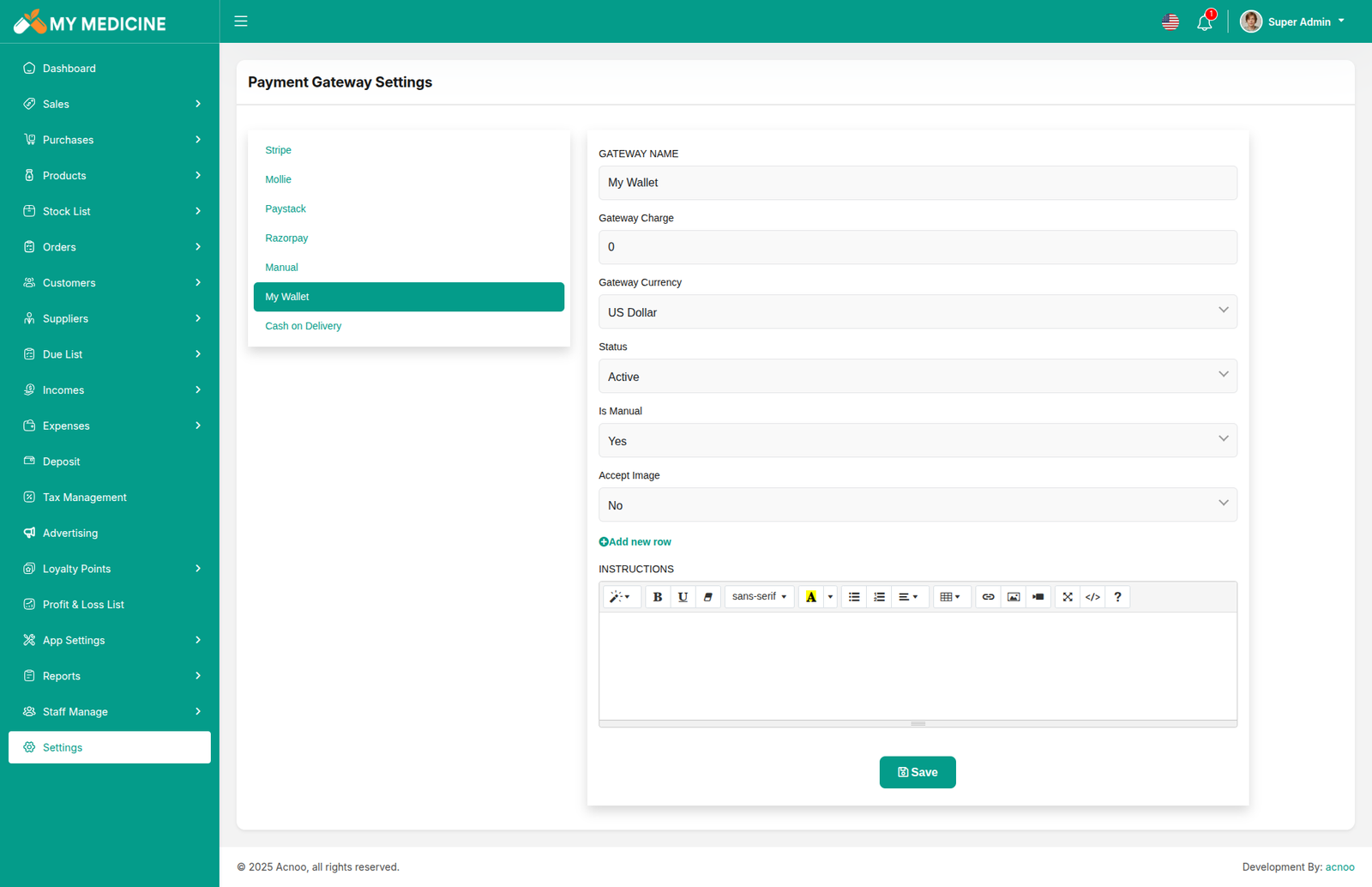
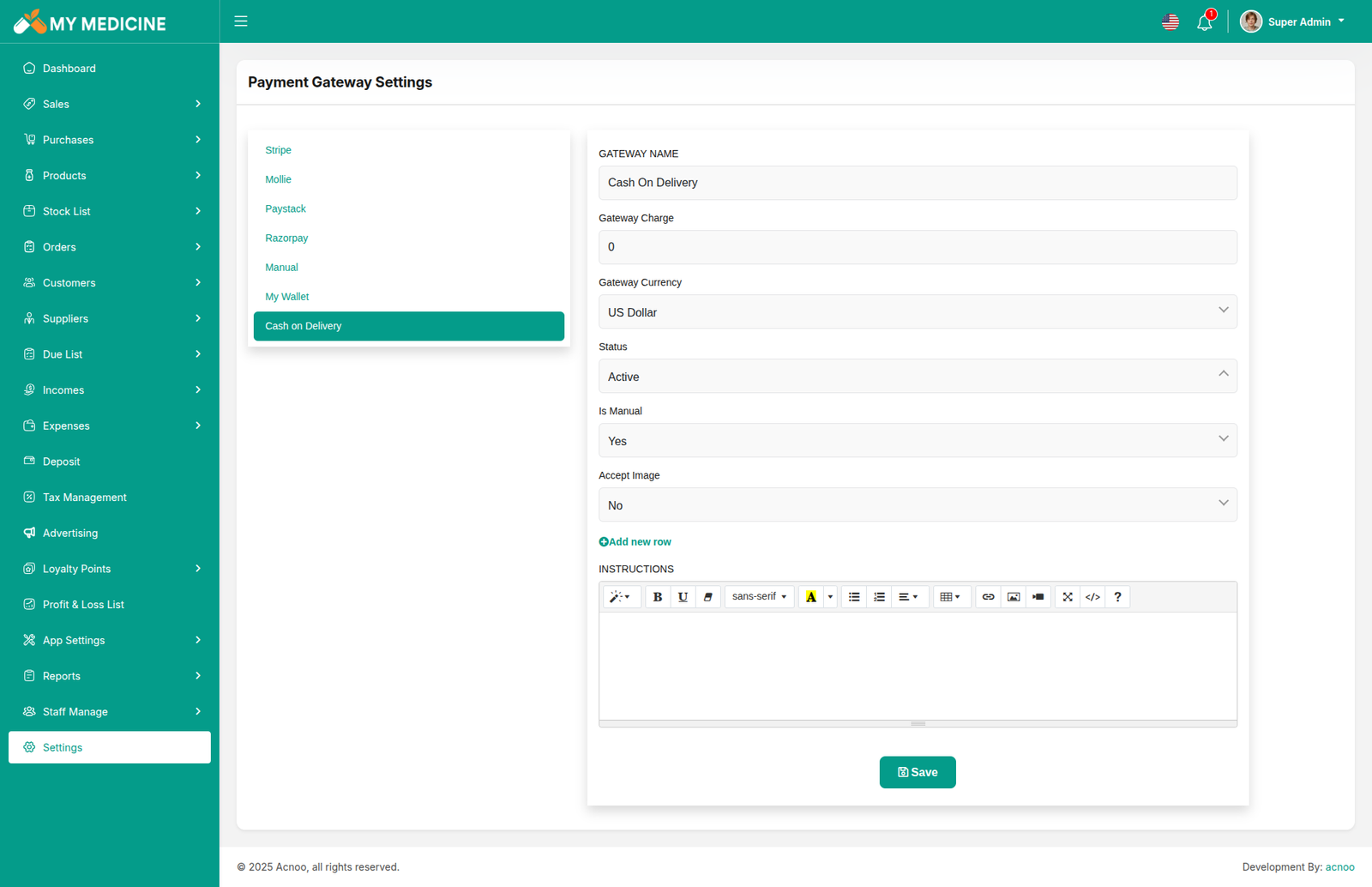
Here, you can modify various payment gateways like Stripe, PayPal, SSLCommerz, manual and many others options.
Stripe
Mollie
Paystack
Razorpay
Manual
My Wallet
Cash On Delivery
System Settings
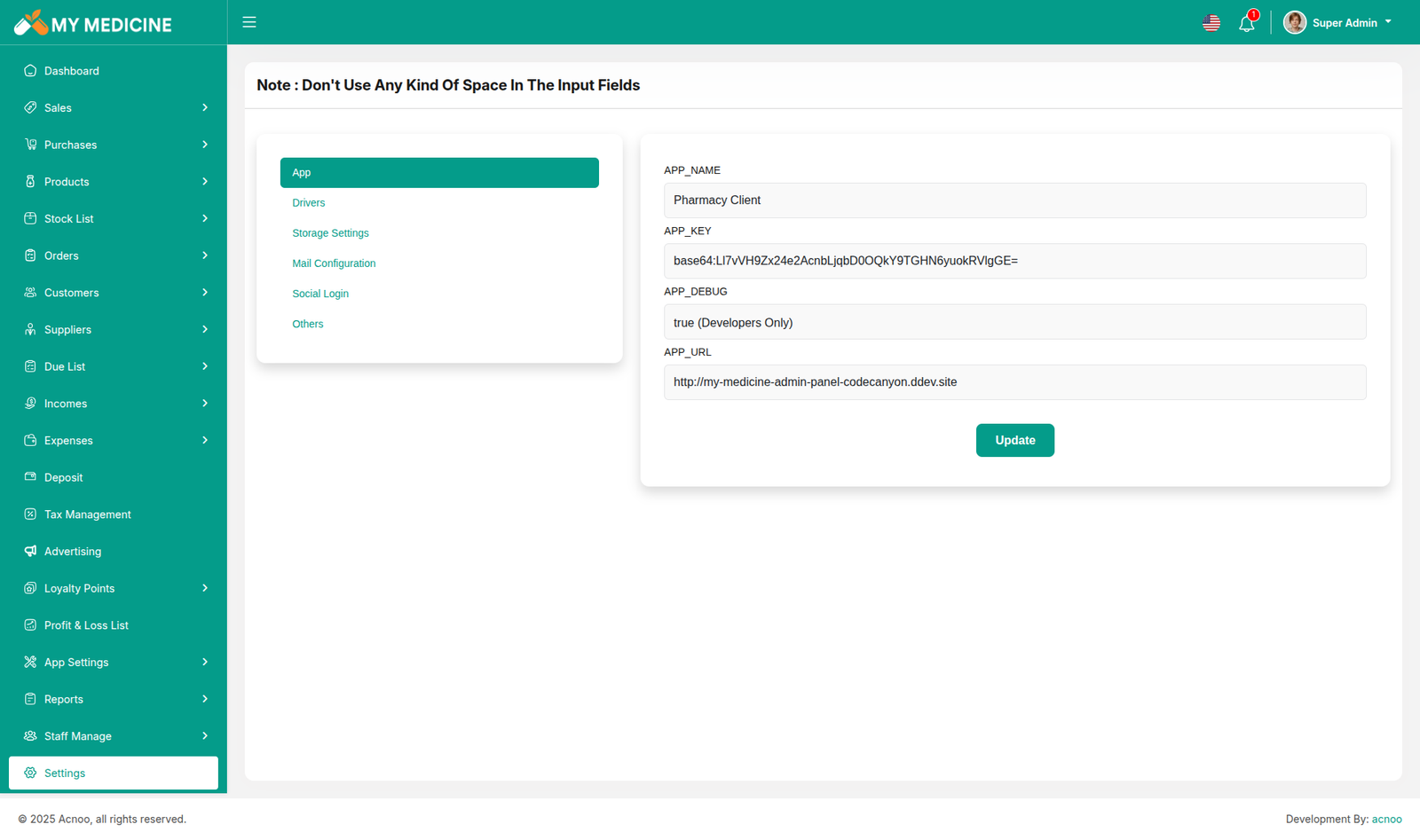
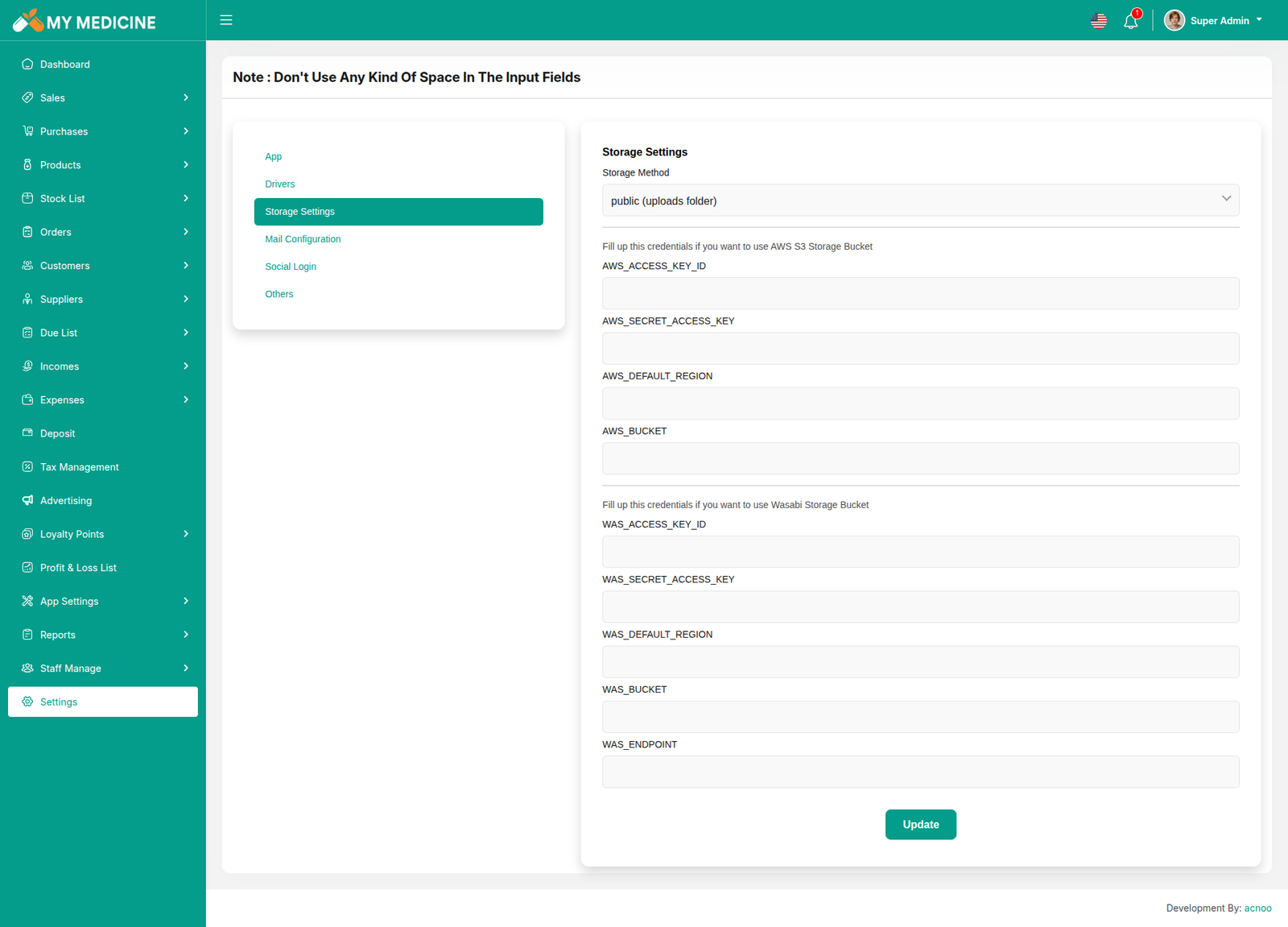
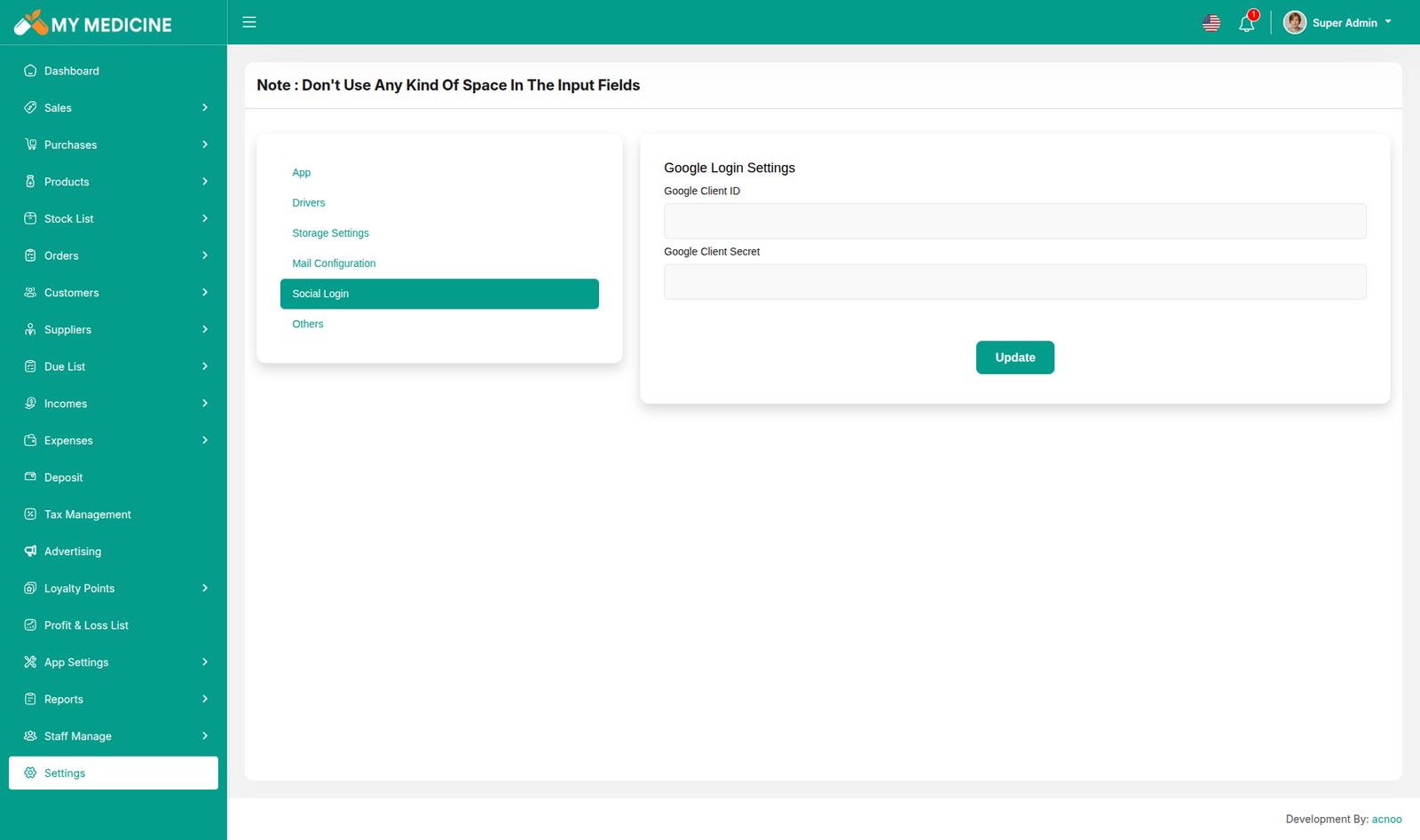
In this section, you can configure various backend settings for the project, including application setup, driver configurations, mail settings, storage configurations, and other essential components. It's crucial to handle these configurations with care as they impact the functionality and security of the system.
App
Drivers
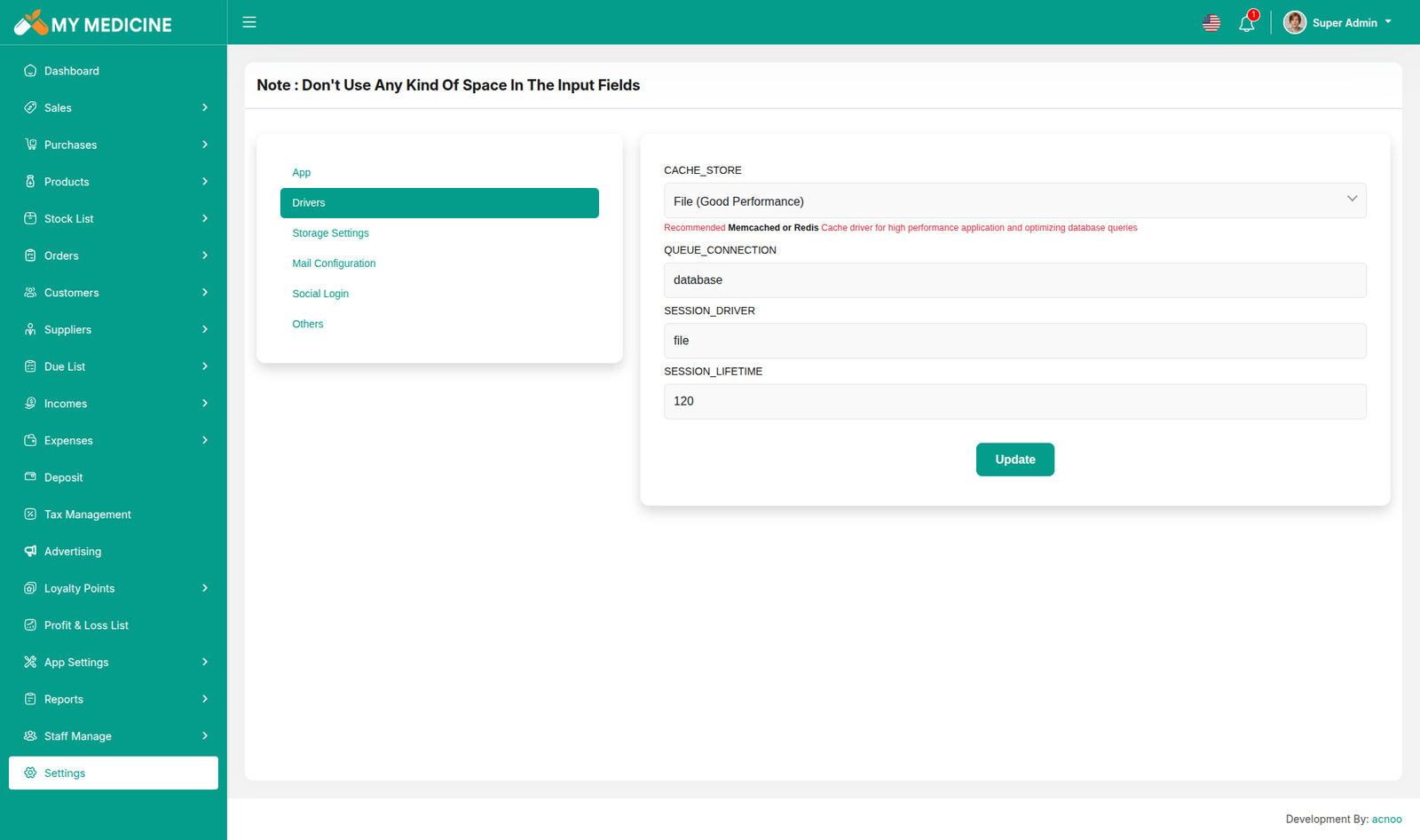
Storage Settings
Mail Configuration
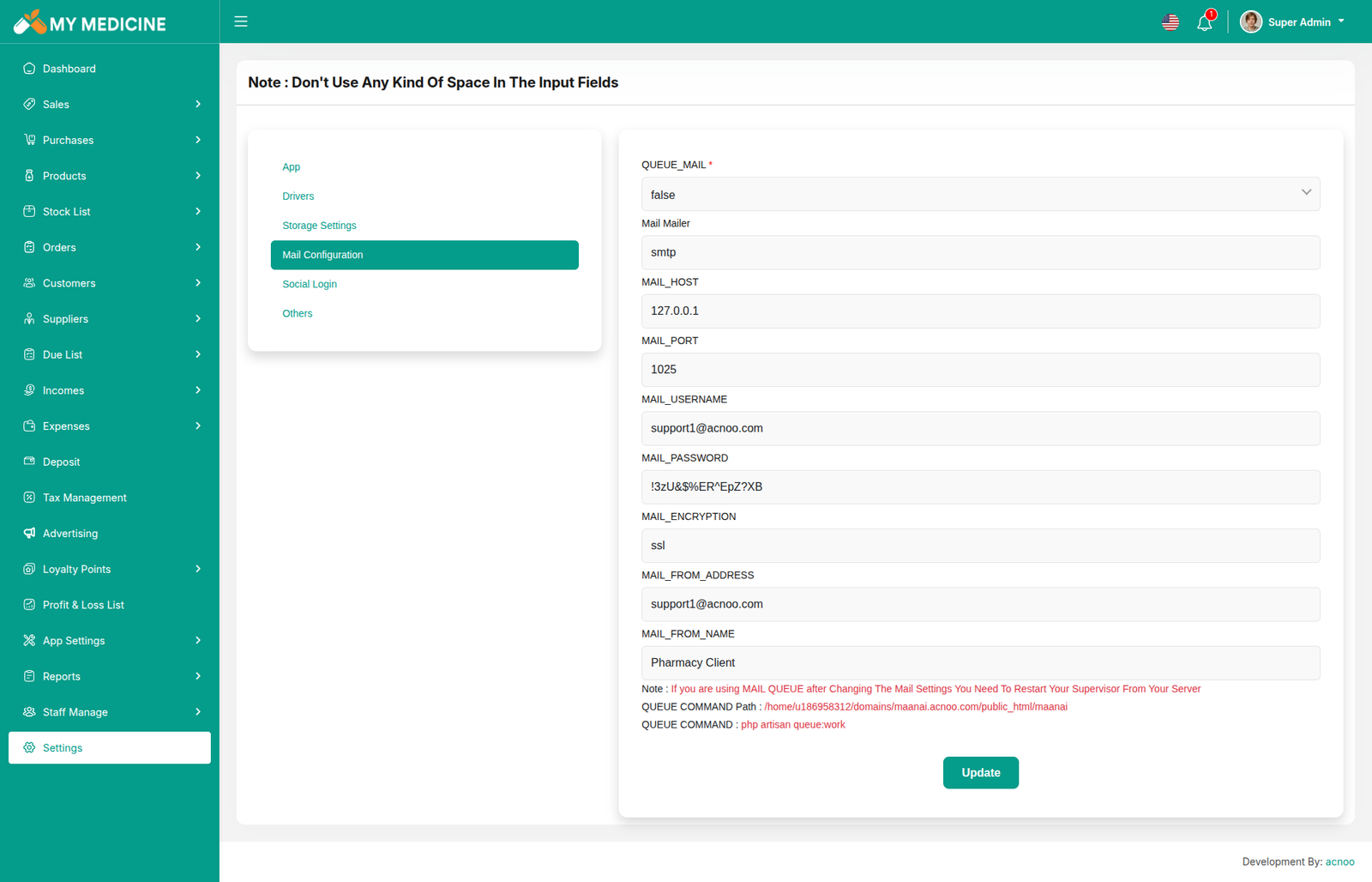
Note: Please note that if you change QUEUE_MAIL from false to true,
you need to run the following command: php artisan queue:work.
Remember: The command path should be:
/home/u186958312/domains/yourdomain.com/public_html. Make sure you're in the
correct path.
Note: If you're not familiar with running the command, there's
another option. Simply visit yourdomain.com/queue-work and it will be executed
automatically.
Note: If you select QUEUE_MAIL as true but do not run the command or visit the URL, email functionality will not work properly.
Social Login
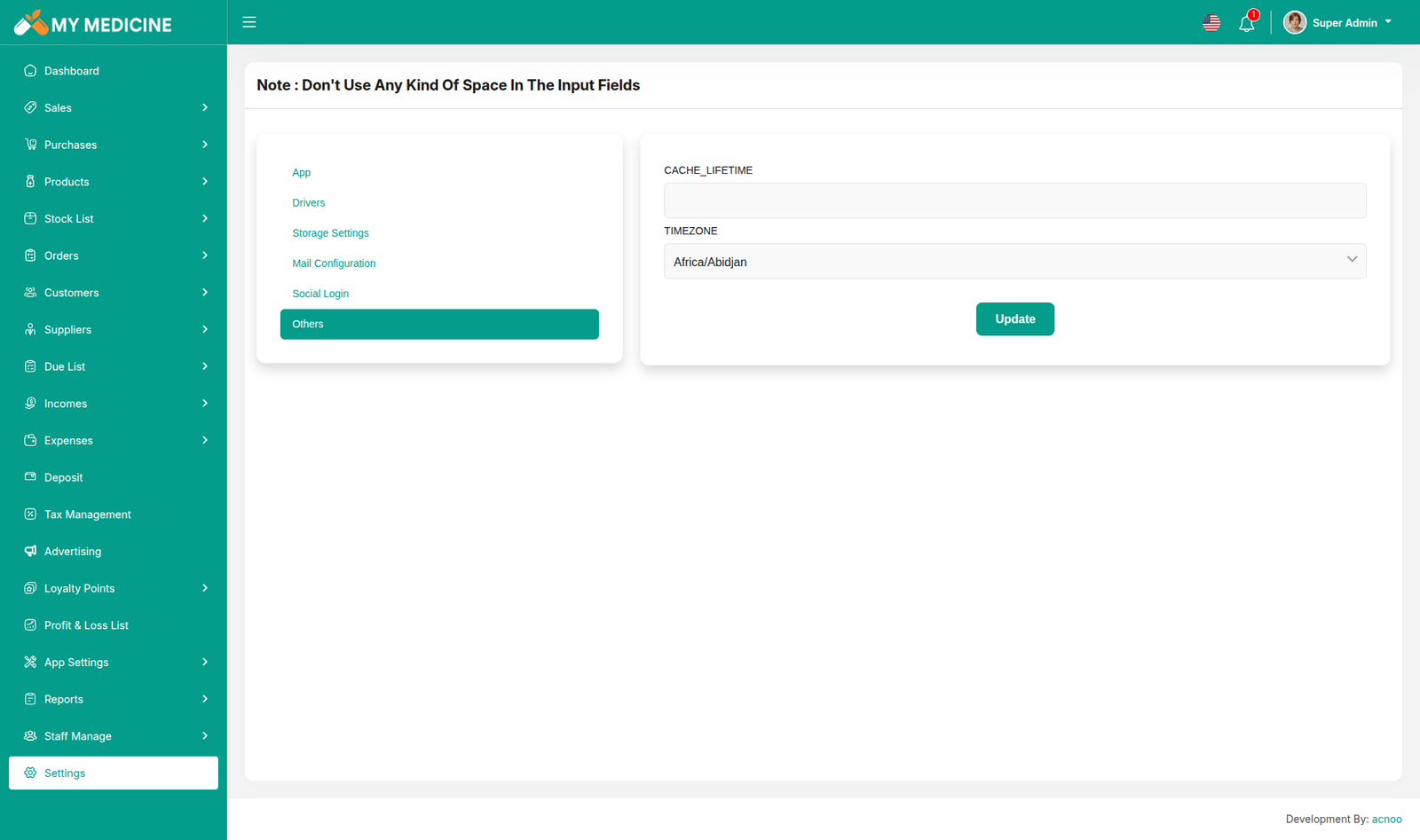
Others
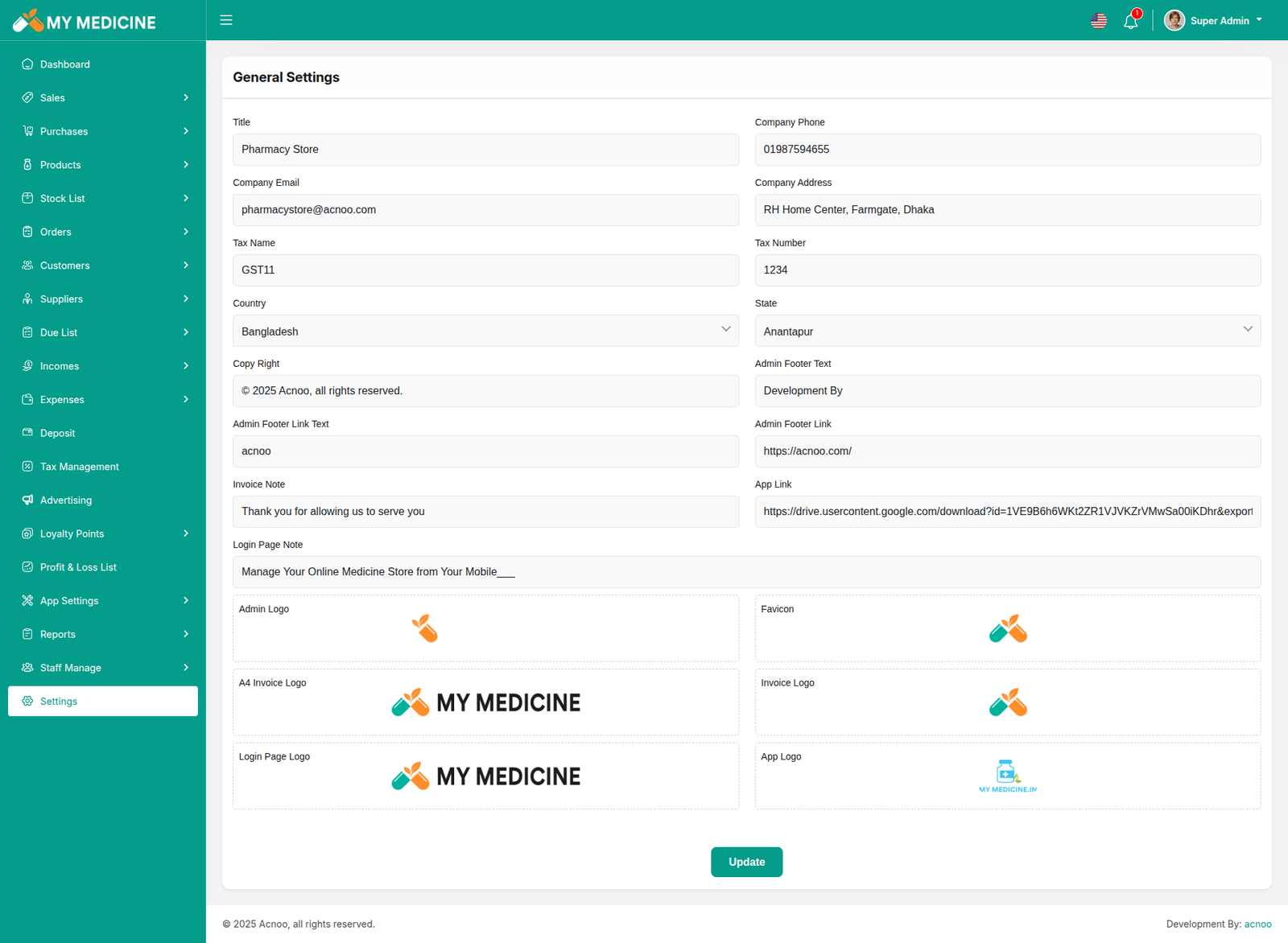
General Settings
You have the capability to modify the general project information.
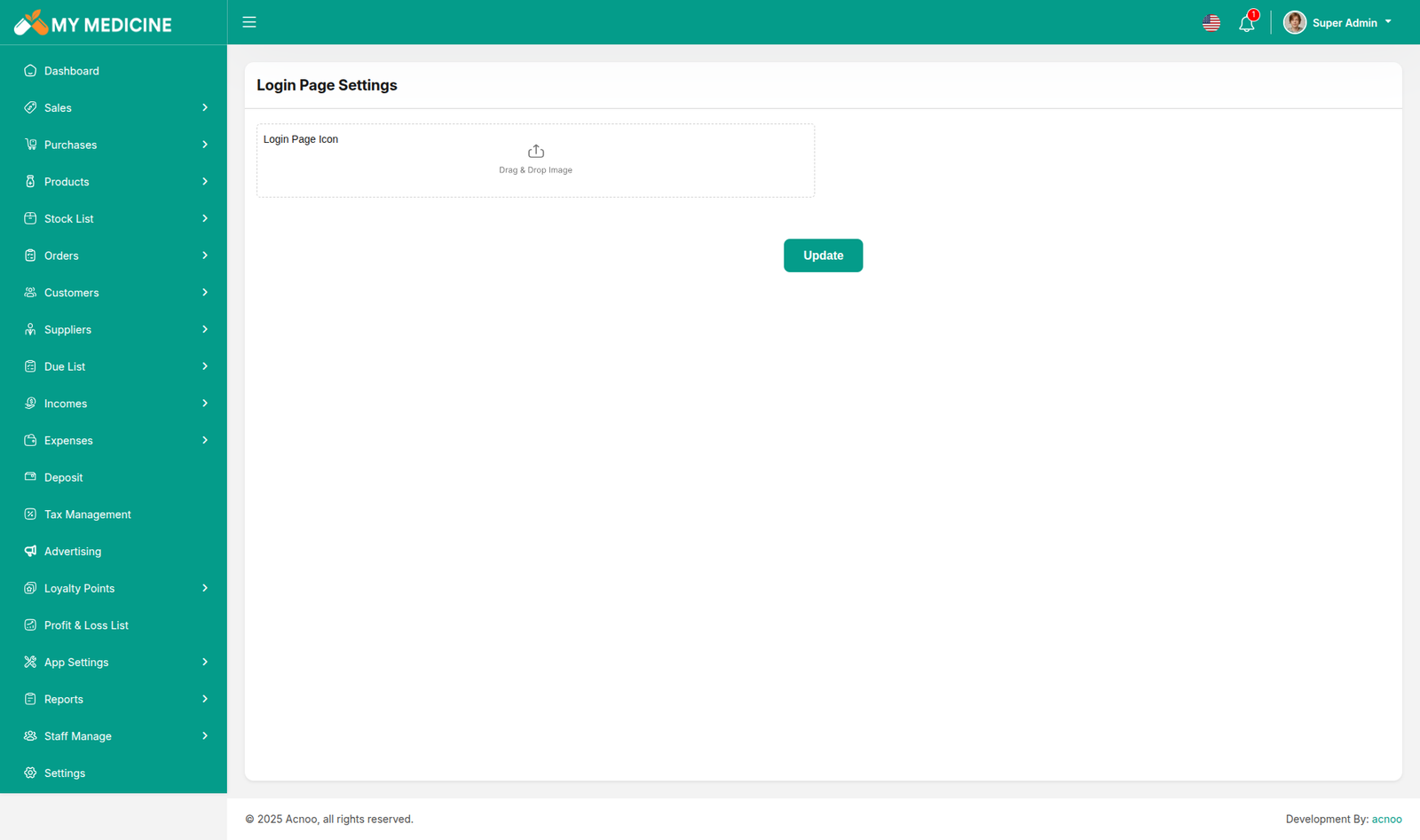
Login Page Settings
From here you can update login page image.
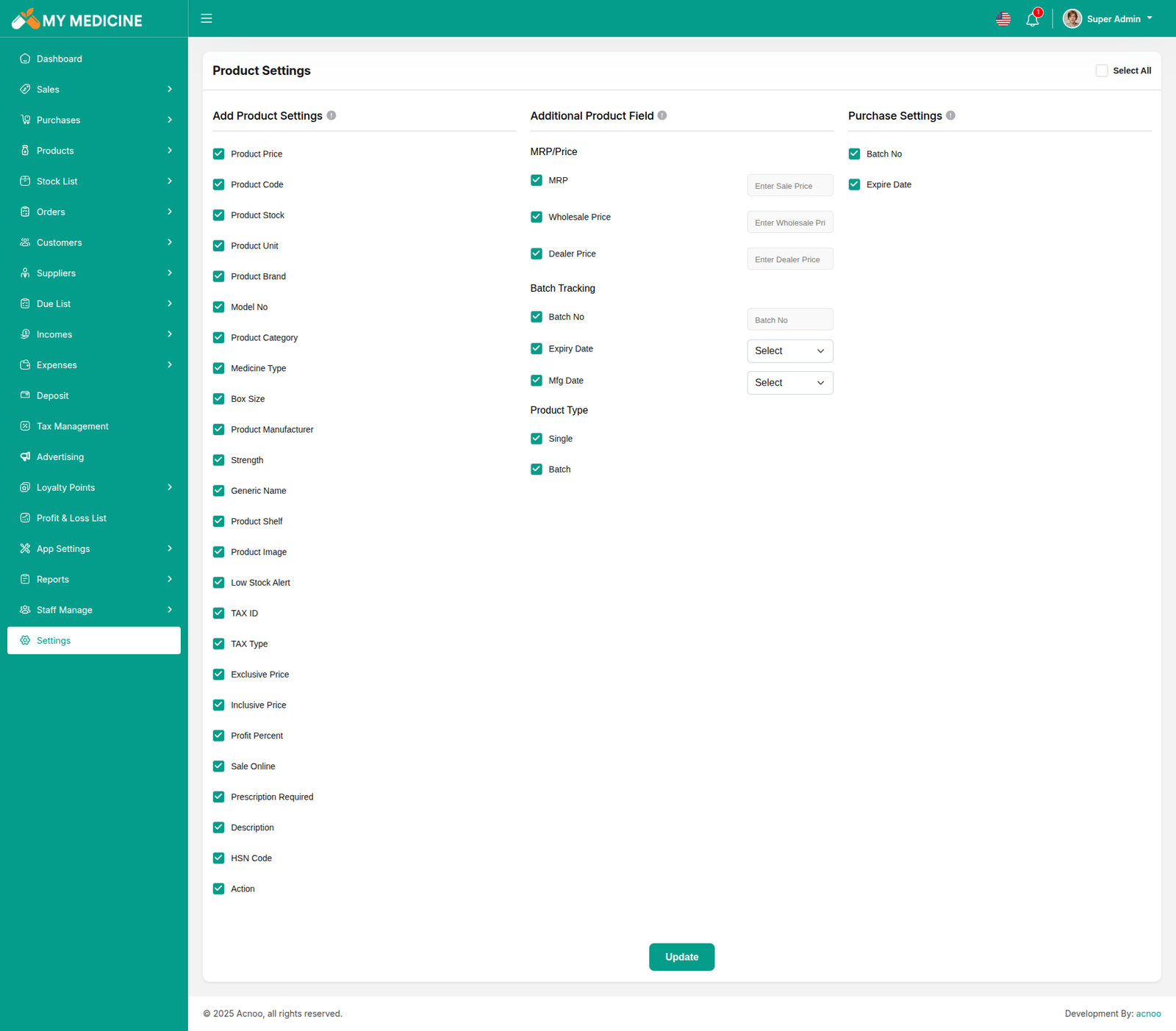
Product Settings
From this section, you can select the fields to include in the product creation form. Only the checked fields will appear when creating a new product.
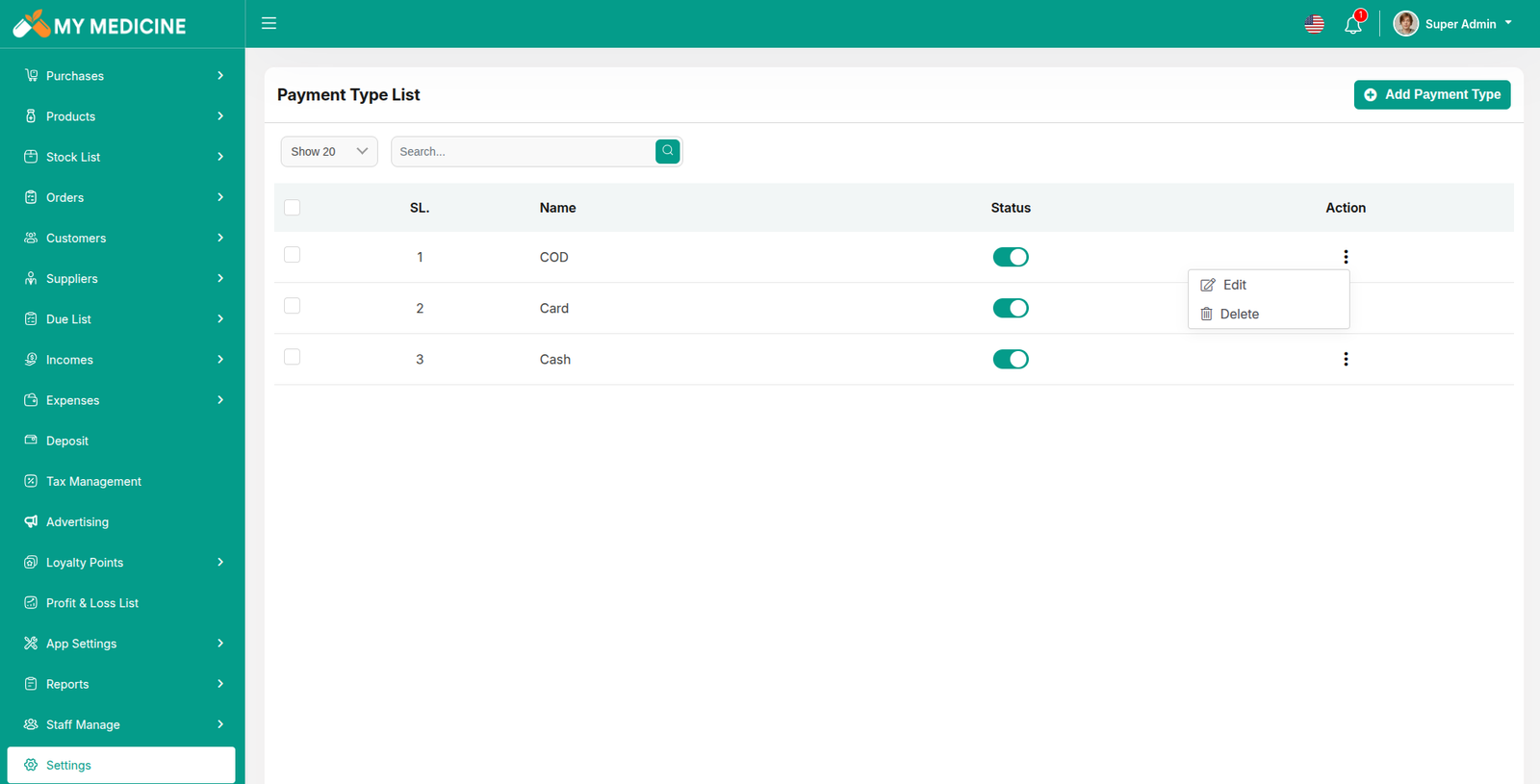
Payment Type List
This section displays a list of all payment types with filtering options. You can also edit existing payment types as needed.
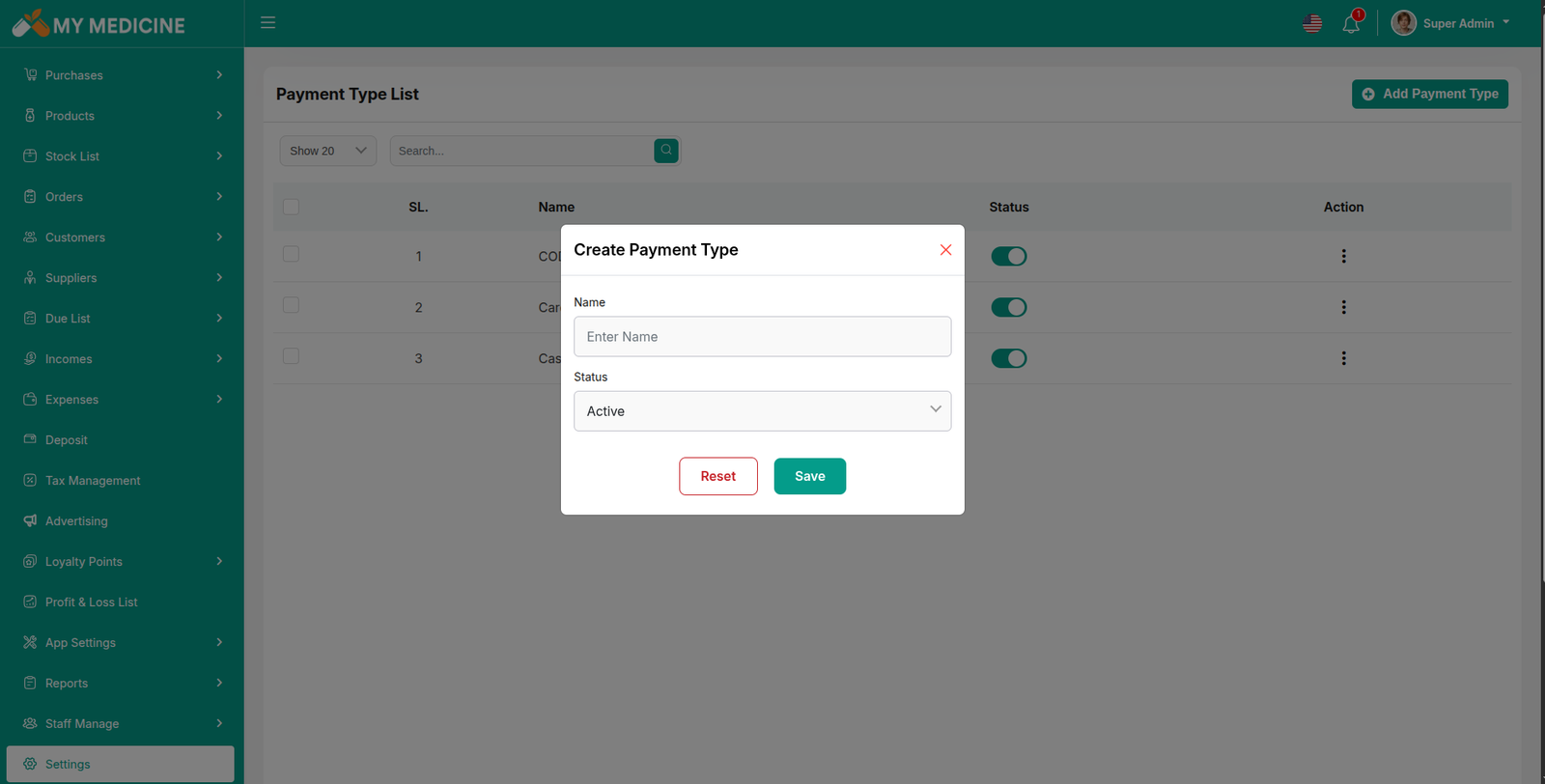
Create Payment
This section allows you to create and add new payment entries.
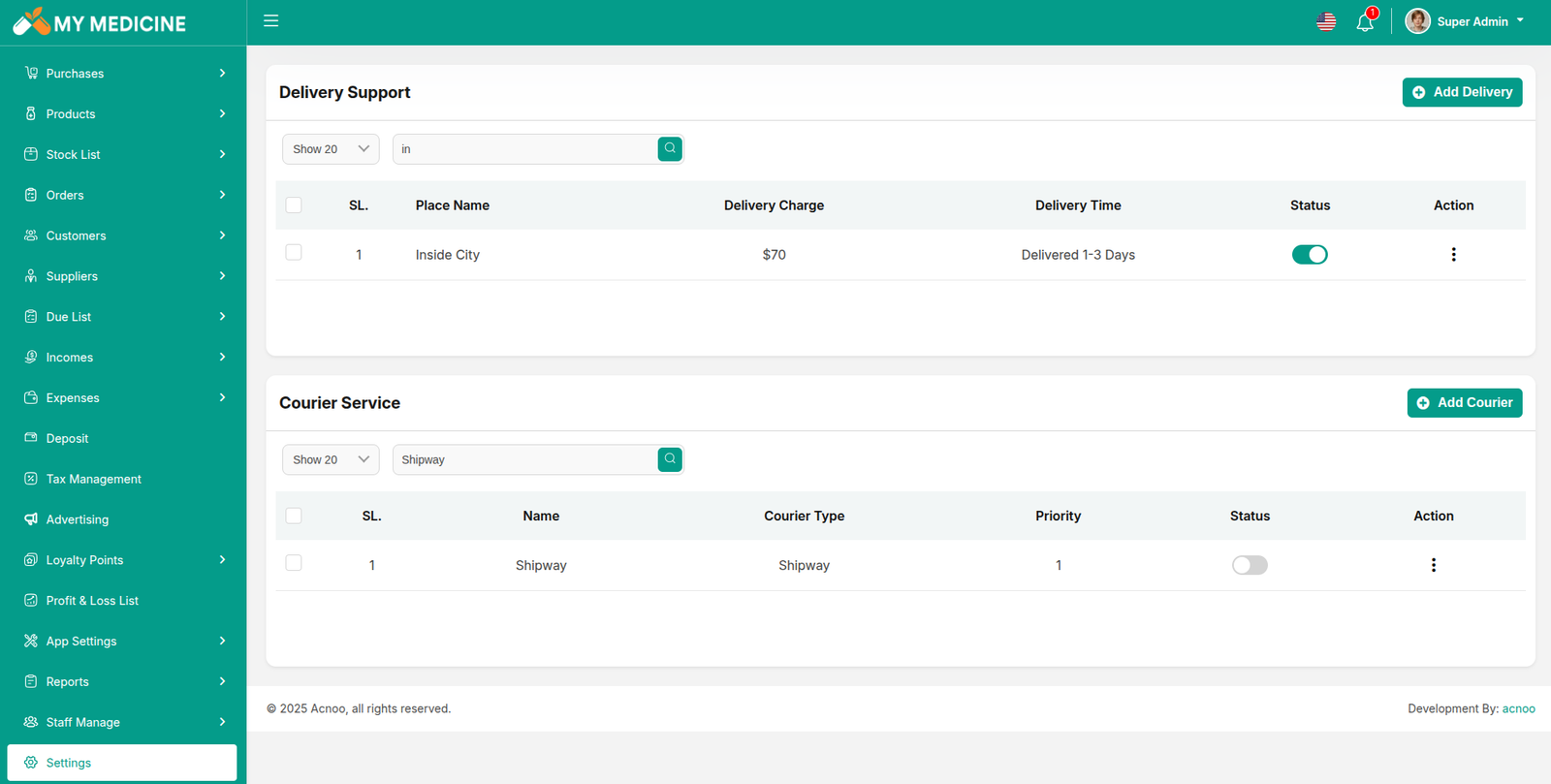
Delivery support & courier service list
This section displays a list of all delivery support & courier service with filtering options. You can also edit existing delivery support & courier service as needed.
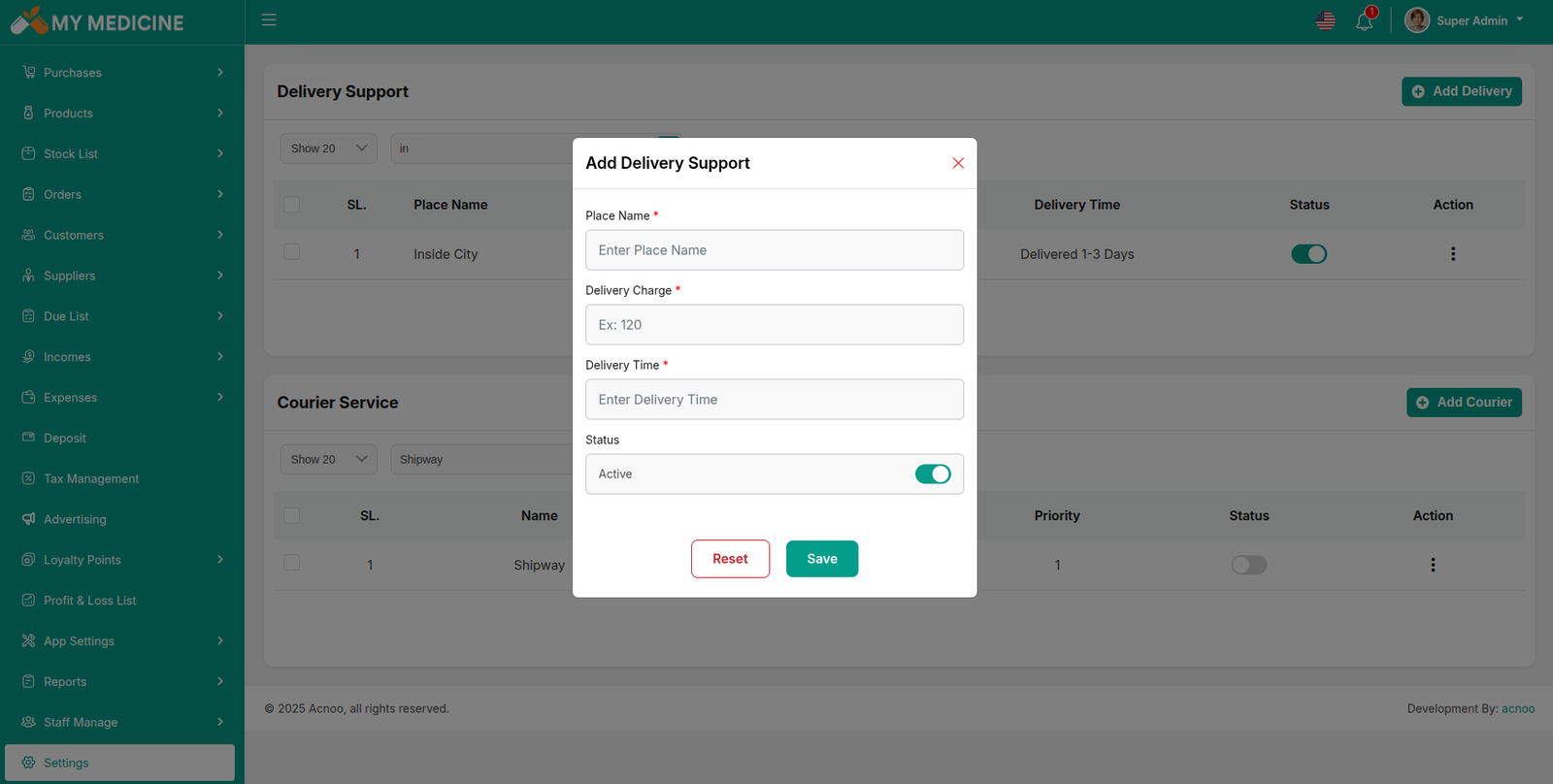
Create delivery
This section allows you to create and add new delivery entries.
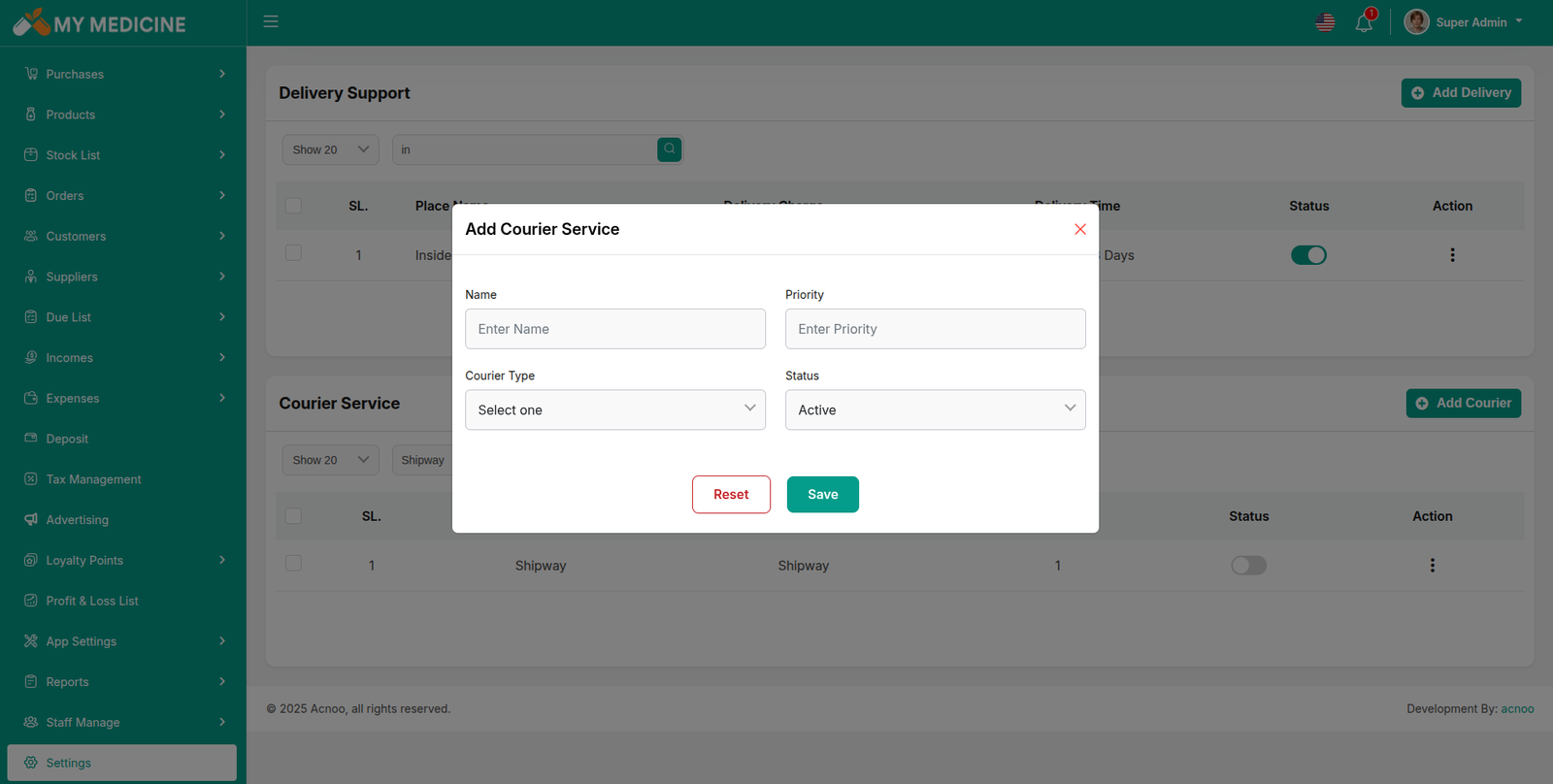
Create courier service
This section allows you to create and add new courier service entries.
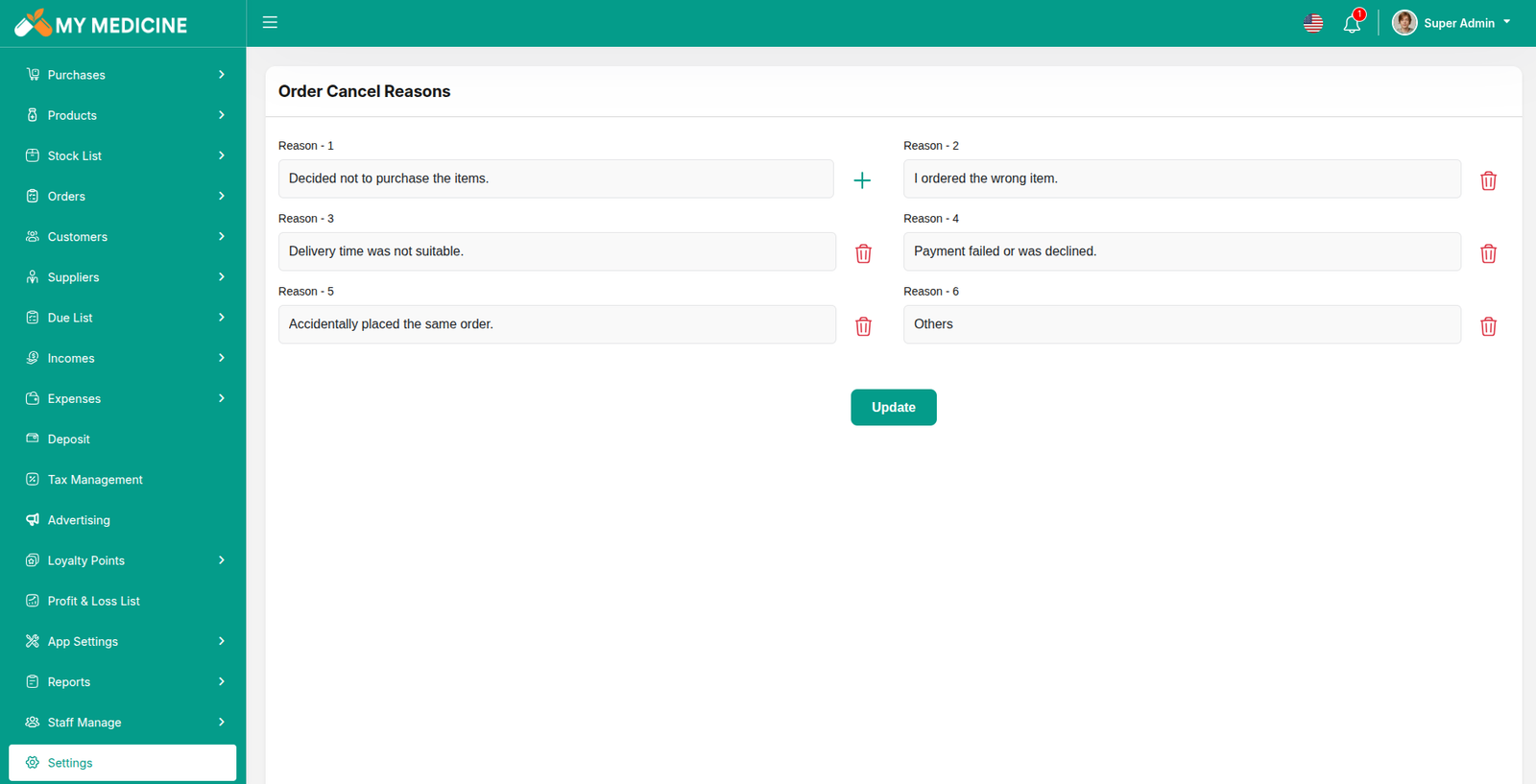
Cancel reason
This section allows you to create and add new cancel reason entries.
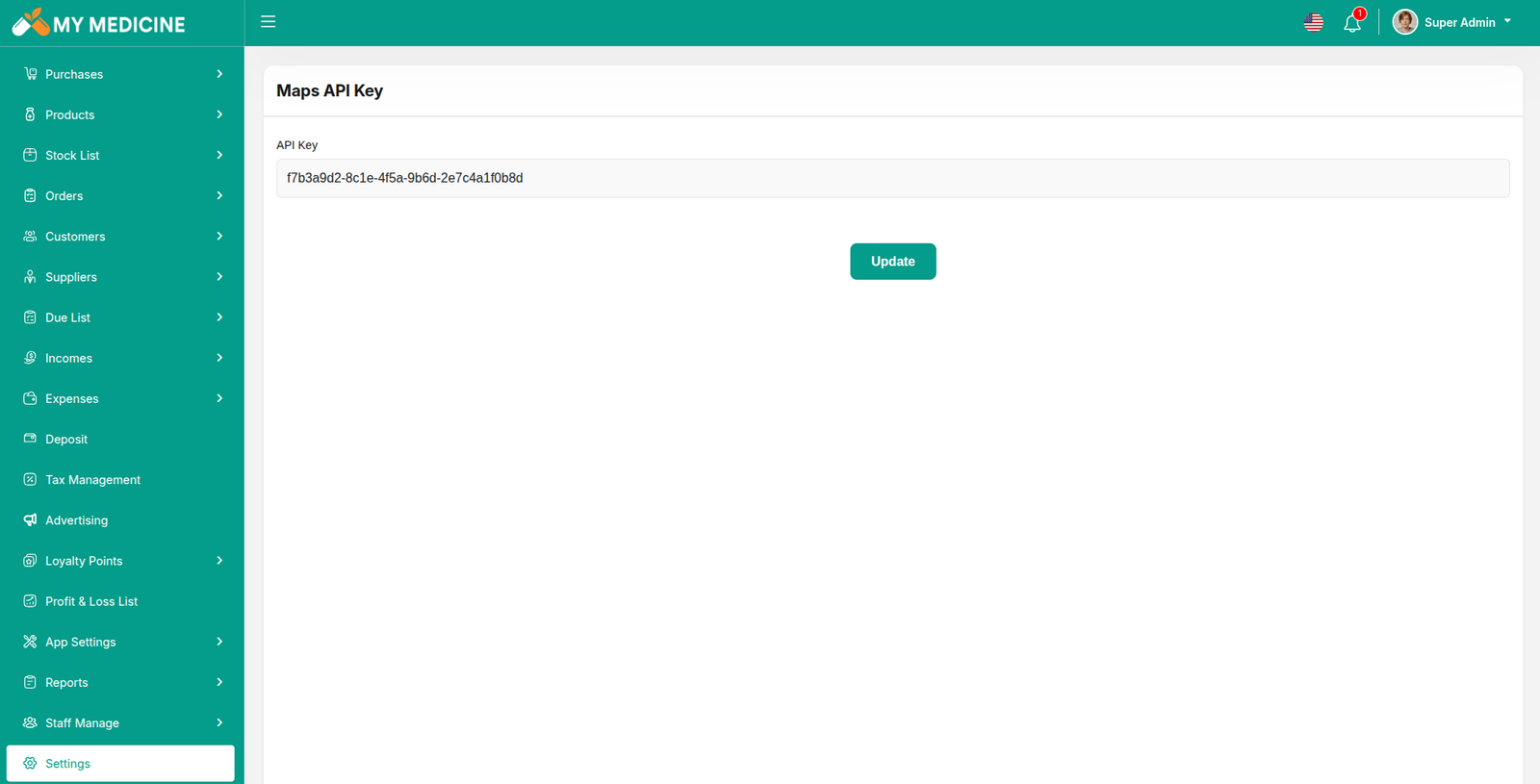
Maps API Key
From this section, you can configure and update your Maps API keys used within the application.
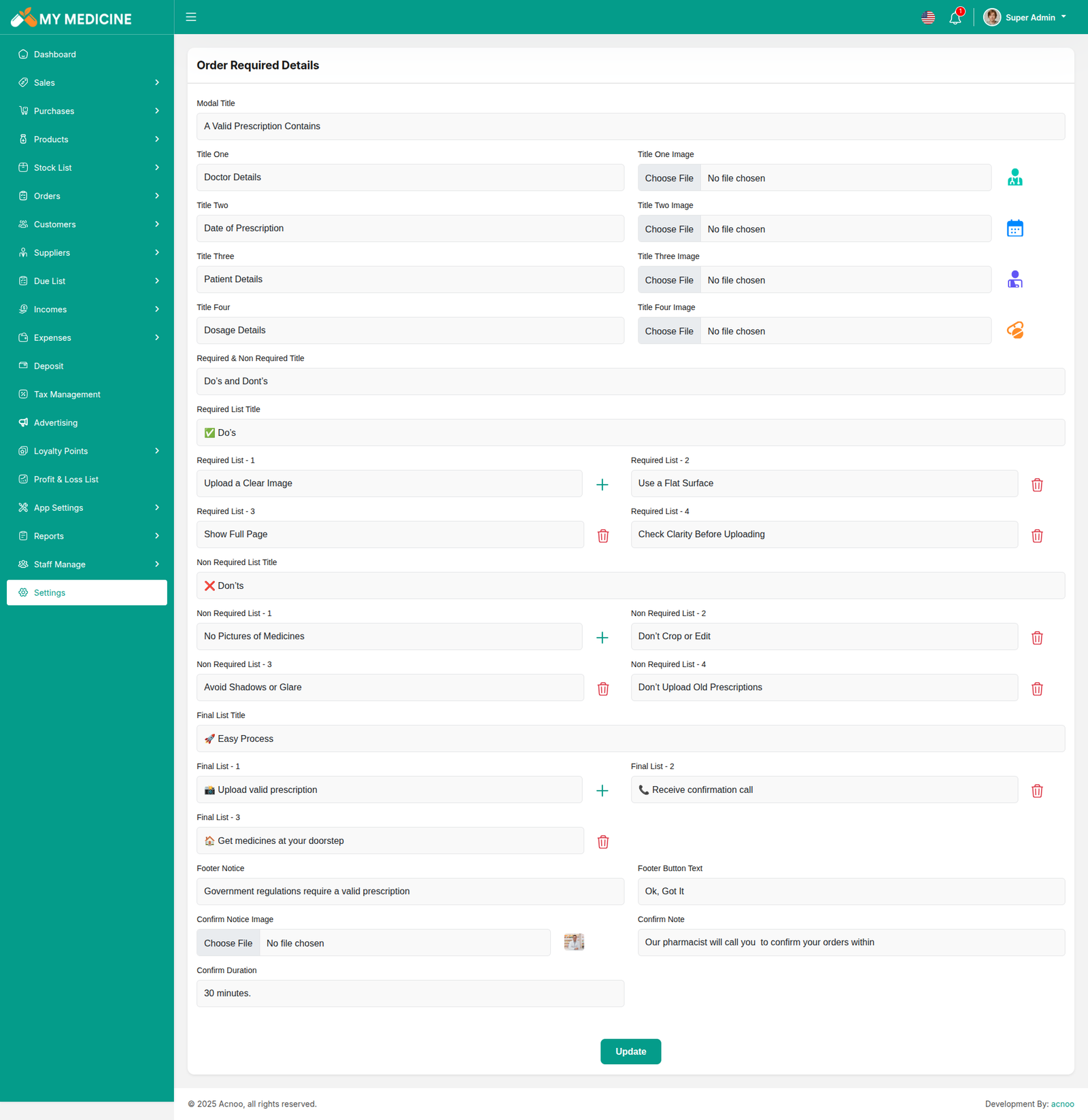
Order Required Details Settings
You have the capability to modify the order required details settings.
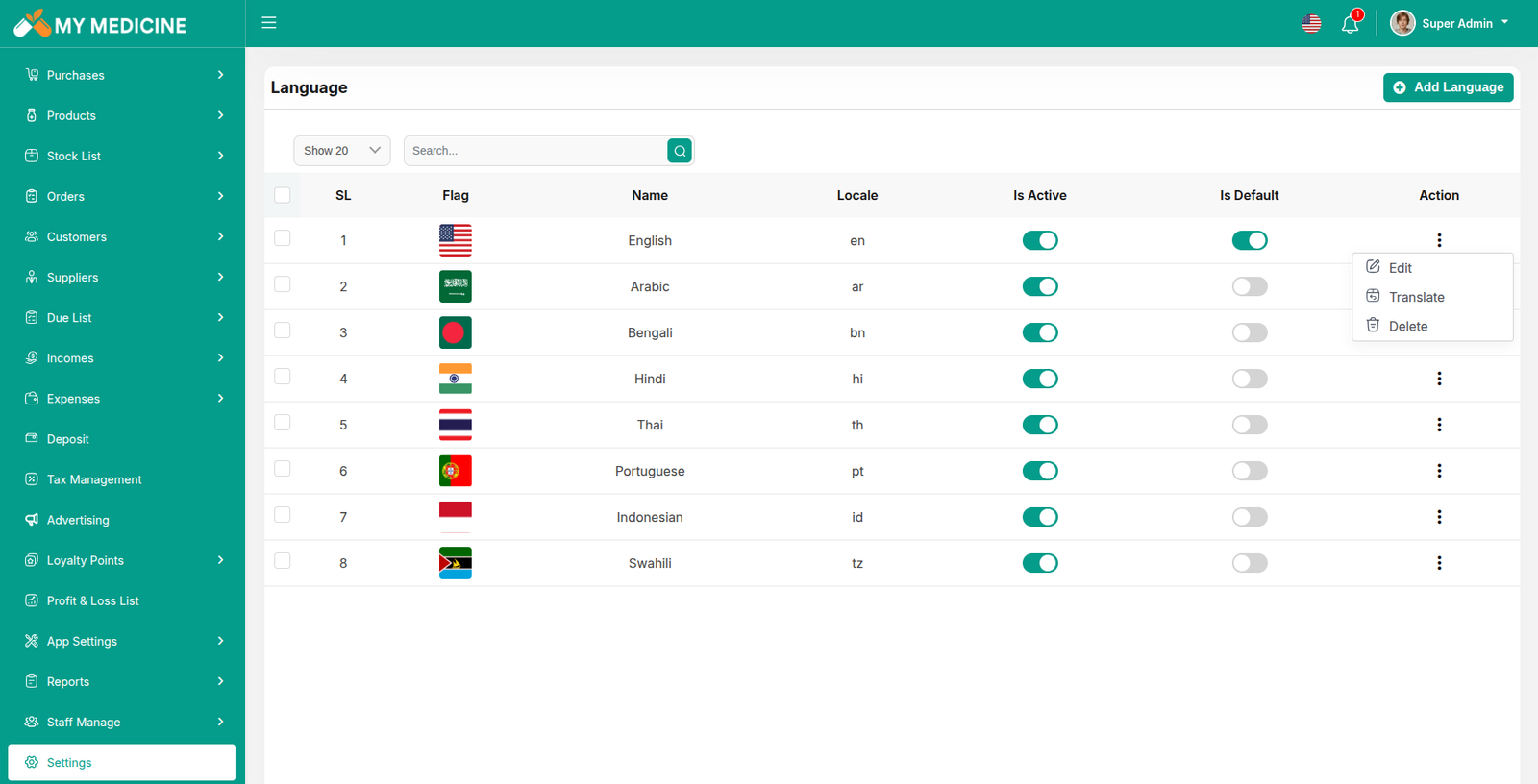
Language List
This section displays a list of all languages with filtering options. You can also edit existing language as needed.
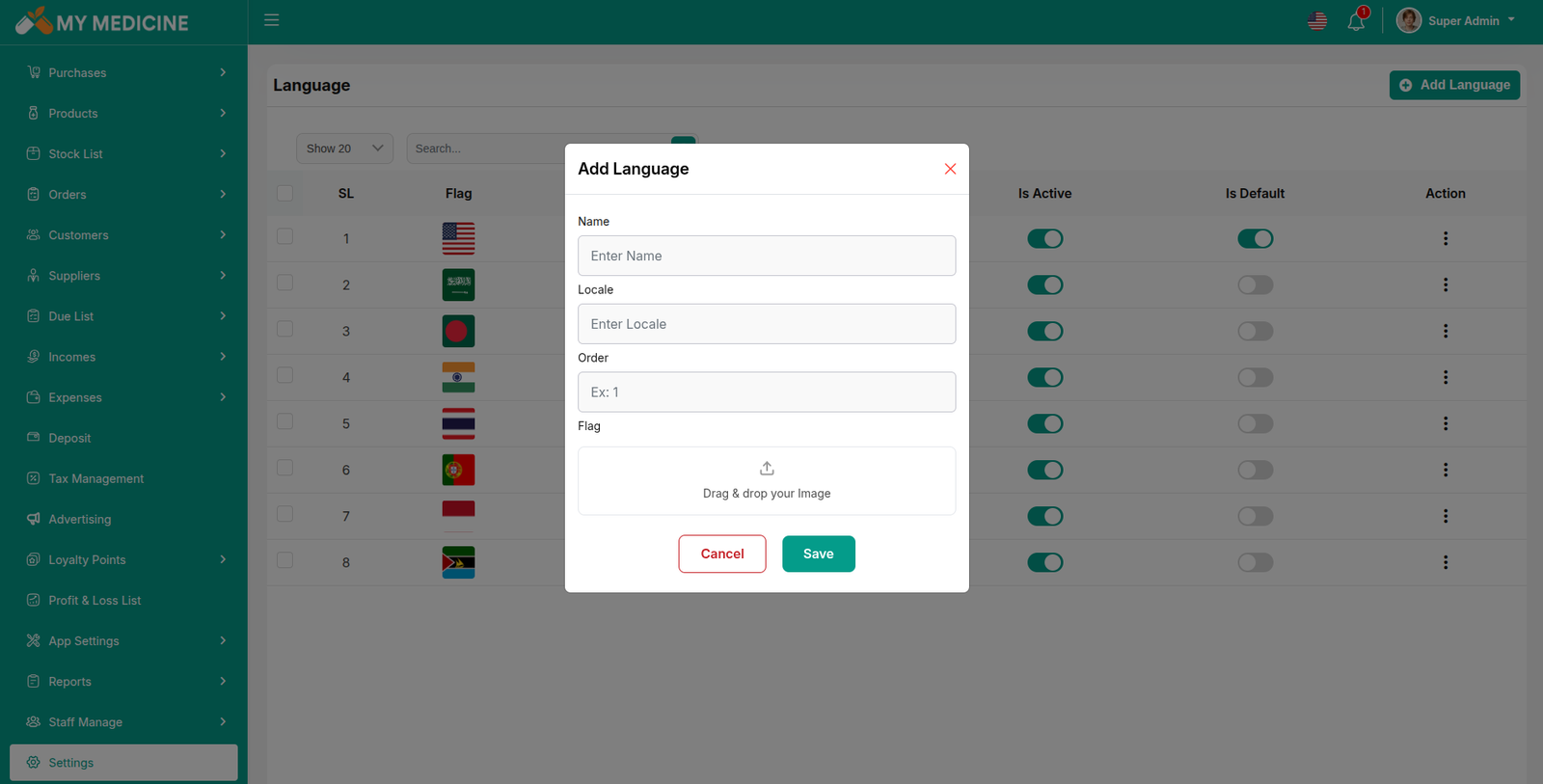
Create language
This section allows you to create and add new language entries.
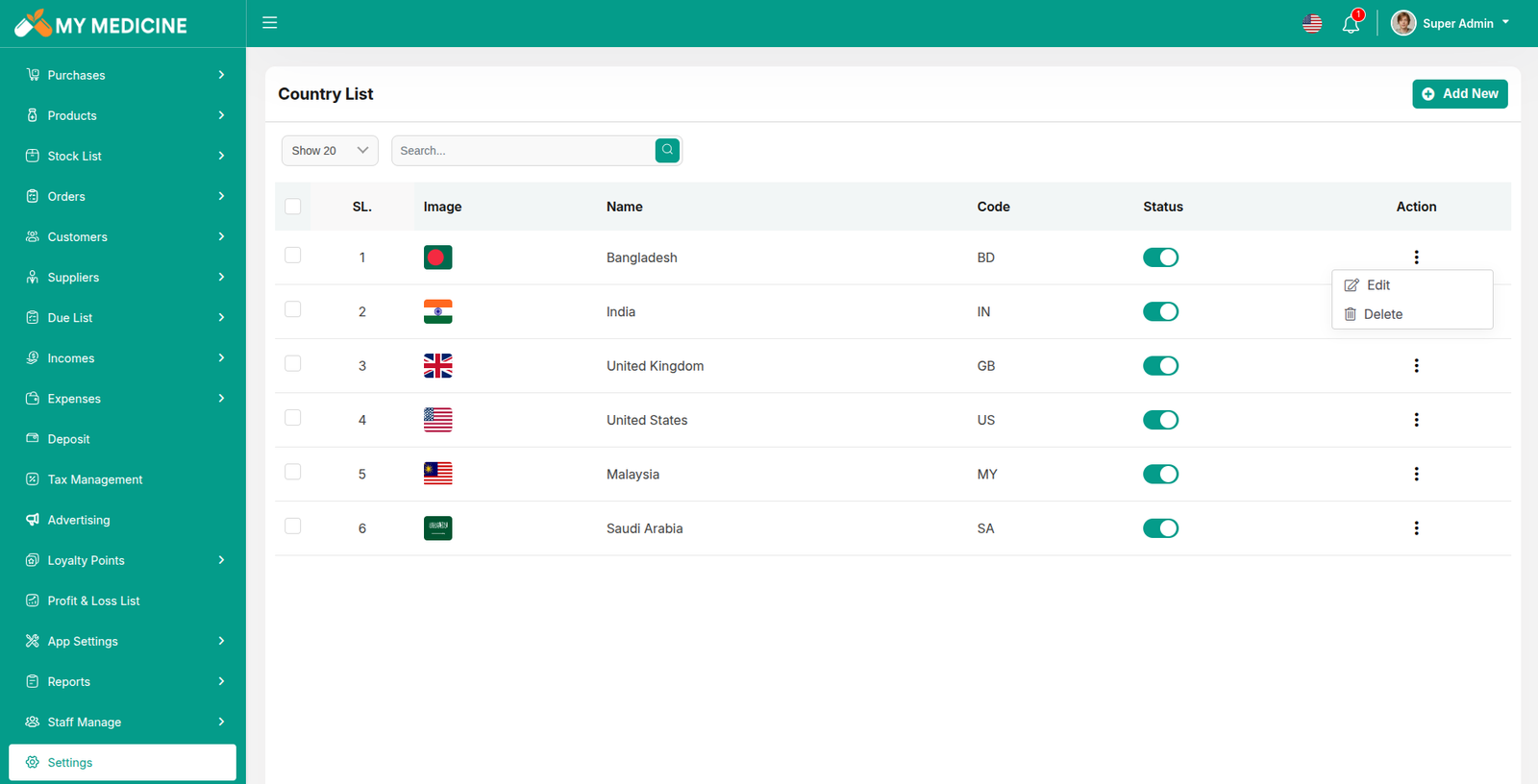
Country List
This section displays a list of all countries with filtering options. You can also edit existing country as needed.
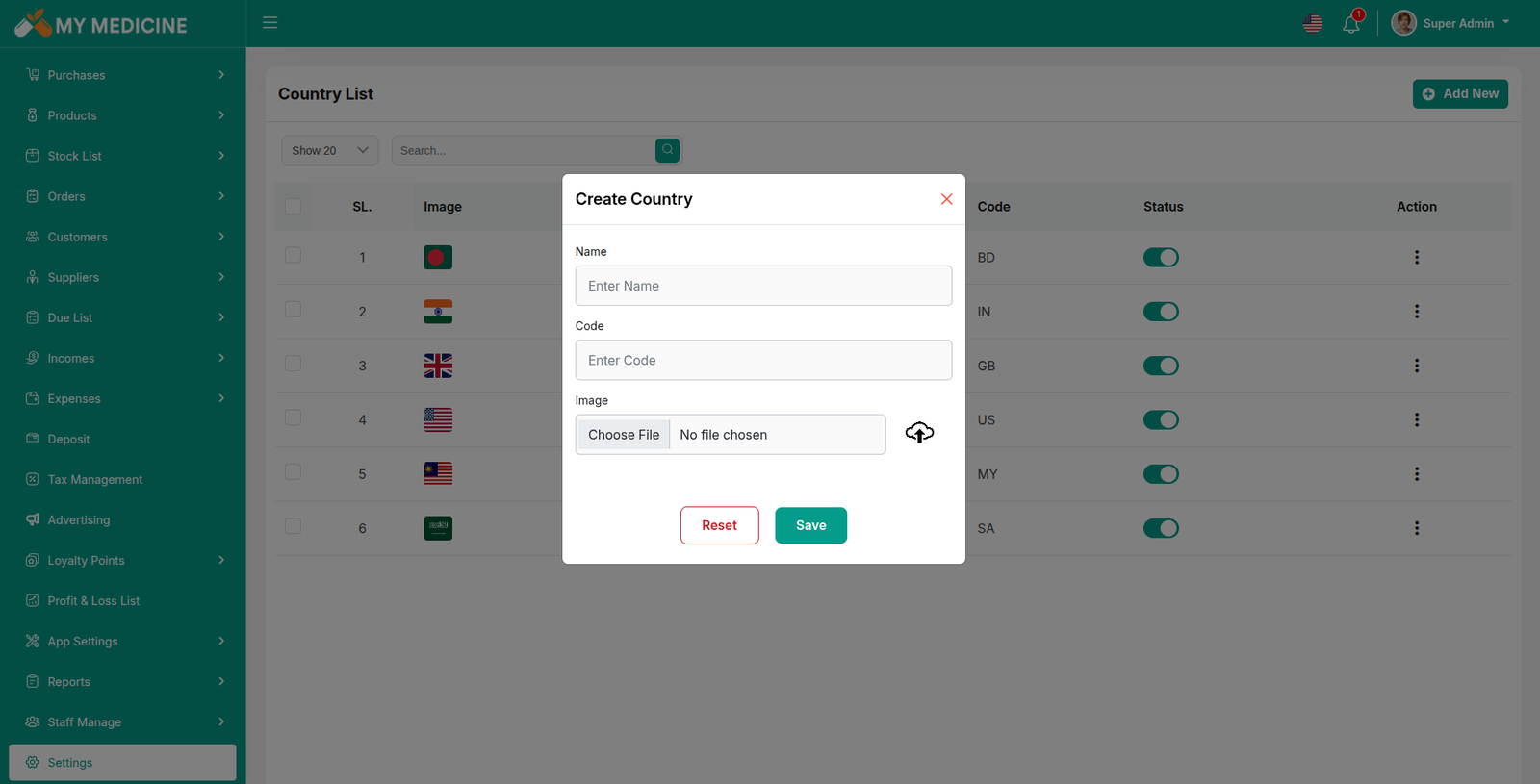
Create country
This section allows you to create and add new country entries.
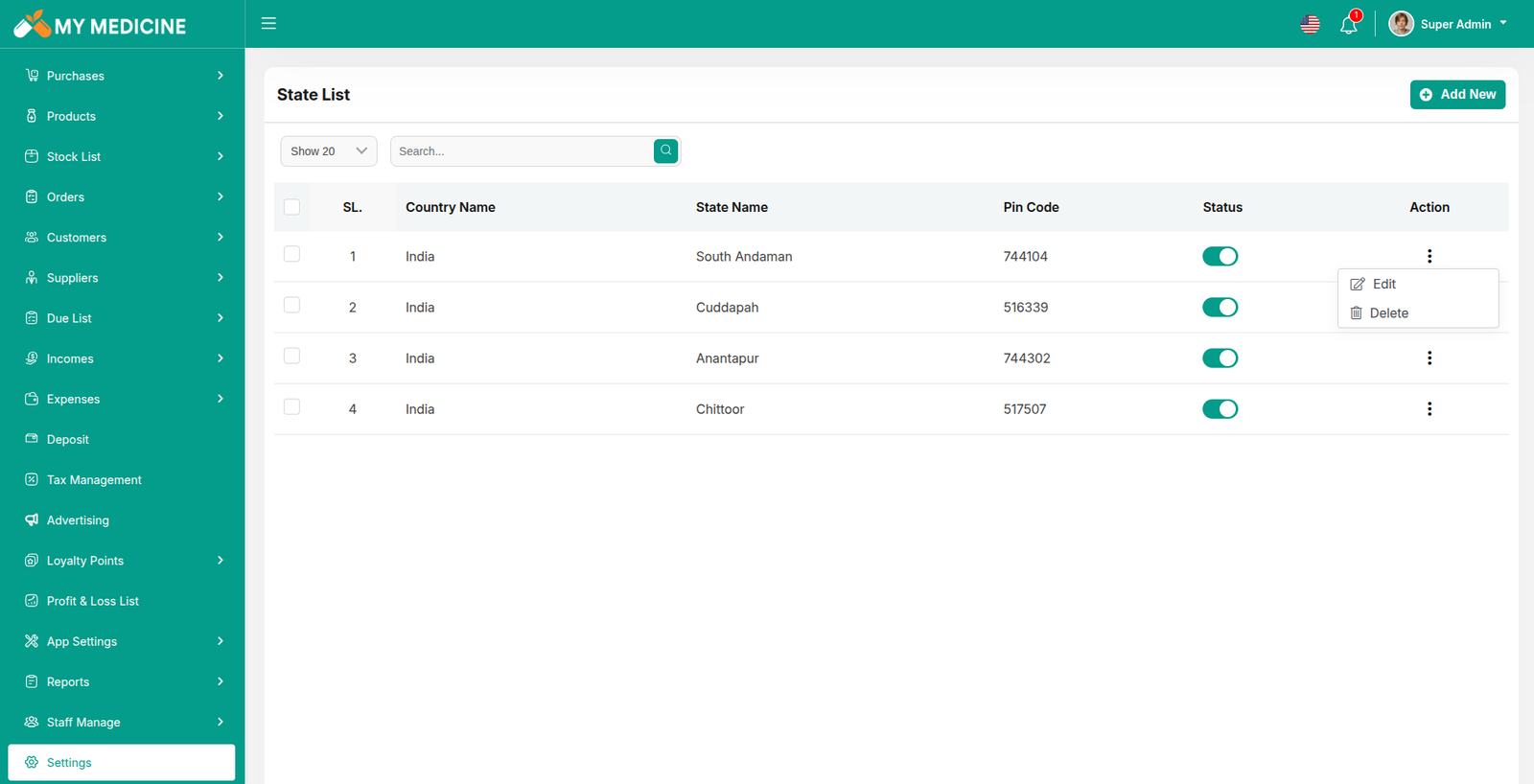
State List
This section displays a list of all states with filtering options. You can also edit existing states as needed.
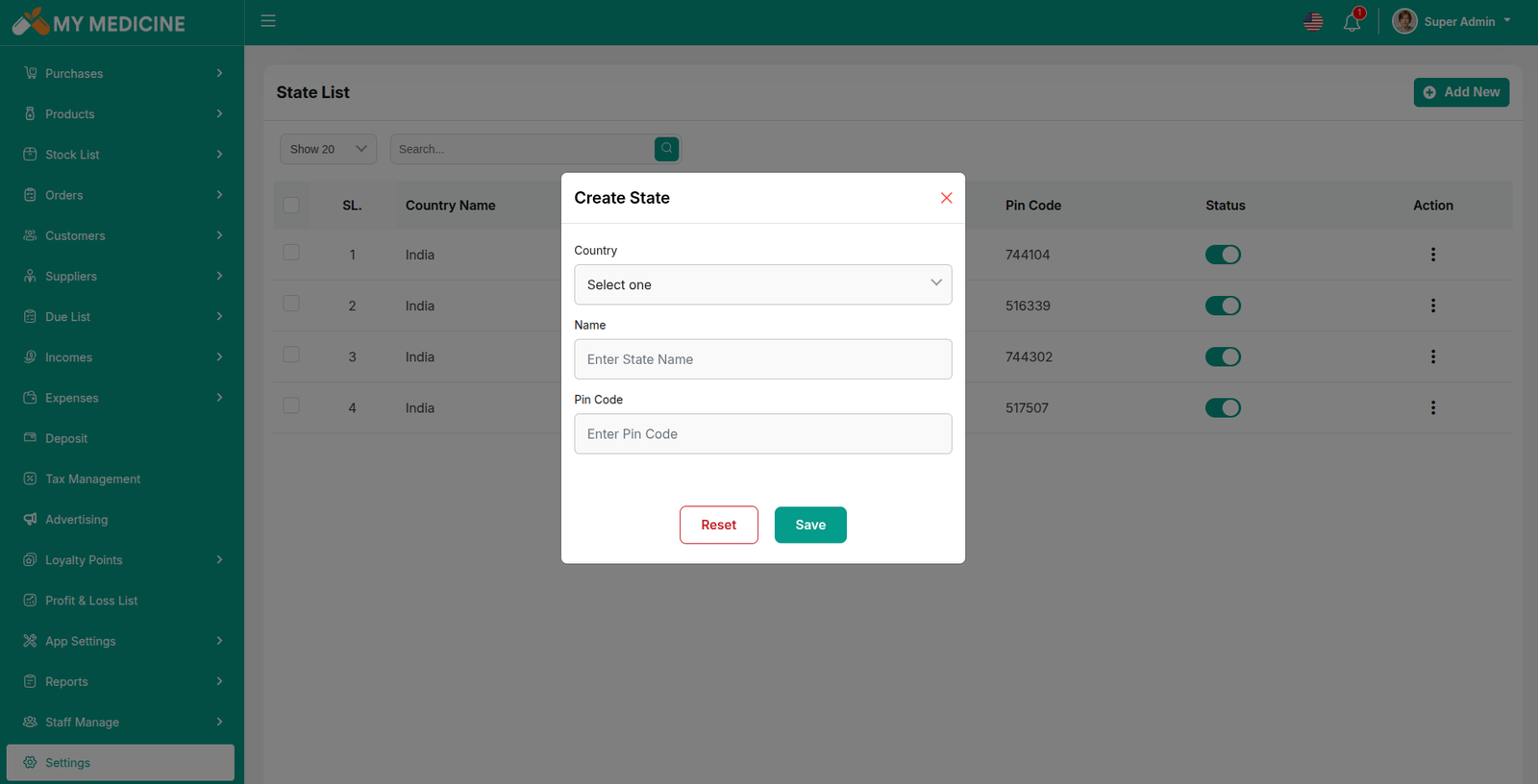
Create state
This section allows you to create and add new state entries.
Version:1.0.0 ( 5 July 2026 )
- Initial Release
Flutter App Installation Setup Start
Tools & Setup
Prerequisite
- Android Studio: 2023.3.1
- Flutter: 3.44.2
- Flutter & Dart SDK
- Anyone IDE Android Studio (Recommended), Visual Studio Code or IntelliJ IDEA
- To edit this project you must have Flutter and Dart installed and configured successfully on your computer.
- Set up your editor - Install the Flutter and Dart plugins.
- If you have got Android SDK installed and configured, to install Flutter you
only need
to:
- Download Flutter SDK from official website and extract it.
- Add path to previously extracted SDK to your PATH variable
- Run flutter doctor tool to check if everything is configured correctly.
- All above steps are mentioned here: https://flutter.dev/docs/get-started/install/
Make sure you have added the purchase code inside the app
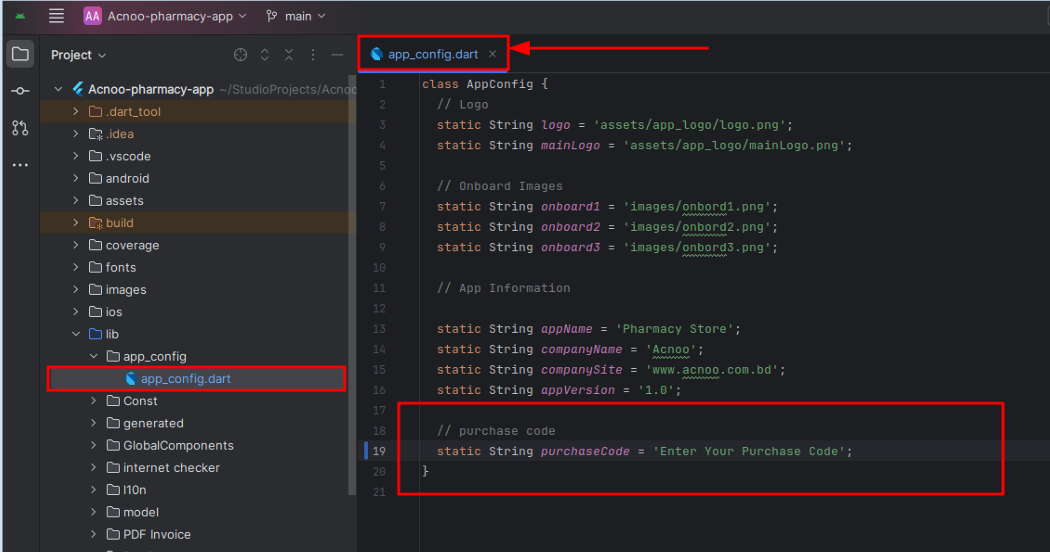 Directory: /lib/app_config/app_config.dart
Android Studio – Windows
- Download Android Studio - https://developer.android.com/studio/
- Get the Flutter SDK - https://flutter.dev/docs/get-started/install
- Learn more about Android Studio - https://developer.android.com/studio/intro/
Step 1 : Get the Flutter SDK
- Download the following installation bundle to get the latest stable release of the Flutter SDK:
- Extract the zip file and place the contained flutter in the desired installation location for the Flutter SDK (for example, C:\src\flutter; do not install Flutter in a directory like C:\Program Files\ that requires elevated privileges)
Step 2 : Update your path
If you wish to run Flutter commands in the regular Windows console, take these steps to add Flutter to the PATH environment variable: From the Start search bar, enter ‘env’ and select Edit environment variables for your account. Under User variables check if there is an entry called Path:
- If the entry exists, append the full path to flutter\bin using ; as a separator from existing values.
- If the entry doesn’t exist, create a new user variable named Path with the full path to flutter\bin as its value
Important
Note that you have to close and reopen any existing console windows for these changes to take effect. You are now ready to run Flutter commands in the Flutter Console!
Step 3 : Run flutter doctor
From a console window that has the Flutter directory in the path (see above), run the following command to see if there are any platform dependencies you need to complete the setup:
Android Studio – macOS
- Download Android Studio - https://developer.android.com/studio/
- Download Xcode - https://apps.apple.com/us/app/xcode/id497799835?mt=12
- Get the Flutter SDK - https://flutter.dev/docs/get-started/install
- Learn more about Android Studio - https://developer.android.com/studio/intro/
Step 1 : Get the Flutter SDK
- Download the following installation bundle to get the latest stable release of the Flutter SDK:
- Download SDK and extract downloaded file, just double click on that. and just copy extracted folder and paste it to your desired location (for example, Documents\flutter).
Step 2 : Update your path
Important
Path variable needs to be updated to access “flutter” command from terminal. you can just update path variable for current terminal window only. and if you want to access flutter commands from anywhere in terminal, we need to update SDK path permanently.
To update PATH variable, we need to open terminal.
To update PATH variable for current terminal window only, then enter this command "export PATH="$PATH:`pwd`/flutter/bin"" and hit enter key.
To update PATH variable permanently, then Open or create .bash_profile file.
to open
or
create that file, then enter "sudo open -e $HOME/.bash_profile" and hit enter
key.Append
below line to bash_profile file at bottom of all other content. "export
PATH="$PATH:
[PATH_TO_FLUTTER_GIT_DIRECTORY]/flutter/bin"" as
[PATH_TO_FLUTTER_GIT_DIRECTORY] is actual path of SDK folder.
Run this command on terminal "source $HOME/.bash_profile" to refresh PATH variables.
Then check whether our SDK is successfully installed or not.
You are now ready to run Flutter commands in the Flutter Console!
Run "flutter doctor" into terminal, If you are getting check list of flutter sdk requirements, it means SDK is successfully installed on your machine. and you can start building flutter apps on your machine.
Android Studio – Linux
- Download Android Studio - https://developer.android.com/studio/
- Get the Flutter SDK - https://flutter.dev/docs/get-started/install/linux
- Learn more about Android Studio - https://developer.android.com/studio/intro/
Step 1 : Get the Flutter SDK
- Download the following installation bundle to get the latest stable release of the Flutter SDK:
- Download SDK and extract downloaded file, just double click on that. and just copy extracted folder and paste it to your desired location (for example, Documents\flutter).
Step 2 : Update your path
Important
Path variable needs to be updated to access “flutter” command from terminal. you can just update path variable for current terminal window only. and if you want to access flutter commands from anywhere in terminal, we need to update SDK path permanently.
You’ll probably want to update this variable permanently, so you can run
flutter
commands in any terminal session. To update PATH variable, we need to open terminal.
- Run
source $HOME/.to refresh the current window, or open a new terminal window to automatically source the file. - Verify that the
flutter/bindirectory is now in your PATH by running:
GETTING STARTED (BUILD & RUN)
Important
All below steps are must be followed to build and run application
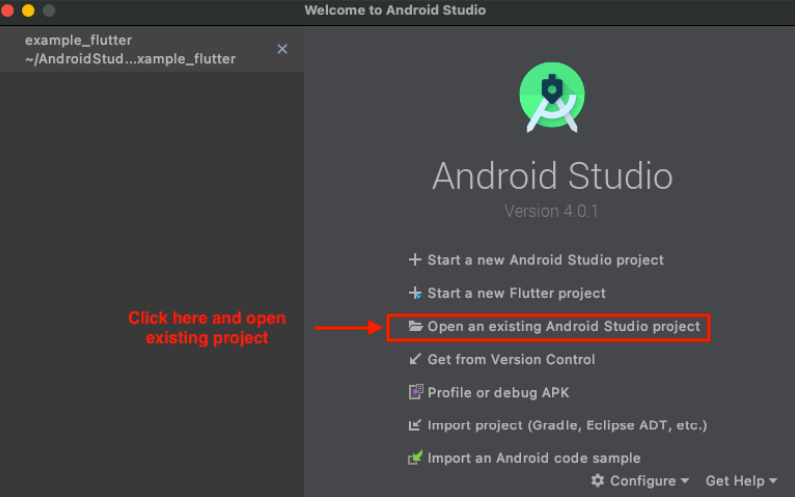
Download Project
Download and find the your project folder, use your preferred IDE (Android Studio / Visual Studio Code / IntelliJ IDEA) to run the project
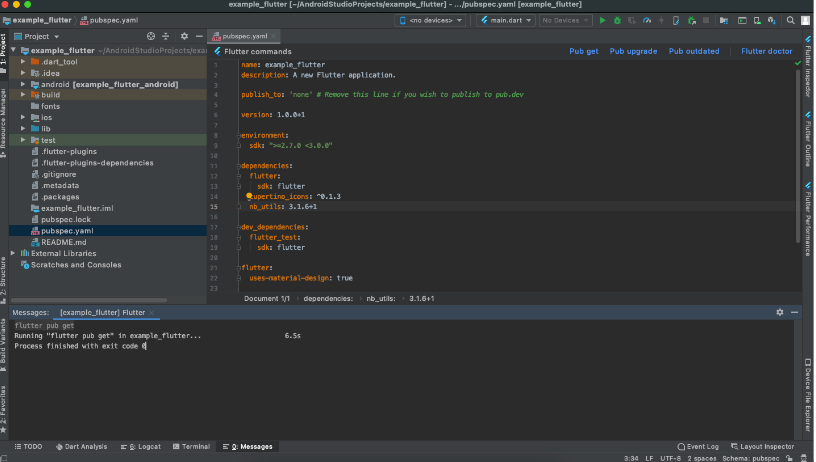
Get Dependencies
After you loaded project successfully, run the following command in the
terminal
to install
all the dependencies listed in the pubspec.yaml file in the project's
root
directory or just
click on Pub get in pubspec.yaml file if you don't want to use command.
Important
All below steps are must be followed to build and run application
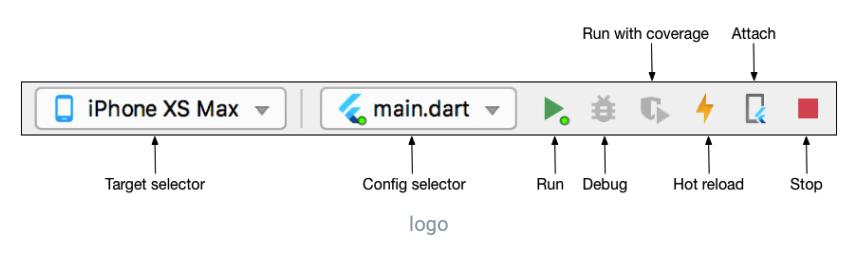
Build and Run App
- Locate the main Android Studio toolbar.
- In the target selector, select an Android device for running the app. If none are listed as available, select Tools > Android > AVD Manager and create one there. For details, see Managing AVDs
- Click the run icon in the toolbar, or invoke the menu item Run > Run.
After the app build completes, you’ll see the app on your device.
If you don’t use Android Studio or IntelliJ you can use the command line to run your application using the following command
Important
Below step requires flutter path to be set in your Environment variables. See https://flutter.dev/docs/get-started/install/windows
You will see below like screen after you have build your app successfully.
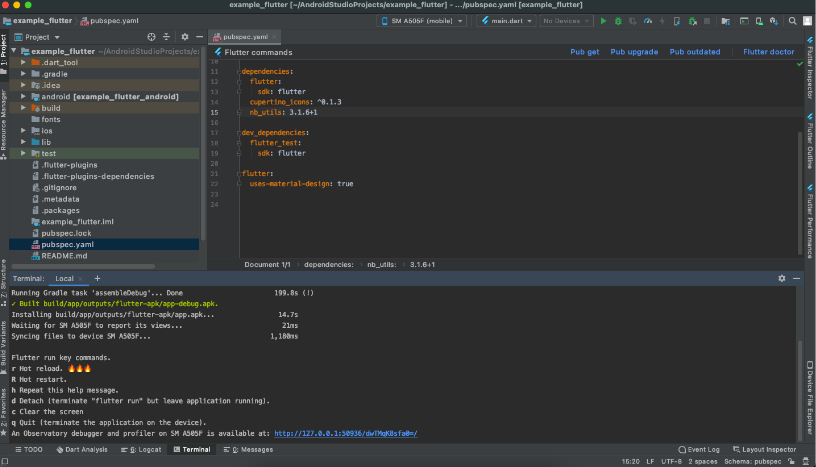
Try hot reload
Flutter offers a fast development cycle with Stateful Hot Reload, the ability to reload the code of a live running app without restarting or losing app state. Make a change to app source, tell your IDE or command-line tool that you want to hot reload, and see the change in your simulator, emulator, or device.
Important
Do not stop your app. let your app run.
PROJECT STRUCTURE & FEATURES
- images: apps/widgets/snippets images as well as appIcon are stored here.
- lib: Application main file and folder are located here.
- Screens: Full Apps UI Code can be found here.
- Conts: Api configuration can be found here
- Constant: All constant value are located here
- Main: All the routes are been declared here.
- Pubspec.yaml: Application name and other project dependencies can be found here
Application Features
- Clean Code and a well structured project
- Single code base for both Android & iOS
- 60 FPS Support for both Android & iOS
- Fully responsive UI
- Best UI & UX
- Great animation
- Easy to customize
- Free life time updates & stunning customer support
- Easy to integrate in your project
Mobile Application Setup:
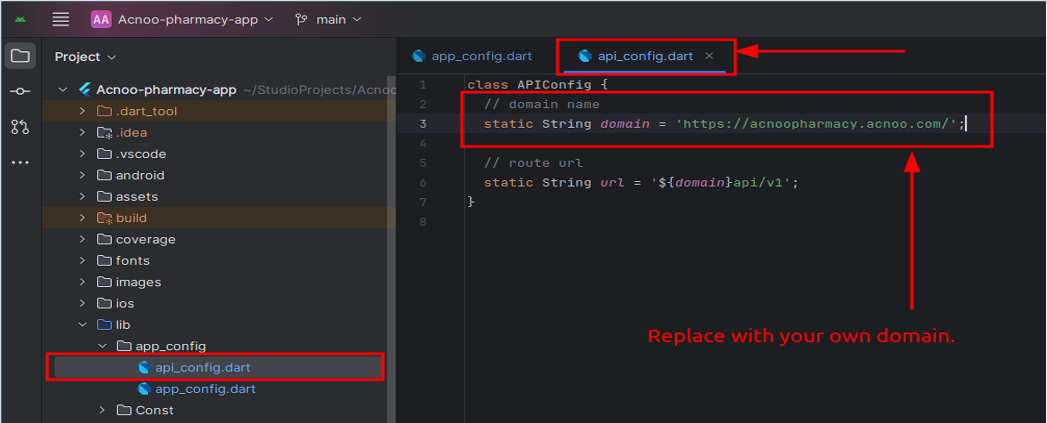
You’ll need to modify the api_config.dart file to replace the existing
domain with your new one. Here’s
how you can do it:
1. Open the api_config.dart file located in the /lib/app_config/api_config.dart directory.
2. Replace 'https://mymedicine.acnoo.xyz/' with your new domain:
3. Make sure the new URL is correctly formatted and includes the proper protocol
(https:// or
http://).
Now:
Please open the constant.dart file and update the app name, company name, and app version with the desired values, ensuring they are written correctly.
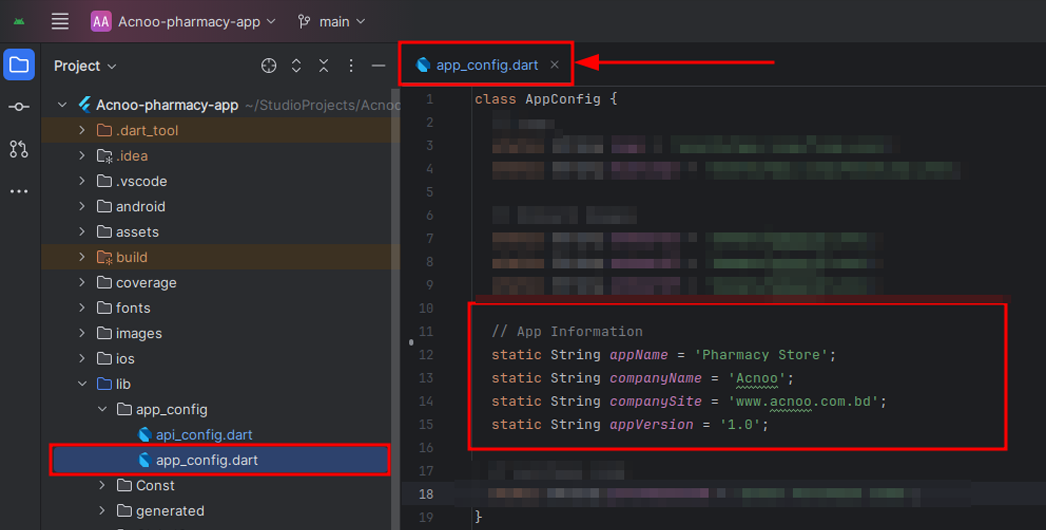
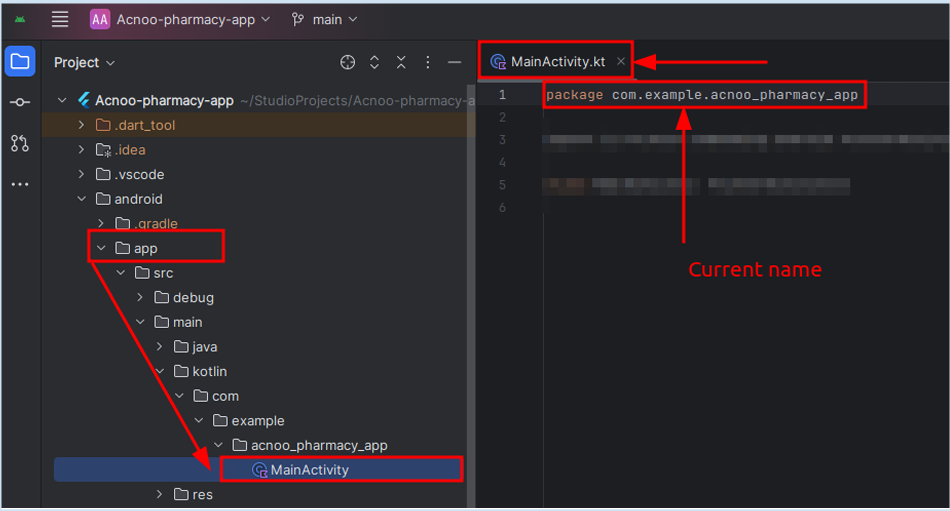
Change package name:
➢ Find the current package name, which is com.example.acnoo_pharmacy_app
path:/android/app/src/main/kotlin/com/example/acnoo_pharmacy_app/MainActivity.kt
➢ Select the project file & Press Ctrl + Shift + R to replace the old package name with your new one throughout the entire codebase.
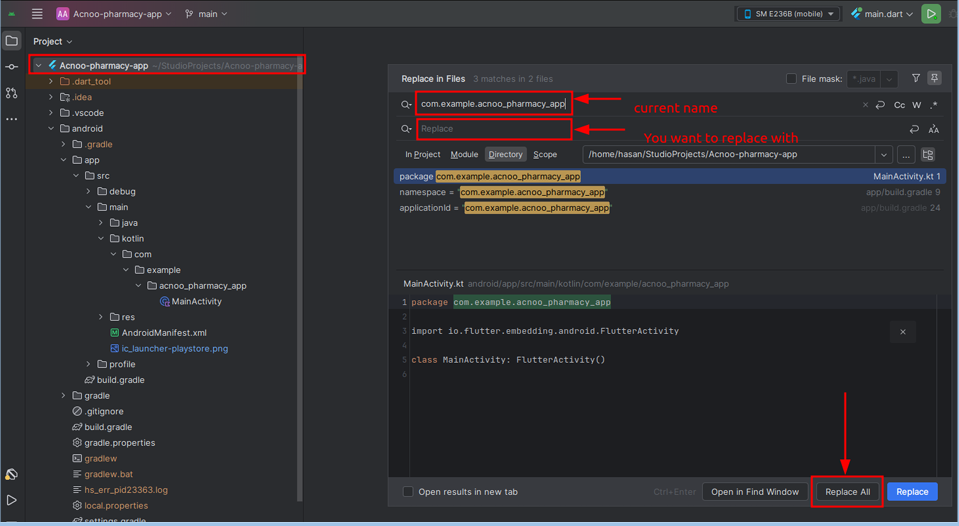
➢ Now in the first box paste the current package name (com.example.acnoo_pharmacy_app) and in the second box write the new name and press Replace All button.Please consider assigning a meaningful package name and try to follow the structure.
Run Flutter Project:
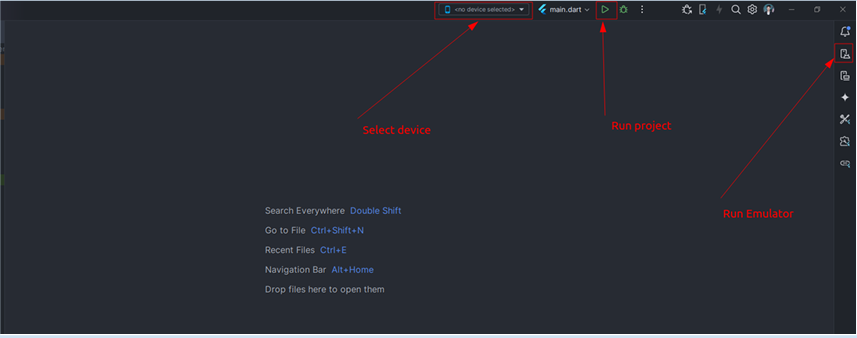
➢ For first-time users, enable Dart support for the project. Afterward, navigate to the pubspec.yaml file and retrieve the packages by clicking on "Pub Get" located at the top right corner, as illustrated in the image.
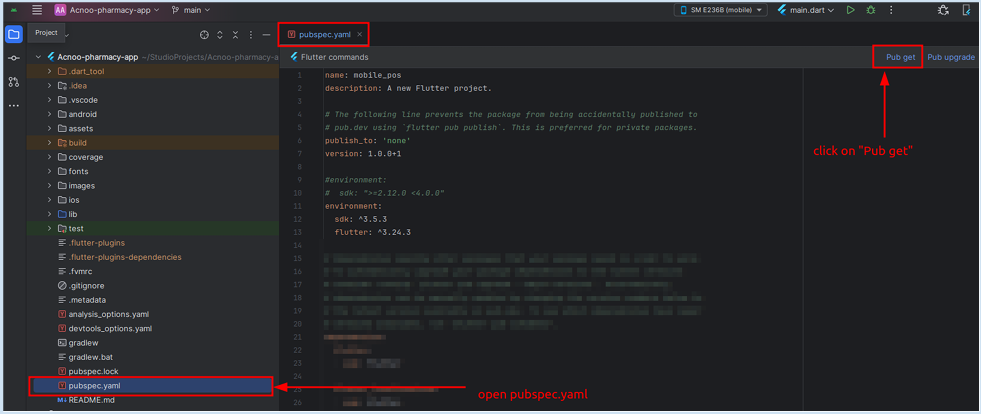
➢ After enabling Dart support and fetching packages, select a device or run an emulator. Click the 'Play' icon in the upper-right corner to launch the app. For physical devices, enable 'Developer Options' and 'USB Debugging' on your phone.
How to change application name:
➢ To change the app name you have to go to the AndroidManifest.xml file.
➢ path: android/app/src/main/AndroidManifest.xml
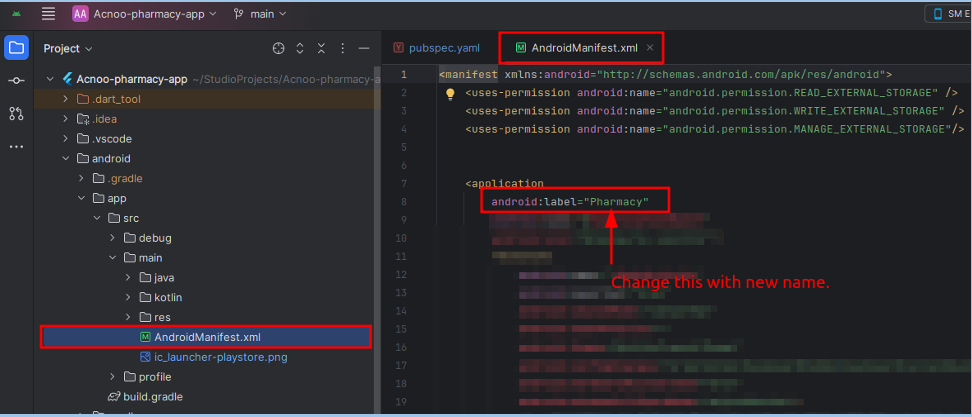 After opening the file change the android:label =”AppName” &
replace your current name.
And build the app. The App name will be changed.
After opening the file change the android:label =”AppName” &
replace your current name.
And build the app. The App name will be changed.How to change application version
➢ Navigate to the pubspec.yaml file and modify the 'version' field. For instance,
if the previous version
is 1.0.0+1, update it to 1.0.1+2.
➢ IMPORTANT: Ensure to execute 'flutter pub get' and 'flutter run' after making
this adjustment.
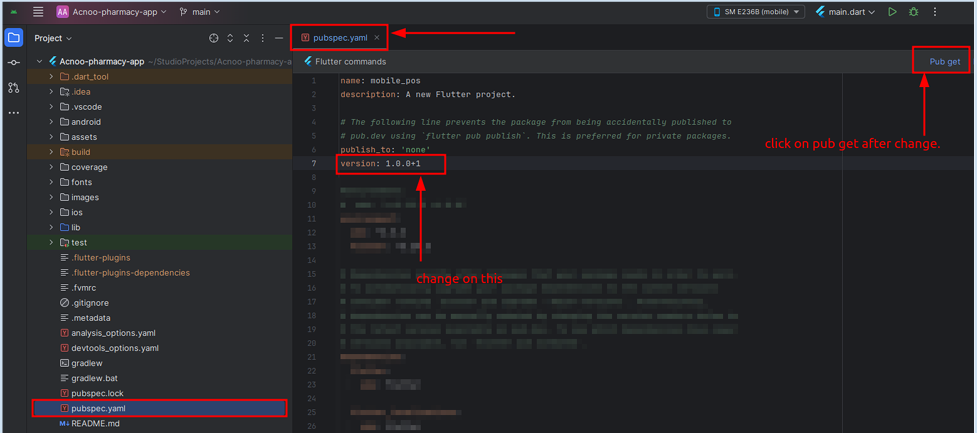
How to change application version
Select Images:
● Choose three images that you want to use for icons.
● Ensure the images are appropriate and formatted correctly for the app's
display requirements.
Rename Images:
● Rename the selected images with the following filenames:
○ icon: app_icon.png
● Make sure to keep the file extension as .png
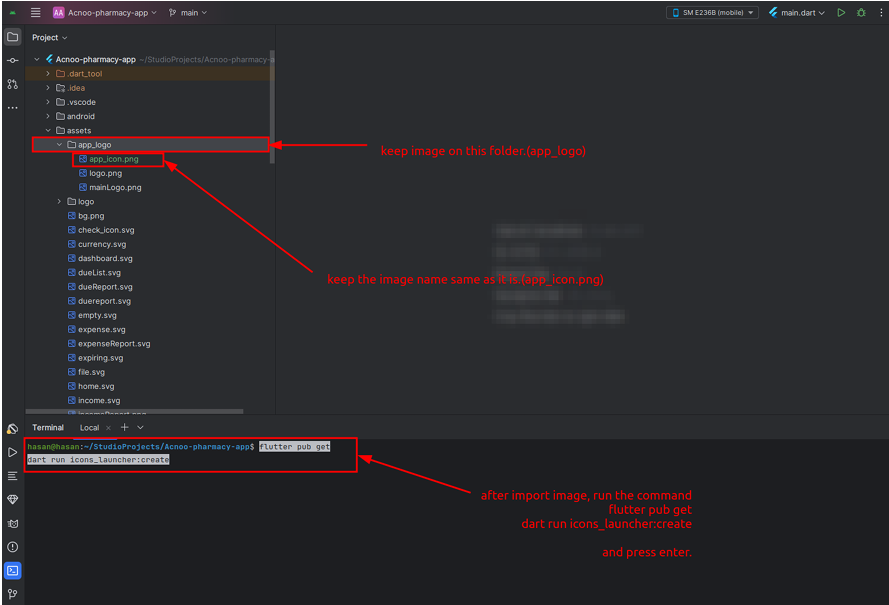
Now replace the existing image with a new one.
Replace Existing Images:
● Locate the folder where the current icon image is stored. This is typically named
assets
● Copy and paste your newly renamed image inside this folder named
“appIcon”.
● If prompted, allow the new images to replace the existing ones.
Now from the terminal run the command:
flutter pub get
dart run icons_launcher:create
Restart the App:
● Close the app completely to ensure all changes take effect.
Restart the app and verify that the new onboarding images are displayed correctly.
Project Structure
\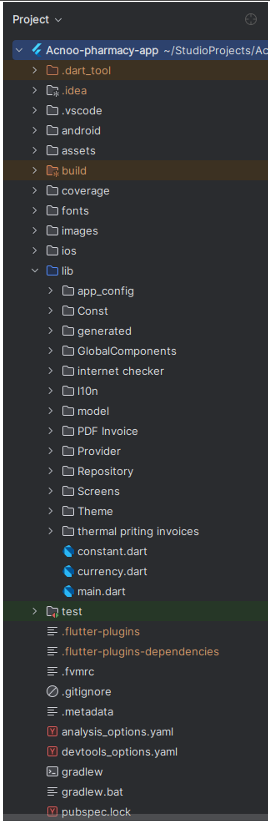
If you want to modify any of these screens, you can do so from these directory. Each directory name corresponds to the title of the respective apps screen, making it easy for you to locate and identify the files you need to edit.
app_config: Here you can find the API setup option & app setup option.
Screen: Here you can find the screens of the total app.
l10n: Here you can find all the language files.
Change Splash logo & logo inside the App.
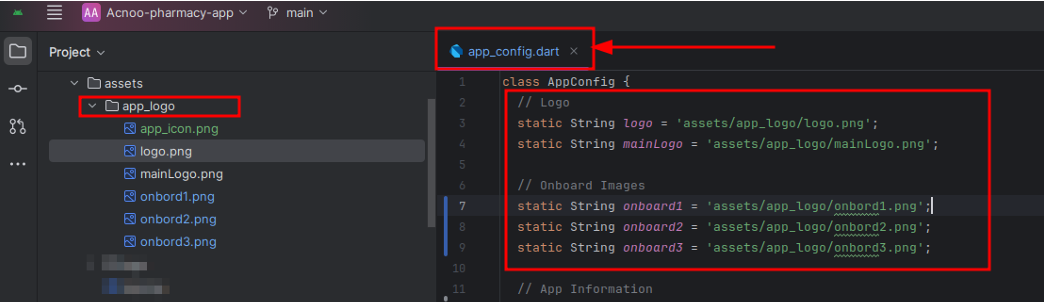
Select Images:
● Choose the image that you want to use for the main logo.
● Ensure the image is appropriate and formatted correctly for the app's display
requirements.
Rename Images:
● Rename the selected images with the following filenames:
○ splashLogo: logo.png
○ Others: mainLogo.png
Make sure to keep the file extension as .png
Replace Existing Images:
● Locate the folder where the current logo & avatar images are stored. This is
typically named assets/app_logo
● Copy and paste your newly renamed images into this folder
(app_logo)
● If prompted, allow the new images to replace the existing ones.
Restart the App:
● Close the app completely to ensure all changes take effect.
Restart the app and verify that the new onboarding images are displayed
correctly.
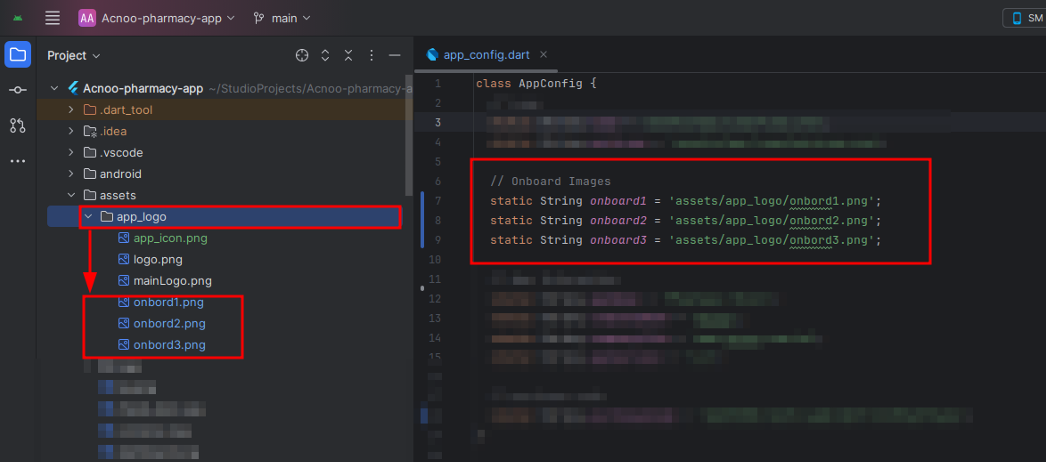
Change Onboarding App:
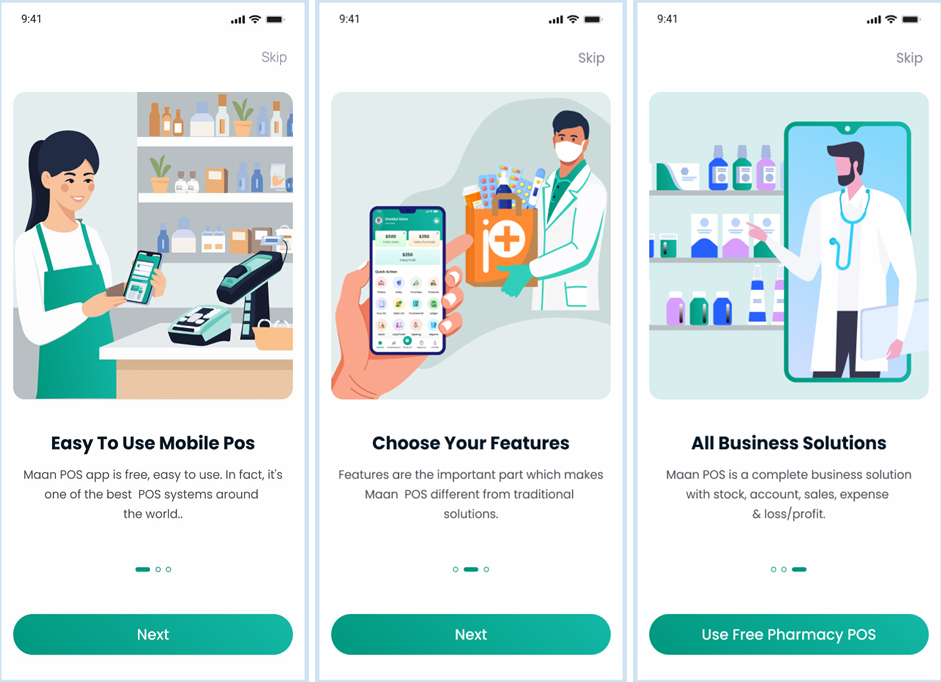
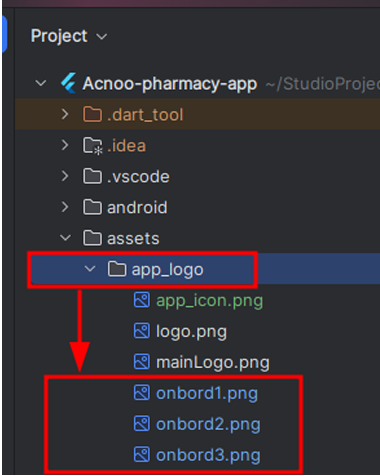
Open app_logo folder.
path: assets/app_logo
Select Images:
● Choose three images that you want to use for the onboarding screens.
● Ensure the images are appropriate and formatted correctly for the app's display
requirements.
Rename Images:
● Rename the selected images with the following filenames:
○ First Image: onbord1.png
○ Second Image: onbord2.png
○ Third Image: onbord3.png
Make sure to keep the file extension as .png
Replace Existing Images:
● Locate the folder where the current onboarding images are stored. This is typically
named app_logo.
● Copy and paste your newly renamed images into this folder
(assets/app_logo)
● If prompted, allow the new images to replace the existing ones.
Restart the App:
● Close the app completely to ensure all changes take effect.
Restart the app and verify that the new onboarding images are displayed
correctly.
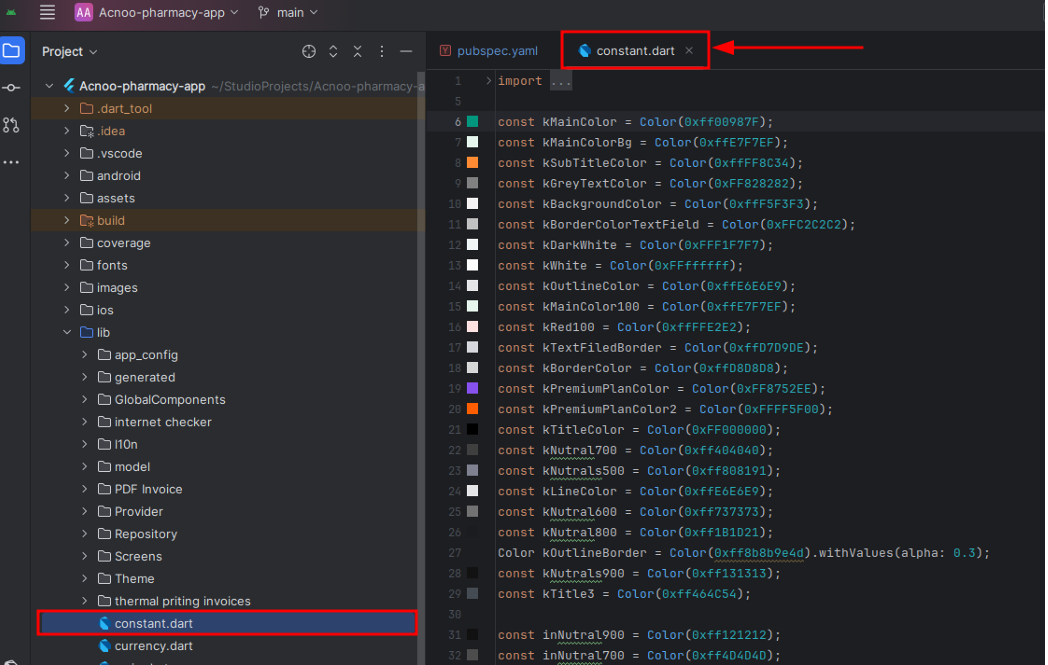
Theme Change:
You can change the app theme color for the constant.dart file. Here you can find all the colors, widgets, global gradients, which are used in many places inside the apps. path: lib/constant.dart
Here the primary color is MainColor.
Change Language:
This guide explains how to add or edit localization (translation) files in the app. If you want to support a new language or modify existing translations, follow the steps below.
1. Understanding the Localization Structure
The app uses ARB (Application Resource Bundle) files to manage translations. These files are located in the lib/l10n directory. Each language has its own file, e.g.:
app_en.arb for Englishapp_es.arb for Spanish
app_fr.arb for French
2. Adding a New Language
To add support for a new language:Create a New ARB File
Duplicate an existing ARB file (e.g., app_en.arb) and rename it to match the language code you want to add. For example, for French, create app_fr.arb.
Translate the Strings Replace the values in the new ARB file with the translated strings. For example:
app_fr.arb
                            {
                                "helloWorld": "¡Hola a todos!"
                            }
And just add a new parameter and value. And use it where you want to use it.
3. Editing Existing Translations
To edit an existing translation:
Open the corresponding ARB file (e.g., app_es.arb for Spanish).
Modify the value of the string you want to change. For example:
app_es.arb
                            {
                            "helloWorld": "¡Hola a todos!",  // Updated the translation only, not the parameter.
                            }
Then just hot reload. It will be created automatically.
4. Delete Language
Remove references to the language from the code:
● If any part of the app was using keys specific to the removed language (e.g., lang.of(context)!.someKey) , you can either:
○ Replace the reference with a static string, or
○ Use the default language for those strings.
For example, if you were using:
lang.of(context)!.hello
You can replace it with a static string like:
"Hello"
5. Common Issues
Missing Translations
If a translation is missing for a specific language, the app will fall back to the default language (English).
So when you create, keep in mind that you have to create that parameter for all the locales. Otherwise, just edit the one you want to modify.
And you can find the supported locales from here:Click Here
https://api.flutter.dev/flutter/flutter_localizations/flutter_localizations-library.html
How to build release apk
To build a release APK for your Flutter project, follow these steps:
1.Open Your Project: Launch Android Studio and open your Flutter project.
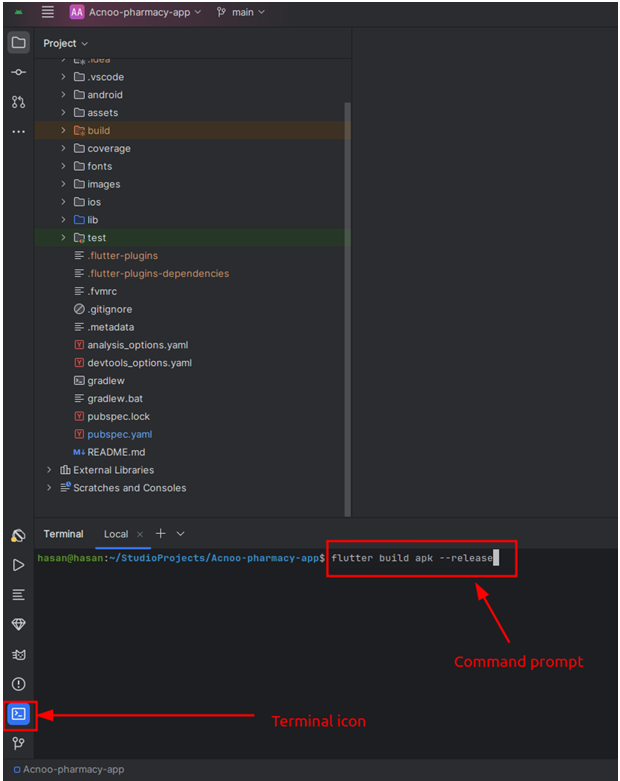 2.Access the Terminal:
○ In the bottom left corner of the Android Studio interface, locate the navigation
bar.
○ Click on the Terminal icon to open the terminal window.
○ In the terminal, enter the following command:
Locate the APK:
○ Once the build process completes, you can find your release APK in the following directory:
build/app/outputs/flutter-apk/app-release.apkTo build a release APK for your Flutter project using the Android Studio top menu, follow these steps:
- Open Your Project: Launch Android Studio and load your Flutter project.
- Access the Build Menu:
- Select Build APK:
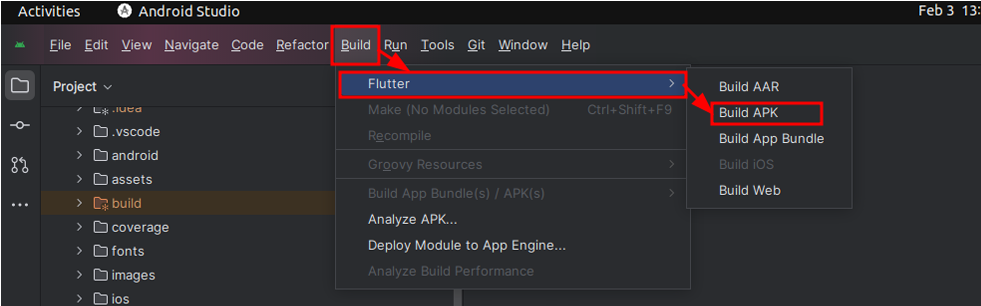
- Monitor the Progress:
- Locate the APK:
App Introduction
# MyMedicine — Flutter Pharmacy App
Version: 1.0.0 | Platform: Android | Framework: Flutter 3.44.2
Welcome to the MyMedicine app documentation. This guide will walk you through everything you need to set up, configure, customize, and understand the MyMedicine pharmacy ordering app.
Introduction
Thank you for purchasing our Flutter app from CodeCanyon! We are thrilled to have you as a valued customer and are committed to providing you with exceptional support throughout your journey with our product.
This customization guideline is designed to help you easily modify and adapt the app to suit your specific needs. Whether you're changing the app name, updating the theme colors, or adding new languages, this document will walk you through each step in a clear and structured manner.
If you encounter any issues while customizing the app or have questions about the documentation, please don't hesitate to reach out to our dedicated Support Team. We're here to assist you!
Contact Information
- Email: acnooteam@gmail.com
- Skype: Join our Skype chat
We appreciate your trust in our product and look forward to helping you create an amazing app tailored to your requirements. 😊
What is MyMedicine?
MyMedicine is a full-featured pharmacy e-commerce marketplace built with Flutter. It connects customers with pharmacies, allowing them to browse medicines, upload prescriptions, place orders, track deliveries, manage their wallet, and more — all from a modern mobile app.
Key Features
- Product Browsing — Browse by categories, manufacturers, search with autocomplete
- Product Details — View images, pricing, stock, prescription requirements, reviews
- Shopping Cart — Add/remove items with automatic backend syncing
- Prescription Upload — Upload prescription images for prescription-required medicines
- Order Management — Track orders with status tabs (pending, confirmed, processing, delivered, canceled)
- Checkout & Payment — Address selection, delivery type, in-app webview payment gateway
- User Authentication — Phone + password, Google Sign-In, Firebase OTP verification
- User Profile — Edit name, email, phone, profile picture
- Wallet — View balance, transaction history, deposit via payment gateway
- Loyalty Points — Earn and convert points to wallet currency
- Product Reviews — Write and view product reviews
- Shipping Addresses — CRUD with Google Maps autocomplete and picker
- 48+ Languages — Full internationalization via Slang
- Dark/Light Theme — Toggle persisted to device
- Order Reorder — Copy previous orders to cart
- Recently Browsed — Track recently viewed products
Getting Started
Quick Start
Generated code is already included in the project. You only need to regenerate if you modify routes or translations.
# 1. Ensure you have the correct Flutter version
                                fvm use 3.44.2    # or use the .fvmrc

                                # 2. Get dependencies
                                flutter pub get

                                # 3. Run the app
                                flutter run
Important: The app requires a running backend API server (Laravel), a Firebase project, and proper configuration before it will function. See Configuration for full details.
Requirements
- Flutter SDK: 3.44.2 (see
.fvmrc) - Dart SDK: ^3.9.2
- Java: 17 (for Android builds)
- Android Studio or VS Code with Flutter extensions
- Firebase Account (for Phone Auth and App Check)
- Google Cloud Console Account (for Maps APIs)
- Backend API Server (Laravel — sold separately or self-hosted)
Need Help?
If you run into any issues not covered in this documentation, refer to the Troubleshooting section first. For further assistance, contact the author via the CodeCanyon support system.
1. Getting Started
This section covers everything you need before you can run the MyMedicine app.
1.1 Prerequisites
| Requirement | Version / Details |
|---|---|
| Flutter SDK | 3.44.2 (pinned in .fvmrc) |
| Dart SDK | ^3.9.2 (bundled with Flutter) |
| Java | 17 (for Android builds) |
| Android Studio | Latest (for Android SDK and emulator) |
| Operating System | Windows, macOS, or Linux |
1.2 Install Flutter
Option A: Using FVM (recommended)
FVM (Flutter Version Management) lets you pin the exact Flutter version used by this project. See the FVM installation guide for full details.
# Install FVM
                                dart pub global activate fvm

                                # Install the required Flutter version
                                fvm install 3.44.2

                                # In the project root, use the project's pinned version
                                fvm use 3.44.2
Option B: Direct Flutter Installation
Download and install Flutter 3.44.2 from the official Flutter SDK archive.
# Verify installation
                                flutter --version
                                # Should show: Flutter 3.44.2, Dart 3.9.x
1.3 Install Platform Tools
Android
- Install Android Studio — Download here
- Open Android Studio → SDK Manager → Install:
- Android SDK Platform 34
- Android SDK Build-Tools
- Android SDK Command-line Tools
- Set up an Android Virtual Device (AVD) for testing, or connect a physical device with USB debugging enabled
iOS (macOS only)
- Install Xcode — from the Mac App Store
- Install CocoaPods:
sudo gem install cocoapods - Run
pod installin theios/directory if it exists
Note: This project currently targets Android only. iOS support would require Firebase configuration (GoogleService-Info.plist) and additional setup.
1.4 Firebase Account
The app uses Firebase for:
- Phone Authentication — OTP verification during sign-up and password reset
- App Check — Android Play Integrity attestation for security
You'll need:
- A Google account (for Firebase Console access)
- A Firebase project (create one at console.firebase.google.com)
Detailed Firebase setup is covered in Configuration.
1.5 Google Cloud Console Account
The app uses Google Maps APIs for:
- Address autocomplete during shipping address entry
- Place details and geocoding
- Static map images
You'll need a Google Cloud Console account with billing enabled (the Maps APIs have a generous free tier).
1.6 Backend API Server
This app is a frontend client that connects to a Laravel-based backend API server at the URL configured in lib/app/core/config/_app_config.dart. The backend provides:
- All product, category, and banner data
- User authentication endpoints
- Shopping cart and order management
- Payment gateway integration
- Wallet and loyalty points
The backend server is NOT included in this package. You must have it deployed and accessible from your app. See Configuration for how to set the URL.
1.7 Project Structure Overview
my_medicine/
                                ├── lib/                    # Dart source code
                                ├── assets/                 # Images, SVGs, translations, fonts
                                ├── android/                # Android platform files
                                ├── test/                   # Unit tests
                                ├── pubspec.yaml            # Dependencies & project config
                                ├── firebase.json           # Firebase project config
                                ├── icons_launcher.yaml     # App icon configuration
                                ├── slang.yaml              # Translation generator config
                                ├── .fvmrc                  # Pinned Flutter version
                                └── makefile                # Build shortcuts
What's Next?
Now that you have the prerequisites ready, go to Setup & Running to build and run the app for the first time.
2. Setup & Running
This guide walks you through extracting the project, installing dependencies, generating code, and running the app.
2.1 Extract the Project
After downloading from CodeCanyon, extract the ZIP archive:
# Navigate to where you want the project
                                cd ~/Projects
                                unzip my-medicine-app-codecanyon.zip
                                cd my_medicine
2.2 Configure Flutter Version (FVM)
If you're using FVM (recommended):
# Use the Flutter version pinned in .fvmrc
                                fvm use 3.44.2

                                # Verify
                                flutter --version
                                # Flutter 3.44.2 • channel stable • ...
If you're not using FVM, ensure your Flutter installation is version 3.44.2 exactly, or update the version constraint in pubspec.yaml to match your setup.
2.3 Install Dependencies
# Install all Flutter packages
                                flutter pub get
This command reads pubspec.yaml and downloads all required packages (Dio, Riverpod, Firebase, AutoRoute, etc.).
2.4 Code Generation (As Needed)
Generated code for AutoRoute and translations is already included in the project. You only need to regenerate if you make changes to:
Routes — After modifying route definitions in
_app_router.dart:dart run build_runner build --delete-conflicting-outputsTranslations — After editing or adding translation files in
assets/i18n/:dart run slang_cli
2.5 Run the App
On a connected device or emulator
# List connected devices
                                flutter devices

                                # Run the app (debug mode)
                                flutter run
On a specific device
# Replace emulator-5554 with your device ID
                                flutter run -d emulator-5554
2.6 Build a Release APK
Use the provided makefile shortcut:
make apk
Or run the full command:
flutter clean && flutter build apk --release
The APK will be at:
build/app/outputs/flutter-apk/app-release.apk
You can distribute this APK directly or upload it to the Google Play Store.
2.7 Available Makefile Commands
| Command | Description |
|---|---|
make clean |
flutter clean — Clean build artifacts |
make build |
dart run build_runner build --delete-conflicting-outputs — Generate AutoRoute code |
make watch |
dart run build_runner watch — Auto-regenerate AutoRoute code on file changes |
make apk |
flutter clean && flutter build apk --release — Build release APK |
2.8 Initial Run Checklist
Before the first run, make sure you've completed these steps:
- [ ] Flutter 3.44.2 installed (or compatible version)
- [ ]
flutter pub getcompleted without errors - [ ] Firebase project created and
google-services.jsonin place - [ ] Backend API URL configured (see Configuration)
- [ ] Google Maps API key configured (see Configuration)
3. Configuration
This is the most important section. Before the app can function, you need to configure four things: the backend API URL, Firebase, Google Maps, and the Android package name.
3.1 Backend API URL
The app communicates with a Laravel-based backend API server. You must set the server URL.
File: lib/app/core/config/_app_config.dart
abstract class AcnooAppConfig {
                                static const String appName = 'MyMedicine';
                                static const String baseUrl = 'https://mymedicine.acnoo.xyz';      // <-- Change this
                                static const String purchaseCode = 'ENTER_YOUR_PURCHASE_CODE';      // <-- Change this
                                }
Change baseUrl to your own backend server address, for example:
static const String baseUrl = 'https://your-domain.com';
What changes as a result?
Once you update baseUrl, these automatically update:
| Config | Derived Value |
|---|---|
| API base URL | {baseUrl}/api/v1 |
| Image URLs | {baseUrl}/{path} |
| Google Sign-In URL | {baseUrl}/login/google?platform=app |
| Payment Gateway URL | {baseUrl}/generate-payment |
| All API endpoints | {baseUrl}/api/v1/products, /carts, /orders, etc. |
Note: The backend server is NOT included with this app. You must have it deployed and accessible from the app.
3.2 Purchase Code
Enter your purchase code.
File: lib/app/core/config/_app_config.dart
static const String purchaseCode = 'ENTER_YOUR_PURCHASE_CODE';
Replace ENTER_YOUR_PURCHASE_CODE with your purchase code.
3.3 Firebase Setup
The app uses Firebase for phone authentication (OTP) and App Check (Play Integrity).
Step 1: Create a Firebase Project
- Go to Firebase Console
- Click Create a project
- Follow the setup wizard (you can disable Google Analytics)
Step 2: Register an Android App
- In your Firebase project, click the Android icon to add an Android app
- Android package name: Enter your app's package name (default:
com.acnoo.pharmacy_client— change this if you're rebranding) - Download the
google-services.jsonfile
Step 3: Replace the Google Services File
Copy the downloaded file to:
android/app/google-services.json
This replaces the default file in the project.
Step 4: Regenerate Firebase Options
In the project root, run:
# Install FlutterFire CLI if you haven't
                                dart pub global activate flutterfire_cli

                                # Configure Firebase for this project
                                flutterfire configure --project=your-firebase-project-id
This regenerates lib/firebase_options.dart with your project's specific configuration (API key, app ID, etc.).
Step 5: Enable Authentication
In Firebase Console:
- Go to Authentication → Sign-in method
- Enable Phone sign-in provider
- Add your app's SHA certificate fingerprints:
- Debug:
keytool -list -v -alias androiddebugkey -keystore ~/.android/debug.keystore - Release: Use the keystore you sign your APK with
- Debug:
Step 6: Enable App Check
- Go to App Check → Enforce
- Add Play Integrity as an enforcement provider
- Ensure your app's SHA fingerprints are registered (same as above)
3.4 Google Maps API Key
The app uses Google Maps for address autocomplete, geocoding, and static maps.
File: lib/app/core/config/_app_config.dart
static const String googleMapsApiKey = 'AIzaSyDx2rL92ci0iTZWm6PbY47mTEswVVtsNBE'; // <-- Replace this
Step 1: Enable Google Maps APIs
- Create a new project (or use an existing one)
- Enable billing (required for Maps APIs)
- Enable these APIs:
- Places API — address autocomplete suggestions
- Geocoding API — reverse geocoding from coordinates
- Static Maps API — static map images
- Maps SDK for Android — interactive map views
Step 2: Create an API Key
- Go to APIs & Services → Credentials
- Click Create Credentials → API Key
- (Recommended) Restrict the key to the APIs listed above and to your Android app's package name
Step 3: Update the API Key
Replace the key in AcnooAppConfig.googleMapsApiKey with your new key.
Step 4: Add the API Key to AndroidManifest.xml
File: android/app/src/main/AndroidManifest.xml
Ensure this <meta-data> tag exists inside the <application> element:
<meta-data
                                    android:name="com.google.android.geo.API_KEY"
                                    android:value="YOUR_GOOGLE_MAPS_API_KEY"/>
3.5 Android Package Name
The default package name is com.acnoo.pharmacy_client. If you're releasing the app under your own brand, you should change it.
Option A: Using the built-in tool (recommended)
dart run change_app_package_name:main com.yourcompany.yourapp
This updates the package name everywhere it's referenced.
Option B: Manual update
Change these files:
android/app/build.gradle.kts:namespace = "com.yourcompany.yourapp" defaultConfig { applicationId = "com.yourcompany.yourapp" }android/app/src/main/AndroidManifest.xml— update package referencesandroid/app/src/debug/AndroidManifest.xml— update package referencesandroid/app/src/profile/AndroidManifest.xml— update package referencesandroid/app/google-services.json— thepackage_namefield must match your new package name (re-download from Firebase after changing)
Important
After changing the package name:
- You must re-register the app in Firebase Console with the new package name
- Re-download
google-services.json - Re-run
flutterfire configure - Update the Google Maps API key restriction to match the new package name (if you set one)
3.6 Configuration Summary Checklist
Use this checklist to ensure everything is configured:
- [ ] Backend URL — Set in
lib/app/core/config/_app_config.dart - [ ] Purchase Code — Set in
lib/app/core/config/_app_config.dart - [ ] Firebase Project — Created in Firebase Console
- [ ] google-services.json — Placed in
android/app/ - [ ] firebase_options.dart — Regenerated via
flutterfire configure - [ ] Firebase Phone Auth — Enabled in Firebase Console
- [ ] Firebase App Check — Enabled with Play Integrity
- [ ] Google Maps API Key — Updated in
AcnooAppConfig.googleMapsApiKey - [ ] Google Maps APIs — Enabled in Google Cloud Console
- [ ] Android Package Name — Updated (if rebranding)
What's Next?
Once everything is configured, proceed to Customization to brand the app with your own colors, fonts, and icons.
4. Customization
This guide covers everything you can customize to brand the app as your own: app name, colors, fonts, theme, icons, and the splash screen.
4.1 Change the App Name
File: lib/app/core/config/_app_config.dart
abstract class AcnooAppConfig {
                                static const String appName = 'MyMedicine';       // <-- Change this
                                // ...
                                }
The app name is displayed in:
- The splash screen (uppercase, centered at the bottom)
- Internal app references
Note: The Android launcher label is a separate configuration. See section below.
Android Launcher Label
File: android/app/src/main/AndroidManifest.xml
<application
                                    android:label="MyMedicine"    <!-- Change this -->
                                    ...>
This controls the app name shown under the app icon on the Android home screen.
4.2 Change the Primary Brand Color
The app uses a Material Design 3 color system. The primary brand color is used throughout buttons, links, active tabs, and highlights.
Color Palette
File: lib/app/core/theme/_app_colors.dart
abstract class AcnooAppColors {
                                // Light mode colors
                                static final light = (
                                    primary: const Color(0xFF15A9E3),        // Main brand color (sky blue)
                                    secondary: const Color(0xFFDCEDC8),      // Secondary accent
                                    error: const Color(0xFFD32F2F),          // Error/destructive
                                    background: const Color(0xFFFFFFFF),      // App background
                                    surface: const Color(0xFFFFFFFF),         // Card/dialog surface
                                    onPrimary: const Color(0xFFFFFFFF),       // Text on primary
                                    onSecondary: const Color(0xFF000000),     // Text on secondary
                                    onBackground: const Color(0xFF000000),    // Main text color
                                    onSurface: const Color(0xFF000000),       // Text on surface
                                    onError: const Color(0xFFFFFFFF),         // Text on error
                                    border: const Color(0xFF6F6F6F),          // Primary borders
                                    secondaryBorder: const Color(0xFFDADADA), // Subtle borders
                                );

                                // Dark mode colors
                                static final dark = (
                                    primary: const Color(0xFF15A9E3),        // Same primary
                                    secondary: const Color(0xFF4CAF50),       // Different secondary
                                    error: const Color(0xFFD32F2F),
                                    background: const Color(0xFF121212),
                                    surface: const Color(0xFF1E1E1E),
                                    onPrimary: const Color(0xFFFFFFFF),
                                    onSecondary: const Color(0xFFFFFFFF),
                                    onBackground: const Color(0xFFFFFFFF),
                                    onSurface: const Color(0xFFFFFFFF),
                                    onError: const Color(0xFFFFFFFF),
                                    border: const Color(0xFFBDBDBD),
                                    secondaryBorder: const Color(0xFF757575),
                                );
                                }
How to customize:
- Change
primary— This is the most impactful change. Pick a color that represents your brand. - Adjust dark mode — The dark palette has a different
secondary(#4CAF50vs#DCEDC8) and darker backgrounds. - Border colors —
borderandsecondaryBorderaffect input fields, dividers, cards.
Tips:
- For light mode, ensure
onPrimary(text on primary color) has enough contrast (white usually works for most colors) - For dark mode, backgrounds (
#121212,#1E1E1E) are Material dark theme defaults — keep them unless you have a specific design - Use a tool like Material Palette Generator to create a cohesive palette
4.3 Change the Font
Step 1: Add your font files to the fonts/ directory
fonts/YourFont/
                                ├── YourFont-Thin.ttf
                                ├── YourFont-Light.ttf
                                ├── YourFont-Regular.ttf
                                ├── YourFont-Medium.ttf
                                ├── YourFont-SemiBold.ttf
                                ├── YourFont-Bold.ttf
                                └── ...
Step 2: Register fonts in pubspec.yaml
fonts:
                                  - family: YourFont
                                    fonts:
                                      - asset: fonts/YourFont/YourFont-Thin.ttf
                                        weight: 100
                                      - asset: fonts/YourFont/YourFont-Regular.ttf
                                        weight: 400
                                      - asset: fonts/YourFont/YourFont-Bold.ttf
                                        weight: 700
                                    # Add all weights you need
Step 3: Update the text theme in lib/app/core/theme/_app_theme.dart
static final _textTheme = _baseLight.textTheme.apply(
                                fontFamily: 'YourFont',               // <-- Change this
                                bodyColor: AcnooAppColors.light.onBackground,
                                );
Tip: The app currently uses Inter with 9 weights (100–900). To maintain the same visual hierarchy, ensure your replacement font has at least Regular (400), Medium (500), SemiBold (600), and Bold (700) weights.
4.4 Customize the Theme
Beyond colors and fonts, you can customize individual Material components.
File: lib/app/core/theme/_app_theme.dart
| Component | What You Can Change |
|---|---|
| AppBar | Background color, elevation, title style |
| Buttons | Border radius (currently 8px), height (48px), shape |
| Input fields | Border radius (currently 4px), border colors, hint style |
| Dialogs | Background color, border radius (20px) |
| TabBar | Tab alignment, label styles, indicator style |
| Checkbox | Border width, visual density |
| Back button | Circular container style, icon |
Example — Changing button border radius:
filledButtonTheme: FilledButtonThemeData(
                                  style: FilledButton.styleFrom(
                                    shape: RoundedRectangleBorder(
                                      borderRadius: BorderRadius.circular(12),    // Was 8, now 12
                                    ),
                                    minimumSize: Size.fromHeight(48),
                                ),
                                ),
Common Styles
File: lib/app/core/theme/_common_styles.dart
Extra reusable styles for:
appbarActionIconButton— Small (35px) circular action buttons with background colorslimTextButton— Dense text button with minimal paddingsearchInputDecoration()— Pill-shaped search field helper
4.5 Change the App Icon
The app uses the icons_launcher package to generate Android adaptive icons.
Step 1: Prepare your icon
Create a PNG icon (1024×1024 pixels recommended) and place it at:
assets/app/app_launcher_icon.png
Step 2: Configure
File: icons_launcher.yaml
icons_launcher:
                                image_path: "assets/app/app_launcher_icon.png"
                                platforms:
                                    android:
                                    enable: true
                                    image_path: "assets/app/app_launcher_icon.png"
                                    adaptive_background_color: '#FFFFFF'        # Background behind the icon
                                    adaptive_foreground_image: "assets/app/app_launcher_icon.png"
Options you may want to change:
adaptive_background_color— The color shown behind the icon on Android 8+ launchers- You can use separate foreground/background images for more complex adaptive icons
Step 3: Generate
dart run icons_launcher:create
This generates all required icon sizes in android/app/src/main/res/mipmap-*/.
4.6 Customize the Splash Screen
The splash screen is a Flutter route (not a native splash). You can customize both the visuals and the behavior.
Visual Assets
| Asset | File | Purpose |
|---|---|---|
| Background shape | assets/app/splash/app_splash_bg.svg |
Decorative background behind the logo |
| Logo | assets/app/splash/app_splash_icon.svg |
The brand logo inside a white circle |
Replace these SVG files with your own brand assets.
Layout
File: lib/app/pages/auth/splash/splash_view.dart
The splash screen consists of:
- Background — The primary color (
theme.colorScheme.primary) - Background shape — SVG centered, aspect ratio 0.95
- Logo — Inside a 232×232 white circle, centered
- App name — Uppercase, positioned 48px from bottom
To customize the layout:
- Adjust the logo container size (
Size.square(232)) - Change the logo height (
height: 170) - Modify the app name position (
bottom: 48) - Change the app name text style (font size, weight, color)
Behavior
The splash screen displays the app logo and name, then navigates to the auth flow.
You can modify this behavior in splash_view.dart if needed.
4.7 Navigation Icons
The app uses SVGs with configurable base colors for settings menu icons.
Location: assets/svg_icons/nav_icons/
| Icon | Default Color | Usage |
|---|---|---|
account_details.svg |
#2563EB |
Edit profile |
my_reviews.svg |
#9333EA |
My reviews |
shipping_address.svg |
#FF9D14 |
Shipping addresses |
my_wallet.svg |
#0088FF |
Wallet |
language.svg |
#FF775C |
Language selection |
loyalty_points.svg |
#FF2D55 |
Loyalty points |
about_us.svg |
#4B5563 |
About us |
privacy_policy.svg |
#4B5563 |
Privacy policy |
terms_conditions.svg |
#16A34A |
Terms & conditions |
change_password.svg |
#FF8D28 |
Change password |
logout.svg |
#FF2D55 |
Logout |
To change the base color, open each SVG and modify the baseColor attribute in the file.
Summary of Customization Files
| What to Change | File Path |
|---|---|
| App name | lib/app/core/config/_app_config.dart |
| Android launcher label | android/app/src/main/AndroidManifest.xml |
| Primary color & palette | lib/app/core/theme/_app_colors.dart |
| Font family & weights | pubspec.yaml + lib/app/core/theme/_app_theme.dart |
| Component styles (buttons, inputs, etc.) | lib/app/core/theme/_app_theme.dart |
| App icon | assets/app/app_launcher_icon.png + icons_launcher.yaml |
| Splash background shape | assets/app/splash/app_splash_bg.svg |
| Splash logo | assets/app/splash/app_splash_icon.svg |
| Splash layout & behavior | lib/app/pages/auth/splash/splash_view.dart |
| Navigation icons | assets/svg_icons/nav_icons/*.svg |
| Reusable widget styles | lib/app/widgets/ (22 widgets) |
What's Next?
Now that you've branded the app, continue to Architecture to understand how the code is structured.
5. Architecture
This section explains the app's architecture, project structure, state management, and data flow. Understanding this will help you navigate the codebase and make customizations beyond simple branding changes.
5.1 High-Level Architecture
┌─────────────────────────────────────────────────────────┐
                                │                  UI LAYER (Pages + Widgets)             │
                                │  Auth Screens │ Client Screens │ Common │ Shared │ W   │
                                └───────────────────────┬─────────────────────────────────┘
                                                        │
                                ┌───────────────────────▼─────────────────────────────────┐
                                │          DEPENDENCY INJECTION (Riverpod Providers)      │
                                │  Auth Provider │ Cart │ Theme │ Locale │ HTTP Client    │
                                └───────────────────────┬─────────────────────────────────┘
                                                        │
                                ┌───────────────────────▼─────────────────────────────────┐
                                │                    DATA LAYER                            │
                                │  Repositories (6)  │  Models (10+)  │  Services         │
                                │  (Dio HTTP calls)  │  (JSON mapping)│  (Firebase, Maps) │
                                └───────────────────────┬─────────────────────────────────┘
                                                        │
                                ┌───────────────────────▼─────────────────────────────────┐
                                │               FOUNDATION (Core Layer)                    │
                                │  Config (URL, etc.) │ Theme (Colors) │ Helpers (Enums)  │
                                └─────────────────────────────────────────────────────────┘
The app uses a layered architecture:
| Layer | Directory | Dependencies | Purpose |
|---|---|---|---|
| Foundation (Core) | lib/app/core/ |
None (pure Dart) | Config, theme, helpers, asset references |
| Data | lib/app/data/ |
Core + Dio | API calls, data models, services |
| DI (Providers) | lib/app/di/ |
Data + Core | Riverpod providers for state & injection |
| UI | lib/app/pages/ + lib/app/widgets/ |
All layers | Screens and reusable widgets |
| Routing | lib/app/routes/ |
DI + Core | Declarative route definitions with guards |
5.2 Project Structure
lib/
                                ├── main.dart                          # App entry point
                                ├── firebase_options.dart              # Auto-generated Firebase config
                                ├── i18n/strings.g.dart               # Generated translation code
                                └── app/
                                    ├── core/                          # ── Foundation Layer ──
                                    │   ├── config/
                                    │   │   ├── _app_config.dart       # App name, base URL, purchase code
                                    │   │   └── _api_config.dart       # All API endpoint paths
                                    │   ├── theme/
                                    │   │   ├── _app_colors.dart       # Light & dark color palettes
                                    │   │   ├── _app_theme.dart        # Material ThemeData construction
                                    │   │   └── _common_styles.dart    # Reusable style constants
                                    │   ├── static/
                                    │   │   └── images/_app_images.dart # Image/asset path constants
                                    │   ├── helpers/
                                    │   │   ├── extensions/            # Dart widget type extensions
                                    │   │   ├── mixins/                # PaginatedControllerMixin
                                    │   │   └── types/                 # Enums, debouncer, helpers
                                    │   └── core.export.dart           # Barrel export file
                                    │
                                    ├── data/                          # ── Data Layer ──
                                    │   ├── model/                     # Data models with JSON serialization
                                    │   ├── repository/                # API repository classes
                                    │   │   ├── repository_base.dart   # Base class (Dio + EventBus)
                                    │   │   ├── product/               # ProductRepository
                                    │   │   ├── cart/                  # CartRepository
                                    │   │   ├── order/                 # OrderRepository
                                    │   │   ├── user/                  # UserRepository
                                    │   │   ├── shipping_address/      # ShippingAddressRepository
                                    │   │   └── legal_support/         # LegalSupportRepository
                                    │   └── services/                  # Utility services
                                    │       ├── _firebase_auth_service.dart
                                    │       ├── _google_map_service.dart
                                    │       └── _payment_gateway_service.dart
                                    │
                                    ├── di/                            # ── Dependency Injection ──
                                    │   ├── _run_di.dart               # Startup DI initialization
                                    │   ├── app_provider/              # Feature-specific providers
                                    │   └── global_providers/          # Global Riverpod providers
                                    │       ├── auth_user_provider/    # Current user state
                                    │       ├── http_client_provider/  # Dio client with auth interceptor
                                    │       ├── theme_provider/        # Theme mode (light/dark/system)
                                    │       ├── locale_provider/       # Selected language
                                    │       ├── local_cart_provider/   # Cart with debounced sync
                                    │       ├── shared_prefs_provider/ # SharedPreferences wrapper
                                    │       ├── currency_provider/     # Currency symbol
                                    │       ├── event_provider/        # SimpleEventBus (pub/sub)
                                    │       └── global_overlay_provider/ # Network & auth monitors
                                    │
                                    ├── pages/                         # ── UI Layer (Screens) ──
                                    │   ├── auth/                      # Splash, Sign In, Sign Up, OTP, Password
                                    │   ├── client/                    # Home, Cart, Orders, Products, Profile...
                                    │   ├── common/                    # About, Privacy, Terms, Payment Status
                                    │   └── shared/                    # Language selection
                                    │
                                    ├── routes/                        # ── Routing ──
                                    │   ├── router/
                                    │   │   ├── _app_router.dart       # AutoRoute config (~40 routes)
                                    │   │   └── _app_router.gr.dart    # Generated router code
                                    │   └── guards/
                                    │       └── _auth_guard.dart       # Auth guard for protected routes
                                    │
                                    └── widgets/                       # ── Reusable Widgets (22) ──
                                        ├── product_card/              # Multiple variants
                                        ├── custom_dropdown/
                                        ├── dialogs/                   # CommonDialog, NoInternetDialog
                                        ├── quantity_counter/
                                        ├── rating_bar/
                                        ├── order_list_card/
                                        └── ... (16 more)
5.3 State Management — Riverpod
The app uses Riverpod (flutter_riverpod: ^3.3.2) for both state management and dependency injection.
Provider Types Used
| Type | What It's For | Example |
|---|---|---|
Provider |
Simple dependency injection | appRouterProvider, googleMapServiceProvider |
NotifierProvider |
Mutable state with methods | Theme mode, locale, recent searches |
AsyncNotifierProvider |
Async state (loading/error/data) | Current authenticated user |
FutureProvider |
One-shot API fetch | Product details, banners, categories |
FutureProvider.family |
Parameterized API fetch | Purchased products (by partyId) |
StateNotifierProvider |
Complex mutable state | Local cart with debounced API sync |
StateProvider |
Simple primitive state | Currency symbol |
How to Access State
// In any widget
                                final themeMode = ref.watch(appThemeProvider);         // Reactive watch
                                final user = ref.read(userProvider);                   // One-time read
                                ref.read(localCartProvider.notifier).addToCart(item);  // Call a method
Event Bus Pattern
The app uses a SimpleEventBus for cross-cutting communication:
// Fire an event
                                eventBus.fire(AppEvent(AuthStateChangeEvent()));

                                // Listen for events
                                eventBus.on<AuthStateChangeEvent>().listen((event) {
                                // React to auth state change
                                });
This is used for:
- Auth state changes (login/logout/session expiry)
- Product updates
- Cross-provider invalidation
5.4 Routing — AutoRoute
The app uses AutoRoute (auto_route: ^11.1.0) for all navigation.
Route Structure
/splash                         → Splash screen (initial route)
                                /auth/
                                    /sign-in                    → Login
                                    /sign-up                    → Registration with OTP
                                    /forgot-password            → Request password reset
                                    /otp-verification           → Verify OTP code
                                    /reset-password             → Set new password
                                /client/                        → Authenticated shell (with bottom nav)
                                    /home                       → Main feed
                                    /category-list              → Browse categories
                                    /order-list                 → My orders
                                    /user-settings              → Profile & settings
                                    /manage-user                → Edit profile
                                    /change-password            → Change password
                                    /language                   → Language picker
                                    /my-wallet                  → Wallet & transactions
                                    /loyalty-points             → Loyalty program
                                    /my-reviews                 → My product reviews
                                    /cart-list                  → Shopping cart
                                    /product-grid               → Product listing
                                    /product-details/:id        → Single product
                                    /product-reviews-list       → Product reviews
                                    /checkout                   → Checkout flow
                                    /order-details/:id          → Single order
                                    /order-with-prescription    → Prescription order
                                    /shipping-address-list      → Saved addresses
                                    /manage-shipping-address    → Add/edit address
                                    /search                     → Search page
                                    /search-result              → Search results
                                    /payment-status             → Payment result
                                    /about-us                   → About page
                                    /privacy-policy             → Privacy policy
                                    /terms-conditions           → Terms & conditions
Auth Guards
Protected routes (cart, orders, wallet, profile, etc.) are guarded by AuthGuard. If a user's session expires, the guard shows a re-login dialog.
Navigation Pattern
// Push a new route
                                context.router.push(ProductDetailsRoute(id: 42));

                                // Replace current route (for redirects)
                                context.router.replacePath('/client');

                                // Pop back
                                context.router.pop();
5.5 Data Flow
API Request Lifecycle
User Action (tap button)
                                    │
                                    ▼
                                Widget calls ref.read(repositoryProvider).someMethod()
                                    │
                                    ▼
                                Repository (extends RepositoryBase)
                                    ├── Sets up HTTP request with auth token
                                    ├── Calls Dio (GET/POST/PUT/DELETE)
                                    │   ├── Dio interceptor adds "Authorization: Bearer {token}"
                                    │   └── Dio interceptor catches 401 → fires AuthStateChangeEvent
                                    ├── Parses response JSON into Model objects
                                    └── Returns result
                                    │
                                    ▼
                                Provider updates state
                                    │
                                    ▼
                                Widget rebuilds (reactive)
Repository Base Class
All repositories extend RepositoryBase which provides:
class RepositoryBase {
                                final Dio dio;           // Pre-configured HTTP client
                                final EventBus eventBus; // App-wide event bus
                                }
Auth token is injected automatically from DioClientNotifier into the Dio instance via interceptors.
Cart Data Flow (Optimistic Sync)
User adds item to cart
                                    │
                                    ▼
                                LocalCartNotifier updates local state immediately (optimistic)
                                    │
                                    ├── UI updates instantly (responsive)
                                    │
                                    └── Debounce (500ms) → Sync to backend API
                                        ├── On success: nothing (local state is source of truth)
                                        └── On failure: revert local state, show error
5.6 Key Technologies
| Technology | Purpose |
|---|---|
| Flutter 3.44.2 | UI framework |
| Riverpod 3.3.2 | State management + DI |
| AutoRoute 11.1.0 | Declarative routing |
| Dio 5.9.2 | HTTP client with interceptors |
| Firebase Auth | Phone OTP verification |
| Firebase App Check | Android Play Integrity |
| Google Maps Flutter | Map views for addresses |
| SharedPreferences | Local key-value storage |
| Slang 4.16.0 | Internationalization |
| Infinite Scroll Pagination | Product list pagination |
| InAppWebView | Payment gateway, Google OAuth |
| Skeletonizer | Loading shimmer effects |
What's Next?
Continue to Features & Screens for a complete reference of every screen and feature in the app.
Authentication
6. Features & Screens
A complete reference of every screen and feature in the MyMedicine app.
6.1 Auth Flow (Unauthenticated)
                    ┌──────────────┐
                                                    │    Splash    │
                                                    └──────┬───────┘
                                                        │
                                                    ┌──────▼───────┐
                                            ┌────│  Sign In     │────┐
                                            │    │ (Phone+PW /  │    │
                                            │    │  Google)     │    │
                                            │    └──────┬───────┘    │
                                            │           │            │
                                        ┌──────▼──────┐    │    ┌───────▼───────┐
                                        │  Sign Up    │    │    │Forgot Password │
                                        │ (Name/Phone │    │    │    (Phone)     │
                                        │  /Email/PW) │    │    └───────┬───────┘
                                        └──────┬──────┘    │            │
                                            │           │    ┌───────▼───────┐
                                        ┌──────▼──────┐    │    │OTP Verification│
                                        │OTP Verify   │    │    │  (Firebase)    │
                                        └──────┬──────┘    │    └───────┬───────┘
                                            │           │            │
                                            └───┬───────┘    ┌───────▼───────┐
                                                │            │Reset Password │
                                                │            │   (New PW)    │
                                                │            └───────┬───────┘
                                                │                    │
                                        ┌────────▼────────────────────▼────────┐
                                        │              Home (/client)            │
                                        │          (Authenticated)               │
                                        └────────────────────────────────────────┘
Splash Screen
- Route:
/splash - Purpose: App entry point and branding display
- Behavior: Shows app logo and name on a branded background, then navigates to the auth flow.
Sign In
- Route:
/auth/sign-in - Methods: Phone + password, Google Sign-In (via WebView OAuth)
- Features: "Remember Me" saves credentials, direct navigation to forgot password
Sign Up
- Route:
/auth/sign-up - Fields: Name, phone (with country code), email, password
- Flow: Phone OTP verification → create account via API
Forgot Password
- Route:
/auth/forgot-password - Flow: Enter phone → OTP sent → Verify OTP → Reset password
OTP Verification
- Route:
/auth/otp-verification - Features: 6-digit PIN input (Pinput), resend timer, auto-submit on completion
Reset Password
- Route:
/auth/reset-password - Fields: New password, confirm password
Main App
6.2 Main App (Bottom Navigation)
| Tab | Route | Description |
|---|---|---|
| Home | /client/home |
Featured banners, category chips, products, recently browsed |
| Categories | /client/category-list |
All product categories |
| Orders | /client/order-list |
Order history with status tabs |
| Profile | /client/user-settings |
User menu with all settings options |
Home Screen
6.3 Home Screen Features
Banner Carousel
- Promotional banners fetched from the API
/banners - Smooth page indicator at the bottom
Category Chips
- Horizontally scrollable category chips
- Tap to navigate to filtered product grid
Products Section
- Horizontal product scroll with product cards
- Shows: image, name, price, rating, prescription badge, wishlist toggle
Recently Browsed
- Shows recently viewed products (for authenticated users)
- Tracks via
/browsed-productsAPI
Product Browsing
6.4 Product Browsing
Category List
- Route:
/client/category-list - Grid of all categories from the API
- Tap → filtered product grid
Product Grid
- Route:
/client/product-grid - Filtered product list with infinite scroll pagination
- Filters: category, manufacturer, unit
Product Details
- Route:
/client/product-details/:id - Product images, name, manufacturer, price, stock status
- Prescription requirement indicator
- Quantity selector + Add to Cart
- Product description, reviews section, you-may-also-like
Search
- Route:
/client/search - Search field with autocomplete suggestions
- Recent searches (persisted in SharedPreferences)
- Route:
/client/search-result - Product grid showing search results
Shopping Cart
6.5 Shopping Cart
Cart List
- Route:
/client/cart-list - Cart items with product image, name, quantity controls, price
- Quantity stepper (product card variant)
- Bottom bar with total price + Checkout button
- Empty state when no items
Cart Behavior
- Optimistic UI: Add/update/remove responds instantly
- Debounced sync: Changes sync to backend after 500ms
- Auth required: Must be logged in to use cart
Orders
6.6 Orders
Order List
- Route:
/client/order-list - Tab-based filtering: All, Pending, Confirmed, Processing, Delivered, Canceled
- Order cards showing: ID, status badge, items, total, date
- Infinite scroll pagination
Order Details
- Route:
/client/order-details/:id - Full order info: items, shipping address, payment status, timeline
- Action buttons: Cancel Order, Reorder
Order With Prescription
- Route:
/client/order-with-prescription - Upload prescription file (image)
- Add delivery address and contact info
- Submit as a prescription order
Checkout
- Route:
/client/checkout - Order summary with items and quantities
- Shipping address selection (from saved addresses)
- Delivery type selection (from API
/delivery-places) - Prescription upload for prescription items
- Payment via in-app WebView payment gateway
Payment Status
- Route:
/client/payment-status - Success or failure screen with animations
- Navigation to order details or back to cart
Reorder
- Copies all items from a previous order into the current cart
- Available from order details screen
User Profile Settings
6.7 User Profile & Settings
User Settings
- Route:
/client/user-settings - Menu with all options: Edit Profile, Orders, Wallet, Loyalty Points, etc.
- Profile header with avatar, name, phone
- Cart button in AppBar
Edit Profile
- Route:
/client/manage-user - Edit: name, email, phone, profile picture (camera/gallery)
- Auth required
Change Password
- Route:
/client/change-password - Fields: current password, new password, confirm password
- Auth required
Language Selection
- Route:
/client/language - List of 48+ supported languages with flag icons
- Radio selection, searchable
- Persisted to SharedPreferences
Wallet
- Route:
/client/my-wallet - Balance display with overview container
- Transaction history (deposits, order payments, loyalty conversions)
- Deposit via payment gateway
- Auth required
Loyalty Points
- Route:
/client/loyalty-points - Points balance and transaction history
- Convert points to wallet currency
- Feature toggle via server-side
loyaltyPointAddonsetting - Auth required
My Reviews
- Route:
/client/my-reviews - Products the user has reviewed and products pending review
- Write/edit review with rating and text
- Auth required
Shipping Addresses
6.8 Shipping Addresses
Address List
- Route:
/client/shipping-address-list - List of saved addresses with "default" badge
- Add new address button
- Auth required
Add/Edit Address
- Route:
/client/manage-shipping-address - Fields: label, full address, city, state, postal code, country
- Google Maps autocomplete for address search
- Map picker with pin drop
- Set as default toggle
- Auth required
Information Page
6.9 Information Pages
| Screen | Route | Source |
|---|---|---|
| About Us | /client/about-us |
API endpoint /about-us (HTML rendered) |
| Privacy Policy | /client/privacy-policy |
API endpoint /privacy-policy (HTML rendered) |
| Terms & Conditions | /client/terms-conditions |
API endpoint /term-condition (HTML rendered) |
These pages render HTML content fetched from the backend API.
Feature Summary
6.10 Feature Summary
| # | Feature | Auth Required | API Endpoint |
|---|---|---|---|
| 1 | Sign In / Sign Up | No | /sign-in, /sign-up |
| 3 | Google Sign-In | No | WebView OAuth |
| 4 | Password Reset | No | /password-reset |
| 5 | Browse Products | No | /products, /categories |
| 6 | Search Products | No | /products (with filters) |
| 7 | Product Details | No | /products/:id |
| 8 | Product Reviews | No | /reviews |
| 9 | Banners | No | /banners |
| 10 | App Settings | No | /app-settings |
| 11 | Shopping Cart | Yes | /carts |
| 12 | Checkout / Order | Yes | /orders, /checkout |
| 13 | Order History | Yes | /orders |
| 14 | Cancel / Reorder | Yes | /orders, /copy-order |
| 15 | Prescription Orders | Yes | /prescription-order |
| 16 | Wallet & Transactions | Yes | /wallet-transactions |
| 17 | Loyalty Points | Yes | /loyalty-transactions |
| 18 | User Profile | Yes | /profile |
| 19 | Shipping Addresses | Yes | /shipping-address |
| 20 | Product Reviews (write) | Yes | /reviews |
| 21 | Recently Browsed | Yes | /browsed-products |
| 22 | Change Password | Yes | /change-password |
| 23 | Theme (Light/Dark) | No | Local (SharedPreferences) |
| 24 | Language (48+) | No | Local (SharedPreferences) |
| 25 | Recent Searches | No | Local (SharedPreferences) |
What's Next?
Continue to i18n & Localization to understand how translations work and how to add new languages.
App Language Localization
7. i18n & Localization
The app supports 48+ languages using the Slang internationalization system. This section explains how translations work, how to edit them, and how to add a new language.
7.1 How It Works
Slang is a type-safe i18n solution for Dart/Flutter. It generates Dart code from JSON translation files, giving you compile-time safety and autocomplete for translation keys.
System Overview
assets/i18n/en_US.i18n.json     ← Base translation file (source of truth)
                                assets/i18n/fr_FR.i18n.json     ← French translation
                                assets/i18n/ar_SA.i18n.json     ← Arabic translation
                                ... (48+ language files)

                                    ↓ dart run slang_cli

                                lib/i18n/strings.g.dart         ← Generated Dart code with all translations
                                lib/i18n/strings_en_US.g.dart   ← Per-locale generated files
How Translations Are Used in Code
// In widgets
                                Text(context.t.common.home)                    // "Home"
                                Text(context.t.pages.signIn.title)              // "Sign In"
                                Text(context.t.message.errorNetwork)            // Network error message

                                // In code outside widgets (passing BuildContext)
                                final label = context.t.form.phoneHint;         // "Enter phone number"
The pattern is: context.t.{section}.{key} — fully type-safe with autocomplete.
7.2 Translation File Structure
Base File: assets/i18n/en_US.i18n.json
The English file is the base locale and the source of truth. All translations follow the same JSON structure.
{
                                "common": {
                                    "home": "Home",
                                    "cart": "Cart",
                                    "orders": "Orders",
                                    "profile": "Profile",
                                    "search": "Search",
                                    "login": "Login",
                                    "signUp": "Sign Up",
                                    "logout": "Logout"
                                },
                                "message": {
                                    "errorNetwork": "No internet connection",
                                    "errorGeneric": "Something went wrong",
                                    "success": "Success",
                                    "confirm": "Are you sure?"
                                },
                                "form": {
                                    "phoneHint": "Enter phone number",
                                    "emailHint": "Email address",
                                    "passwordHint": "Password",
                                    "nameHint": "Full name"
                                },
                                "pages": {
                                    "signIn": {
                                    "title": "Sign In",
                                    "subtitle": "Welcome back",
                                    "forgotPassword": "Forgot Password?",
                                    "noAccount": "Don't have an account?"
                                    },
                                    "signUp": {
                                    "title": "Create Account",
                                    "subtitle": "Join us today"
                                    }
                                },
                                "enums": {
                                    "orderStatus": {
                                    "pending": "Pending",
                                    "confirmed": "Confirmed",
                                    "processing": "Processing",
                                    "delivered": "Delivered",
                                    "canceled": "Canceled"
                                    }
                                }
                                }
Translation Files (Example — French)
In assets/i18n/fr_FR.i18n.json:
{
                                "common": {
                                    "home": "Accueil",
                                    "cart": "Panier",
                                    "orders": "Commandes",
                                    "profile": "Profil"
                                },
                                // ... same structure, just translated values
                                }
Only the values need translation — the keys remain the same across all languages. If a key is missing in a translation file, Slang falls back to the base locale (English).
7.3 How to Edit Translations
Step 1: Open the translation file for the language you want to edit
# English
                                assets/i18n/en_US.i18n.json

                                # French
                                assets/i18n/fr_FR.i18n.json

                                # Arabic
                                assets/i18n/ar_SA.i18n.json
Step 2: Find the key and update the value
{
                                "common": {
                                    "home": "My Home"     // Changed from "Home"
                                }
                                }
Step 3: Regenerate the code
dart run build_runner build --delete-conflicting-outputs
Or use the Slang CLI:
dart run slang_cli
Note: Changes won't appear in the app until you regenerate. The JSON files are the source of truth; the .g.dart files are generated.
7.4 Configuration (slang.yaml)
File: slang.yaml
base_locale: en_US
                                fallback_strategy: base_locale        # Fall back to English if translation missing
                                input_directory: assets/i18n
                                input_file_pattern: .i18n.json        # Translation file naming convention
                                output_directory: lib/i18n
                                output_file_name: strings.g.dart
                                translate_var: t                      # Variable name used in code (context.t)
                                locale_handling: true                 # Generate locale helper code
                                enum_name: AppLocale
                                flat_map: true                        # Flatten nested keys for code gen
                                timestamp: true                       # Include generation timestamp
                                statistics: true                      # Show translation coverage stats
                                translation_overrides: true           # Enable overrides feature
Key settings:
fallback_strategy: base_locale— If a translation is missing in a locale, it shows the English text instead of crashingbase_locale: en_US— English (US) is the reference language
7.5 How to Add a New Language
Step 1: Copy the English base file
cp assets/i18n/en_US.i18n.json assets/i18n/ja_JP.i18n.json
Step 2: Translate all values to the new language
Edit assets/i18n/ja_JP.i18n.json and replace each English value with the Japanese translation. Keep all keys the same.
Step 3: Register the new locale in the app
File: lib/app/di/global_providers/locale_provider/_locale_provider.dart
Find the supportedLanguages list and add your new locale:
static const supportedLanguages = <AppLanguageEntry>[
                                AppLanguageEntry(
                                    langaugeCode: 'en',
                                    countryCode: 'US',
                                    name: 'English',
                                    flag: '🇺🇸',
                                ),
                                AppLanguageEntry(
                                    langaugeCode: 'ja',              // Language code
                                    countryCode: 'JP',               // Country code
                                    name: '日本語',                   // Display name in native language
                                    flag: '🇯🇵',                      // Flag emoji
                                ),
                                // ... existing 48 languages
                                ];
Step 4: Regenerate the code
dart run slang_cli
The new language will now appear in the Language Selection screen and can be used throughout the app.
7.6 Currently Supported Languages
The app ships with translations for 48+ languages:
Arabic (SA), Bulgarian (BG), Bengali (BD), Bosnian (BA), Catalan (ES), Czech (CZ), Danish (DK), German (DE), Greek (GR), English (US), Spanish (ES), Spanish (UY), Estonian (EE), Persian (IR), Finnish (FI), French (FR), Hebrew (IL), Hindi (IN), Croatian (HR), Hungarian (HU), Indonesian (ID), Italian (IT), Japanese (JP), Khmer (KH), Korean (KR), Lao (LA), Latvian (LV), Mongolian (MN), Malay (MY), Nepali (NP), Dutch (NL), Norwegian (NO), Polish (PL), Portuguese (PT), Romanian (RO), Russian (RU), Slovak (SK), Slovenian (SI), Albanian (AL), Swedish (SE), Swahili (KE), Tamil (IN), Thai (TH), Turkish (TR), Ukrainian (UA), Vietnamese (VN), Chinese (CN), and more.
7.7 Language Selection Screen
- Route:
/client/language - Shows all supported languages with native names and flag emojis
- Radio button selection
- Searchable (filter by language name)
- Selection is persisted to SharedPreferences
What's Next?
Continue to Troubleshooting for solutions to common issues.
App Troubleshooting
8. Troubleshooting
Common issues you may encounter when setting up or customizing the MyMedicine app, along with their solutions.
8.1 App Crashes on Startup
Symptom: The app opens briefly and then closes, or shows a white/flashing screen.
Likely causes:
| Cause | Solution |
|---|---|
| Firebase not configured | Ensure android/app/google-services.json exists and is valid. Run flutterfire configure to regenerate lib/firebase_options.dart. |
| Wrong google-services.json | The package name in google-services.json must match the app's applicationId in android/app/build.gradle.kts. Re-download from Firebase Console after changing the package name. |
| Missing AutoRoute code | Run dart run build_runner build --delete-conflicting-outputs to generate .g.dart files. |
| Missing i18n code | Run dart run slang_cli to generate translation .g.dart files. |
| Flutter version mismatch | Check .fvmrc — requires Flutter 3.44.2. Run fvm use or update your Flutter installation. |
8.2 Network Errors on All Requests
Symptom: Every API request fails with connection errors. No data loads (no products, no categories, etc.).
Solution: The baseUrl in lib/app/core/config/_app_config.dart points to the wrong server.
// Wrong or unreachable
                                baseUrl = 'https://mymedicine.acnoo.xyz';

                                // Should be your backend server
                                baseUrl = 'https://your-backend.com';
Also check:
- The backend server is running and accessible from the device/emulator
- If testing on an Android emulator, use
http://10.0.2.2to accesslocalhoston your host machine - If using HTTPS, ensure the SSL certificate is valid
- Network permissions in
AndroidManifest.xmlallow cleartext traffic for development
8.3 Google Maps Not Working
Symptom: Address autocomplete shows no results, map doesn't render, or API calls return errors.
Solutions:
Check the API key:
// lib/app/core/config/_app_config.dart
                                static const String googleMapsApiKey = 'YOUR_KEY_HERE';  // ← Must be your own key
Enable the required APIs in Google Cloud Console:
- Places API
- Geocoding API
- Maps Static API
- Maps SDK for Android
Check API key restrictions: If you restricted the key to specific Android apps, ensure the package name matches exactly.
Add the key to AndroidManifest.xml:
<!-- android/app/src/main/AndroidManifest.xml -->
                                <meta-data
                                    android:name="com.google.android.geo.API_KEY"
                                    android:value="YOUR_GOOGLE_MAPS_API_KEY"/>
8.4 OTP/Phone Verification Not Sending
Symptom: The OTP SMS is never received, or the app shows a Firebase Auth error.
Solutions:
Enable Phone Auth in Firebase Console:
- Go to Authentication → Sign-in method → Phone → Enable
Add SHA certificate fingerprints:
# Debug key
                                keytool -list -v -alias androiddebugkey -keystore ~/.android/debug.keystore

                                # Release key
                                keytool -list -v -alias your-release-key -keystore /path/to/your-keystore
Add both fingerprints to Firebase Console → Project Settings → General → Your apps → Android app → SHA certificate fingerprints.
Check Firebase App Check: If App Check is blocking requests, either:
- Register the app's SHA fingerprints in App Check settings
- Or temporarily disable App Check during development in Firebase Console
Verify SMS quota: Firebase Authentication has SMS quotas for phone verification, especially for test devices. Check the Firebase Console for quota usage.
8.5 Build Fails
Symptom: flutter build apk --release or flutter run fails with errors.
"Missing generated files"
Error: Target of URI doesn't exist: '_app_router.gr.dart'
Solution:
dart run build_runner build --delete-conflicting-outputs
"Error: SDK version constraint doesn't match"
Solution: Check .fvmrc and ensure you're using Flutter 3.44.2.
fvm use
                                flutter --version
"The plugin ... requires a higher Android SDK level"
Solution: In android/app/build.gradle.kts:
defaultConfig {
                                    minSdk = 24    // Or higher
                                }
Java version errors
Solution: Ensure Java 17 is installed and selected:
java -version
                                # Should show: openjdk version "17.x.x"
8.6 Purchase Code Validation Fails
Symptom: Splash screen shows an error dialog and the app won't proceed.
Solutions:
Make sure you set the purchase code:
// lib/app/core/config/_app_config.dart
                                static const String purchaseCode = 'YOUR_ACTUAL_CODE';  // ← Not the placeholder 'ENTER_YOUR_PURCHASE_CODE'
Check network connectivity: The app must have internet access on first launch. Ensure your device or emulator is connected to the internet.
8.7 White/Loading Screen on Splash
Symptom: The splash screen stays indefinitely or shows a white screen.
Likely causes:
- No internet connection — The app requires network access on first launch. Check connectivity.
8.8 Images Not Loading
Symptom: Product images, banners, or profile images don't load.
Solution: Images are served from {baseUrl}/{imagePath}. If your backend URL is misconfigured, images won't load.
// lib/app/core/config/_api_config.dart
                                static String? imageUrl(String? path) {
                                return "${AcnooAppConfig.baseUrl}/$path";
                                }
Ensure:
- The
baseUrlis correct - The image files actually exist at the expected path on the backend server
- If using HTTPS, the SSL certificate is valid
8.9 Cart or Orders Not Working
Symptom: Adding items to cart doesn't sync, or orders fail to create.
Solutions:
Check auth status: Cart and orders require authentication. Ensure you're signed in.
Check backend API: Verify the /carts and /orders endpoints are correctly implemented on your backend.
Check network: The cart uses debounced API sync — if network is unavailable, local operations work but don't sync.
Clear app data: Sometimes stale SharedPreferences data causes issues. Reinstall the app to clear local state.
8.10 Blank Pages or Missing Content
Symptom: Some screens are blank or show "No data" placeholders.
Solutions:
- Content is server-driven — About Us, Privacy Policy, and Terms pages fetch HTML from the backend. If these endpoints return empty data, the pages will be blank.
- Banners and products — If the backend has no banners or products, the home screen will show empty states.
- Wallet/Loyalty Points — These features depend on server-side configuration (
loyaltyPointAddonsetting) and may be disabled on the backend.
8.11 Debug Mode Issues
Symptom: Everything works in debug mode but not in release mode, or vice versa.
Common causes:
- ProGuard/R8 obfuscation — If you enable ProGuard, ensure Firebase and Google Maps classes are preserved. Add ProGuard rules for third-party dependencies.
- Debug-only features —
PrettyDioLoggeris only enabled in debug mode (kDebugMode). Release builds don't show network logs. - Signing configuration — Release builds require a signing configuration. See the
android/app/build.gradle.ktsreleaseblock.
8.12 How to Get Help
If the troubleshooting steps above don't resolve your issue:
Check the error logs:
flutter run                           # Debug logs
                                adb logcat | grep flutter             # Android device logs
Verify the backend — Use Postman or cURL to test the API endpoints directly
Contact support — Reach out via CodeCanyon support with:
- Flutter version (
flutter --version) - Device/emulator details
- Full error logs
- Steps to reproduce
- Flutter version (
What's Next?
See Credits for a full list of third-party packages, fonts, and licenses used in this project.
HELP & SUPPORT
Free support policy includes troubleshooting, technical assistance with the product only. It does not include any customization, additional features integration or concerns about third- party plugins compatibility. But, support is applied to plugin(s) we have developed and integrated ourselves. We appreciate your understanding!
If you need assistance and information on purchased product that is not covered in documentation, mail them on our support at
You can expect answer within 24-48 hours, usually as soon as possible in the order they were received.
Additionally, if any email has no response from the item owner for more than 7 days, that support email will be archived by default. However, if you need further assistance, you can mail us again.